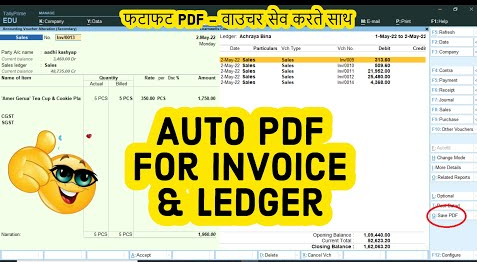
In this post I introduce with this Auto PDF Generator TDL, that can help in you to save invoices and ledgers automatically in PDF form in your computer without any loose.
Friends, We all work hard to do our work perfectly. But sometime we do some mistakes or can not complete our task on time. Like we can do mistakes in creating invoice that can be solve letter or invest our time in printing of invoice or saving in computer.
All the above problems will be solve with this free Auto save PDF TDL. With this Tally Prime and Tally ERP9 TDL file we can save invoices in PDF form instantly at invoicing time. Also can create save Invoices and Ledgers in PDF form with Auto Save PDF button.
This TDL code may be changed to suit our needs. Working with Tally Erp9 and Tally Prime is fairly straightforward, and we may add or delete other fields as needed. The best short tdl code to for auto PDF generator for Invoice and Ledgers.
Save text file then load in Tally Prime (Method provided below the code)
Now go for invoice creation, after invoice save a PDF invoice save in your desired folder (See the TDL code to Set folder) .
Also will get Save PDF button to save invoice and ledgers desperately.
This is best free TDL to have in your Tally . Must have TDL file for Tally ERP9 and Tally Prime that can use for lifetime. This free TDL Code will perfectly work with Tally Prime.
How to use Tally Invoice PDF TDL file video:
Watch above video to learn :
How to create TDL file.
How to set folder in TDL to save invoice and ledgers.
In this post we will see how create our own reports in Tally Prime or in Tally ERP9 through Tally SQL Query. And which is best method to generate Tally Prime All in One Report with one click.
Friends we all working hard to finish our work on time. But sometime we not get required results. Same time to time we do lot’s of entries in Tally to complete our books on time and accurately. But when we go to get some reports of our hard work, there we failed to generate proper reports of our business.
Same as if we want to create a report of sales voucher with all the details like: Date, Voucher Number, Reference Date, Reference Number, Party full details, GST full Detils, item full details etc., sometime it not possible to do these all things at one place. So let’s see how to create our own reports with Tally SQL query:
Using a SQL query, compile the finest Tally reports and import them into Excel. In Tally Narration, we may utilise a SQL query to get reports based on our needs. The procedure for gathering any form of report from Tally is extremely straightforward.
Using the SQL approach listed below in Tally narration, we can access data from Tally ERP9 and Tally Prime:
[Collection : LearnwellSQL]
Type : Voucher
Fetch:*.*,AllLedgerEntries.*, LedgerEntries.*
How to use TDL code in Tally:
FOLLOW THE BELLOW INSTRUCTIONS TO LOAD TDL FILE IN TALLY:
Make a Text file of above code
Save it in to your computer
Copy the text file path including Name and extension (as – C:\Users\HP\Desktop\rec\all in one report.txt)
Open Tally Prime Software
Click on Help and click on TDL & Addon (for Tally Prime)
Press F4 (to open a Box)
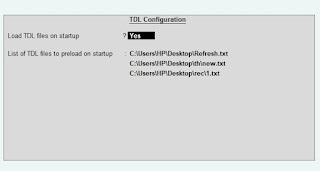
Set Load TDL file on Startup – Yes
Paste The path in blank space
Press enter and save
Now your TDL is ready to use
How to use SQL code in Tally:
After loading above TDL code in Tally copy the below SQL code and paste in Tally Calculator and press Enter:
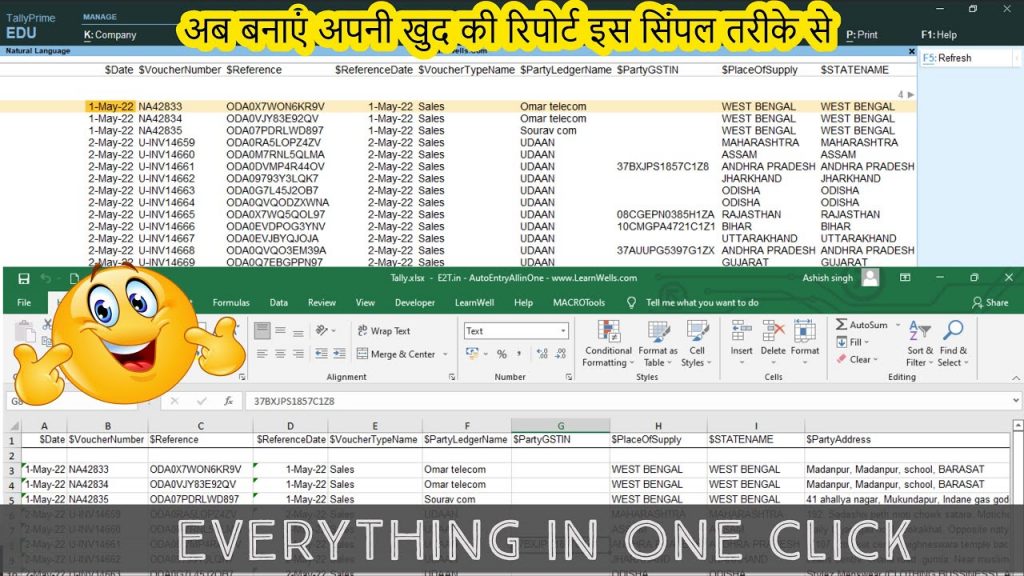
Select $Date,$VoucherNumber,$Reference,$ReferenceDate,$VouchertypeName,$PartyLedgerName,$PartyGSTIn,$PlaceofSupply,$StateName,$PartyAddress,$Narration,$StockItemName,$Amount from LearnwellSQL where $$IsSales:$VoucherTypeName
Now you will get your required report. You can change SQL code fields as per your need.
The report will be seen as below image :
Detailed Video on Tally Prime SQL Query:
Watch the below video to how to use above TDL file and SQL Query code:
After reading this post in 7 Steps to create your first TDL code will be done. The next chapters will cover each component’s description, application, and thorough explanation. Use the fundamental TDL (Tally Developer Language) structure if this is your first time using TDL.
The Report is run using the already-existing menu item “Gateway of Tally.” Invoking a new Report with the wording “Welcome to the world of Learnwell” from the main menu “Gateway Of Tally” is what this is done for.
[#Menu: Gateway of Tally]
Item : First TDL : Display : First TDL Report
;;code comments
[Report: First TDL Report]
Form : First TDL Form
[Form: First TDL Form]
Parts : First TDL Part
[Part : First TDL Part]
Lines : First TDL Line
[Line : First TDL Line]
Fields : First TDL Field
[Field : First TDL Field]
Set as : “Welcome to the world of Learnwell"
The “Gateway Of Tally” menu’s new Menu Item First TDL is added using this code. The report, titled “First TDL Report,” is shown once the menu item has chosen it. The action “Display” was set when adding the menu item “First TDL,” thus the report is in “Display” mode. This report does not allow user inputs. Since the Report only has one field, the sentence “Welcome to the world of Engage to Tech” is visible.
In below image you will find :
in a bracket [..] is definition
Display is action keyword. It mean you want to display your report in main screen (Gateway of Tally).
Report is your definition type. Where “My Report” – action keyword should be same name as in action display keyword
After definition word used like : Part, Line, Field called attribute and after that given name called attribute value.
As under field definition we used “Use”, called attribute modifier.
And as formula we used “My Formula”, called formula name
And at end we can show our comment with ; semicolon.
That’s all
So watching after above image we know writing module of a TDL code:
In this post I will told you about how to use Tally Prime Movement Analysis Reports to generate ultimate reporting MIS, like Item wise, Party wise sales purchase reports etc. All these reports can create directly from Tally, no TDL files required.
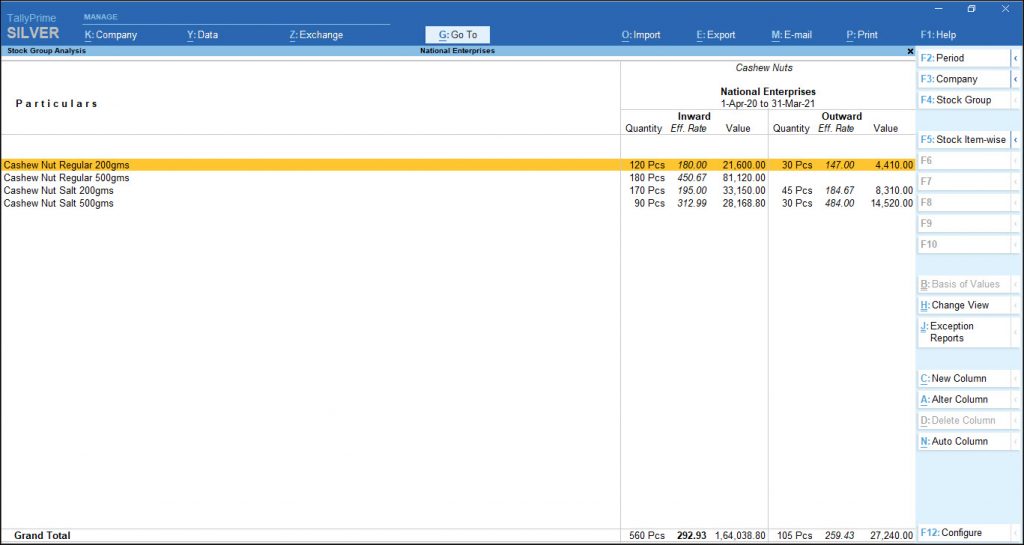
Only those inventory transactions that are connected with the accounts, or inventories that are also documented in the books of accounts, are analysed by movement analysis in TallyPrime. Inventory vouchers that simply have a quantitative impact on the stock are not taken into account.
For comparison investigations, TallyPrime’s movement analysis report is employed. They provide information on an organization’s stock flow characteristics. Additionally, it aids in identifying the slow-moving goods that obstruct the organization’s working capital’s flow. Only inventory transactions for which accounting transactions have also been documented are displayed in movement analysis reports. By stock groupings, classifications, financial groups, or ledgers, you may analyse stock movement.
Depending on your company needs, you may examine and customise the Stock Group Analysis report. Using the numerous setup choices, you may analyse stock movement properly.
This report provides specifics on all the stock items in that group’s inbound and outbound transactions.
The Tally Gateway > Display More Reports > Statement of Inventory > Movement Analysis > Stock Group Analysis > choose a Stock Group
Alternately, you can press Alt+G (Go To), type or choose Stock Group Movement Analysis, choose a Stock Group, and then hit Enter.
Analysis of Stock Item Movement:
The stock item movement analysis report includes information on stock item movement by supplier, buyer, and consumption. You may observe here a comparison of the item’s purchase costs across suppliers and its sale values among buyers.
Item Movement Analysis report may be seen here.
Tally Gateway > Display More Reports > Inventory Statement > Movement Analysis > Stock Category Analysis
Alternately, you may hit Alt+G (Go To), type Stock Category Analysis, or choose it, and then press Enter.
From the Name of Item list, choose the item. Analysis of the Item Movement.
Report on Item Voucher Analysis
Depending on your needs, you may examine and customise the item voucher analysis report.
Tally Gateway > Display More Reports > Inventory Statement > Movement Analysis > Stock Item Analysis
Alternately, you may hit Alt+G (Go To), enter stock item analysis, or choose it, and then press Enter.
Pick the item from the Stock Items List. The screen for Item Movement Analysis displays.
Choose the name of the supplier, buyer, or stock journal, then hit Enter.
Group Analysis:
Information regarding Items transacted in Vouchers for the Ledgers generated under the specified Group is included in the Group Analysis report.
Tally Gateway > Display More Reports > Inventory Statement > Movement Analysis > Group Analysis.
Alternately, use Alt+G (Go To), enter “Group Analysis,” or choose it, and then press Enter.
After selecting an Account Group from List of Groups, information relating to Quantity, Effective Rate and Value under separate columns for Sales and Purchase is displayed.
Ledger Analysis:
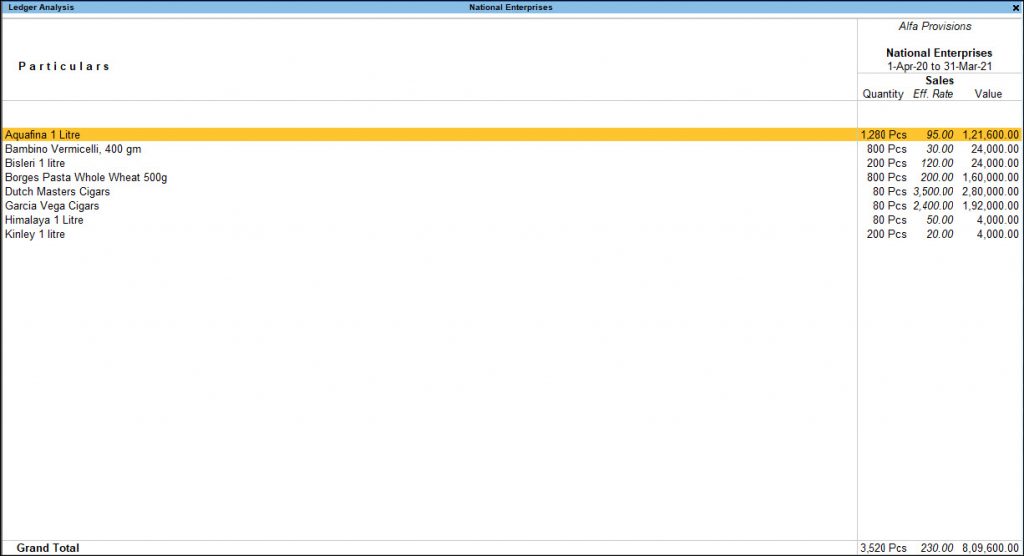
Similar to group movement analysis, ledger analysis allows for the viewing of stock item sales and purchases involving the specified ledger. The transaction-level specifics are revealed at the following level of information.
Tally Gateway > Display More Reports > Inventory Statement > Movement Analysis > Ledger Analysis
Alternately, hit Alt+G (Go To), type Ledger Analysis, or select it, and then press Enter.
The things that are transacted in the specified ledgers’ sales and purchase vouchers are detailed in this report.
The sale and purchase of every item impacting the ledger you choose (Debtor/Creditor/Cash/Bank) will be shown in this report when you choose an account ledger (Debtor/Creditor/Cash/Bank).
Check F12 (Configuration) in Analysis Report for every reports.
And also change reports usability by clicking on side bar buttons.
For More Tally Prime Movement Analysis details watch below video:
After watching above video we will be able to create required MIS reports.
In this post we will discuss about Tally Prime Pivot. Every one has listen about Excel pivot, but less person who know about Tally Pivot report.
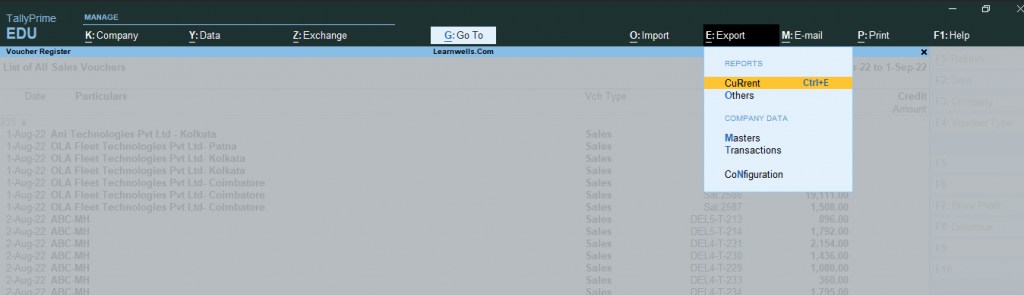
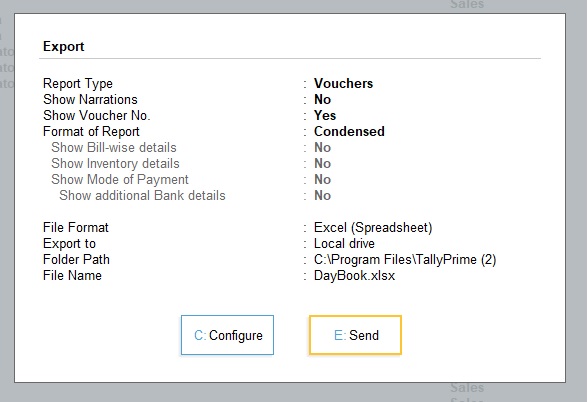
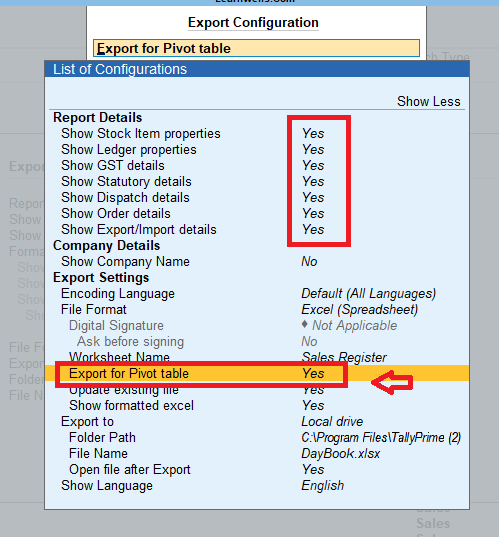
With the help of new feature of Tally we can download sales register from tally in detailed format, that can be use to generating pivot table. In this All in one Tally Prime report have voucher all details with item all details, Ledger all details, GST all details, dispatch and order all details. This has all fields in vertical and horizontal format that help us to create pivot table in excel as per our requirement. This is the best feature of Tally Prime to to generate All in one Tally Prime report.
After creating these reports you can excess all things from tally prime and generate perfect MIS reports. Same thing we can use for Purchase register. Credit Note and Debit Note register will not allow this all in one Tally prime report, Tally Pivot option. Also check more Yes/No options for perfect reporting.
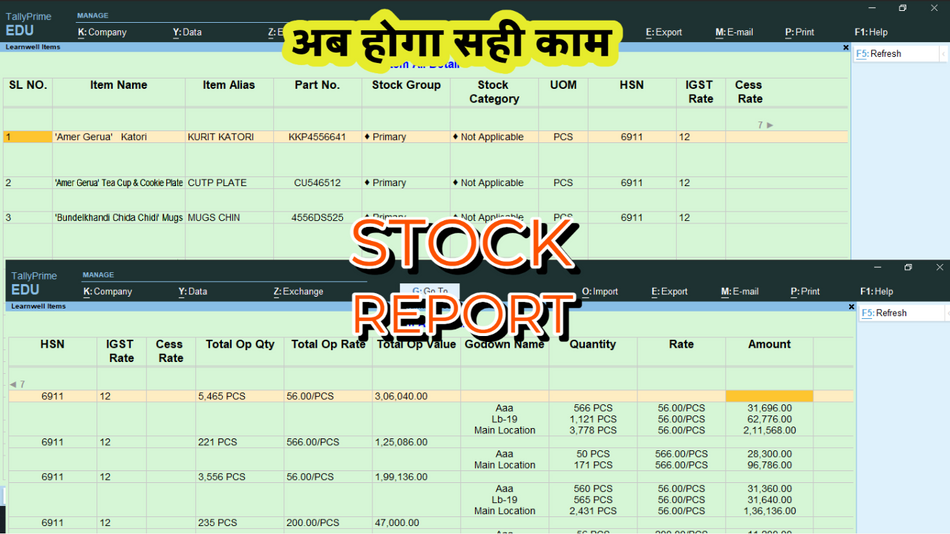
With the help of this fantastic item complete details TDL, we can see and export an item’s whole detail list. I thus gave it the name Item All in One details TDL. We can extract every item information, including godown and opening balance, using this Tally TDL.
Friends, if we keep track of stock goods in Tally, we occasionally need to update GST, HSN, or any other item-specific information. We go through each item one at a time, open it, and then edit the information. In order to track our operations, we also create MIS reports or stock summary reports. To view all of the item’s details in one location, this Tally TDL will be quite helpful.
This TDL code may be changed to suit our needs. Working with Tally Erp9 and Tally Prime is fairly straightforward, and we may add or delete other fields as needed. The best short tdl code to view item complete details.
[#Menu:Gateway of Tally]
	Add:Key Item:before:@@locQuit:Item Report:L:Display:Item Report
[Report: Item Report]
Title : "Learnwell Items"
Form : StockItem_LWR
[Form: StockItem_LWR]
Button : ExportButton
Background : @@SV_BALANCESHEET
Part : StockItem_LWRHeading, StockItem_LWRBody
Width : 100 % Page
Height : 100 % Page
Space Bottom : 0.50
Space Left : 0.50
Space Right : 0.50
Space Top : 0.50
Vertical Align : Center
Horizontal Align : Center

[Part: StockItem_LWRHeading]

Line:StockItem_LWRHeading

[Line: StockItem_LWRHeading]

Field: Name Field
Local: Field : Name Field : Set as : "Item All Detail"
Local: Field : Name Field : Style : Large Bold
Local: Field : Name Field : Align : Center
Local: Field : Name Field : Full Width : Yes
Local: Field : Name Field : Color : Blue
Local: Field : Name Field : Inactive : $$InExportMode
Local: Field : Name Field : Skip : Yes
Space Bottom : 0.25 cm

[Part: StockItem_LWRBody]

Line : StockItem_LWRTitle,StockItem_LWRDesc
Repeat : StockItem_LWRDesc : StockItemCollLW
Scroll : Both
Vertical : Yes
Common Border : yes
Float : No
Border : Thin Bottom


[Line: StockItem_LWRTitle]
Field : LWItemsrn, LWItemName
Right Field : LWItemAlias,LWItemPrn,LWItemGRP,LWItemCTGR,LWItemUOM
Right Field :LWItemHSN,LWItemRAte,LWItemCessRT,LWItemOPQ,LWItemOPR,LWItemOPAM,LWItemGod,LWItemGodQT,LWItemGodRT,LWItemGodAmt

Border : Totals

Local : Field : Default : Type : String
Local : Field : Default : Align : Center
Local : Field : Default : Border : Thin Left
Local : Field : Default : Style : Large Bold
Local : Field : Default : Skip : Yes
Local : Field : Default : Line : 2

Local : Field : LWItemsrn : Set as : $$LocaleString:"SL NO."
Local : Field : LWItemName : Set as : $$LocaleString:"Item Name"
Local : Field : LWItemAlias : Set as : $$LocaleString:"Item Alias"
Local : Field : LWItemPrn : Set as : $$LocaleString:"Part No."
Local : Field : LWItemGRP : Set as : $$LocaleString:"Stock Group"
Local : Field : LWItemCTGR : Set as : $$LocaleString:"Stock Category"
Local : Field : LWItemUOM : Set as : $$LocaleString:"UOM"
Local : Field : LWItemHSN : Set as : $$LocaleString:"HSN"
Local : Field : LWItemRAte : Set as : $$LocaleString:"IGST Rate"
Local : Field : LWItemCessRT : Set as : $$LocaleString:"Cess Rate"
Local : Field : LWItemGod : Set as : $$LocaleString:"Godown Name"
Local : Field : LWItemGodQT : Set as : $$LocaleString:"Quantity"
Local : Field : LWItemGodRT : Set as : $$LocaleString:"Rate"
Local : Field : LWItemGodAmt : Set as : $$LocaleString:"Amount"
Local : Field : LWItemOPQ: Set as : $$LocaleString:"Total Op Qty"
Local : Field : LWItemOPR: Set as : $$LocaleString:"Total Op Rate"
Local : Field : LWItemOPAM: Set as : $$LocaleString:"Total Op Value"

;;www.learnwells.com
[Line:StockItem_LWRDesc]
Field : LWItemsrn, LWItemName
Right Field : LWItemAlias,LWItemPrn,LWItemGRP,LWItemCTGR,LWItemUOM
Right Field :LWItemHSN,LWItemRAte,LWItemCessRT,LWItemOPQ,LWItemOPR,LWItemOPAM,LWItemGod,LWItemGodQT,LWItemGodRT,LWItemGodAmt
Local : Field : Default : Style : Normal
Explode : LedDup_LWRDescExp1
Border : Thin TopBottom
Option : Alter on Enter

[Part : LedDup_LWRDescExp1]
Line : LedDup_LWRDescExp1
Repeat : LedDup_LWRDescExp1:StockGodLW

[Line : LedDup_LWRDescExp1]
Field : LWItemsrn, LWItemName
Right Field : LWItemAlias,LWItemPrn,LWItemGRP,LWItemCTGR,LWItemUOM
Right Field :LWItemHSN,LWItemRAte,LWItemCessRT,LWItemOPQ,LWItemOPR,LWItemOPAM,LWItemGod,LWItemGodQT,LWItemGodRT,LWItemGodAmt
Local : Field : Default : Type : String
Local : Field : Default : Align : Center
Local : Field : Default : Border : Thin Left
Local : Field : Default : Line : 0
Local : Field : Default : Skip : Yes
Local : Field : LWItemsrn : Set as : ""
Local : Field : LWItemName : Set as : ""
Local : Field : LWItemAlias : Set as : ""
Local : Field : LWItemPrn : Set as : ""
Local : Field : LWItemGRP : Set as : ""
Local : Field : LWItemCTGR : Set as : ""
Local : Field : LWItemUOM : Set as : ""
Local : Field : LWItemHSN : Set as : ""
Local : Field : LWItemRAte : Set as : ""
Local : Field : LWItemCessRT : Set as : ""
Local : Field : LWItemGod : Set as : $GodownName
Local : Field : LWItemGodQT : Set as : $OpeningBalance
Local : Field : LWItemGodRT : Set as : $OpeningRate
Local : Field : LWItemGodAmt : Set as : $OpeningValue
Local : Field : LWItemOPQ : Set as : ""
Local : Field : LWItemOPR : Set as : ""
Local : Field : LWItemOPAM : Set as : ""
Empty : $$ExplodeOwner:#Stockitem_Godwon1=$GodownName
Option : Alter on Enter

[Field : LWItemsrn]
Use : Number Field
Set as : $$Line
Width : 8
Format : "NoZero"
Alter : StockItem
Invisible:$$InExportMode

[Field : LWItemName]
Use : Name Field
Set as : $Name
Full Width : Yes

[Field:LWItemAlias]
Use : Name Field
Set as : $OnlyAlias
width : 15

[Field:LWItemPrn]
Use : Name Field
Set as : $PartNo
width : 15
Align : Center

[Field : LWItemGRP]

Use : Name Field
Set as : $Parent
Width : 15

[Field:LWItemCTGR]
Use : Name Field
Set as : $Category
Width : 15

[Field:LWItemUOM]
Use : Name Field
Set as : $BaseUnits
width : 8
Align : Center

[Field: LWItemHSN]
Use : Name Field
Set as : If $$IsEmpty:##vGSTMstCode Then @lfFieldVal Else ##vGSTMstCode
lfFieldVal : If $$IsEmpty:$GSTDetails[Last].HSNCode Then "" Else $GSTDetails[Last].HSNCode
Width : 15
Align : Center

[Field: LWItemRAte]
USE:Simple Field
Set as:$(StockItem, $Name).GstDetails[Last].STATEWISEDETAILS[1].RateDetails[1, @@IsIGST].GSTRate
Width : 8
Style : Normal

[Field: LWItemCessRT]
USE:Simple Field
Set as:$(StockItem, $Name).GstDetails[Last].STATEWISEDETAILS[1].RateDetails[1, @@IsCess].CessRate
Width : 8
Style : Normal

[Field: LWItemGod]
Use : Name Field
Set as : ""
Width : 15

[Field: LWItemGodQT]
Use : Qty Primary Field
Set as : ""
Width : 15

[Field: LWItemGodRT]
Use : Rate Price Field
Set as : ""
Width : 15

[Field: LWItemGodAmt]
Use : Amount Field
Set as : ""
Width : 15
Border : Thin Right

[Field: LWItemOPQ]
Use : Simple Field
Set as :$OpeningBalance
Width : 15
Border : Thin Right
[Field: LWItemOPR]
Use : Simple Field
Set as :$OpeningRate
Width : 15
Border : Thin Right
[Field: LWItemOPAM]
Use : Simple Field
Set as :$OpeningValue
Width : 15
Border : Thin Right

[Collection : StockItemCollLW]
Title : "Stock Item"
Type : Stock Item
Child Of : ##ItemGroupTable
Belongs To : Yes

[Collection : StockGodLW]
Type : Batch
Child of : #LWItemName
Fetch : GodownName,Name,OpeningBalance
Fetch : OpeningValue, StkClBalance, TBalClosing, StkOpBalance, TBalOpening, TBalCredits, StkOutQty, StkInQty, TBalDebits
Fetch : ClosingRate,BSDebits,StockItemName, TBalNettCredits
Compute : IsEmptyObject : $$IsEmptyObject
Compute : IsWithItems : Yes
Compute : HasMfgDate : $$Owner:$HasMfgDate
Compute : IsPerishableOn: $$Owner:$IsPerishableOn
Sort : @@Default : $BatchName, $GodownName
Filter : IsNotThirdPartiesGodown
How to use Item All in One details TDL code:
HOW TO USE TDL CODE:
Copy above TDL code and make a text file.
Save text file then load in Tally Prime (Method provided below the code)
Now you will find item report tab in Tally main screen (Gateway of Tally).
Here you can see item all details with godown and opening etc.
This is best free TDL to have in your Tally . Must have TDL file for Tally ERP9 and Tally Prime that can use for lifetime. This free TDL Code will perfectly work with Tally Prime.
In this post we will talk about Best way to do E-Commerce Entries without any Error. Friends, if our business is on an e-commerce platform, then sometimes we find it difficult to maintain books of our company because we are not able to take entries properly. If we are doing any business, then the most important thing is to enter it’s data and do it’s accounting time to time.
So if we maintain the data for accounting then the best software which is available in today’s date is Tally and it’s latest version right now Tally Prime is very updated as per GST norms. So as we increase our business, as our sales increase, we face problems in data entry because of too many transactions. And even if we done all data entry on time, still the biggest problem comes in GST, due to which we have to face more problems and are not able to file our GST return on time.
So today in this post I am going to tell you how we should enter e-commerce website data into Tally so that none of our errors come in GST. And how to do many entries in bulk and timely.
Things to keep in mind when create entries in Tally.
Proper Master Creation
Proper Voucher Creation
Match Bill wise Amount of Sale, Return, Receipt and Expense
Proper Master Creation:
Most important thing when doing entries in Tally to avoid any type errors is proper master creation.
In E-commerce entries we need to create Party Ledger, Sales Account Ledgers, GST ledgers, Bank Ledgers, Expense Ledgers, and also need to create Stock masters and there units.
Precautions for Party Ledger Master:
Set Country and State Name
Set GST Type Regular
Write correct GST Number even verify from GST Portal
Set E-Commerce operator – Yes in Set/Alter GST details
Precautions for Sales Account Ledgers and Income/Revenue ledgers:
Create Sales under group Sales Accounts
Create GST type wise like Sales @5% etc.
Set GST Applicable – Yes. If you want can put GST %.
Nature of Transaction always keep Not Applicable.
We create income or revenue ledgers when we collect any type of charges from customer in our invoice. Like Shipping charge, Gift wrap charge etc. In this keep same GST % of item and put in Indirect Incomes group and Nature of Transaction set to No.
Precautions for GST and TCS,TDS Ledgers:
You can create a single ledger of IGST, CGST and SGST. No need to create multiple ledgers or percentage wise ledgers because your GST will calculate on basis of Taxable Ledger (Sales or Purchase accounts) and Items. If you create multiple percentage wise GST Ledgers then also no problem.
Keep percentage of calculation zero, because already we have decided in Taxable Ledgers.
Choose Group – Duties & Taxes and Type of Tax – GST and Integrated Tax for IGST, Central Tax for CGST, State Tax for SGST.
In TCS, TDS ledgers select group Duties & Taxes and Type of Tax – Others
Precautions for Expense Ledgers:
Expense ledgers like Commission, Shipping Charge, or other expenses required when we take entry of 2A related vouchers.
Keep all in Indirect Expenses group
Set GST Applicable and GST % – 18%
If you have income ledger like compensation or offer amount etc. then group will be Indirect Incomes and no need to set GST %
Precautions for Stock item master:
First create Item unit like PCS, Nos etc with there UQC.
Set GST applicable in all items.
Set Item GST %
Put HSN code
Nature of Transaction set – Not Applicable
Proper Voucher Creation:
After creating all masters, we can take voucher entries.
In E-commerce voucher entries we need to create Sales, Credit Note, entries along with Receipt and Journal expenses.
Precautions for Voucher creation:
For any voucher keep voucher number less than 16 digit or keep same invoice number provided by e commerce platform.
Select Party name then fill party details properly like, buyer details with full GST details and State, Place of Supply. and Consignee details with full GST details and State.
Put e-commerce operator detail in consignee section of voucher.
For credit note keep voucher number and voucher date of sales invoice in original sale details section of credit note voucher (Go to more details in Tally sidebar to see original invoice details)
For Journal vouchers or Expense vouchers also fill e-commerce provider GST number and state to prevent error in GSTR2 (Go to more details in Tally side bar to see party details)
After doing all above things, if still face error in GST report read Fix GST errors post
Best way to do E-Commerce Entries without any Error in bulk, in Tally, in less time:
If you have lot’s of data to take entries then you can not do it manually. Always think smart and use bulk posting tools or Excel to Tally E-commerce Import tools.
In this post we will see how to fix GST error in Tally. Friends, despite the fact that we all put in a lot of effort, oftentimes the results of that effort are not satisfactory or take a while to appear, which delays the completion of our task. In a similar vein, many times when we prepare our books in Tally owing to a GST error, we fail to file our return on time and have to deal with several issues. As you are aware, we are required to submit the GST accurately, on schedule, and without any mistakes.
In order to avoid errors in GST, whether it be GSTR1 or GSTR2 or GSTR3B, and to ensure that our job is finished on time, today we will learn what are the crucial considerations for any firm.
Things to do in Ledger Master Creation of Sales and Purchase Accounts:
Do the below settings in Tally Ledger creation for Sales or Purchase Accounts Ledger for with stock item and Without Stock Item.
Create Sales or Purchase Ledger under group Sales Accounts or Purchase Accounts
Sales or Purchase Ledger create GST type wise like Sales @5% etc., this will help to decide different GST percentage in Ledger. If maintain item wise sales only then can create only single Sales Accounts also because your GST percentage already in items GST. But creating different names according to GST percentage is good practice.
If accounts maintain without item then keep different percentage ledgers and always put GST %, HSN.
If accounts maintain with stock item then no need to put GST % and HSN etc in Ledger, Just set GST Applicable – Yes. If you want can put GST %.
Nature of Transaction always keep Not Applicable. Because if you set it Applicable then you need to create two different ledgers – One for CGST and SGST and Second for IGST because you can only choose One nature of Transaction a Time.
Things to do in Ledger Master Creation of GST and TCS, TDS:
You can create a single ledger of IGST, CGST and SGST. No need to create multiple ledgers or percentage wise ledgers because your GST will calculate on basis of Taxable Ledger (Sales or Purchase accounts) and Items. If you create multiple percentage wise GST Ledgers then also no problem.
Keep percentage of calculation zero, because already we have decided in Taxable Ledgers.
Choose Group – Duties & Taxes and Type of Tax – GST and Integrated Tax for IGST, Central Tax for CGST, State Tax for SGST.
Things to do in Ledger Master Creation of Expense and Income Ledgers:
Create Ledgers under group Expense or income as per your requirement
Set GST Applicable – Yes
Set Type of Supply – Services
Set GST Applicable – Yes
Set HSN and GST percentage
Set Nature of transaction – Not Applicable because of need to do IGST and CGST transaction for same ledger
Item Master Creation:
Unit Creation
Item Creation
Keep below things in mind when create Item master:
Fill item full GST details with HSN and GST percentage
Fill UQC name in Item Unit cretation
Which things to keep in mind when create Vouchers:
When we create master, whether it is Vouchers with Inventory or Vouchers without inventory we should take care of some things related to GST which are as follows:
Voucher Creation:
Things to do when create vouchers with Inventory
Things to do when create vouchers without Inventory
We need to care same things about vouchers with inventory or vouchers without inventory. Only difference is in inventory vouchers we add stock item in invoice that have GST details in Item master. And in without inventory vouchers we add only taxable ledger that have GST in it.
Other than this we can follow below things for both with inventory or without inventory vouchers to create a proper GST invoice or GST vouchers without any error:
For any voucher keep voucher number less than 16 digit
Select Party name then fill party details properly like, buyer details with full GST details and State, Place of Supply. and Consignee details with full GST details and State.
Can change consignee state etc. according to you need. Also change consignee state name for E commerce operator.
For credit note keep voucher number and voucher date of sales in original sale details (Go to more details in Tally sidebar to fill original invoice details
Sale for purchase voucher fill supplier invoice reference number and date.
For Journal vouchers or Income or Expense vouchers also fill party GST number and state to prevent error in GSTR2 (Go to more details in Tally side bar to fill party details)
After doing above settings and voucher entry your 99% GST related errors will be solved.
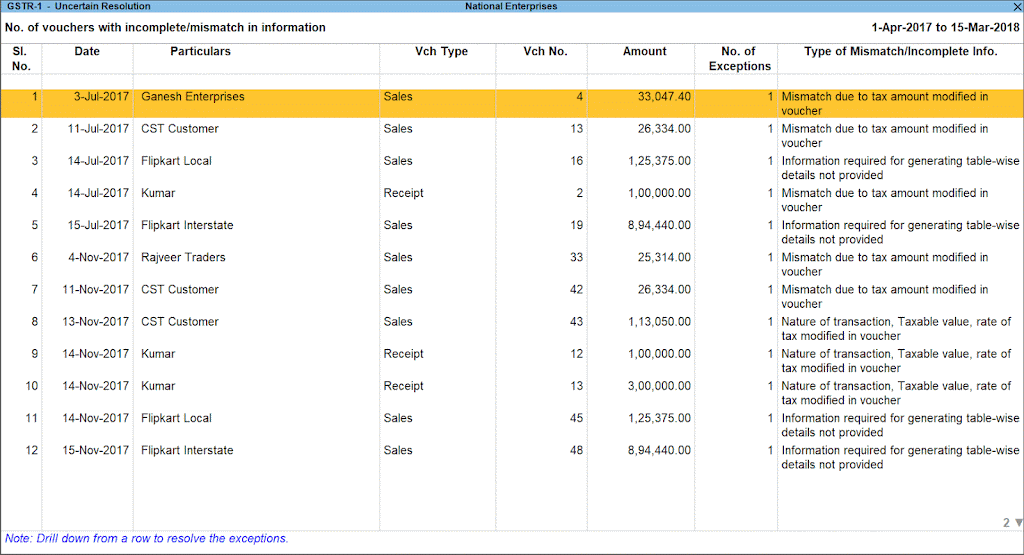
If also face below type errors in GST reports the follow below method to resolve it:
Mismatch due to ta amount modified in voucher – If amount mismatch is less than 1 rupee then select all transaction by pressing ctrl+space and use except as is button from Tally side bar. if amount is bigger then check GST value in voucher and correct it as per Taxable ledger GST percentage.
Information required for generating table wise details not provided – This error will come usually in Credit Note vouchers if you not fill Sales Voucher Number and Date in original invoice sale details. So fill Sales Voucher Number and Date in credit note invoice by clicking on More Details button provided in Tally side bar.
Nature of transaction, Taxable value, Rate of Tax modified in Voucher – For this type error remove nature of transaction from your Taxable ledger and save it. And check GST percentage in Taxable ledger and in Item and also check State and Place of Supply in Voucher.
UOM not mapped to UQC – This type error will come if not specify UQC in unit (Specify UQC in units like – PCS, Nos etc.)
Country, State, not specified – Fill buyer and consignee details with State, GST and Place of Supply in voucher entry.
Tax Rate, Tax type not specified – Fill Tax type in GST ledgers like, Integrated tax, State Tax, Central Tax etc.
Incorrect Tax type selected in Tax Ledger – In voucher select GST Ledger according to your party state and place of supply. If you select CGST, SGST ledgers in voucher instead of IGST ledger then this error will come.
Mismatch or incomplete HSN details – Fill HSN code in All taxable ledgers and Items.
After solving above errors you can file your GST without any worry.
Please share this post with your colleagues to help them also.
In this blog we will create Check Spelling Instantly tool with Spell Checking Excel VBA Code. There are occasionally spelling errors in the ledgers we produce in Tally or in the many accounts and ledgers we have previously made in Tally. It will affect our clients if we provide ledgers with incorrect spelling. Always verify the spelling in our books if you wish to conduct business properly.
The same issues will arise in presentations and other office tasks as well. These kinds of spelling errors are often present in all of our work, including Excel and Word documents. Therefore, I have an unique spelling checker for your projects today. This Excel VBA function allows us to check for any typing or spelling errors in our work.
Check Spelling Instantly – Spell Checking Excel VBA Code: How to create VBA code for Spelling Check:
Turn on Excel’s developer if you wish to generate any VBA or macro files. Then use the Excel VBA Module to write your VBA code.
How to enable developer option of Excel:
To enable developer option of excel follow below steps:
1. Open Excel
2. On the File tab, go to Options > Customize Ribbon.
3. Under Customize the Ribbon and under Main Tabs, select the Developer check box.
To understand more, view the video up above.
After activating the developer tab, select Visual Basic from the developer tab in Excel. Additionally, you may construct a module in Visual Basic or open a sheet by clicking the sheet name.
Add the following VBA code to the module or to the visual basic sheet named:
VBA Code:
Sub checkspelling()
Dim sp As Range
For Each sp In ActiveSheet.UsedRange
If Not Application.checkspelling(word:=sp.Text) Then
sp.Interior.Color = vbRed
End If
Next sp
End Sub
After entering the aforementioned spelling checker code in the VBA module, save your excel file with the xlsb or xlsm extension.
A macro button in the sheet may also be used to use code immediately.
After completing the aforementioned steps, paste your data into an Excel sheet and use the button or VBA module to run a spelling checker.
It will be highlighted in red if you used incorrect spelling. Now you can change the incorrect spellings in all of your projects.
Prevent Master duplication TDL is must have Tally TDL for Tally Prime and Tally ERP9 to prevent master duplication.
With this Free Tally Prime TDL, we can add ledgers and item lists in our master creation screen that can be tracked by typing present names in Tally master.
Tally is a most usable business software in India because of it’s simplicity and reporting system. If you maintain your masters and vouchers correctly in Tally then it will become life saving tool for business. But sometime by mistake we create some duplicate masters with another name and by repeating this mistake we make our Tally Data a garbage and can not create a proper reports. So we need to avoid this type mistakes if we want to do proper accounting.
To avoid this type mistakes I have something special for our Tally. We can create a TDL to avoid master duplication so we can do all things in proper way.
So today in this post we will create a TDL for our Tally prime and also for Tally ERP9 to prevent duplicate masters. In this TDL we will add a Master list in Tally Master creation screen so when we go to create masters first we track the name of Ledger or Item that we want to create then after searching we can create unique masters.
In this code we do two steps – one for Ledger master and another for Item masters. Please watch above video to understand more about TDL code.
2. Load in Tally ERP9 or in Tally Prime (Method provided below)
3. Now go to generate Ledger or Item master
4. There you will find ledger list or item list and can search the name before creating new master.
This is best free TDL to have in your Tally . Must have TDL file for Tally ERP9 and Tally Prime that can use for lifetime.
This free TDL Code will perfectly work with Tally Prime.
Watch above video to learn :
1. How to add item master list and ledger master list table.
2. How to modify fields of master creation screen.
3. And Many More…….
HOW TO USE TDL CODE:
FOLLOW THE BELLOW INSTRUCTIONS TO LOAD TDL FILE IN TALLY:
1. Copy the code and make a text file. 2. Save into your computer. 3. Copy the text file path including Name and extension (as – C:UsersHPDesktoprecPreventDuplicateMaster.txt) 4. Open Tally ERP9 OR Tally Prime 5a. Press F12 and goto Product and Features (for Tally ERP9)
5b. Click on Help and click on TDL & Addon (for Tally Prime)
5. Press F4 (to open a Box) 6. Load TDL file on Startup – Yes 7. Paste The path in blank space 8. Press enter and save


 Cart is empty