

 Cart is empty
TL;DR
Multi-Currency Accounting for Export Businesses on TallyPrime:
- Manage Global Sales: Bill customers in USD, EUR, or any currency while TallyPrime keeps your Indian books perfectly aligned in INR.
- Automated Forex Tracking: No more manual math; Tally tracks “Forex Gain or Loss” automatically when exchange rates shift between billing and payment.
- Compliance Made Simple: Manage LUT details, correct POS codes, and GST/e-invoicing requirements in one unified system.
- Faster GST Refunds: Accurate documentation ensures your ITC refund claims are processed without the usual rejections or delays.
Introduction: Solving the Export Headache
In my years of working with business owners and managing the books for industrial units, I’ve found that export accounting is where most people lose their sleep. It isn’t just about shipping goods; it’s about navigating a maze of “zero-rated” rules and shifting currency values.
Usually, when I sit down with a new exporter, they tell me about three main headaches:
- The Exchange Rate Rollercoaster: Billing at ₹83 today and receiving payment at ₹82.50 next month creates a “leak” in the books that is hard to track.
- GST Refund Blocks: Mismatches between your sales vouchers and GST returns are the number one reason working capital gets stuck in refund delays.
- Documentation Chaos: Trying to handle shipping bills, LUT details, and foreign invoices in simple spreadsheets eventually leads to errors.
TallyPrime solves this by letting you bill in any currency while keeping your Indian statutory books perfect. It’s like having a senior consultant sitting inside your computer.
What exactly is Multi-Currency Accounting?
As an exporter, you live in two worlds. You might negotiate a deal in US Dollars (USD) or Dirhams (AED), but for the Indian government and your own bank, everything eventually has to be reported in Indian Rupees (INR).
Multi-currency accounting in TallyPrime handles this “dual-currency” reality. You record the transaction in the currency your customer understands, and Tally handles the conversion back to INR behind the scenes. This ensures your Balance Sheet and Profit & Loss account stay accurate in your home currency.
How do I turn on Multi-Currency in TallyPrime?
It’s a simple one-time setup to unlock these features:
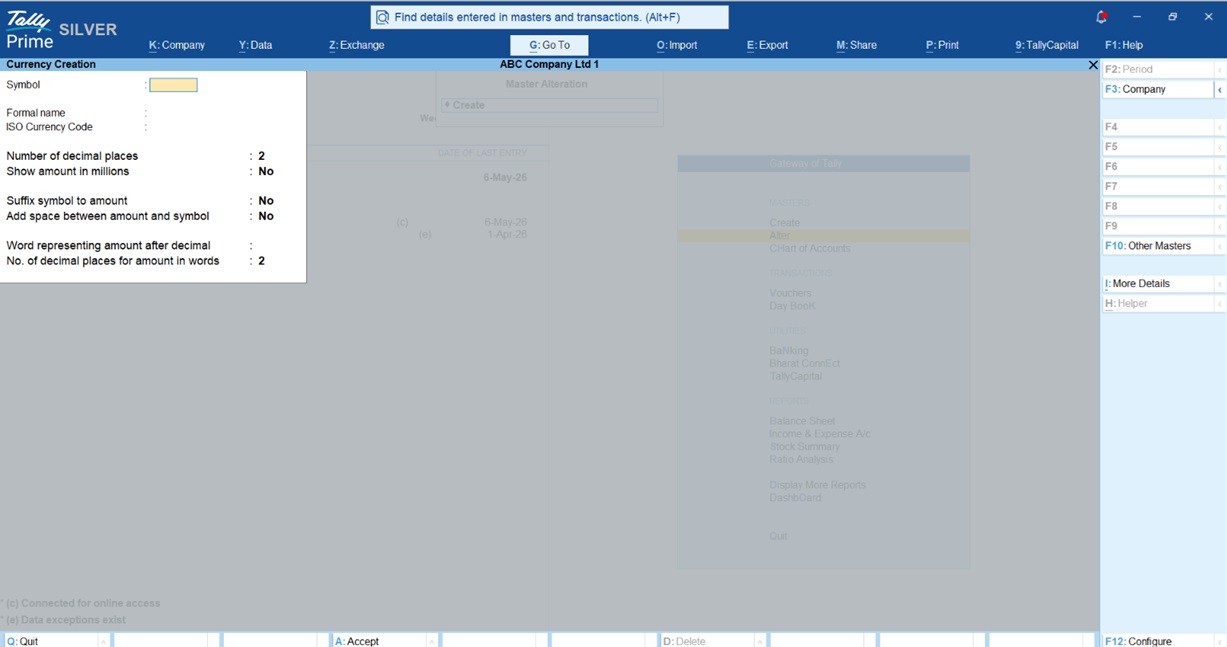
- Go to Gateway of Tally > Create > Currency.
- Tally will prompt you that the Base Currency already exists; select Create New.
- Symbol: Enter the currency symbol (e.g., $).
- Formal Name: Enter the full name (e.g., US Dollars).
- ISO Currency Code: Enter the standard code (e.g., USD).
- Enter the number of decimal places and other formatting preferences, then press Enter to save.
Setting Up Exchange Rates
Defining Rates (The “Last Voucher” Rule)
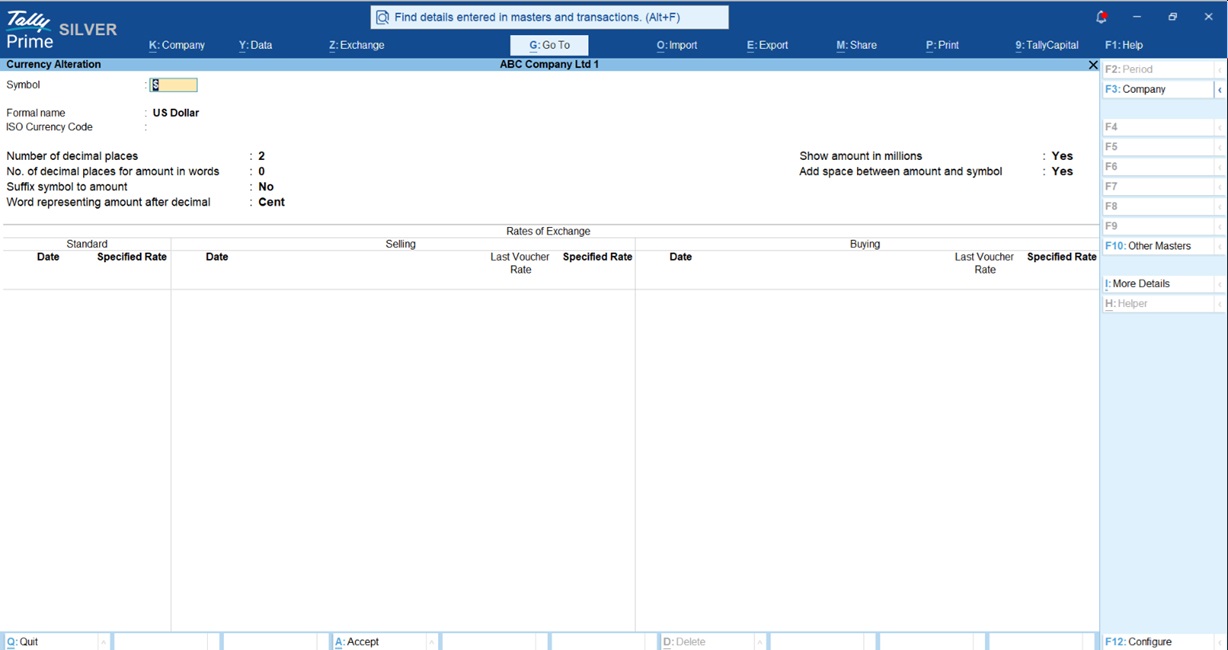
Go to Gateway of Tally > Alter > Rates of Exchange. You can define the Standard Rate (market reference), Selling Rate (for your exports), and Buying Rate (for imports).
The Senior Accountant’s Tip: TallyPrime is smart. If you have specified a rate in the master but also have a rate from a previous transaction, Tally will prioritize the Last Voucher Rate over the Specified Rate. This keeps your books consistent with your most recent actual bank realization.
How do I record an Export Sale?
Recording an export sale (F8) is straightforward, but there are a few “expert” steps you shouldn’t skip:
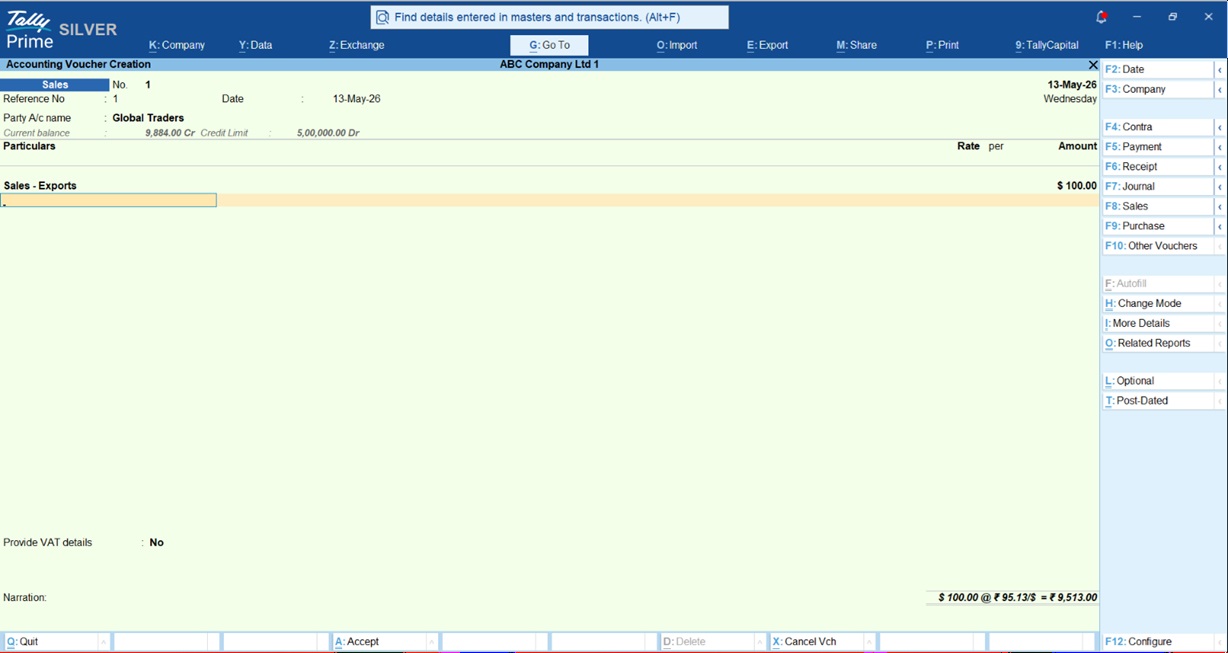
- In the Sales Voucher, select your foreign customer’s ledger.
- In the Rate column, type the symbol before the number (e.g., $100).
- The Forex Pop-up: Tally will immediately ask for the exchange rate for that day. Confirm it and save.
- Expert Tip on FOB Charges: If you pay “Free on Board” (FOB) charges to move goods to the port, you can deduct these from the taxable value. Press F12 in the voucher and set “Allow override assessable value” to Yes. This ensures you only pay IGST on the actual value of the goods.
- Professional Printing: Before you hit print, press F12 (Configure) and enable “Show Base & Foreign Currency for Total”. This ensures your buyer sees the amount in USD while your records show the INR equivalent.
What happens when the exchange rate changes? (Forex Gain & Loss)
If you bill at ₹90/USD but the money arrives when the rate is ₹91, you’ve made a “Forex Gain.” Tally identifies this automatically and lists it as “Unadjusted Forex Gain/Loss” on your Balance Sheet.
To settle this:
- Create a ledger named “Forex Gain/Loss” under Indirect Expenses or Indirect Income.
- Use a Journal Voucher (F7) with a Voucher Class specifically for Forex Gain/Loss.
- Set “Use Class for Forex Gain/Loss Adjustments” to Yes.
- Tally will then let you select the pending amounts and transfer them to your P&L account, cleaning up your Balance Sheet.
For more detail read this Forex Gain Accounting in TallyPrime
How TallyPrime Handles GST and LUT
Compliance is the backbone of a successful export business. TallyPrime automates the technical details that often cause refund rejections:
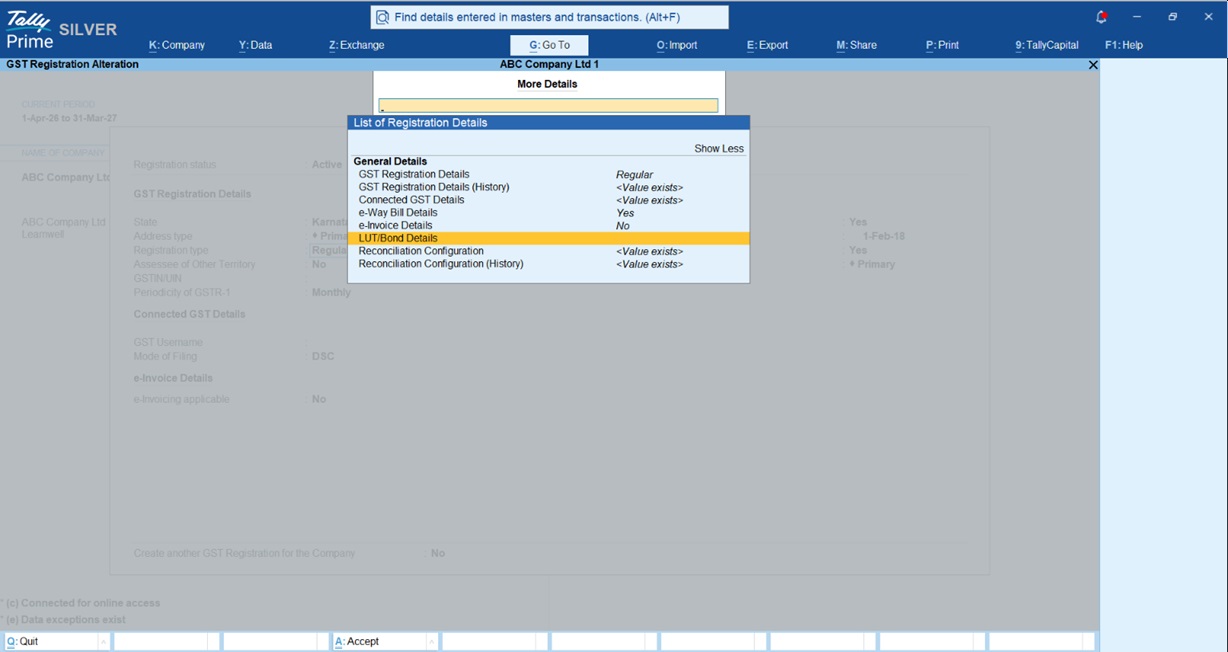
- LUT (Letter of Undertaking): If you export without paying tax, enter your annual LUT details in
F11 > GST Details> More Details. Tally will then correctly mark your invoices as “Exports Without Payment of Tax.” - The “96” and “97” Rules: Tally automatically assigns POS Code 96 for goods exports.
- Tip for Service Exporters: When billing foreign parties for services, set the State/Emirate to “Other Territory” and the Pincode to “999999”. This ensures Tally correctly assigns POS Code 97 in your e-invoice JSON, preventing portal errors.
- Faster Refunds: By tracking every rupee of Input Tax Credit (ITC) accurately, Tally helps you generate the reports needed for GSTR-1 and GSTR-3B so you can claim your money back from the government faster.
Conclusion & Pro-Accountant Checklist
Exporting is about more than just moving product; it’s about managing margins and staying on the right side of the law.
Your Export Checklist:
- Daily Updates: Enter exchange rates daily for the highest accuracy.
- LUT First: Ensure your new LUT details are updated in Tally at the start of every financial year.
- Naming Conventions: Use a clear format (e.g., EXP/US/JAN26/001) for easier tracking and audits.
- Monthly Reconciliation: Reconcile your invoices monthly with your Bank Realization Certificates (BRC).
Also read this blog Why Accountants and CA Prefer TallyPrime
Frequently Asked Questions (FAQs)
Can Tally handle export GST? Yes, it supports zero-rated transactions, exports under LUT, and exports with payment of IGST.
Does it calculate forex loss automatically? Yes. Tally identifies differences between billing and receipt rates, showing them as “unadjusted” until you settle them.
Can I print invoices in USD? Yes. In the Print Configuration (F12), enable “Show Base & Foreign Currency for Total.”
What is POS Code 96? It is the standard code TallyPrime uses for goods exported to a foreign country for GST compliance.
What happens if the exchange rate is missing? Tally will prompt you for a rate during voucher entry, ensuring your INR conversion is never blank.
“In my experience, the biggest mistake exporters make isn’t the trade, it’s losing track of the exchange rate. TallyPrime stops that leak.”
