

 Cart is empty
TL;DR:
Managing Purchase Orders, Sales Orders and Invoicing in TallyPrime:
- The Connected Chain: TallyPrime links Purchase Orders, Receipt Notes, and GST Invoices into a single, automated chain so you never lose track of a single item or rupee.
- Real-Time Stock & Cash Flow: Using “Tracking Numbers” updates your stock the moment goods arrive, while “Purchase Bills Pending” shows you exactly how much cash is committed before the final bill hits.
- Total Visibility: Automated “Outstanding” reports tell you exactly what’s late, whether it’s a customer order you need to ship or a supplier delivery you’re still waiting for.
- Automated Pricing: Set up different price levels for wholesalers and retailers so the system picks the right rate and discount for you automatically.
Introduction: Is Your Order Tracking Out of Control?
In my years as an accountant, I’ve seen many traders struggle with the same nightmare: piles of loose papers for orders, separate scribbles for deliveries, and a bank balance that never seems to match the stock on the shelves.
The struggle is real. When you can’t track what you ordered versus what actually arrived, you’re not just losing sleep, you’re losing money. That is where TallyPrime steps in. Think of it as the “brain” of your business that connects the dots from the moment you promise to buy something to the second you receive the final payment. It’s about more than just “keeping the books”; it’s about having total control over your liquidity and fulfillment.
Section 1: How Do I Record a Purchase Order?
Think of a Purchase Order (PO) as a formal promise to your supplier. It tells them exactly what you want, what price you’ve agreed on, and when you need it.
To create one, use this path: Vouchers > F10 (Other Vouchers) > Purchase Order.
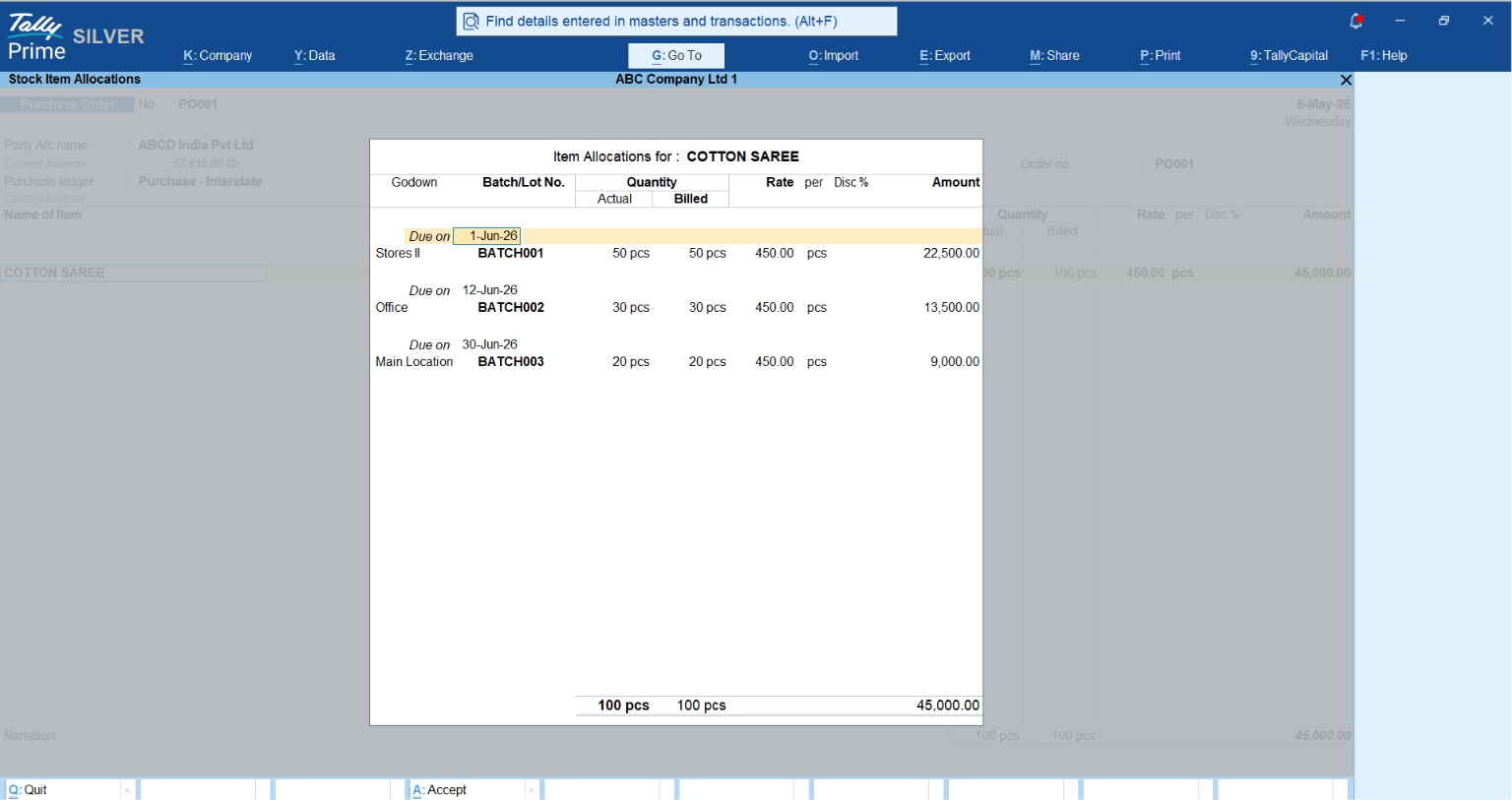
The beauty of the PO in TallyPrime is the “Due on” date feature. If you’re ordering a large shipment of cotton sarees but want them delivered in three different batches, you can schedule those specific dates right in the voucher. But here is the most important part for your peace of mind: A PO does not affect your accounts or stock levels yet. It simply creates a “reminder” in the system so you can anticipate future payables.
Section 2: What Happens When the Goods Actually Arrive? (Receipt Notes)
When the truck finally pulls up to your godown, you record a Receipt Note (also known as a GRN). This is the bridge between your order and your final bill.
When you enter the Receipt Note, TallyPrime will ask for the Order Number. By selecting your PO number, the system automatically pulls in all the details. No re-typing, no errors.
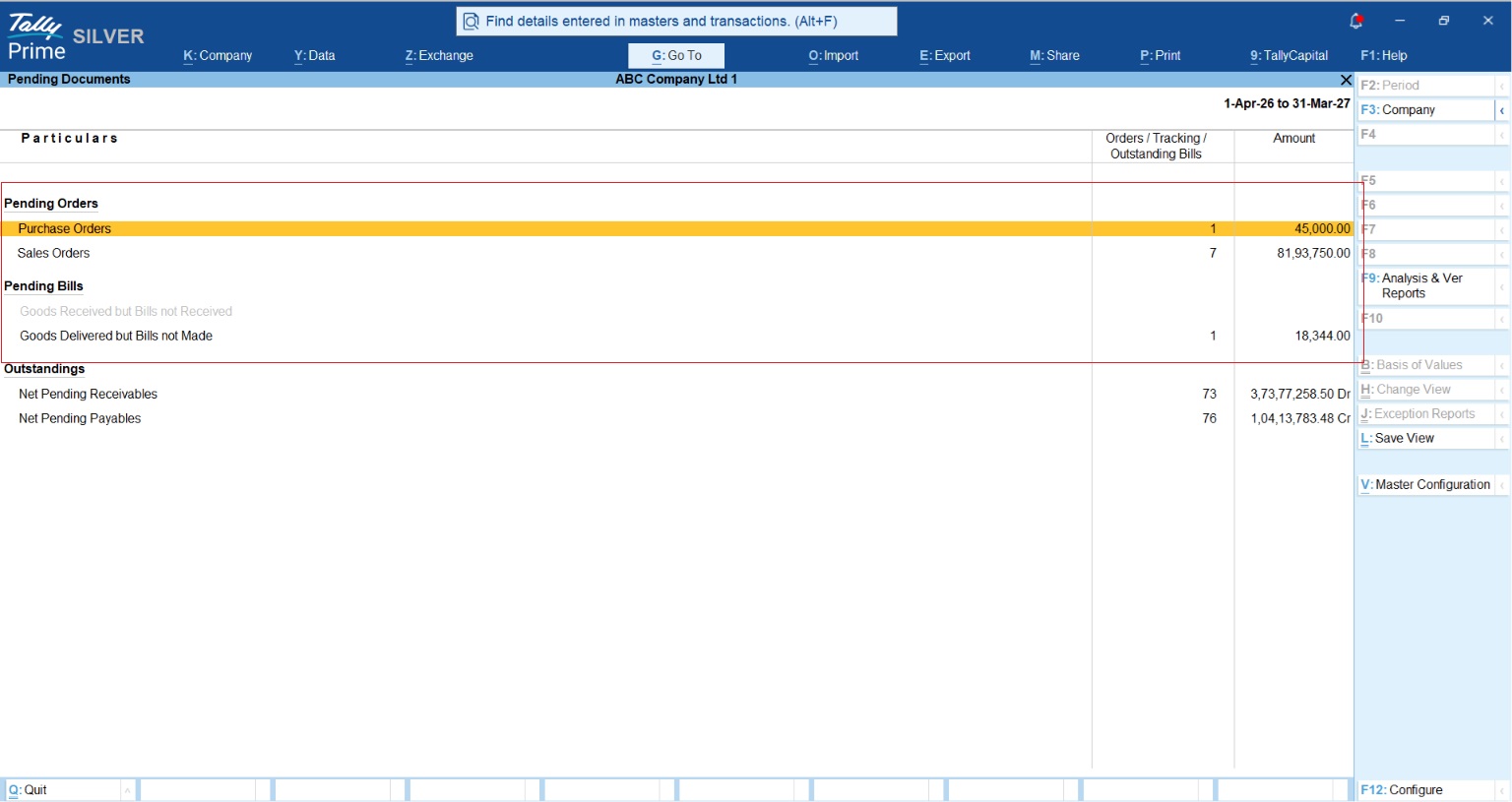
The “secret glue” here is the Tracking Number. When you assign one, Tally updates your “Stock in Hand” immediately so you can start selling. However, because you haven’t received the final GST invoice yet, Tally holds the value in a temporary “Purchase Bills Pending” account.
Senior Accountant’s Tip: This is vital for your cash flow. It shows you exactly how much cash is “committed” but not yet “tax-deductible.” It keeps your Balance Sheet honest while you wait for that official GST bill.
Section 3: Can I Turn a Customer Inquiry Into a Quote?
We’ve all been there, a customer asks for a price, but you don’t want to mess up your actual sales records until they say “yes.” In TallyPrime, you can record a Sales Order and mark it as an Optional Voucher (Ctrl+L).
This creates a professional document labeled “QUOTATION” that you can send to your client. It stays “hidden” from your accounting books until the customer confirms. Once they do, you just turn off the “Optional” tag, and it becomes a live Sales Order. The flow is smooth: Sales Order -> Delivery Note (Challan) -> Sales Invoice.
Also read this How to Record Sales Orders and Delivery Notes in TallyPrime
Section 4: Managing Different Prices for Different Customers?
One of the biggest mistakes traders make is trying to remember which customer gets which discount. You’ve got enough on your plate! TallyPrime handles this through Multiple Price Levels.
First, ensure your master data is clean. You can use Tally’s “Fetch” feature to pull party details directly from the GST portal using only a GSTIN, ensuring your Party GST Related Details is perfectly accurate from the start.
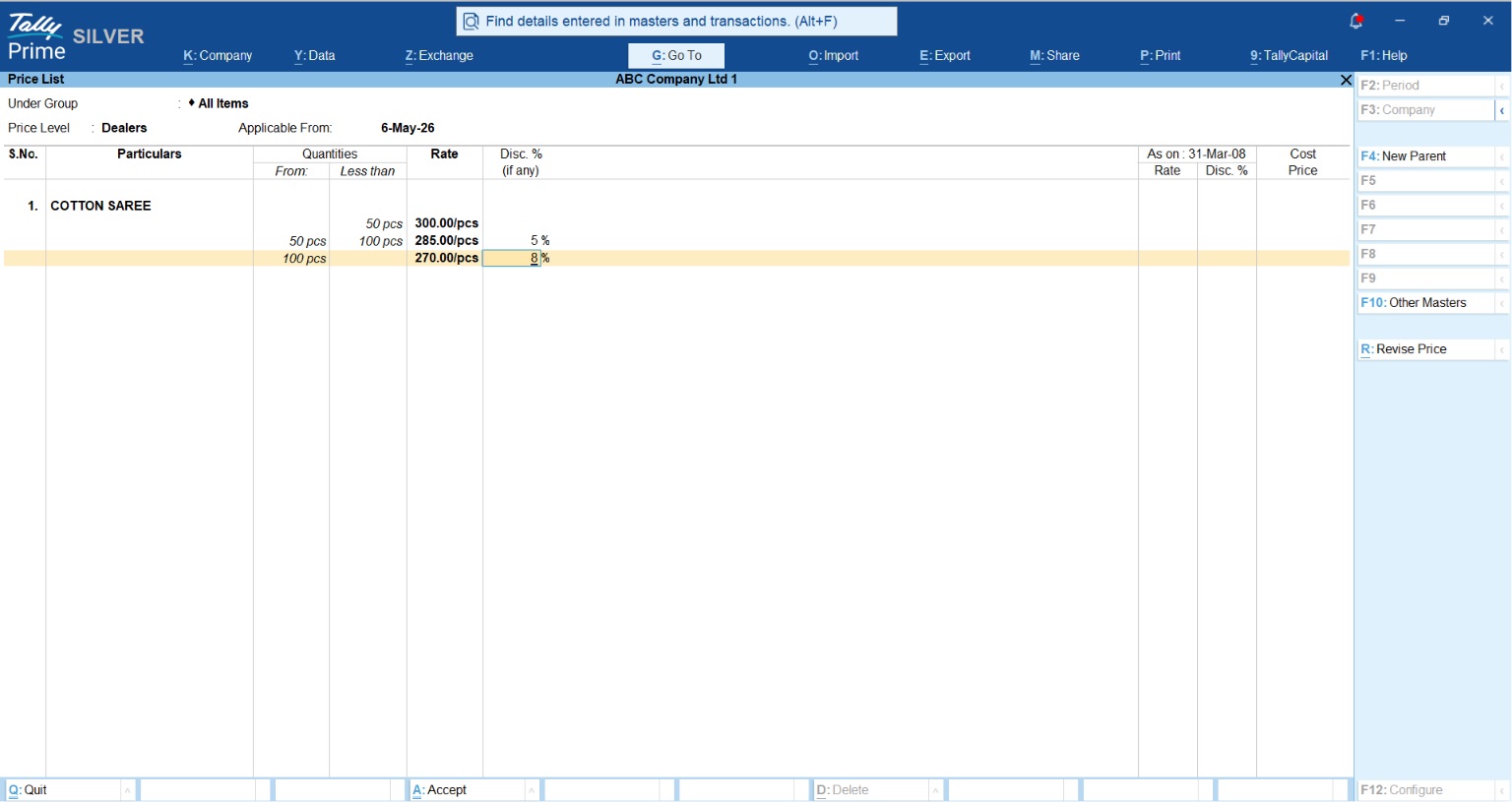
Next, assign a Price Level (like “Wholesaler” or “Retailer”) directly to the Party Ledger. Now, whenever you select that customer, Tally automatically fetches the right rate. You can even set Quantity Slabs to reward bulk buyers:
| Item Name | Quantity Slab | Rate per Unit | Discount % |
| Cotton Sarees | 0 – 50 units | ₹300 | 0% |
| Cotton Sarees | 51 – 100 units | ₹285 | 5% |
| Cotton Sarees | 101+ units | ₹270 | 8% |
Section 5: What If an Order Is Cancelled? (The Pre-Close Feature)
Sometimes a supplier can’t deliver, or a customer changes their mind. Whatever you do, don’t delete the voucher!
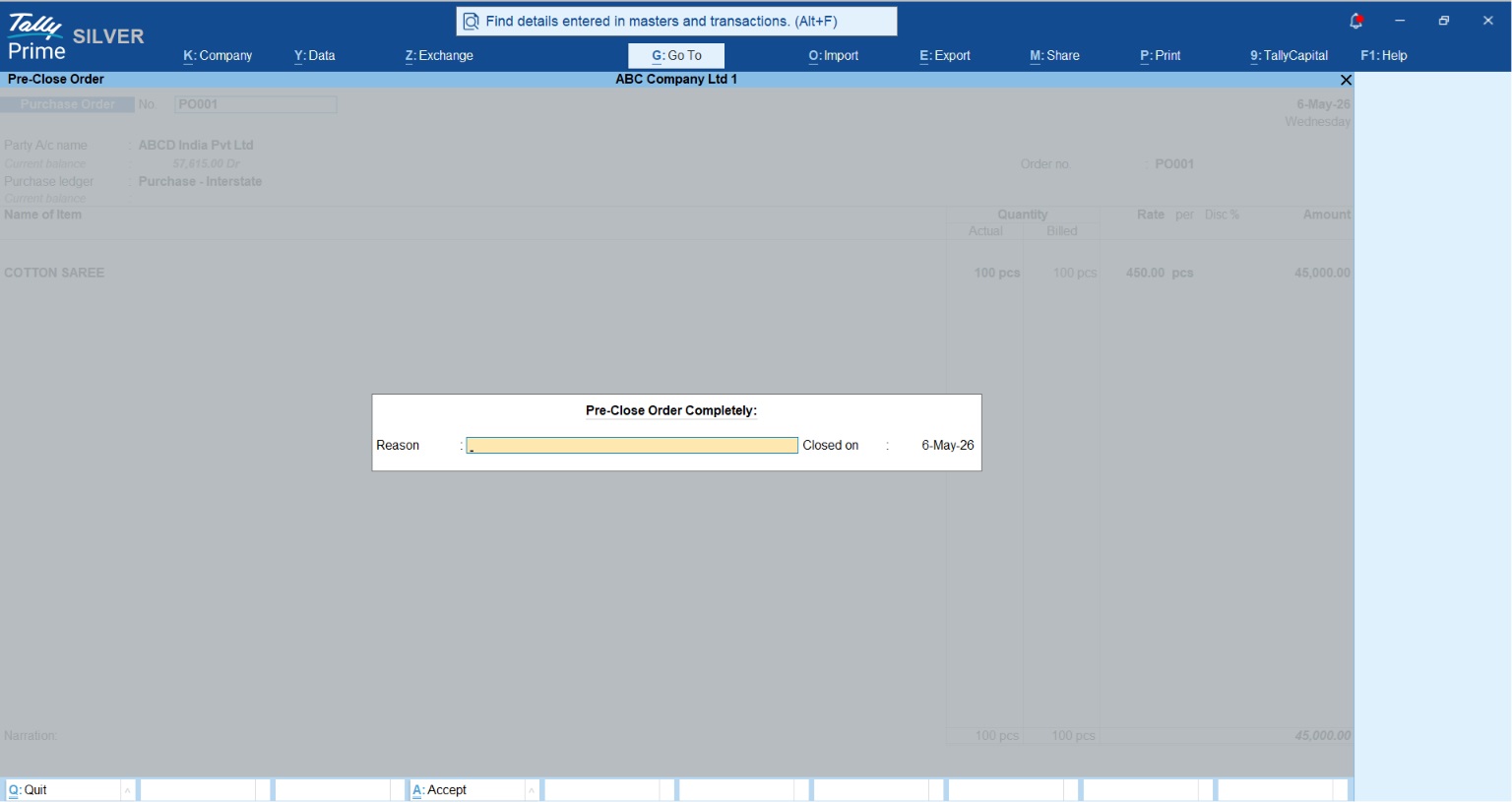
Brotherly Tip: Deleting vouchers is a red flag for GST audits. You need a clean “audit trail” to show the officers exactly why an order wasn’t fulfilled. Instead, use the “Pre-close” feature (Alt+W).
When you pre-close, Tally asks for a “Reason for Pre-Close.” Use this! It helps you identify if a specific supplier is consistently failing you, and it keeps your “Outstanding” reports from being cluttered with old, dead orders.
Real-World Example: The Garment Trader
Let’s look at a friend of mine who trades in jeans. He placed a Purchase Order for 100 pairs of jeans.
A week later, the supplier only sent 90 pairs. My friend recorded a Receipt Note for 90. Immediately, TallyPrime updated his warehouse stock to 90. However, when he checked his “Order Outstanding” report, the system clearly showed 10 jeans as “Pending.”
He didn’t have to check a single notebook or call the supplier to ask “what happened?” The system told him exactly what was missing, allowing him to manage his Inventory without the guesswork.
Sales Order Fulfillment & Outstanding Order Tracking
A trader’s reputation relies heavily on fulfillment predictability. Misplaced, unfulfilled, or partially filled sales orders damage customer relationships and disrupt revenue forecasting.
To record incoming customer commitments, open a Sales Order (Ctrl + F8). Similar to the procurement cycle, this non-accounting commitment schedules items internally without triggering formal revenue recognition. When delivery vans are loaded, a Delivery Note (Alt + F8) tracks inventory depletion prior to formal billing.
Tracking Outstanding
To review backorders and identify unfulfilled commitments, go to:
Display More Reports > Statements of Inventory > Sales Order Outstanding > Ledger / Stock Item
This deep-dive analytical view displays precise summaries of inventory metrics: Ordered Quantities, Balance Quantities, and Expected Delivery Windows. This real-time dashboard prevents stockout scenarios and helps prioritize your high-value accounts.
| Transaction Phase | Inbound Procurement Flow | Outbound Sales Flow |
| Order Intent | Purchase Order (Ctrl + F9) Commitment issued to supplier. No accounting or stock changes. | Sales Order (Ctrl + F8) Customer commitment reserved. Monitored in backlog queues. |
| Physical Movement | Receipt Note / GRN (Alt + F9) Stocks increase. Valuations track via “Purchase Bills Parsed pending”. | Delivery Note (Alt + F8) Stocks drop. Tracked through “Sales Bills to be Made”. |
| Final Settlement | Purchase Voucher (F9) Vendor ledger is credited; inventory balances lock in permanently. | Sales Invoice (F8) Accounts Receivable registers; triggers compliant tax recognition. |
How Do I Check What’s Still Pending? (Reports)
To keep your business tight, you must check your “Outstanding” reports weekly.
- View by Item or Ledger: Press Alt+G and type Purchase Order Reports. You can view these Stock Item-wise (to see all products you’re waiting for) or Ledger-wise (to see everything a specific supplier owes you).
- Ageing Analysis: This is the gold standard for traders. It shows you which orders are getting “old.” You can analyze this by Bill Date (when the order was placed) or Due Date (when it was promised). If an order is 15 days past its due date, it’s time to pick up the phone!
Also Read this Year End Accounting Check List for Small Businesses
Generating Compliant Indian GST Invoices
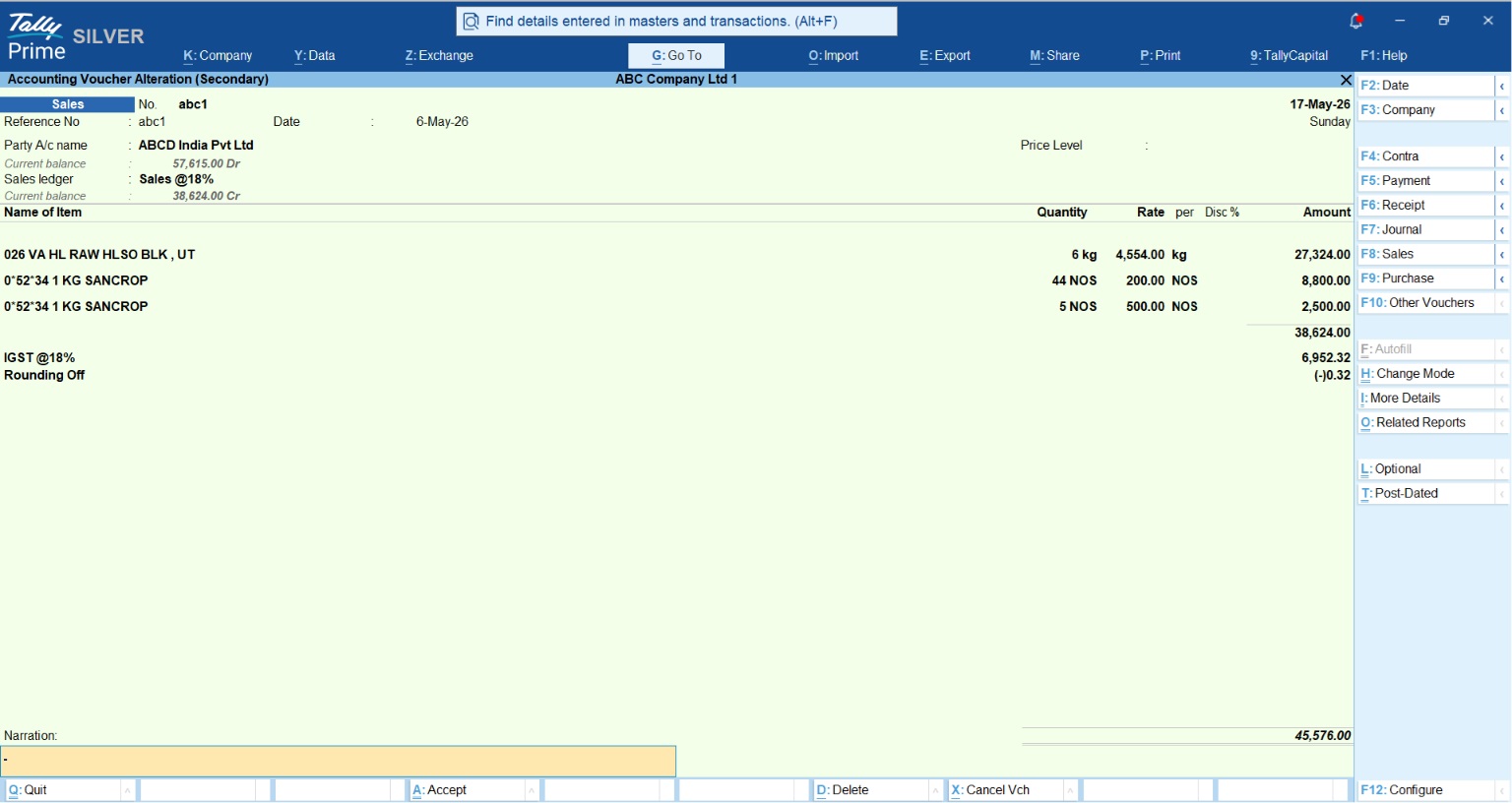
Generating structured sales invoices is critical for statutory tax compliance and revenue collection. TallyPrime bridges logistical execution and fiscal reporting directly. Once a Delivery Note is linked to a final Sales Invoice (F8), the financial transactions sync instantaneously across your financial statements and tax return logs.
When dealing with Indian statutory guidelines, TallyPrime calculates localized taxes natively based on HSN/SAC profiles:
- Intrastate Sales: Automated structural distribution across Central GST (CGST) and State GST (SGST) ledgers.
- Interstate Sales: Unified calculation redirected under Integrated GST (IGST) obligations.
Conclusion: Your Checklist for Success
To stay ahead of the game and keep your books audit-ready, follow these rules:
- Always use Tracking Numbers: It is the only way to link physical stock movement to your accounting bills.
- Monitor “Bills Pending” weekly: Ensure you aren’t forgetting to record invoices for goods you’ve already received and put on your shelves.
- Audit via Pre-Close: Never delete. Use Alt+W to maintain a clean history of why orders were cancelled.
- Leverage “Fetch”: Save time and avoid GST errors by pulling party data directly from the GST portal.
Managing a trading business is hard enough. Let TallyPrime handle the heavy lifting of tracking your orders so you can focus on making more sales!
FAQs:
1. Does a Purchase Order change my bank balance? No. A Purchase Order is a commitment, not an accounting entry. It does not affect your ledgers or bank balance until you record a formal bill or payment.
2. Can I make a Receipt Note without a PO? Yes. While linking to a PO is best practice, you can record a Receipt Note independently by selecting “Not Applicable” in the Order No. field.
3. How do I handle GST on these orders? Tally handles the headache for you! GST is set at the Stock Item level, including HSN/SAC codes. Tally will calculate the tax automatically during the final Invoice stage based on the “Place of Supply.”
4. What is a Tracking Number? It is the “secret glue” that links the physical receipt of goods (Inventory) to the financial bill (Accounting). It ensures your stock and your cash stay in sync.
5. How do I know if a delivery is late? Use the Ageing Analysis in the Order Outstanding report. Filter by “Due Date” to see exactly which deliveries have missed their promised timeline.
