How Indian Small Businesses Reconcile Accounts in Minutes using TallyPrime

How Indian Small Businesses Reconcile Accounts in Minutes using TallyPrime

TL;DR

Stop wasting your weekends on manual data entry, Reconcile Accounts in Minutes using TallyPrime. TallyPrime turns the dreaded Bank Reconciliation Statement (BRS) from a multi-hour manual chore into a 2-minute automated task. By importing bank statements directly and using smart auto-matching, you eliminate human error, ensure your GST Input Tax Credit (ITC) is 100% accurate, and gain real-time visibility into your cash flow. Whether you are an SME or a CA managing multiple clients, this is the shortcut to an error-free “hisab.”

Introduction: Why Am I Writing This?

In my years as a Senior Accountant and advisor, I’ve seen too many business owners hunched over their desks late at night, eyes blurring as they try to figure out why their internal “hisab” (books) doesn’t match the Bank Statements. This late-night stress is a rite of passage no one asked for.

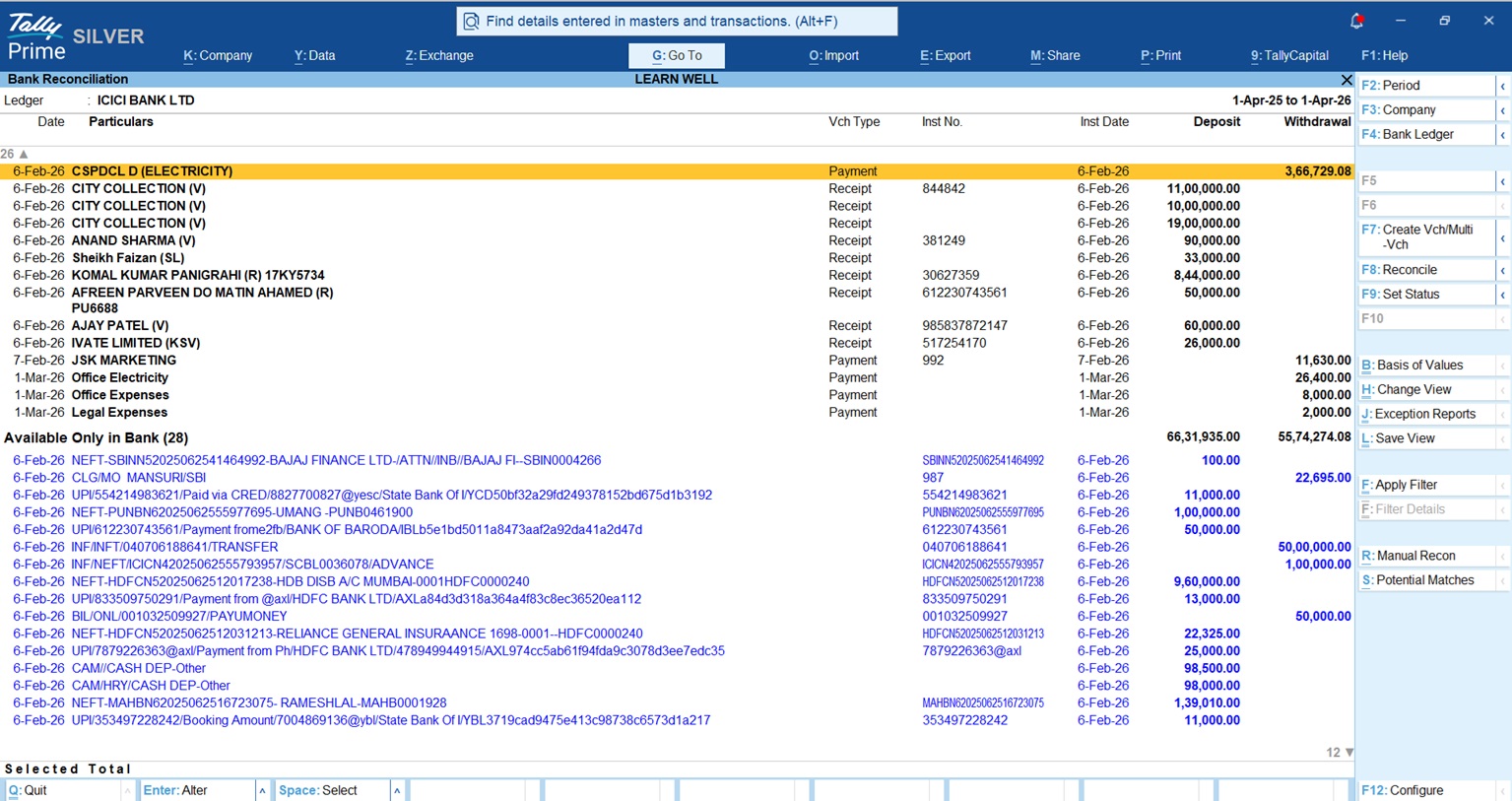
When I talk about Bank Reconciliation (or BRS), I’m talking about the vital process of ensuring every single entry in your bank statement is reflected in your company records. If you are still doing this by hand, you are living in the past. TallyPrime’s bank reconciliation module automates the matching of ledger entries with bank statements, letting you close your books faster and with the kind of precision that makes auditors smile.

What Makes Manual Reconciliation So Hard?

If you haven’t switched to automation yet, you’re likely struggling with:

  • The Time Sink: Spending hours checking line-by-line, which is simply not sustainable in a fast-paced market.
  • Human Error: One misplaced decimal or a typing error during manual entry can throw off your entire balance.
  • The “Hidden” Entries: Missing those small bank charges, processing fees, or interest credits that only appear on the bank’s side.
  • GST Compliance Risk: Mismatched data leads to incorrect GST filings. If your books don’t match your bank, your Input Tax Credit (ITC) claims are on shaky ground.

How Does TallyPrime Do the Hard Work for You?

TallyPrime’s Auto Bank Reconciliation is designed to act like a digital assistant. It doesn’t just store data; it thinks for you.

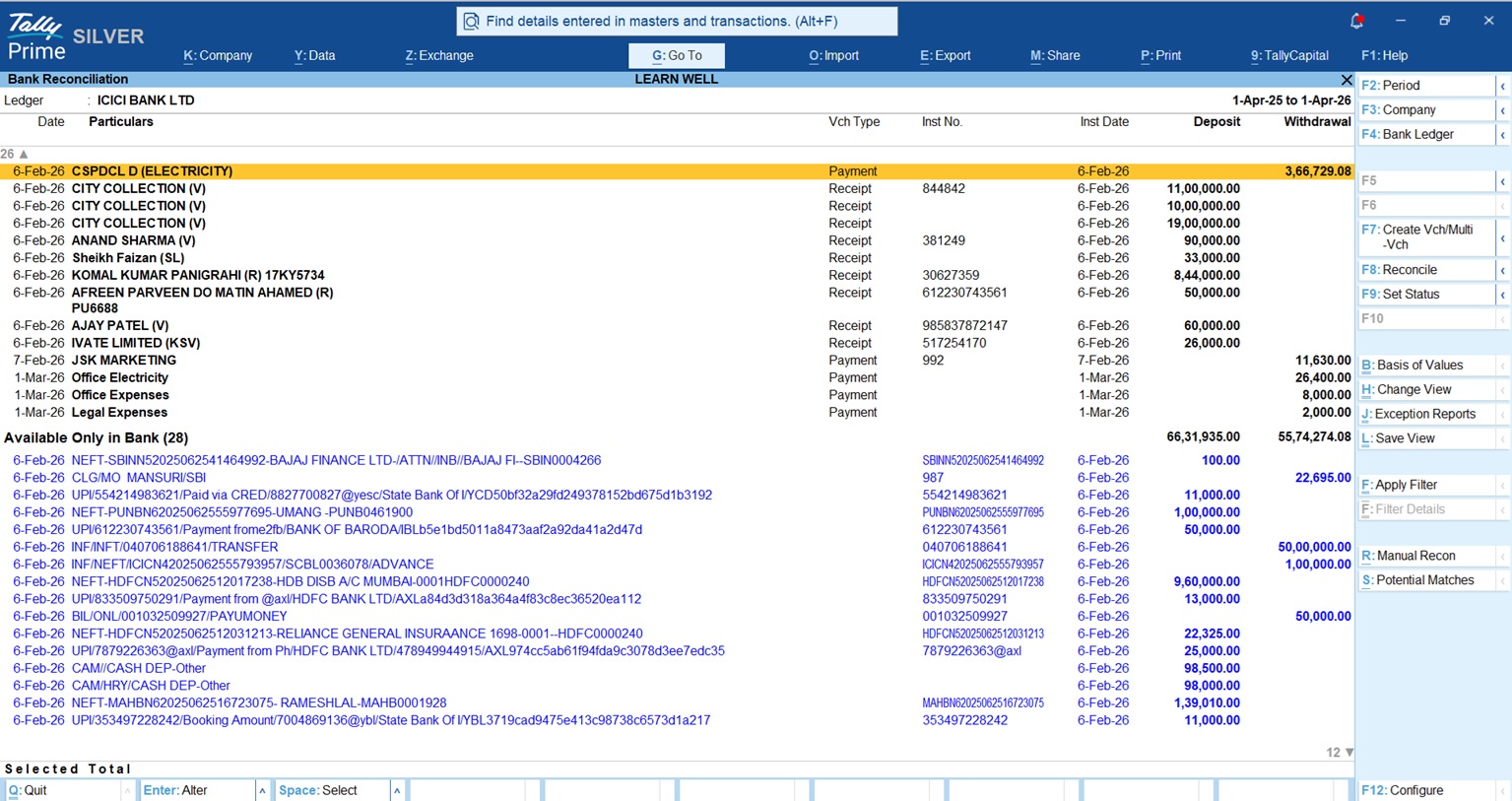
  • Automatic Import: Support for over 145+ banks means you can import statements in Excel, CSV, MT940, .xml, or delimited formats. No more manual typing.
  • Smart Matching & Duplicate Prevention: Tally matches transactions based on amount and instrument numbers. Crucially, the system skips duplicate entries, solving one of the biggest pain points for Indian accountants. Even if instrument numbers are missing, Tally uses “fuzzy matching” to find potential links based on dates and narrations.
  • Flagging the Gaps: Tally distinguishes between Unreconciled entries (vouchers exist but aren’t cleared) and Unlinked/Additional entries (bank charges or interest that exist only in the statement).
How Indian Small Businesses Reconcile Accounts in Minutes using TallyPrime

Is “Connected Banking” the Secret Shortcut?

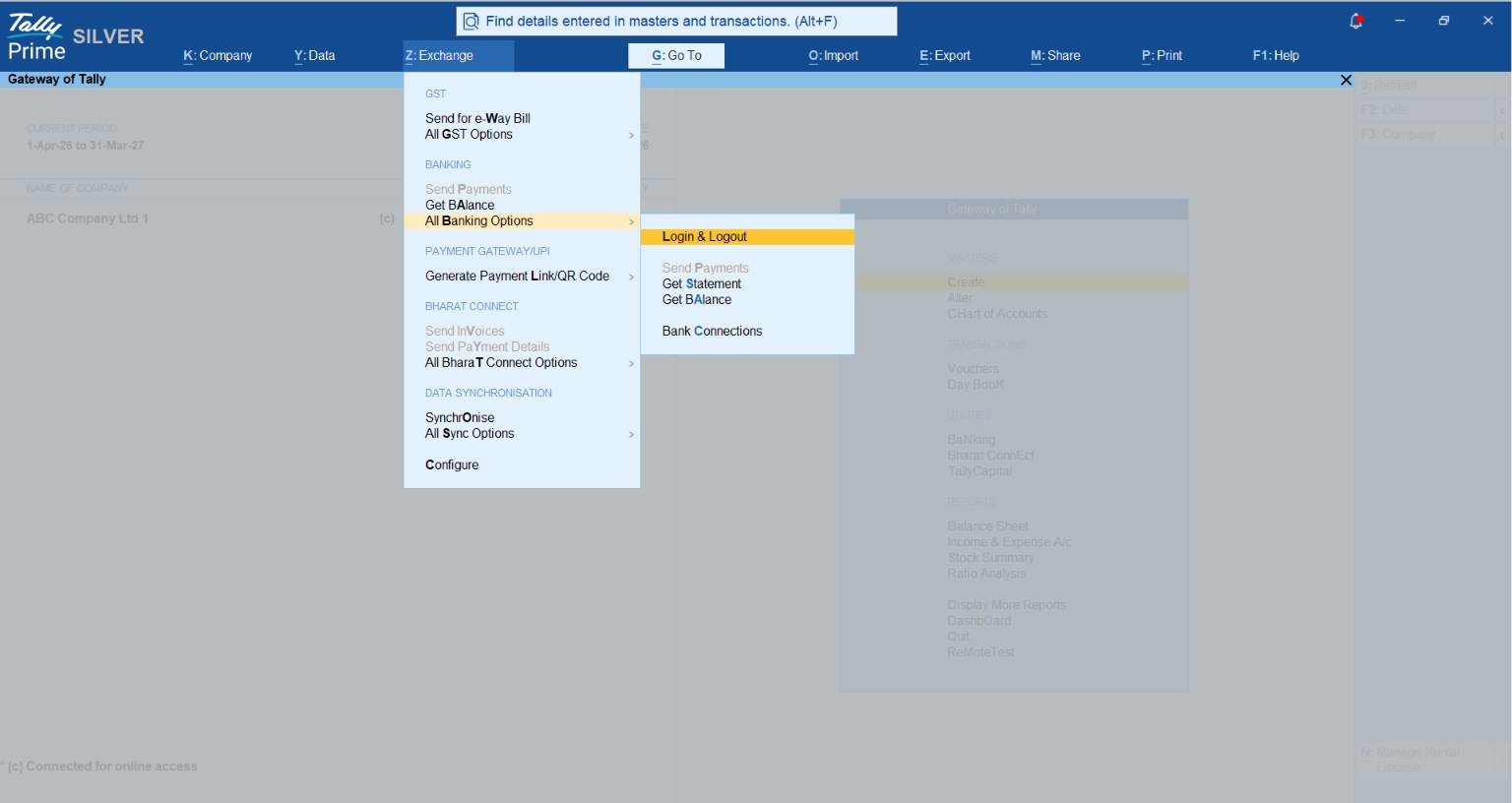
While statement import is great, Connected Banking is the true “shortcut” because it brings the bank directly inside Tally.

Version Requirement: Connected Banking (Direct Statement Fetch) is available from TallyPrime 6.0 and above, while Direct Payments is a feature of Release 7.0 and above.

Top Partner Banks:

  • Axis Bank
  • ICICI Bank
  • Kotak Mahindra Bank
  • State Bank of India (SBI)

The Advisor’s Perspective on Perks:

  1. Live Balances: View your real-time bank balance without leaving your Tally screen.
  2. Direct Payments: From TallyPrime 7.0, you can settle vendor bills directly from the software.
  3. Bank-Grade Security: Many owners worry about safety. Connected Banking uses Two-Factor Authentication and robust encryption to ensure your banking credentials never leave the secure login environment.
Bank Reconciliation TallyPrime

Can I Really Reconcile in Minutes? (The Process)

Here are the “Accountant’s Power Moves” to get your BRS done in record time:

  • Step 1: Download your bank statement from your portal (or fetch it instantly via Connected Banking).
  • Step 2: In TallyPrime, go to the BRS screen and press Alt+O to import.
  • Step 3: Watch Tally match the entries automatically. You’ll see a summary of exact matches immediately.
  • Step 4: For those “Additional” bank charges, don’t leave the screen, press Alt+J to create a voucher on the fly.

A Real Story: From Late Nights to Peace of Mind

I once advised Mr. Rohit, the owner of a mid-sized CA firm in Raipur. Rohit’s team was drowning in client bank statements every month-end. One small mismatch led to a major dispute with a client over an unrecorded payment.

After we implemented TallyPrime’s automated BRS, the change was night and day. Statements were auto-imported, and those pesky “unlinked” entries were caught instantly. Rohit moved from being a “data checker” to a “business advisor.” His clients noticed the increased accuracy in their GST ITC claims, and he finally stopped spending his Saturday nights at the office.

My Actionable Tips for You

In my practice, I’ve found that “month-end” doesn’t exist for successful businesses, they reconcile weekly. Here is your Checklist for Success:

  • Weekly Imports: Tally makes this a 5-minute coffee-break task. Don’t let the transactions pile up.
  • Trust the Smart Match: If an instrument number is missing, don’t panic. Use Tally’s ability to suggest matches based on date and narration.
  • Clean the “Unlinked” Immediately: Use Alt+J the moment you see a bank charge. Keeping your books perpetually reconciled is the only way to have true cash flow visibility.

“Automation isn’t just about saving time; it’s about having a clear head to grow your business.”

Conclusion

Moving from manual reconciliation to TallyPrime’s automation is one of the smartest moves an Indian business can make. It transforms a tedious administrative burden into a competitive edge. By spending less time on bookkeeping and more time on business growth, you ensure your company is ready for the fast-paced demands of 2026 and beyond.

Frequently Asked Questions (FAQs)

  1. Does it work for small businesses? Yes. SMEs benefit most from the increased accuracy and the hours saved that can be redirected toward sales and growth.
  2. How many banks are supported? TallyPrime supports bank statement imports for over 145 banks.
  3. What if my bank isn’t on the list? You can write to support@tallysolutions.com to request a specific configuration for your bank’s format.
  4. Can I still do it manually? Yes, TallyPrime allows for manual entry of bank dates if you prefer the traditional way, but once you try Alt+O, you won’t go back.
  5. What formats can I import? Excel, CSV, .xml, MT940, and delimited formats are all supported.
  6. Is my data safe with Connected Banking? Absolutely. It uses bank-grade encryption and two-factor authentication to ensure secure communication between Tally and your bank.
Also read UPI/Bank Payment integration in Tallyprime

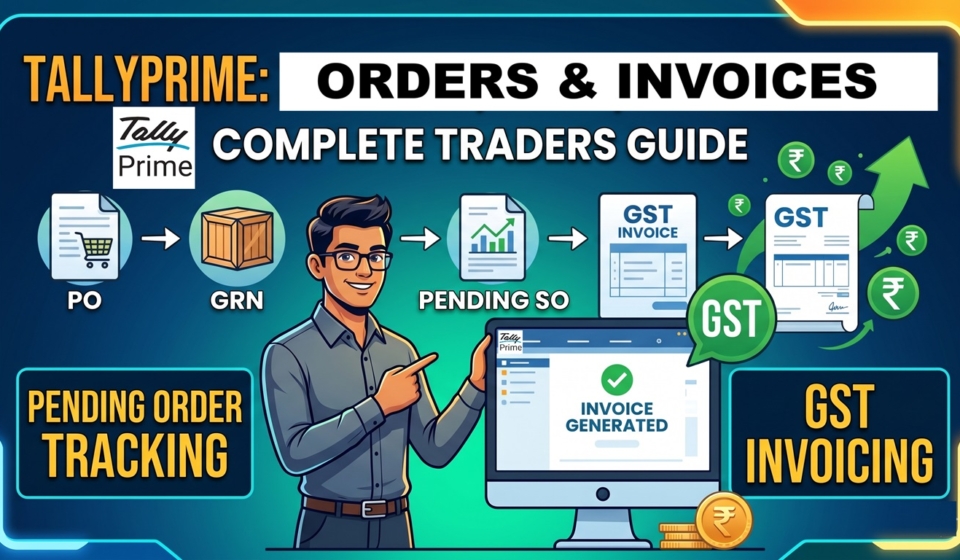
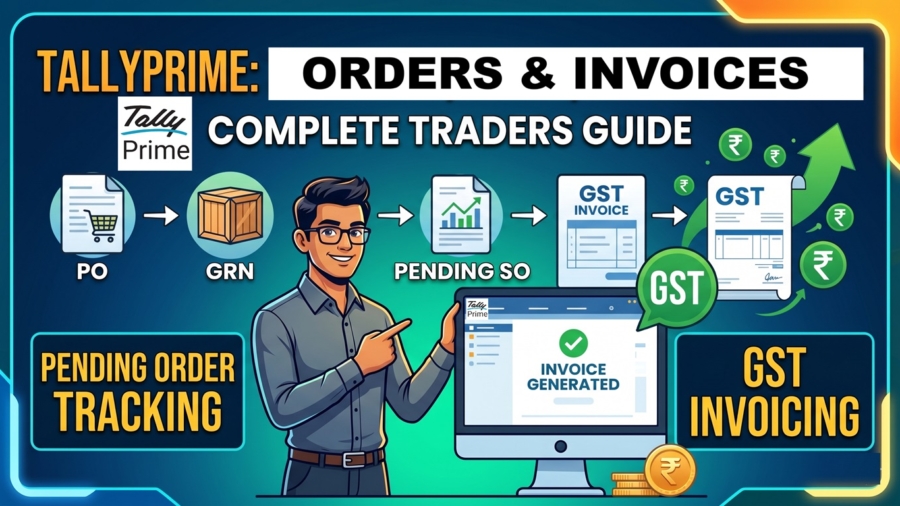
Managing Purchase Orders, Sales Orders and Invoicing in TallyPrime: A Complete Guide for Traders

Managing Purchase Orders, Sales Orders and Invoicing in TallyPrime: A Complete Guide for Traders

TL;DR:

Managing Purchase Orders, Sales Orders and Invoicing in TallyPrime:

  • The Connected Chain: TallyPrime links Purchase Orders, Receipt Notes, and GST Invoices into a single, automated chain so you never lose track of a single item or rupee.
  • Real-Time Stock & Cash Flow: Using “Tracking Numbers” updates your stock the moment goods arrive, while “Purchase Bills Pending” shows you exactly how much cash is committed before the final bill hits.
  • Total Visibility: Automated “Outstanding” reports tell you exactly what’s late, whether it’s a customer order you need to ship or a supplier delivery you’re still waiting for.
  • Automated Pricing: Set up different price levels for wholesalers and retailers so the system picks the right rate and discount for you automatically.

Introduction: Is Your Order Tracking Out of Control?

In my years as an accountant, I’ve seen many traders struggle with the same nightmare: piles of loose papers for orders, separate scribbles for deliveries, and a bank balance that never seems to match the stock on the shelves.

The struggle is real. When you can’t track what you ordered versus what actually arrived, you’re not just losing sleep, you’re losing money. That is where TallyPrime steps in. Think of it as the “brain” of your business that connects the dots from the moment you promise to buy something to the second you receive the final payment. It’s about more than just “keeping the books”; it’s about having total control over your liquidity and fulfillment.

Section 1: How Do I Record a Purchase Order?

Think of a Purchase Order (PO) as a formal promise to your supplier. It tells them exactly what you want, what price you’ve agreed on, and when you need it.

To create one, use this path: Vouchers > F10 (Other Vouchers) > Purchase Order.

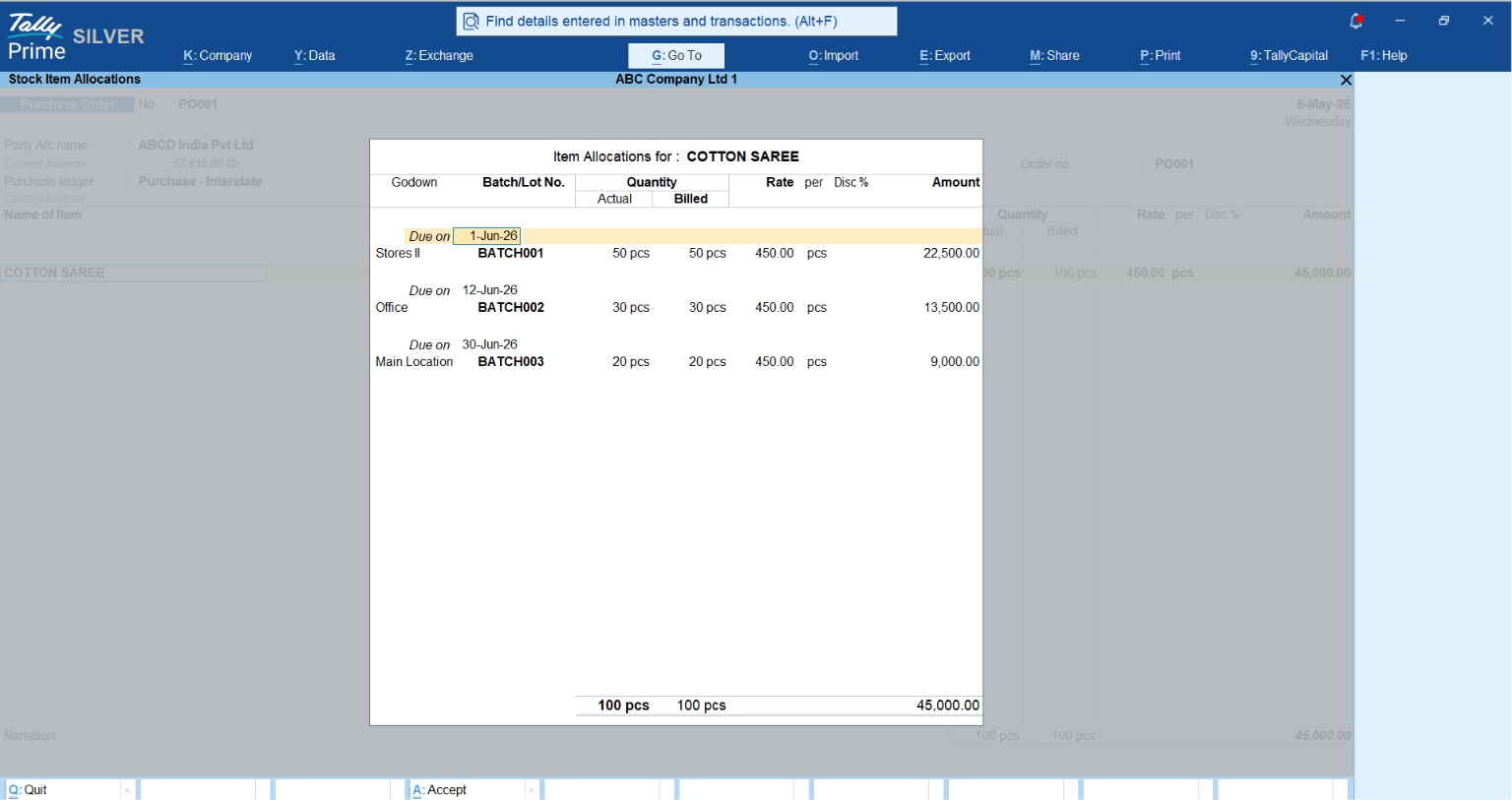
The beauty of the PO in TallyPrime is the “Due on” date feature. If you’re ordering a large shipment of cotton sarees but want them delivered in three different batches, you can schedule those specific dates right in the voucher. But here is the most important part for your peace of mind: A PO does not affect your accounts or stock levels yet. It simply creates a “reminder” in the system so you can anticipate future payables.

Managing Purchase Orders, Sales Orders and Invoicing in TallyPrime: A Complete Guide for Traders

Section 2: What Happens When the Goods Actually Arrive? (Receipt Notes)

When the truck finally pulls up to your godown, you record a Receipt Note (also known as a GRN). This is the bridge between your order and your final bill.

When you enter the Receipt Note, TallyPrime will ask for the Order Number. By selecting your PO number, the system automatically pulls in all the details. No re-typing, no errors.

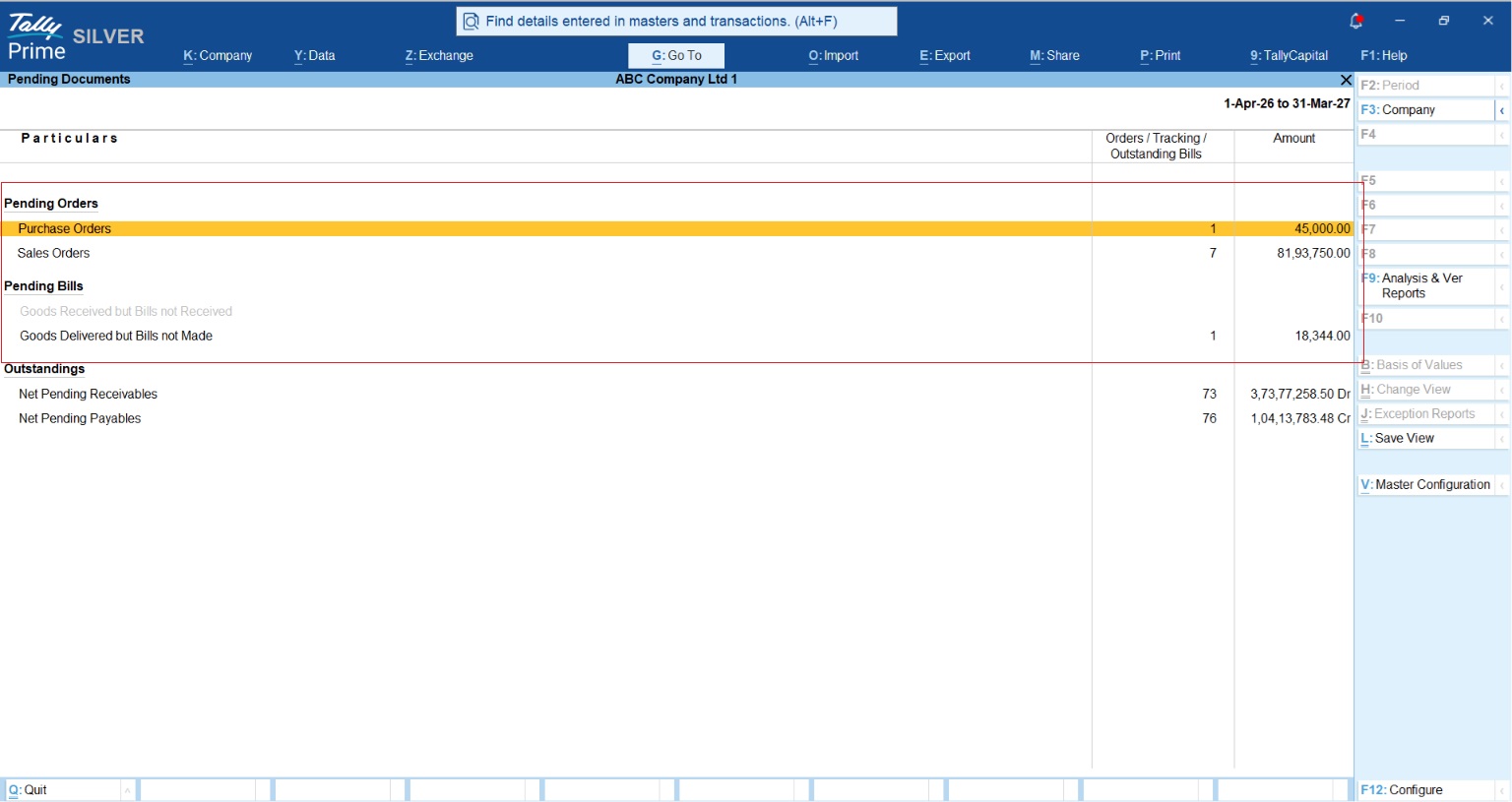
The “secret glue” here is the Tracking Number. When you assign one, Tally updates your “Stock in Hand” immediately so you can start selling. However, because you haven’t received the final GST invoice yet, Tally holds the value in a temporary “Purchase Bills Pending” account.

Senior Accountant’s Tip: This is vital for your cash flow. It shows you exactly how much cash is “committed” but not yet “tax-deductible.” It keeps your Balance Sheet honest while you wait for that official GST bill.

Pending Purchase Orders Sales Orders and Bills in TallyPrime

Section 3: Can I Turn a Customer Inquiry Into a Quote?

We’ve all been there, a customer asks for a price, but you don’t want to mess up your actual sales records until they say “yes.” In TallyPrime, you can record a Sales Order and mark it as an Optional Voucher (Ctrl+L).

This creates a professional document labeled “QUOTATION” that you can send to your client. It stays “hidden” from your accounting books until the customer confirms. Once they do, you just turn off the “Optional” tag, and it becomes a live Sales Order. The flow is smooth: Sales Order -> Delivery Note (Challan) -> Sales Invoice.

Also read this How to Record Sales Orders and Delivery Notes in TallyPrime

Section 4: Managing Different Prices for Different Customers?

One of the biggest mistakes traders make is trying to remember which customer gets which discount. You’ve got enough on your plate! TallyPrime handles this through Multiple Price Levels.

First, ensure your master data is clean. You can use Tally’s “Fetch” feature to pull party details directly from the GST portal using only a GSTIN, ensuring your Party GST Related Details is perfectly accurate from the start.

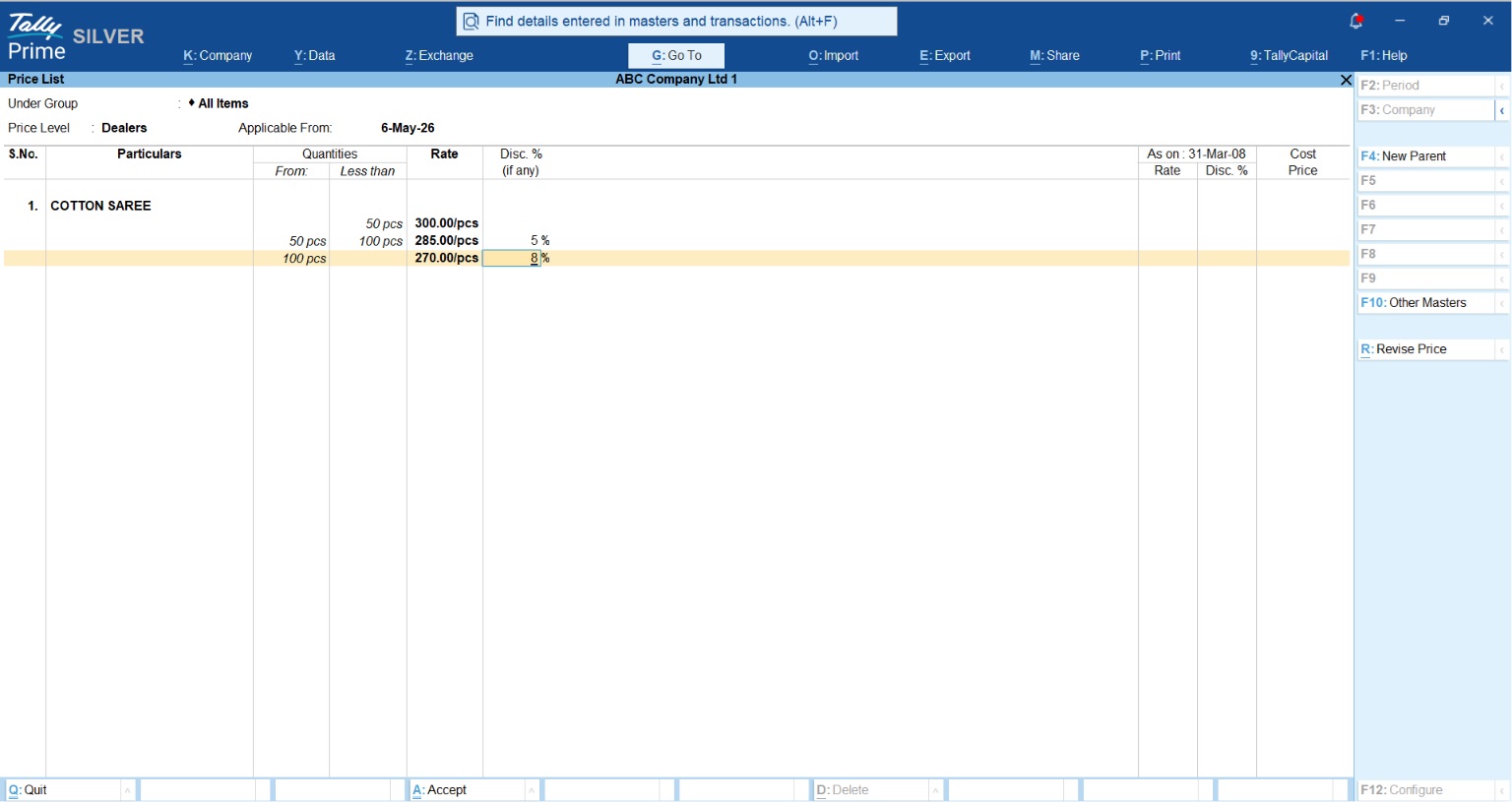
Next, assign a Price Level (like “Wholesaler” or “Retailer”) directly to the Party Ledger. Now, whenever you select that customer, Tally automatically fetches the right rate. You can even set Quantity Slabs to reward bulk buyers:

Item NameQuantity SlabRate per UnitDiscount %
Cotton Sarees0 – 50 units₹3000%
Cotton Sarees51 – 100 units₹2855%
Cotton Sarees101+ units₹2708%
Price Level in TallyPrime

Section 5: What If an Order Is Cancelled? (The Pre-Close Feature)

Sometimes a supplier can’t deliver, or a customer changes their mind. Whatever you do, don’t delete the voucher!

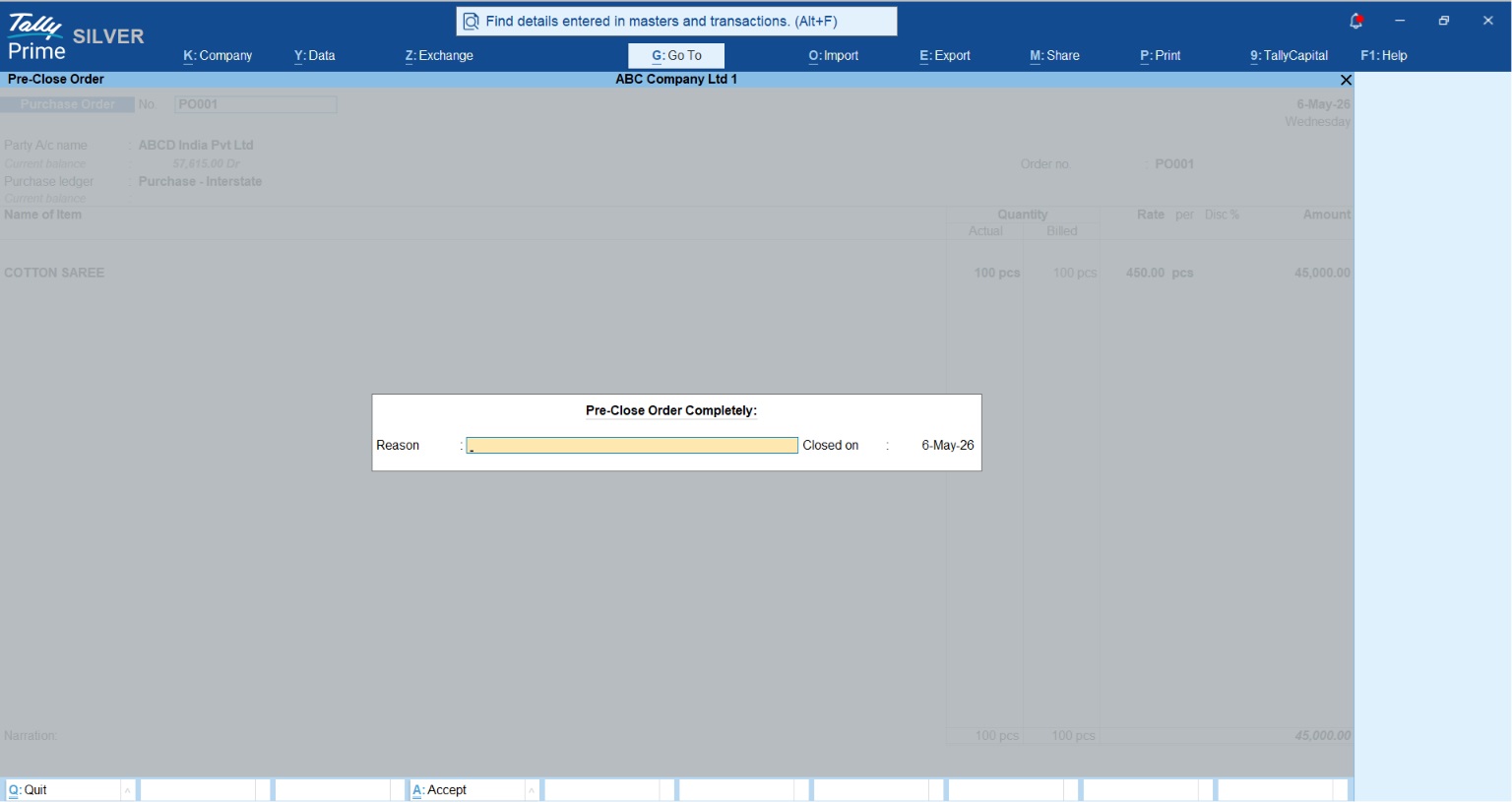
Brotherly Tip: Deleting vouchers is a red flag for GST audits. You need a clean “audit trail” to show the officers exactly why an order wasn’t fulfilled. Instead, use the “Pre-close” feature (Alt+W).

When you pre-close, Tally asks for a “Reason for Pre-Close.” Use this! It helps you identify if a specific supplier is consistently failing you, and it keeps your “Outstanding” reports from being cluttered with old, dead orders.

Pre Close Order in TallyPrime

Real-World Example: The Garment Trader

Let’s look at a friend of mine who trades in jeans. He placed a Purchase Order for 100 pairs of jeans.

A week later, the supplier only sent 90 pairs. My friend recorded a Receipt Note for 90. Immediately, TallyPrime updated his warehouse stock to 90. However, when he checked his “Order Outstanding” report, the system clearly showed 10 jeans as “Pending.”

He didn’t have to check a single notebook or call the supplier to ask “what happened?” The system told him exactly what was missing, allowing him to manage his Inventory without the guesswork.

Sales Order Fulfillment & Outstanding Order Tracking

A trader’s reputation relies heavily on fulfillment predictability. Misplaced, unfulfilled, or partially filled sales orders damage customer relationships and disrupt revenue forecasting.
To record incoming customer commitments, open a Sales Order (Ctrl + F8). Similar to the procurement cycle, this non-accounting commitment schedules items internally without triggering formal revenue recognition. When delivery vans are loaded, a Delivery Note (Alt + F8) tracks inventory depletion prior to formal billing.

Tracking Outstanding

To review backorders and identify unfulfilled commitments, go to:
Display More Reports > Statements of Inventory > Sales Order Outstanding > Ledger / Stock Item
This deep-dive analytical view displays precise summaries of inventory metrics: Ordered Quantities, Balance Quantities, and Expected Delivery Windows. This real-time dashboard prevents stockout scenarios and helps prioritize your high-value accounts.

Transaction PhaseInbound Procurement FlowOutbound Sales Flow
Order IntentPurchase Order (Ctrl + F9)
Commitment issued to supplier. No accounting or stock changes.
Sales Order (Ctrl + F8)
Customer commitment reserved.
Monitored in backlog queues.
Physical MovementReceipt Note / GRN (Alt + F9)
Stocks increase. Valuations track via “Purchase Bills Parsed pending”.
Delivery Note (Alt + F8)
Stocks drop. Tracked through “Sales Bills to be Made”.
Final SettlementPurchase Voucher (F9)
Vendor ledger is credited; inventory balances lock in permanently.
Sales Invoice (F8)
Accounts Receivable registers; triggers compliant tax recognition.

How Do I Check What’s Still Pending? (Reports)

To keep your business tight, you must check your “Outstanding” reports weekly.

  • View by Item or Ledger: Press Alt+G and type Purchase Order Reports. You can view these Stock Item-wise (to see all products you’re waiting for) or Ledger-wise (to see everything a specific supplier owes you).
  • Ageing Analysis: This is the gold standard for traders. It shows you which orders are getting “old.” You can analyze this by Bill Date (when the order was placed) or Due Date (when it was promised). If an order is 15 days past its due date, it’s time to pick up the phone!

Also Read this Year End Accounting Check List for Small Businesses

Generating Compliant Indian GST Invoices

Generating structured sales invoices is critical for statutory tax compliance and revenue collection. TallyPrime bridges logistical execution and fiscal reporting directly. Once a Delivery Note is linked to a final Sales Invoice (F8), the financial transactions sync instantaneously across your financial statements and tax return logs.
When dealing with Indian statutory guidelines, TallyPrime calculates localized taxes natively based on HSN/SAC profiles:

  • Intrastate Sales: Automated structural distribution across Central GST (CGST) and State GST (SGST) ledgers.
  • Interstate Sales: Unified calculation redirected under Integrated GST (IGST) obligations.
SalesInvoice TallyPrime

Conclusion: Your Checklist for Success

To stay ahead of the game and keep your books audit-ready, follow these rules:

  1. Always use Tracking Numbers: It is the only way to link physical stock movement to your accounting bills.
  2. Monitor “Bills Pending” weekly: Ensure you aren’t forgetting to record invoices for goods you’ve already received and put on your shelves.
  3. Audit via Pre-Close: Never delete. Use Alt+W to maintain a clean history of why orders were cancelled.
  4. Leverage “Fetch”: Save time and avoid GST errors by pulling party data directly from the GST portal.

Managing a trading business is hard enough. Let TallyPrime handle the heavy lifting of tracking your orders so you can focus on making more sales!

FAQs:

1. Does a Purchase Order change my bank balance? No. A Purchase Order is a commitment, not an accounting entry. It does not affect your ledgers or bank balance until you record a formal bill or payment.

2. Can I make a Receipt Note without a PO? Yes. While linking to a PO is best practice, you can record a Receipt Note independently by selecting “Not Applicable” in the Order No. field.

3. How do I handle GST on these orders? Tally handles the headache for you! GST is set at the Stock Item level, including HSN/SAC codes. Tally will calculate the tax automatically during the final Invoice stage based on the “Place of Supply.”

4. What is a Tracking Number? It is the “secret glue” that links the physical receipt of goods (Inventory) to the financial bill (Accounting). It ensures your stock and your cash stay in sync.

5. How do I know if a delivery is late? Use the Ageing Analysis in the Order Outstanding report. Filter by “Due Date” to see exactly which deliveries have missed their promised timeline.

Multi-Currency Accounting for Export Businesses on TallyPrime

Multi-Currency Accounting for Export Businesses on TallyPrime

TL;DR

Multi-Currency Accounting for Export Businesses on TallyPrime:

  • Manage Global Sales: Bill customers in USD, EUR, or any currency while TallyPrime keeps your Indian books perfectly aligned in INR.
  • Automated Forex Tracking: No more manual math; Tally tracks “Forex Gain or Loss” automatically when exchange rates shift between billing and payment.
  • Compliance Made Simple: Manage LUT details, correct POS codes, and GST/e-invoicing requirements in one unified system.
  • Faster GST Refunds: Accurate documentation ensures your ITC refund claims are processed without the usual rejections or delays.

Introduction: Solving the Export Headache

In my years of working with business owners and managing the books for industrial units, I’ve found that export accounting is where most people lose their sleep. It isn’t just about shipping goods; it’s about navigating a maze of “zero-rated” rules and shifting currency values.

Usually, when I sit down with a new exporter, they tell me about three main headaches:

  • The Exchange Rate Rollercoaster: Billing at ₹83 today and receiving payment at ₹82.50 next month creates a “leak” in the books that is hard to track.
  • GST Refund Blocks: Mismatches between your sales vouchers and GST returns are the number one reason working capital gets stuck in refund delays.
  • Documentation Chaos: Trying to handle shipping bills, LUT details, and foreign invoices in simple spreadsheets eventually leads to errors.

TallyPrime solves this by letting you bill in any currency while keeping your Indian statutory books perfect. It’s like having a senior consultant sitting inside your computer.

What exactly is Multi-Currency Accounting?

As an exporter, you live in two worlds. You might negotiate a deal in US Dollars (USD) or Dirhams (AED), but for the Indian government and your own bank, everything eventually has to be reported in Indian Rupees (INR).

Multi-currency accounting in TallyPrime handles this “dual-currency” reality. You record the transaction in the currency your customer understands, and Tally handles the conversion back to INR behind the scenes. This ensures your Balance Sheet and Profit & Loss account stay accurate in your home currency.

How do I turn on Multi-Currency in TallyPrime?

It’s a simple one-time setup to unlock these features:

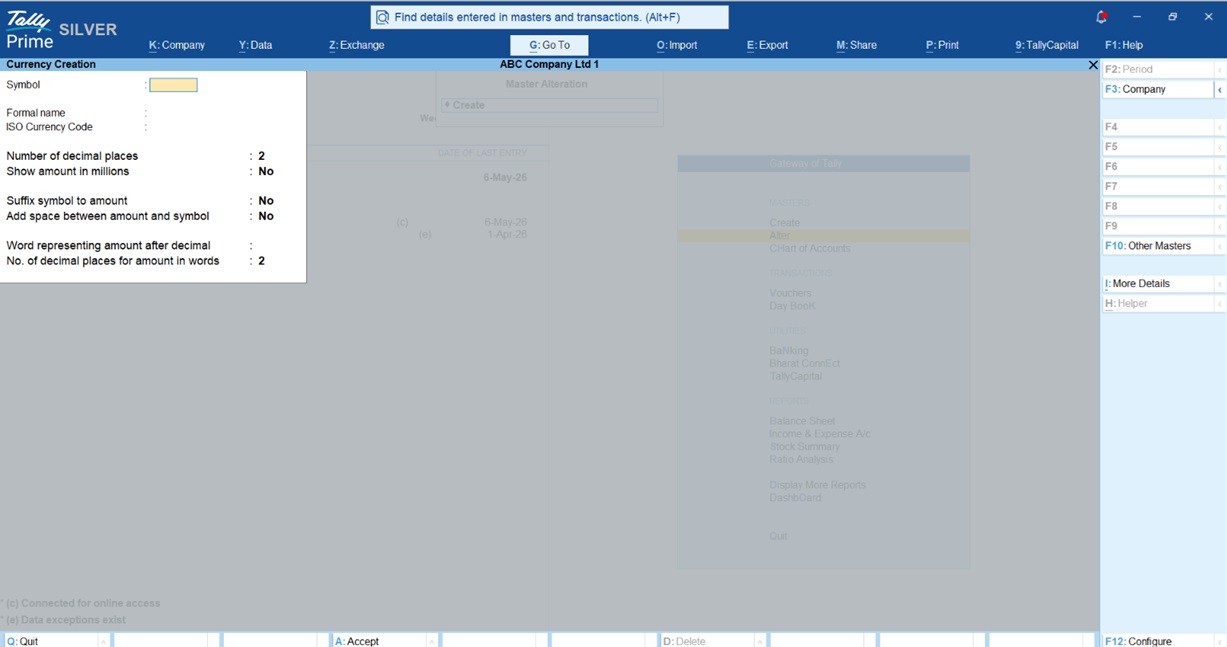
  1. Go to Gateway of Tally > Create > Currency.
  2. Tally will prompt you that the Base Currency already exists; select Create New.
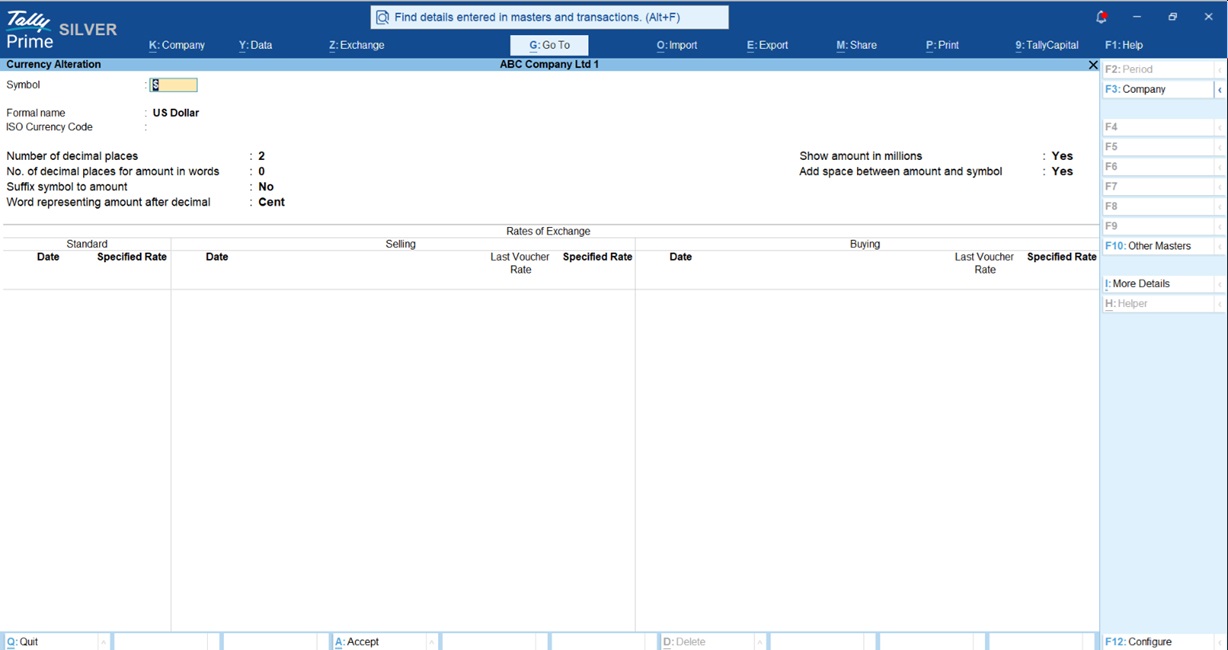
  3. Symbol: Enter the currency symbol (e.g., $).
  4. Formal Name: Enter the full name (e.g., US Dollars).
  5. ISO Currency Code: Enter the standard code (e.g., USD).
  6. Enter the number of decimal places and other formatting preferences, then press Enter to save.
Multi-Currency Accounting for Export Businesses on TallyPrime

Setting Up Exchange Rates

Defining Rates (The “Last Voucher” Rule)

Go to Gateway of Tally > Alter > Rates of Exchange. You can define the Standard Rate (market reference), Selling Rate (for your exports), and Buying Rate (for imports).

The Senior Accountant’s Tip: TallyPrime is smart. If you have specified a rate in the master but also have a rate from a previous transaction, Tally will prioritize the Last Voucher Rate over the Specified Rate. This keeps your books consistent with your most recent actual bank realization.

Multicurrency in tallyprime

How do I record an Export Sale?

Recording an export sale (F8) is straightforward, but there are a few “expert” steps you shouldn’t skip:

  1. In the Sales Voucher, select your foreign customer’s ledger.
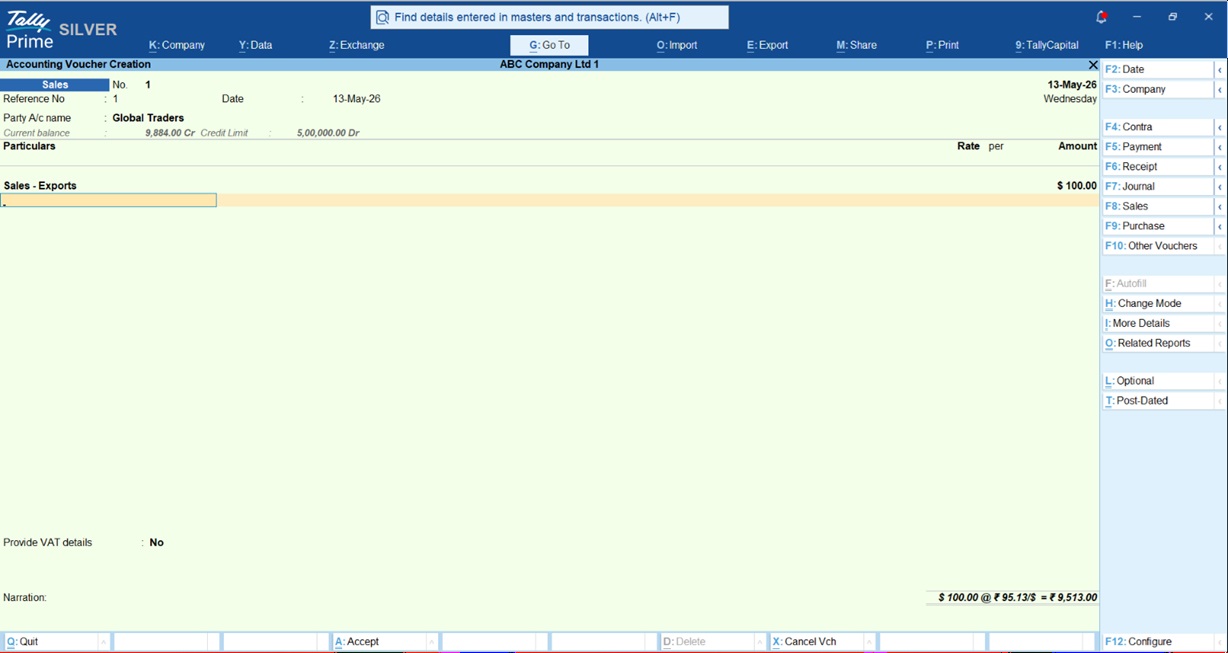
  2. In the Rate column, type the symbol before the number (e.g., $100).
  3. The Forex Pop-up: Tally will immediately ask for the exchange rate for that day. Confirm it and save.
  4. Expert Tip on FOB Charges: If you pay “Free on Board” (FOB) charges to move goods to the port, you can deduct these from the taxable value. Press F12 in the voucher and set “Allow override assessable value” to Yes. This ensures you only pay IGST on the actual value of the goods.
  5. Professional Printing: Before you hit print, press F12 (Configure) and enable “Show Base & Foreign Currency for Total”. This ensures your buyer sees the amount in USD while your records show the INR equivalent.
multi currency voucher tallyprime

What happens when the exchange rate changes? (Forex Gain & Loss)

If you bill at ₹90/USD but the money arrives when the rate is ₹91, you’ve made a “Forex Gain.” Tally identifies this automatically and lists it as “Unadjusted Forex Gain/Loss” on your Balance Sheet.

To settle this:

  1. Create a ledger named “Forex Gain/Loss” under Indirect Expenses or Indirect Income.
  2. Use a Journal Voucher (F7) with a Voucher Class specifically for Forex Gain/Loss.
  3. Set “Use Class for Forex Gain/Loss Adjustments” to Yes.
  4. Tally will then let you select the pending amounts and transfer them to your P&L account, cleaning up your Balance Sheet.

For more detail read this Forex Gain Accounting in TallyPrime

How TallyPrime Handles GST and LUT

Compliance is the backbone of a successful export business. TallyPrime automates the technical details that often cause refund rejections:

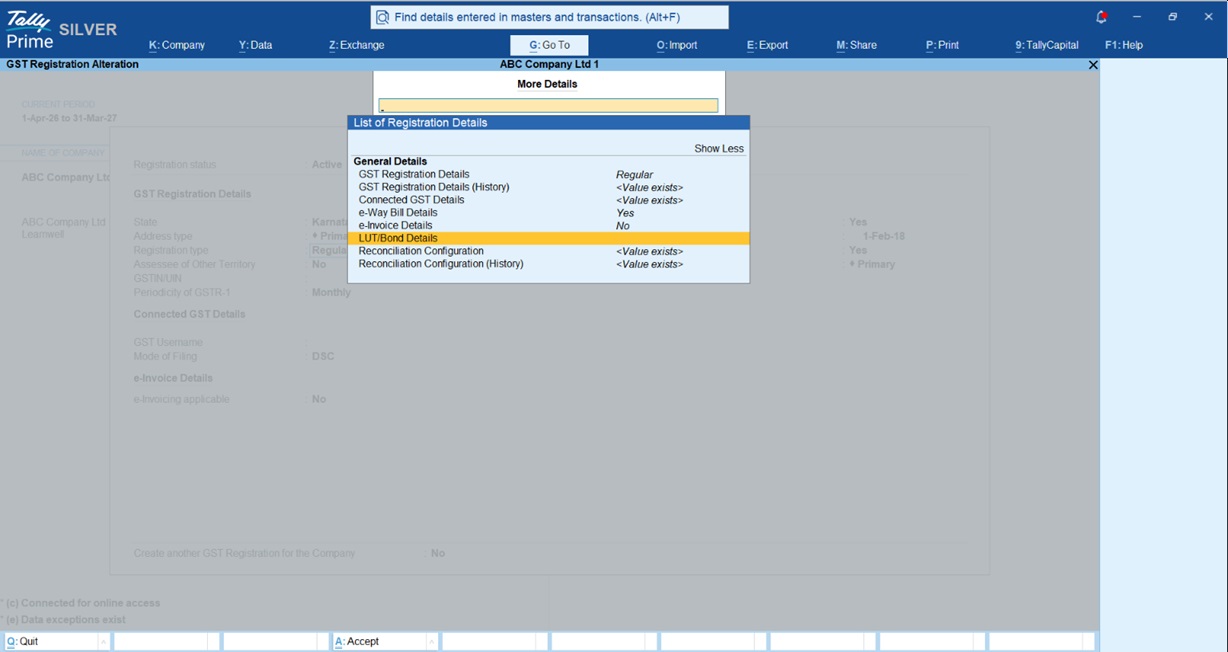
  • LUT (Letter of Undertaking): If you export without paying tax, enter your annual LUT details in F11 > GST Details> More Details. Tally will then correctly mark your invoices as “Exports Without Payment of Tax.”
  • The “96” and “97” Rules: Tally automatically assigns POS Code 96 for goods exports.
  • Tip for Service Exporters: When billing foreign parties for services, set the State/Emirate to “Other Territory” and the Pincode to “999999”. This ensures Tally correctly assigns POS Code 97 in your e-invoice JSON, preventing portal errors.
  • Faster Refunds: By tracking every rupee of Input Tax Credit (ITC) accurately, Tally helps you generate the reports needed for GSTR-1 and GSTR-3B so you can claim your money back from the government faster.
LUT Bond TallyPrime

Conclusion & Pro-Accountant Checklist

Exporting is about more than just moving product; it’s about managing margins and staying on the right side of the law.

Your Export Checklist:

  • Daily Updates: Enter exchange rates daily for the highest accuracy.
  • LUT First: Ensure your new LUT details are updated in Tally at the start of every financial year.
  • Naming Conventions: Use a clear format (e.g., EXP/US/JAN26/001) for easier tracking and audits.
  • Monthly Reconciliation: Reconcile your invoices monthly with your Bank Realization Certificates (BRC).

Also read this blog Why Accountants and CA Prefer TallyPrime

Frequently Asked Questions (FAQs)

Can Tally handle export GST? Yes, it supports zero-rated transactions, exports under LUT, and exports with payment of IGST.

Does it calculate forex loss automatically? Yes. Tally identifies differences between billing and receipt rates, showing them as “unadjusted” until you settle them.

Can I print invoices in USD? Yes. In the Print Configuration (F12), enable “Show Base & Foreign Currency for Total.”

What is POS Code 96? It is the standard code TallyPrime uses for goods exported to a foreign country for GST compliance.

What happens if the exchange rate is missing? Tally will prompt you for a rate during voucher entry, ensuring your INR conversion is never blank.

“In my experience, the biggest mistake exporters make isn’t the trade, it’s losing track of the exchange rate. TallyPrime stops that leak.”

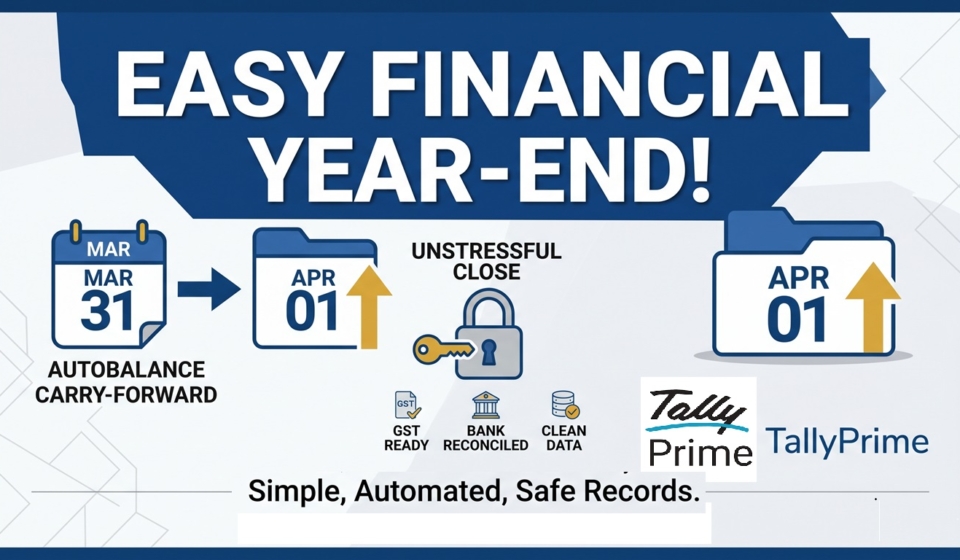
Close Your Books in a Day: Year-End Accounting Checklist for Small Businesses

Close Your Books in a Day: Year-End Accounting Checklist for Small Businesses

TL;DR

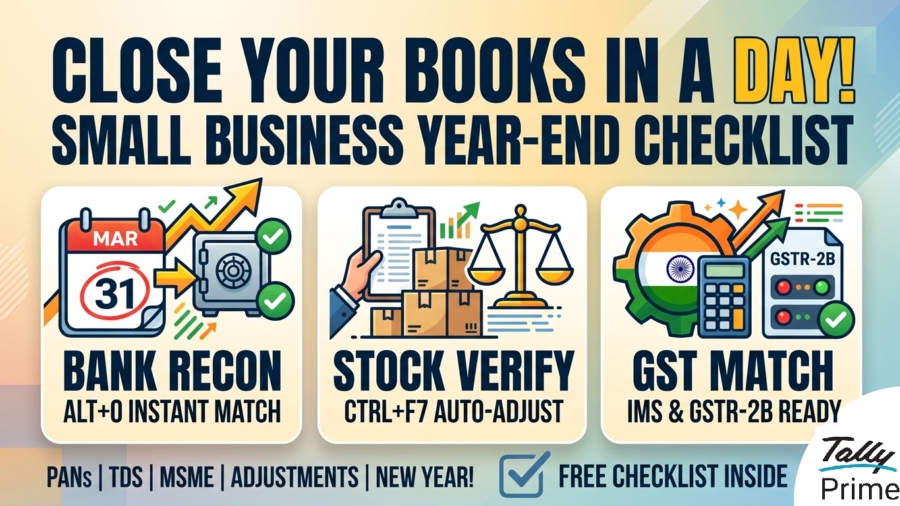
Year-End Accounting Checklist for Small Businesses: You can finish your March 31st closing in just 24 hours by using TallyPrime’s automation to move from a “year-end marathon” to a simple “final validation.” To close by tomorrow, focus on these three critical steps:

  • Bank Reconciliation: Use Alt+O to import e-statements and match books with bank records instantly.
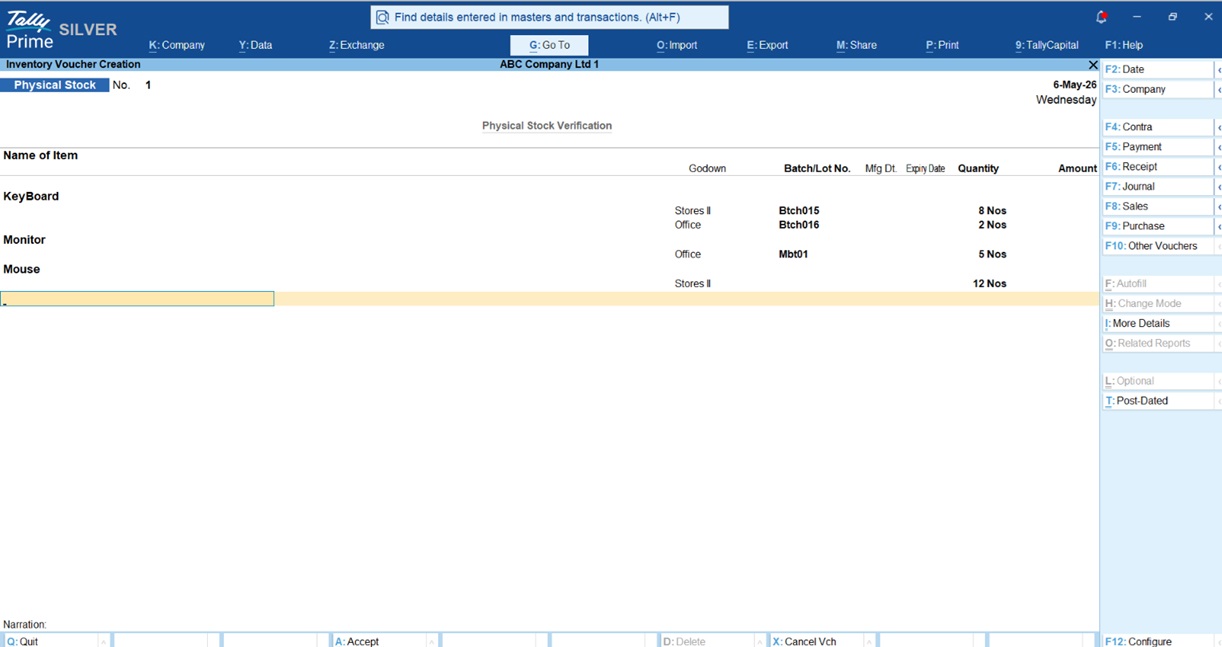
  • Stock Verification: Run a physical count and use the Physical Stock Voucher (Ctrl+F7) to auto-adjust quantities.
  • GST Matching: Import GSTR-2B JSON files (Alt+I) and use the new Inward Supplies Management (IMS) in TallyPrime 7.0 to reconcile ITC and avoid losing money to mismatches.

Introduction: Is Your Business Ready for March 31st?

In my years as an accountant, I’ve shared enough chai with business owners to know the symptoms of “March Madness.”

But look, it doesn’t have to be a nightmare. Yes, you can close your books in one day.

The secret isn’t working harder on March 31st; it’s adopting a “ready-to-close” mindset. Between us, if you’ve been using TallyPrime correctly, the year-end is just the final lap. We aren’t reinventing your accounts; we are simply validating the truth. Let’s get your records “portal-ready” so you can start the new year with a clean slate.

Can You Reconcile Your Bank Statement in Minutes?

If you are still checking bank entries line-by-line against a paper statement, you’re losing hours you don’t have. TallyPrime’s automated bank reconciliation can cut this chore down by 90%.

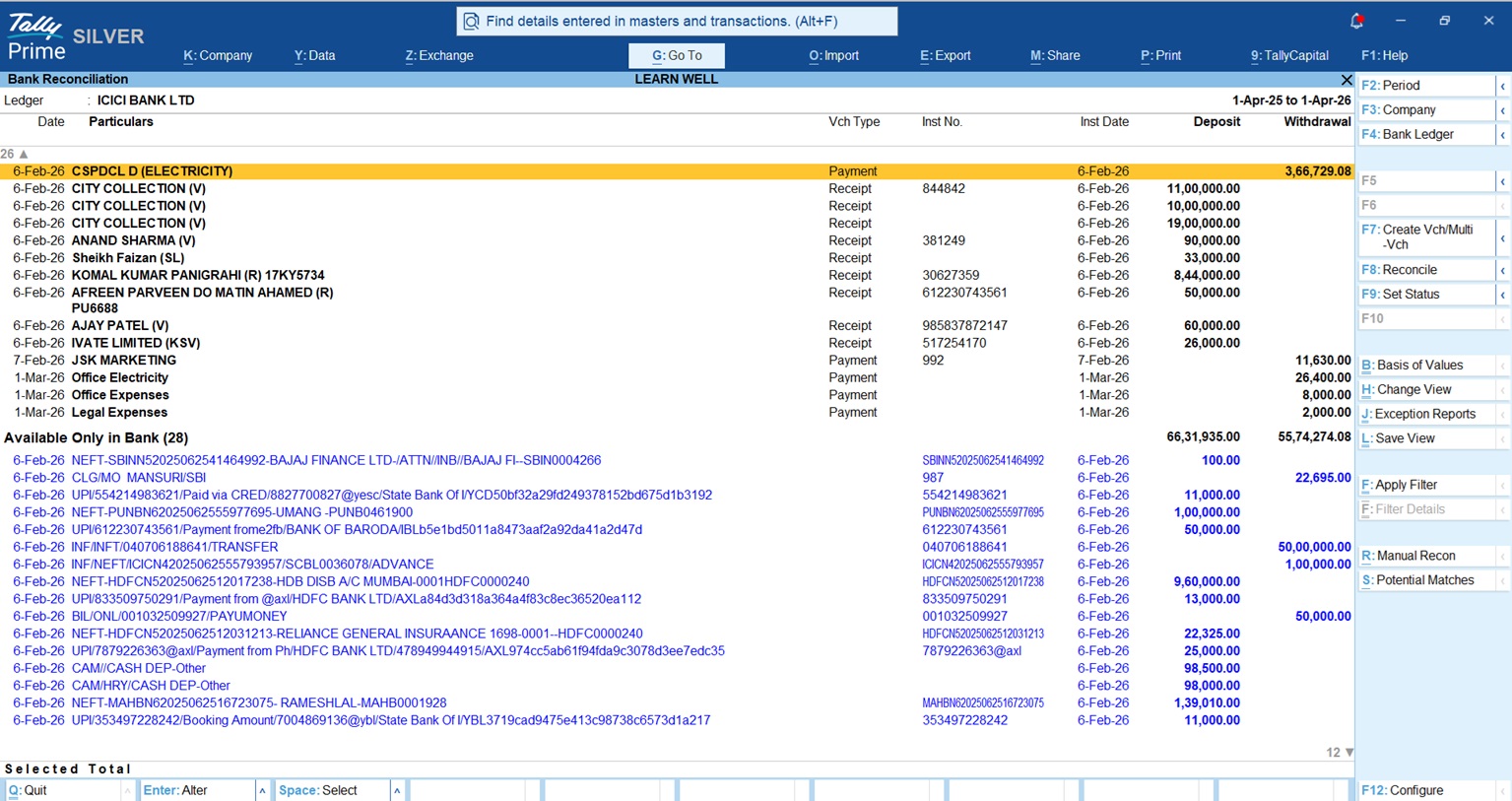
By pressing Alt+O, you can import e-statements directly from your bank in Excel, CSV, or XML formats. TallyPrime’s PrimeBanking feature is incredibly smart, it suggests matches for entries based on instrument numbers and amounts.

Did you forget to record a few bank charges or interest credits? Don’t sweat it. You can create the entry right from the reconciliation screen without losing your place. The goal is a perfect marriage: your “Balance as per Books” must match your “Balance as per Bank” before the year ends.

Close Your Books in a Day: Year-End Accounting Checklist for Small Businesses

Does Your “System Stock” Match Your “Physical Stock”?

For any retail or distribution business, your closing stock is the heartbeat of your profit calculation. A small error here doesn’t just mess up your inventory; it makes your tax bill dishonest.

You need to perform a physical count to ensure your “System Stock” matches the reality on your shelves. If you count 95 items but Tally shows 100, you need to fix it immediately.

Don’t go through every old invoice. Instead, use the Physical Stock Voucher (directly via Ctrl+F7). Simply enter the actual 95 units you found. TallyPrime handles the “magic” behind the scenes, automatically recording the difference so your Balance Sheet reflects exactly what you own.

Physical Stock in TallyPrime

Are Your GST Records “Portal-Ready”?

Reconciling with the GST portal is how you ensure you aren’t leaving your hard-earned money on the table. In TallyPrime 7.0, this is easier thanks to the Inward Supplies Management (IMS) feature.

  • For Sales: Head to your GSTR-1 report. Check the “Included in Return” section to ensure every invoice is ready for upload.
  • For Purchases: This is where the 24-hour close counts. Import your GSTR-2B JSON file using Alt+I. TallyPrime 7.0 allows for direct ITC reduction in IMS, meaning you can manage amendments and recompute GSTR-2B instantly.

Did You Check for Missing PANs to Avoid High TDS?

Section 206AA of the Income Tax Act is a trap for the busy business owner. If you don’t have a vendor’s PAN, you are legally required to deduct TDS at a staggering 20% instead of the usual 1% or 2%.

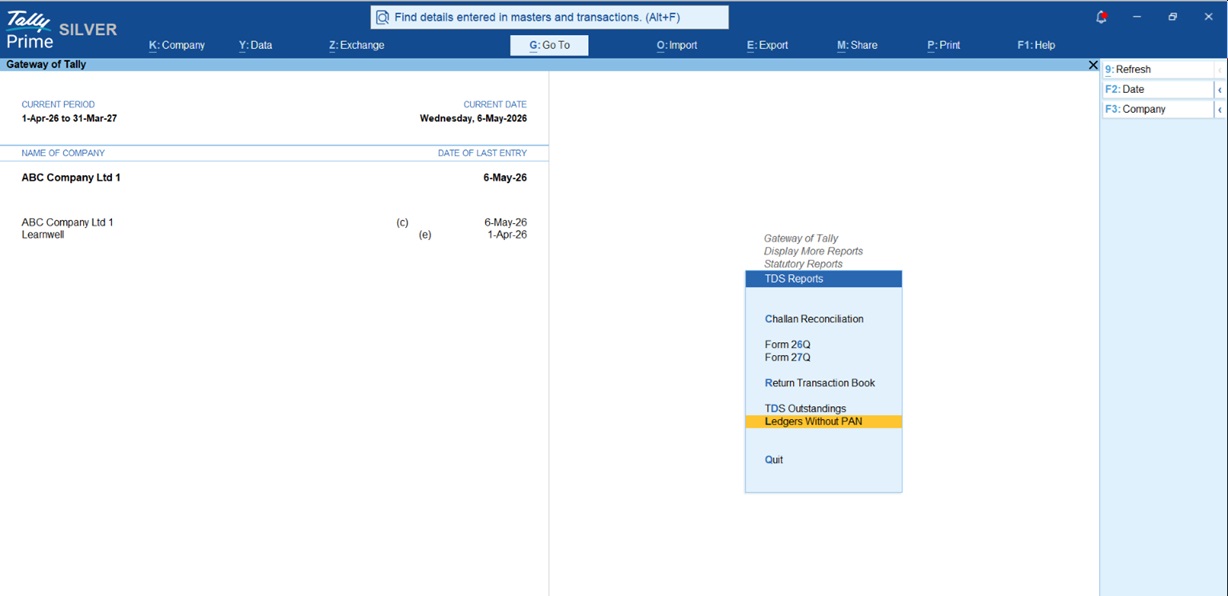
Don’t wait for an audit to find these. Follow this path: Gateway of Tally > Display More Reports > Statutory Reports > TDS Reports > Ledgers without PAN.

This report shows you exactly who is missing a PAN. If a vendor simply hasn’t provided one, enter PANNOTAVBL in the PAN field. This ensures your return is valid, even if you have to deduct at the higher rate. Fix this before March 31st to avoid a major headache with the tax department.

TDS Report in TallyPrime

Are You Compliant with the New 45-Day MSME Payment Rule?

For the 2025-26 year-end, Section 43B(h) is the biggest change on the block. To support Micro and Small enterprises (note: this rule excludes Medium enterprises), the government will now disallow your expenses if you haven’t paid these vendors on time.

“Disallowance” is a fancy way of saying the taxman will add those unpaid bills back to your taxable income, and you’ll pay tax on money you’ve already “spent.”

  • No written agreement: You must pay within 15 days.
  • With a written agreement: You must pay within the agreed time, not exceeding 45 days.

Use the “Bills Payable” report in TallyPrime and filter it by MSME status. If you see a “Micro” vendor waiting for payment, clear it before March 31st to ensure you can claim that expense.

Real-World Examples: How I Saved Time

The “Go To” Savior One of my clients, a retail shop owner, was panicking over a ₹50,000 discrepancy in his bank balance. Instead of hunting through menus, he used Alt+G (Go To) and typed “Bank Reconciliation.” Within seconds, he imported his statement, and Tally highlighted a missing customer deposit. He recorded it right there and saved two hours of manual digging.

Also checkout this Add Bank Details in Group Summary TDL

Ready for the “Magic” Click?

Once the data is clean, it’s time for the “magic” click to move into the new financial year.

  1. Change Period (Alt+F2): This is the simplest way. Just change the period to 1-Apr-2026 to 31-Mar-2027. TallyPrime automatically carries forward your closing balances.
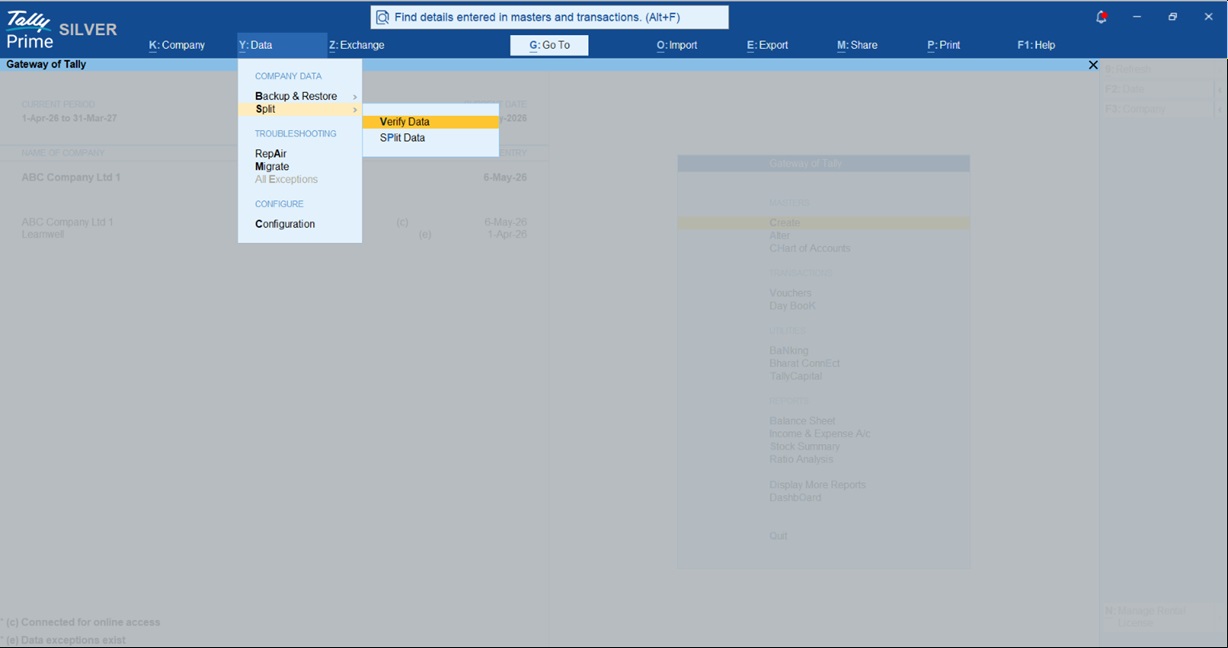
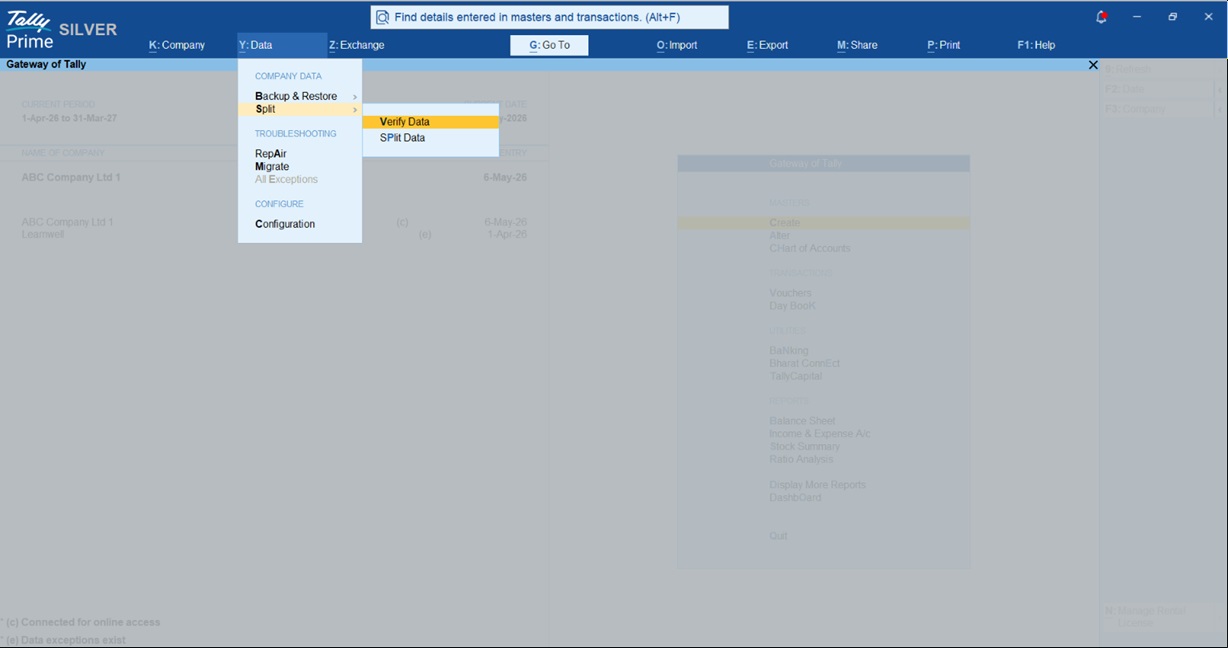
  2. Splitting Company Data: If your business is huge and Tally feels a bit slow, use the Split feature (Alt+Y > Split). This creates a fresh file for the new year. Just remember to use the “Verify Data” tool first to ensure there are no hidden errors before you split.
split tallyprime data

Your 1-Day Closing Checklist

Check these off on March 31st to finish your closing in record time:

  • Bank: Reconcile all accounts using Alt+O to match “Balance as per Books” with the bank.

  • Inventory: Run a physical count and update the Physical Stock Voucher (Ctrl+F7).
  • GST: Match GSTR-2B with your Purchase Register and use IMS to manage ITC.
  • Sales: Check GSTR-1 to ensure all invoices are “Included in Return.”
  • TDS: Clear the “Ledgers without PAN” report and use PANNOTAVBL where needed.
  • MSME: Pay all Micro and Small vendors within the 15/45-day limit to avoid expense disallowance.
  • Adjustments: Record depreciation and outstanding expenses via Journal Vouchers (F7).
  • New Year: Press Alt+F2 and step into the new Financial Year!

Frequently Asked Questions (FAQs)

Q1: Do I need to create a new company every year? No! Just use Alt+F2 to change the period. Tally carries everything forward. Only use “Split” if your data is very large and slowing down.

Q2: What if my stock count is off by a few units? Use the Physical Stock Voucher (Ctrl+F7). Enter the actual count, and Tally will auto-adjust the difference to match reality.

Q3: Is the 45-day MSME rule mandatory? Absolutely. For Micro and Small vendors, if you miss the deadline, you lose the tax deduction for that expense this year.

Q4: Can TallyPrime find my bank errors? Yes. Auto Bank Reconciliation flags mismatches between your entries and the bank’s e-statement so you can fix them instantly.

Q5: What is the fastest way to find a year-end report? Use the Alt+G (Go To) button. Type the report name, and Tally takes you there without the menu-hopping.

“The best way to handle ‘March Madness’ is to stay ‘Tally-Ready’ all year round, closing your books shouldn’t be a marathon; it’s just the final lap.”

How Businesses Close Their Financial Year Effortlessly in TallyPrime

How Businesses Close Their Financial Year Effortlessly in TallyPrime

TL;DR:

How Businesses Close Their Financial Year Effortlessly in TallyPrime? Closing your books in TallyPrime is far simpler than the manual ledgers of the past. The software automates the carry-forward of your balances, allowing you to start the new year on April 1st by simply changing the period (Alt+F2) or splitting your data. Your old records remain safe and accessible, ensuring you have a clean slate for the new year while staying audit-ready.

Introduction: Why the Year-End Doesn’t Have to Be Stressful

In my years spent working with industrial units and dealerships, I’ve seen many business owners break into a cold sweat as March 31st approaches. There’s a common fear that you have to “lock” your books or that you’ll lose access to last year’s data the moment the clock strikes midnight.

Let me set your mind at ease: TallyPrime handles the transition seamlessly. It moves your balances automatically, and you can actually work in two financial years at the same time, finishing up last year’s entries while recording today’s new sales.

What Actually Happens When a Financial Year “Closes”?

To understand the magic, we have to look at how Tally separates “Temporary” and “Permanent” accounts.

  • Temporary Accounts (Revenue and Expenses): These track your performance for a specific year. To ensure your 2025 profits don’t inflate your 2026 results (which would be a massive tax headache), Tally resets these to zero.
  • The ABC Logic: Imagine a business like the ABC Corporation. If they have an adjusted revenue of ₹78,000, Tally effectively debits that revenue account to bring it to zero and moves that total into what accountants call “Retained Earnings.” In TallyPrime, this is specifically handled via the Profit & Loss A/c ledger.
  • Permanent Accounts (Assets, Liabilities, and Equity): Your bank balance or the money a customer owes you doesn’t vanish on April 1st. These stay on your Balance Sheet and simply carry forward as “Opening Balances.”

How Can You Start the New Year Immediately?

The fastest way to step into the new year is simply to change the current period. This allows for “concurrent access,” meaning you can record new sales today while your auditor is still reviewing last year’s books in the same file.

Step-by-Step: Changing the Period

  1. From the Gateway of Tally, look at your current period.
  2. Press Alt+F2.
  3. Enter the new dates (e.g., 1-Apr-2026 to 31-Mar-2027).

Tally will automatically carry forward the closing balances as the opening balances for the new year.

Should You Restart Your Bill Numbers?

I always tell my mentees in the industrial belts: a new year is the perfect time for a clean start. Restarting your invoice numbering from “1” on April 1st makes your documentation organized and simplifies GST compliance.

Actionable Steps to Restart Numbering:

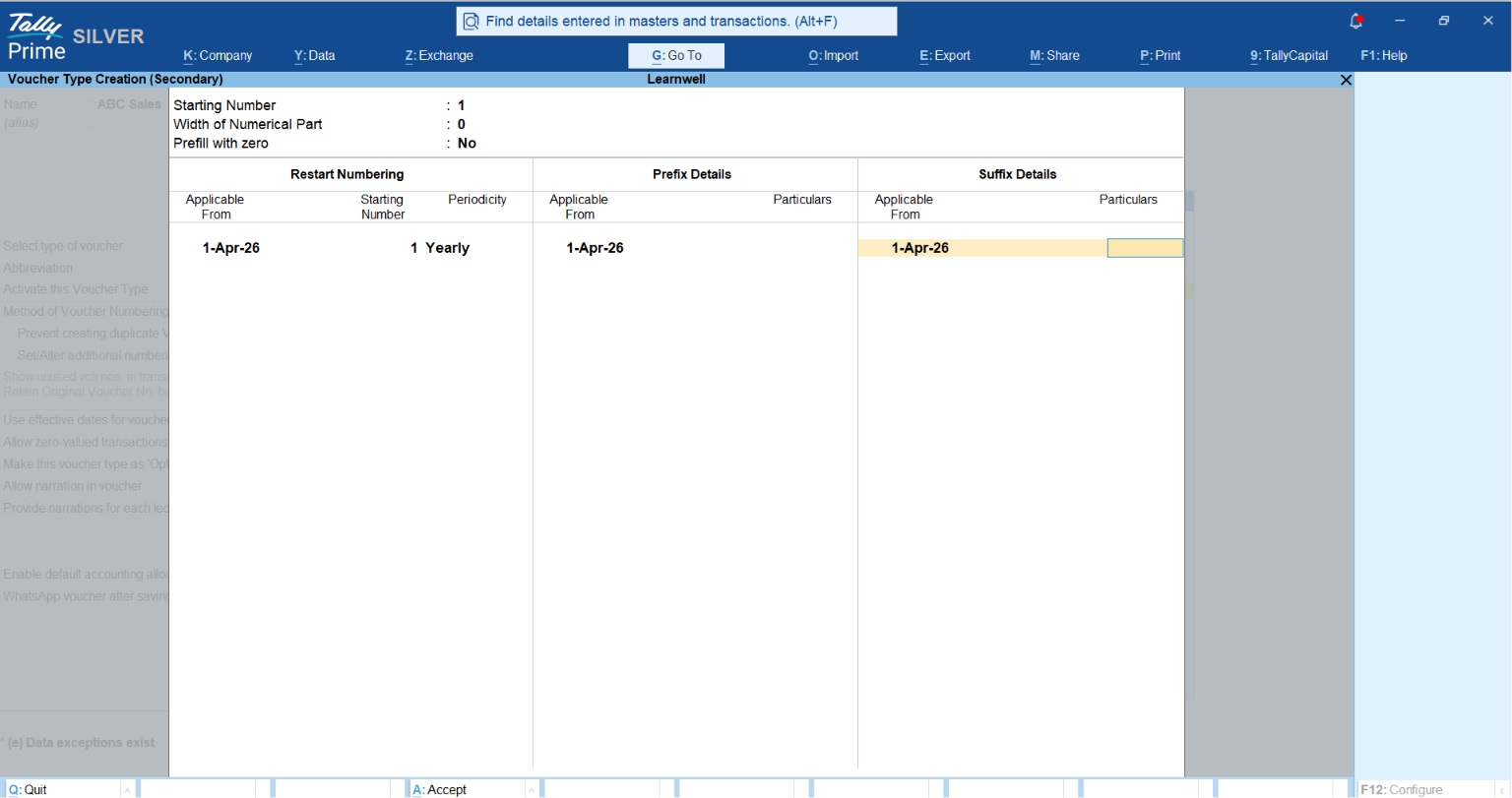
  1. Go to Gateway of Tally > Alter > Voucher Type.
  2. Select Sales.
  3. Set Method of Voucher Numbering to Automatic (Manual Override).
  4. Crucially, set Prevent duplicates to Yes to ensure your audit trail remains clean.
  5. Set Set/Alter Additional Numbering Detail to Yes.
  6. In the Restart Numbering column, enter the starting date (1-Apr) and the Starting Number (1).
How Businesses Close Their Financial Year Effortlessly in TallyPrime

How to use Voucher Numbering Method in TallyPrime

When is it Time to “Split” Your Company Data?

If you’re running a high-volume business, your Tally data can become “heavy,” slowing down your reports. “Splitting” the financial year is the best move here. It isn’t just about speed; it’s about audit readiness, keeping each year’s data in its own clean, organized folder.

The Golden Rule: Always take a full data backup before you split.

What happens to the data? Tally creates two separate company folders. One holds your historical data, and the other starts fresh on April 1st with all your ledgers, masters, and opening balances intact.

how to split tallyprime data

Check out this tally help on How to split company data in TallyPrime

A Real-World Example: My Experience with a Heavy Dealership

A few years ago, I visited a heavy machinery dealership. Between the smell of grease and the sound of the factory floor, the owner was panicking because Tally was lagging. They were terrified that splitting the data would mean they couldn’t see a customer’s three-year purchase history.

I showed them how to split the data after a solid backup. We moved the new year into a fresh folder, and the report generation speed doubled instantly. They realized they could still open the “old” company folder in seconds to check historical invoices. It turned a daily frustration into a high-performance system.

My “Smooth Move” Checklist (Actionable Tips)

Follow these steps for a flawless transition:

  • Take a full data backup: Save it on an external drive or cloud.
  • Reconcile Bank and Cash balances: Ensure your Tally figures match your actual statements.
  • Verify GST and TDS reports: Clear any mismatches so your data is “return-ready.”
  • Check for unused masters: Go to Chart of Accounts > Ledgers > Ctrl+J (Exception Reports) > Show Unused to identify and delete ledgers you no longer need.
  • Set the new period: Use Alt+F2 to step into the new year.

“Closing your books shouldn’t feel like a final exam; with Tally, it’s just another Saturday morning.”

Conclusion: Final Thoughts

TallyPrime is designed to take the manual labor out of the year-end transition. Whether you choose to simply change the period or split your data for better performance, the goal is to keep your focus on growth rather than paperwork. Take a deep breath, follow the steps, and let Tally handle the heavy lifting.
Also read this How to get Management Reports from TallyPrime

——————————————————————————–

Frequently Asked Questions (FAQs)

1. Can I work in the new year before finishing the old one? Yes. Use Alt+F2 to change the period. This allows you to record new transactions while the previous year’s data remains available for adjustments and auditing.

2. Is my old data safe after a split? Absolutely. When you split, Tally preserves the original data in a separate company folder while creating a new company for the current year with all balances intact.

3. Do I need to manually enter opening balances? No. TallyPrime automatically carries forward the closing balances of assets and liabilities as opening balances when you change the period or split the company data.

4. How does Tally handle GST rule changes during the transition? Tally provides regular updates for regulatory changes. These updates keep your system aligned with the latest GST rates and return formats without requiring manual reconfiguration.

5. What is an Audit Trail and why does it matter for my year-end? The Audit Trail (Edit Log) is mandatory for companies as of 1st April 2023 per the MCA mandate. It records every creation or alteration to ensure data integrity during audits.

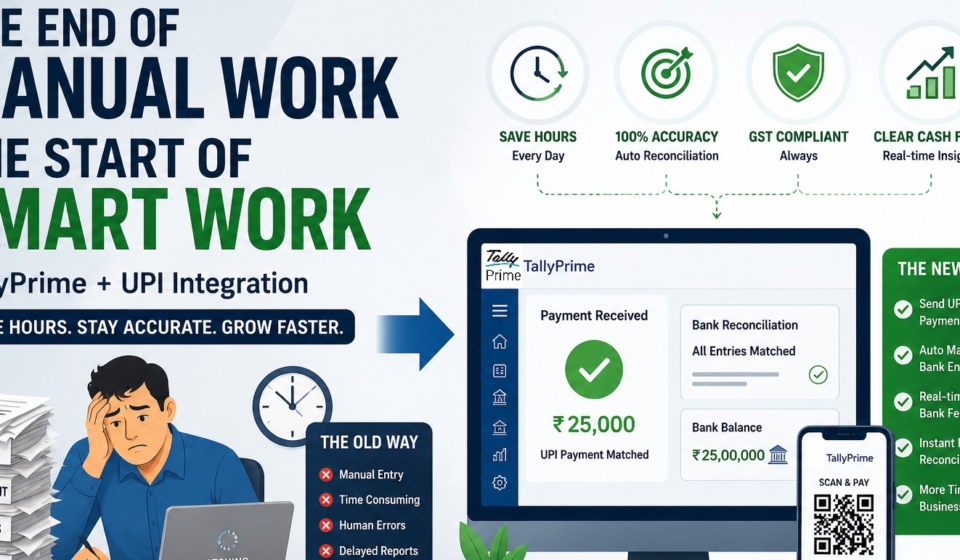
TallyPrime and UPI/Payment Gateway Integration: How Indian Businesses Reconcile Digital Payments Automatically

TallyPrime and UPI/Payment Gateway Integration: How Indian Businesses Reconcile Digital Payments Automatically

TL;DR

How Indian Businesses Reconcile Digital Payments Automatically with TallyPrime and UPI/Payment Gateway Integration? In my experience, manual data entry is the biggest silent killer of productivity for Indian business owners. TallyPrime now solves this by connecting directly with UPI and Payment Gateways to send instant payment links and QR codes. The system automatically matches your bank entries to invoices, removing the need to type in UTR numbers, while keeping your accounts GST-compliant and your cash flow crystal clear.

Introduction: The Problem with Manual Reconciliation

In my years handling accounts for dealerships and factories, I’ve seen the same headache repeat every month. Business owners and accountants spend hours manually checking bank statements, squinting at UTR numbers, and which customer paid which bill. I call this “The Old Way”, a recipe for human error and delayed financial reports.

Today, smart businesses are moving toward “Connected Services.” By syncing your bank books with digital payments in real-time, you can bridge the gap between your bank portal and your accounting books.

TallyPrime and UPI/Payment Gateway Integration: How Indian Businesses Reconcile Digital Payments Automatically

What is a “Digital Payment Request” in TallyPrime?

A “Payment Request” is simply a way to generate a UPI QR code or a payment link directly from an invoice in TallyPrime. I recommend two main methods:

  • UPI: Direct-to-bank transfers using a VPA/UPI ID. It is instant and highly cost-effective.
  • Payment Gateways: Integration with providers like Razorpay and PayU for accepting credit cards, debit cards, and net banking.

A Specialist’s Tip: When sending these links via email or WhatsApp, remember that the payment link is only clickable for your customer if the invoice is sent as a PDF. If you send it as a JPEG or image, the link won’t work! Also, ensure your “Remarks” in UPI requests do not contain special characters like &, #, or /, as these can cause transactions to fail.

How Does “Connected Banking” Make Life Easier?

One question I often get is: “Can I see my bank balance without leaving Tally?” The answer is yes. TallyPrime provides a secure connection with major Indian banks, including ICICI, Axis, SBI, and Kotak.

While Tally supports bank statement imports for over 250+ banks, direct e-payments (sending money out) are currently supported for 18 major banks.

Is the Matching Really Automatic?

TallyPrime uses “Smart Match” logic to align your books with your imported bank statement. Here is how I configure it for my clients:

  1. Exact Match: Tally automatically links entries where the amount and UTR/Instrument number are identical.
  2. Potential Match (Alt+S): This is where the expert settings come in. By pressing Alt+S, you can tell Tally to ignore leading zeros in reference numbers or ignore special characters. You can also set a “days” threshold (default is 30 days) to find matches even if the dates differ slightly.
  3. Auto-create Voucher (F7): If you see an entry in your bank statement that isn’t in your books (like a bank charge or a direct customer payment), simply press F7. Tally will create the receipt or payment entry for you, pulling the amount and date automatically.
TallyPrime and UPI/Payment Gateway Integration: How Indian Businesses Reconcile Digital Payments Automatically

Also check How to use Bank Reconcilation Report in TallyPrime

Why This Matters for Your GST Compliance

Digital payments are a major boost for transparency. Under Section 16 of the CGST Act, you must prove that transactions are genuine and that suppliers have been paid through traceable channels to claim Input Tax Credit (ITC).

By having a digital trail, where every payment carries a UTR number linked to an authenticated e-invoice (with an IRN), your GSTR-1 and GSTR-3B filings become significantly more accurate. It provides an instant, auditable record that protects you during tax assessments.

Real-World Example: A Spare Parts Dealership

Let’s see how this looks in a daily workflow:

  • Morning: I record five sales invoices. As I save them, Tally prompts me for a QR code. I click “Yes,” and it’s printed right on the invoice.
  • Afternoon: Customers scan the codes and pay via UPI.
  • Evening: I open the Bank Reconciliation report, fetch the live statement via Connected Banking, and Tally identifies the matches.
  • Closing: I press one button to reconcile, and my bank balance in Tally matches my actual bank balance perfectly.

Navigation Guide: Where to Find These Features

  • Enable Feature: Press F11 > Set “Enable Payment Request” to Yes.
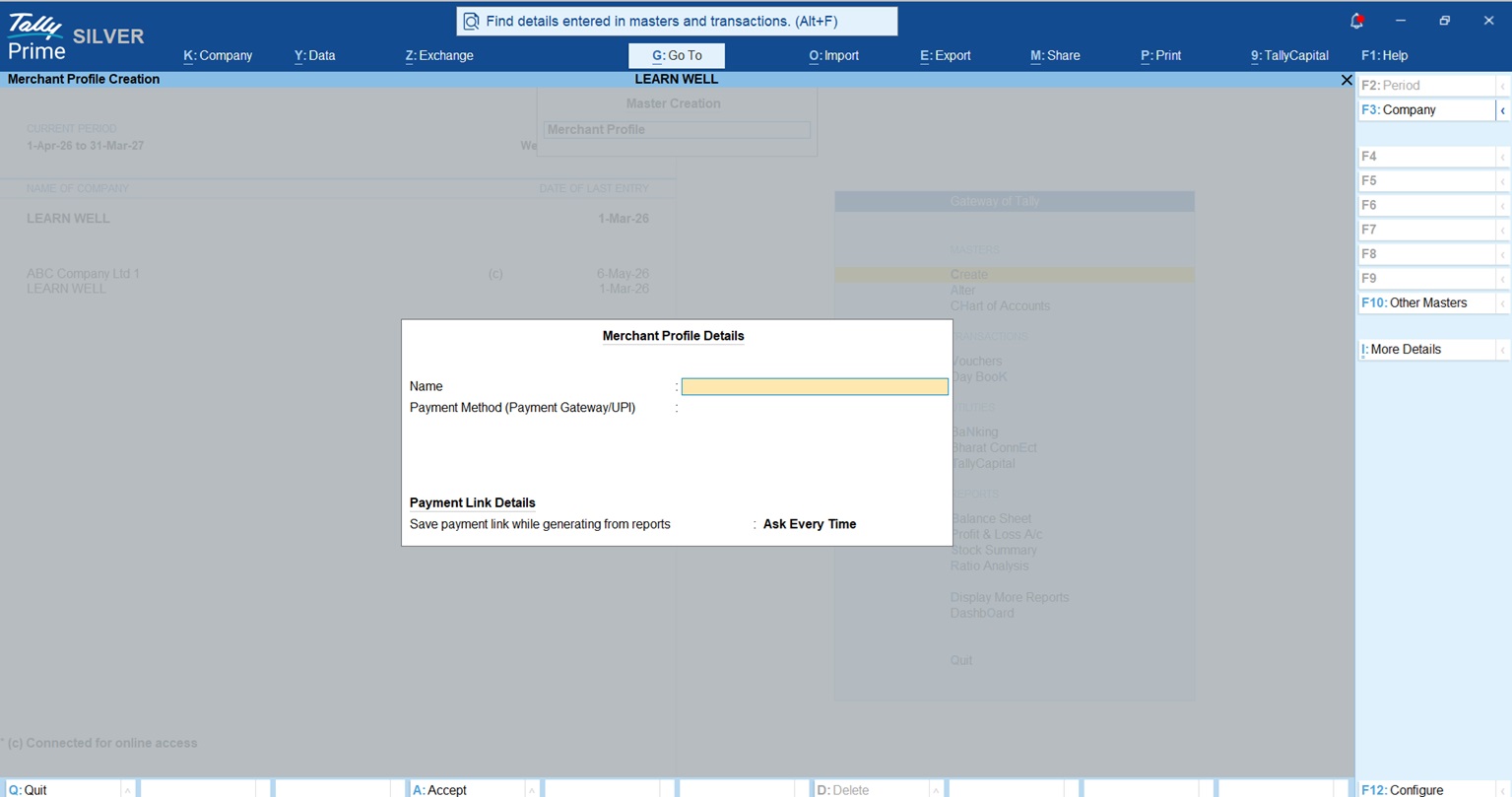
  • Merchant Profile: Gateway of Tally > Create > Merchant Profile.
  • Bank Reconciliation: Gateway of Tally > Banking > Bank Reconciliation.
  • Connected Banking: Alt+Z (Exchange) > All Banking Options > Bank Connections.
Bank Merchant Profile in TallyPrime

The Bharat Connect Factor (TallyPrime 7.0)

The latest evolution in TallyPrime 7.0 is the “One Invoice, One Flow” system via Bharat Connect. Once you register your GSTIN through the TallyPrime plugin, you are assigned a unique B2B ID.

When a supplier sends an invoice, it appears in your Tally instantly. You simply “Accept” it to auto-create a purchase entry. When you pay, the status updates for both you and the supplier simultaneously. No more emailing PDFs or manual typing.

Read more about TallyPrime 7.0 Features

Conclusion & Actionable Checklist

A Connected ecosystem is the best way to future-proof your business. To get started, follow this checklist:

  1. Register: Sign up with a supported Payment Gateway (Razorpay/PayU) or a business UPI provider.
  2. Setup Profile: Use the F11 features to enable Payment Requests and create your Merchant Profile.
  3. Clean Start: Set a “Reconciliation Beginning Date” and ensure your “Opening BRS” is set so your starting balance has zero differences.
  4. Connect: Link your bank account via Alt+Z for live statement fetching.

FAQs

  • Do I need high-speed internet? You need a stable connection (3–5 Mbps) to exchange data with banks and payment providers in real-time.
  • Is my financial data safe? Yes. Tally uses bank-level encryption, OTP-based authentication, and supports “maker-checker” rights for all transfers.
  • Which banks are supported? Over 250 banks are supported for statement imports, while 18+ major banks support direct e-payments from Tally.
  • Can I send links via WhatsApp? Yes, TallyPrime has native WhatsApp integration to share invoices with payment links directly.
  • Does this work for partial payments? Yes. You can generate a payment request for the full invoice or a specific partial amount.

“The era of typing UTR numbers by hand is over. Connected banking turns your accounting software into a real-time financial hub.”

Why Basic Billing Apps Fall Short for Wholesale, Pharma and Manufacturing Businesses - And When TallyPrime Becomes a Need

Why Basic Billing Apps Fall Short for Wholesale, Pharma and Manufacturing Businesses – And When TallyPrime Becomes a Need

TL;DR

Why Basic Billing Apps Fall Short for Wholesale, Pharma and Manufacturing Businesses – And When TallyPrime Becomes a Need? While simple apps like Vyapar and myBillBook are nice for micro-retailers. As your complexity grows, you move beyond simple invoicing into a need for high-volume data integrity and strategic resource planning. TallyPrime becomes an operational necessity when you reach four specific pain points: managing stock across multiple godowns, preventing losses through automated FEFO batch tracking, reconciling static GSTR-2B statements to secure Input Tax Credit (ITC), and professional-grade manufacturing costing.

Introduction: The “Simple App” Wall

I’ve spent may years in the trenches of Indian accounting, and I’ve noticed a pattern. Simple billing apps are wonderful if you’re a solo trader needing a quick GST invoice from your phone. But for the industrial units and large-scale distributors I consult for, there comes a day when “billing” is just the tip of the iceberg. You reach a wall where you need strategic management and “Data Integrity.” When your business starts to scale, those simple apps start to feel a bit small, and that’s when TallyPrime moves from being a choice to being your business’s backbone.

Why Basic Billing Apps Fall Short for Wholesale, Pharma and Manufacturing Businesses - And When TallyPrime Becomes a Need

Are you losing track of stock across different godowns?

In wholesale and distribution, profitability is tied to how fast you turn over stock. Most basic billing apps are designed for single-location shops and often become “sluggish” once you hit high transaction volumes or invoices with 50+ line items. TallyPrime’s proprietary engine is optimized for 100+ line items and ensures “Zero Data Collision” even in heavy multi-user environments.

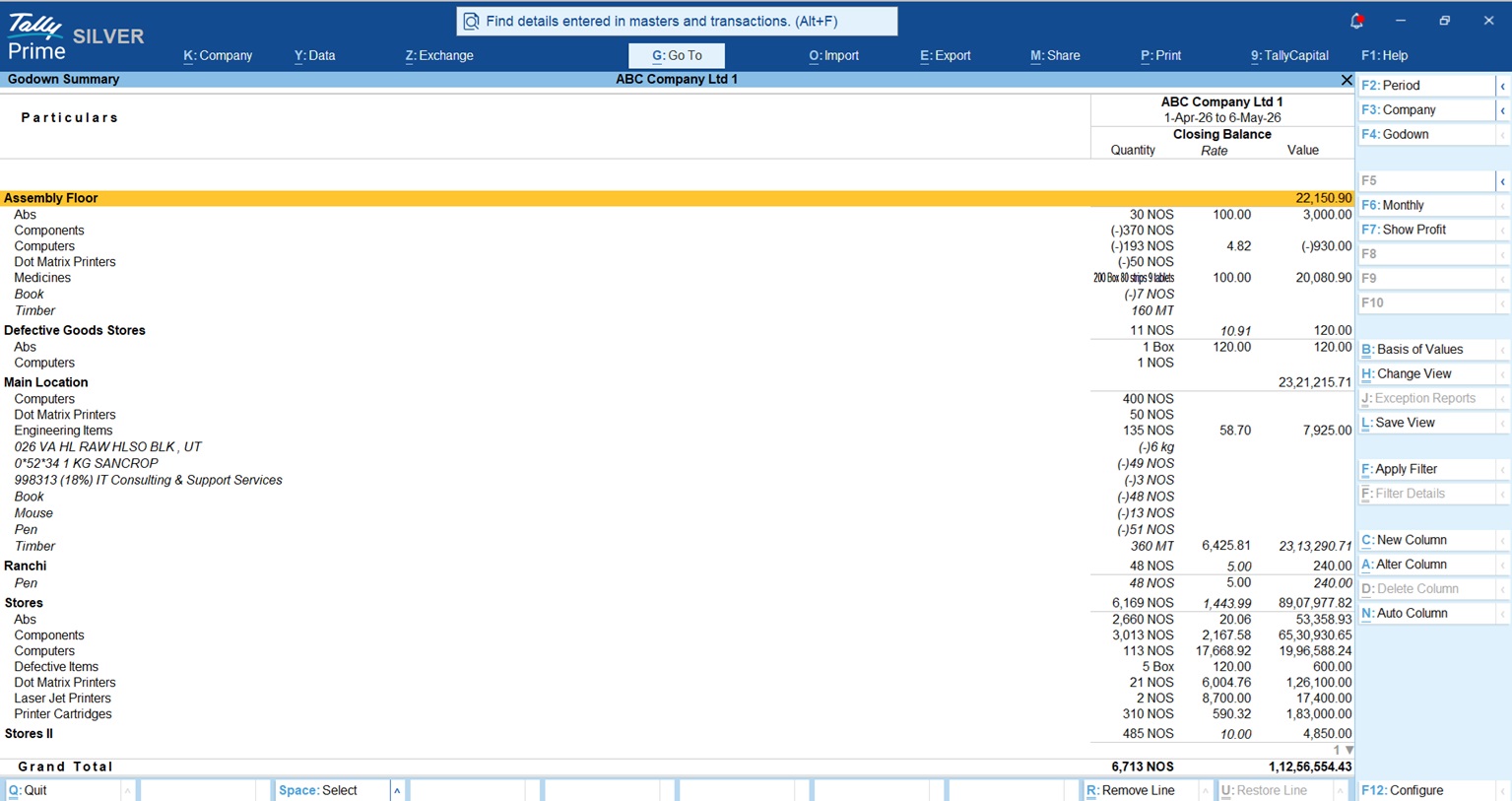
When you manage a central warehouse and multiple regional depots, you need more than a simple stock count. TallyPrime’s Multi-Godown Management allows for seamless Inter-Godown Transfers. If you move 500 units from a city depot to a rural warehouse, Tally records the move without affecting sales, keeping your valuation accurate. Without this, you face “stock discrepancies”, where the system shows stock that is physically unavailable at a specific location, leading to embarrassing order fulfillment failures.

I also insist my wholesale clients use Multi-Price Lists. You can’t bill a super-stockist the same as a small retailer. Tally automatically applies the correct rate based on the customer’s category. Combine this with Party-wise Credit Limits, which automatically blocks staff from billing “Udhaar” (credit) to customers who have crossed their limit, and your cash flow stays protected.

Tallyprime godown summary

Is expired stock or batch confusion costing you money?

If you’re in Pharma or FMCG, you aren’t just managing stock; you’re managing time. The real headache in pharma is Complex Units of Measure. You buy in boxes, store in strips, and sell in individual tablets. Simple apps often struggle with these conversions, leading to “inventory leakage.”

TallyPrime is engineered for FEFO (First Expired, First Out). While basic apps require staff to manually select a batch inviting human error, Tally automatically suggests the batch closest to expiry.

Regulatory Alert: Traceability & Recalls Under the Drug and Cosmetics Act, traceability is a legal mandate. TallyPrime provides two-way batch traceability and tracks your medicine license expiry. If a manufacturer issues a recall, you can instantly identify which customers received that specific batch and which supplier provided it.

Also check Batch and Godown Details Register TDL for TallyPrime

Do you know the real cost of making your products?

In manufacturing, a simple “Revenue minus Raw Material” calculation is a dangerous shortcut. To grow, you must understand your Bill of Materials (BOM). TallyPrime handles “nested BOMs,” which is critical for products with sub-assemblies (like a machine with a motor that has its own recipe of parts).

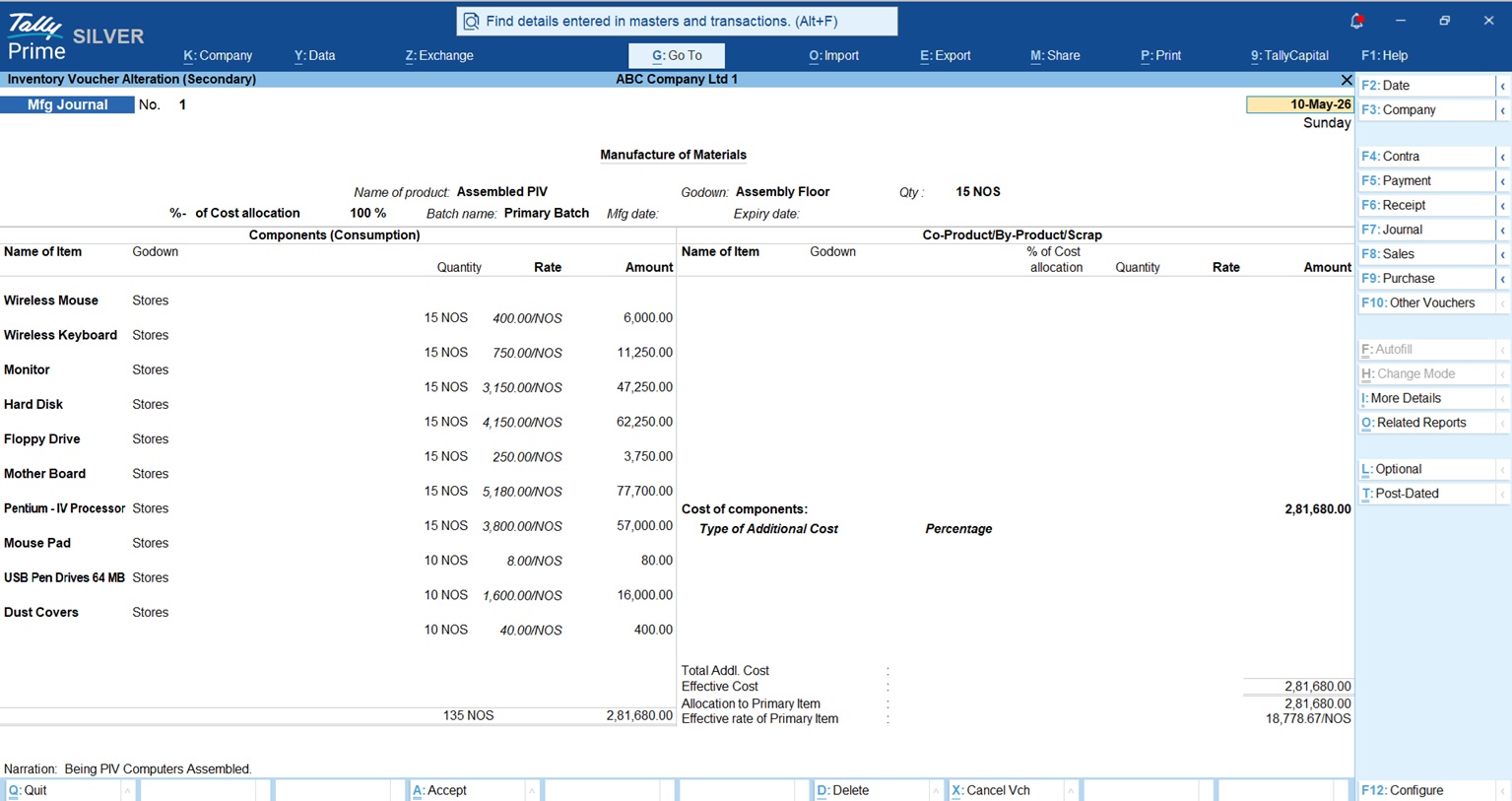
A veteran accountant knows that true production cost equals Material + Labor + Overheads + Wastage. Tally’s Manufacturing Journal automatically accounts for scrap and by-products generated during the process.

The WIP Tipping Point:

  • Basic Apps: Only see the start (purchase) and the end (sale), leaving the “middle” a mystery.
  • TallyPrime: Tracks Work-in-Progress (WIP). You see exactly how much capital is locked in semi-finished goods sitting on your factory floor at any given moment.
Manufacturing Journal TallyPrime

Are you worried about GSTR-2B mismatches and Audit rules?

Compliance is the ultimate “tipping point.” GSTR-2B is a static statement; it doesn’t change based on what your vendor does later. If your supplier didn’t file correctly, you lose your Input Tax Credit (ITC). TallyPrime’s “Connected GST” experience syncs with the portal to find mismatches automatically, preventing those dreaded “DRC-01C” notices.

Then there is the MCA Edit Log (Audit Trail) mandate. Since April 2023, all companies registered under the Companies Act (including Private Limited and One Person Companies) must use software where the edit log cannot be disabled. For statutory auditors, TallyPrime is the “gold standard” because it maintains a permanent record of every change, making your year-end audit stress-free.

Pricing: Is TallyPrime actually expensive?

I often hear that Tally is a “big” investment. But when you factor in the cost of manual errors and GST penalties, it’s actually the most cost-effective choice for growth.

  • Silver (Single User): ₹22,500 + 18% GST (Lifetime License).
  • Gold (Multi-User): ₹67,500 + 18% GST (Unlimited users on a LAN).
  • Subscription: Starts at ₹750/month, plus ₹135 (18% GST).

The long-term value of “Data Integrity” and professional acceptance by CAs far outweighs the recurring subscription costs of simpler billing apps.

Conclusion: A Personal Thought for Growing Owners

If you’re wondering if it’s time to switch, ask yourself this checklist:

  1. Do I have more than one godown or warehouse?
  2. Do I deal with products that have expiry dates or batches?
  3. Is my business a Private Limited company or OPC?
  4. Does my CA ask for Tally data because my current reports are too basic?

If you answered “Yes” to any of these, you’ve hit the structural ceiling. Move to TallyPrime now while your data is manageable. It’s the difference between running a shop and managing an enterprise.

“You can run a business without a machine, but in today’s world, you can’t run a complex business without TallyPrime.”

——————————————————————————–

FAQs

1. Can I access TallyPrime on multiple devices or through a browser? Yes. TallyPrime provides secure browser-based access, allowing you to view professional reports, invoices, and ledgers from any device with an internet connection, anywhere in the world.

2. Is TallyPrime difficult to use for non-accountants? Not at all. While built on professional principles, the interface is intuitive. If you can navigate a basic billing app, you can easily handle TallyPrime’s simplified navigation.

3. Is there a limit to how many godowns I can manage? No. TallyPrime allows you to create unlimited godowns. You get real-time visibility and the ability to perform internal stock transfers across every single one of your locations.

4. Can I use batch tracking for items other than medicine? Yes. Batch tracking is vital for food (FMCG), chemicals, or electronics where you need to monitor manufacturing dates or lot numbers to ensure quality control.

5. Is it hard to move my data from an app like Vyapar to Tally? The transition is simple. Party lists and stock items can be exported to Excel and imported into TallyPrime, ensuring your historical data remains intact during the move.

How to Get Management Reports Every Distributor Needs From TallyPrime

How to Get Management Reports Every Distributor Needs From TallyPrime

TL;DR:

Management Reports Every Distributor Needs From TallyPrime. TallyPrime’s built-in Dashboard and Cost Centres offer distributors an instant, bird’s-eye view of sales, stock health, and individual salesperson performance without requiring complex IT skills. These native tools pull data from over 350 reports into a single screen, allowing you to monitor real-time business health and profit per customer immediately. By using these features, you can turn daily data entry into powerful management insights without investing in expensive external software.

Introduction: How to Get Management Reports Every Distributor Needs From TallyPrime

In my 20 years of experience in fields of industrial distributors and auditing dealerships, the most common frustration I hear is: “I have all this data in Tally, but I still feel like I don’t know the real-time health of my business.” Many owners I work with feel buried under stacks of paper or tangled Excel sheets just to answer a simple question like, “Are we actually making money today?”

I’m here to tell you that you don’t need to be a data scientist to get these answers. TallyPrime has evolved; it now features sophisticated dashboards and specialized registers that track stock levels, and profit-per-party automatically. You already have the power at your fingertips, you just need to know which buttons to press.

Can I See My Whole Business on One Screen?

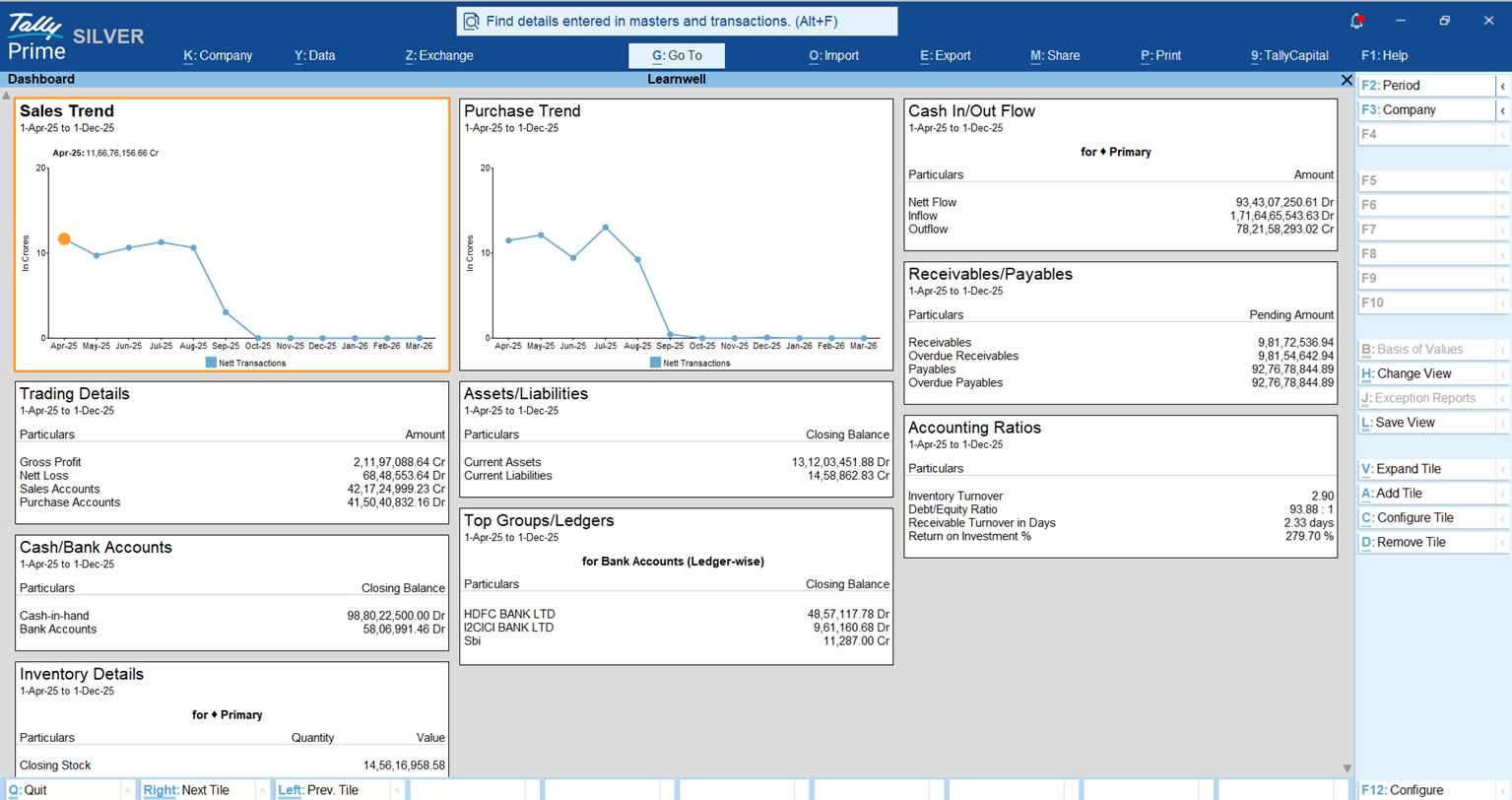
Think of the TallyPrime Dashboard as your mission control. It gathers data from over 350 different reports to give you a consolidated view of your company’s financial vitals.

The default Dashboard includes these critical tiles:

  • Sales & Purchase Trends: Visual line or bar graphs showing performance over time.
  • Trading Details: A quick snapshot of your gross margins and nett profit.
  • Receivables/Payables: Know exactly who owes you and whom you owe.
  • Cash/Bank Accounts: Monitor your liquidity to avoid cash-flow crunches.
  • Top Groups/Ledgers: See which accounts are driving your business.
  • Accounting Ratios: High-level metrics like Current Ratio or Net Profit Ratio.

How-To Get There: Simply press Alt+G (Go To) > type Dashboard and press Enter. Also can open from Gateway of Tally Screen Dashboard.

How to Get Management Reports Every Distributor Needs From TallyPrime

Advisor Tip: Don’t wait until the end of the day to check this. You can set the Dashboard as your startup screen so it’s the first thing you see when you load your company. Go to F1 (Help) > Settings > Startup and set “Open Dashboard on loading a Company” to Yes.

Who Are My Best Salespeople and Are They Collecting Cash?

In my experience, every dealership has a “Raja” a salesperson who is fantastic at closing deals but terrible at chasing the money. If you only look at your sales numbers, Rohit looks like a star, while your cash flow is actually dying.

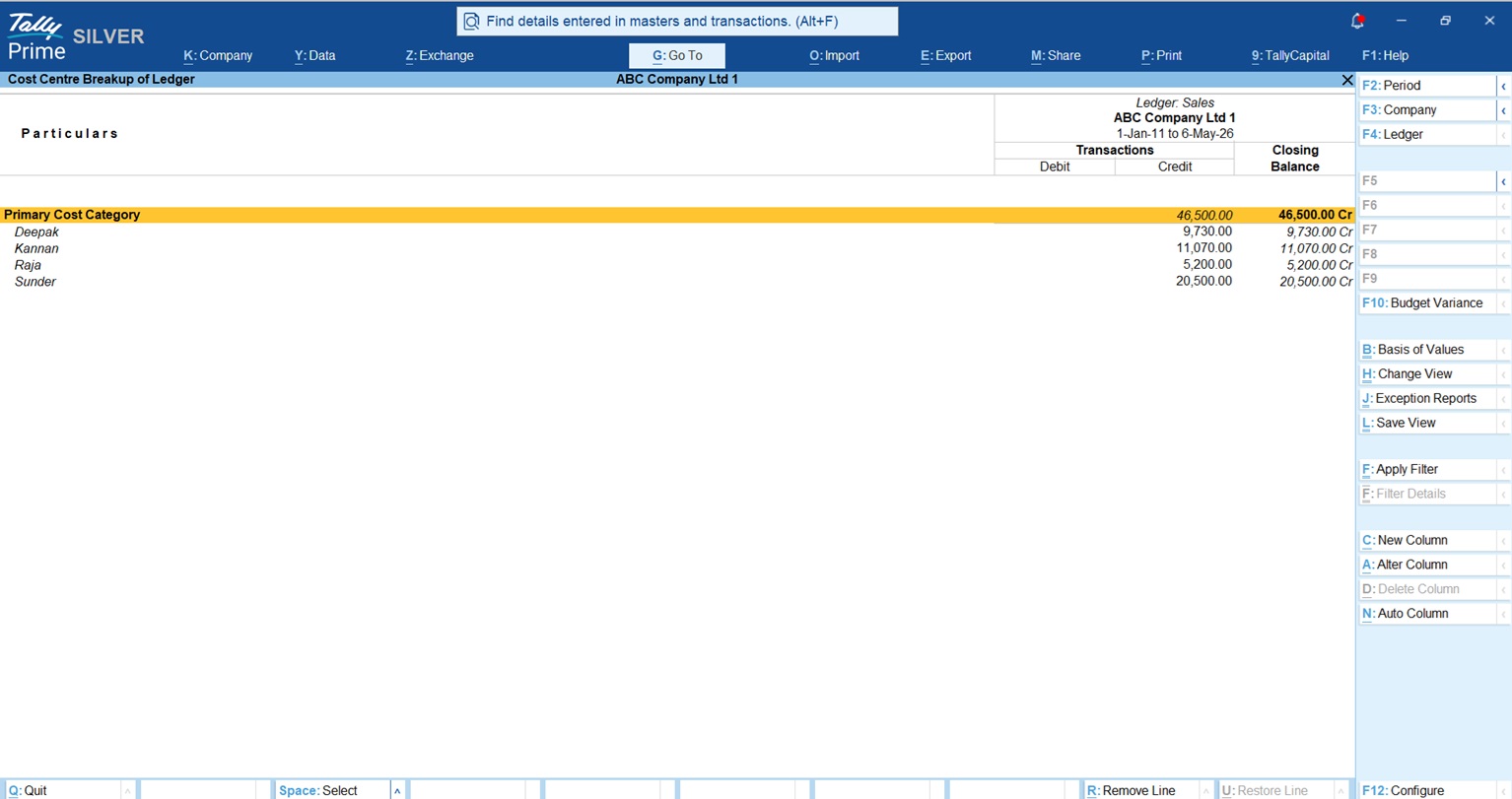
By using Cost Centres, you can track both Sales and Collections to see the full picture.

Simple 3-Step Setup:

  1. Enable: Go to F11 (Features) and set “Enable Cost Centres” to Yes.
  2. Create: Go to Create > Cost Centre and enter the Salesperson’s name.
  3. Tag: When entering a Sales Invoice or a Receipt, tag the salesperson’s name in the Cost Centre field.

To see the reports:

  • For Sales: Gateway of Tally > Display More Reports > Statement of Accounts > Cost Centres > Ledger Breakup > select Sales account.
  • For Collections: Gateway of Tally > Display More Reports > Statement of Accounts > Cost Centres > Group Breakup > Sundry Debtors.
How to Get Management Reports Every Distributor Needs From TallyPrime

This second path is the “truth teller”, it shows you exactly how much each person has collected against the credit they’ve given out.

Read more about Cost Centre – Types, Purpose & Examples

Will I Run Out of My Best-Selling Items?

In the industrial world, running out of a high-demand item like “Grade-8 Bolts” can halt a customer’s entire production line. TallyPrime’s Reorder Level feature ensures you never have to say “out of stock.”

  • Simple Reorder: This is like a “low fuel” light. You set a fixed quantity (e.g., “Always keep 500 bolts in stock”).

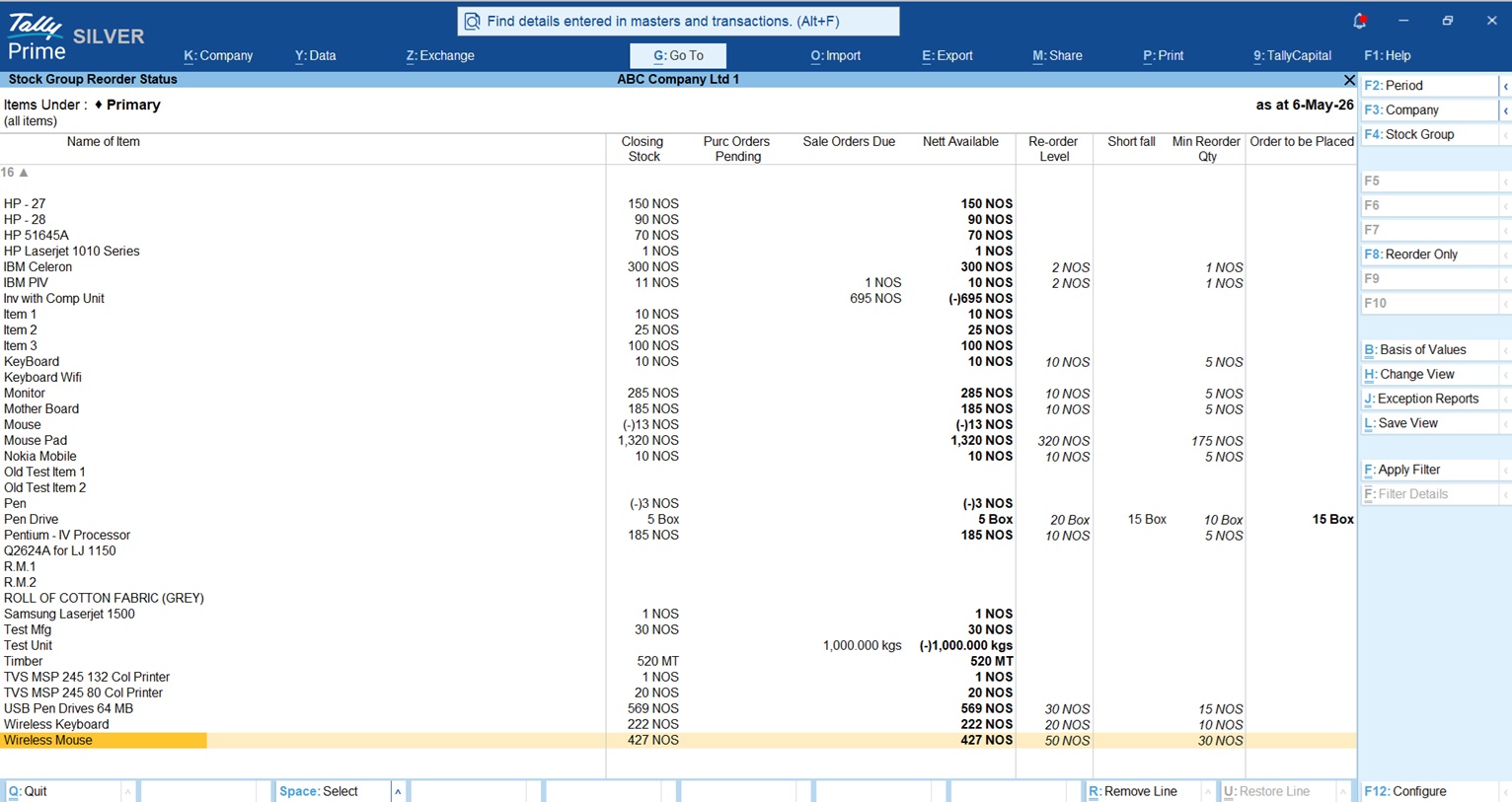
The Reorder Status Report This is your warning system. Pay close attention to the Nett Available column:

ColumnThe “Golden Formula”What it Means
Purc Orders PendingGoods you’ve ordered but haven’t received yet.
Sales Orders DueGoods promised to customers but not yet shipped.
Nett AvailableClosing Stock + Pending Purchases – Sales DueThe actual stock you can rely on.
ShortfallThe gap between your Reorder Level and Nett Available.

Navigation Path: Press Alt+G > type Reorder Status.

Re-Order Level TallyPrime

Know more about Re-order Level in TallyPrime

Am I Actually Making a Profit on Every Party?

Being “busy” is not the same as being “profitable.” You might be moving massive volume for a specific customer (Party), but after discounts and costs, you might be barely breaking even.

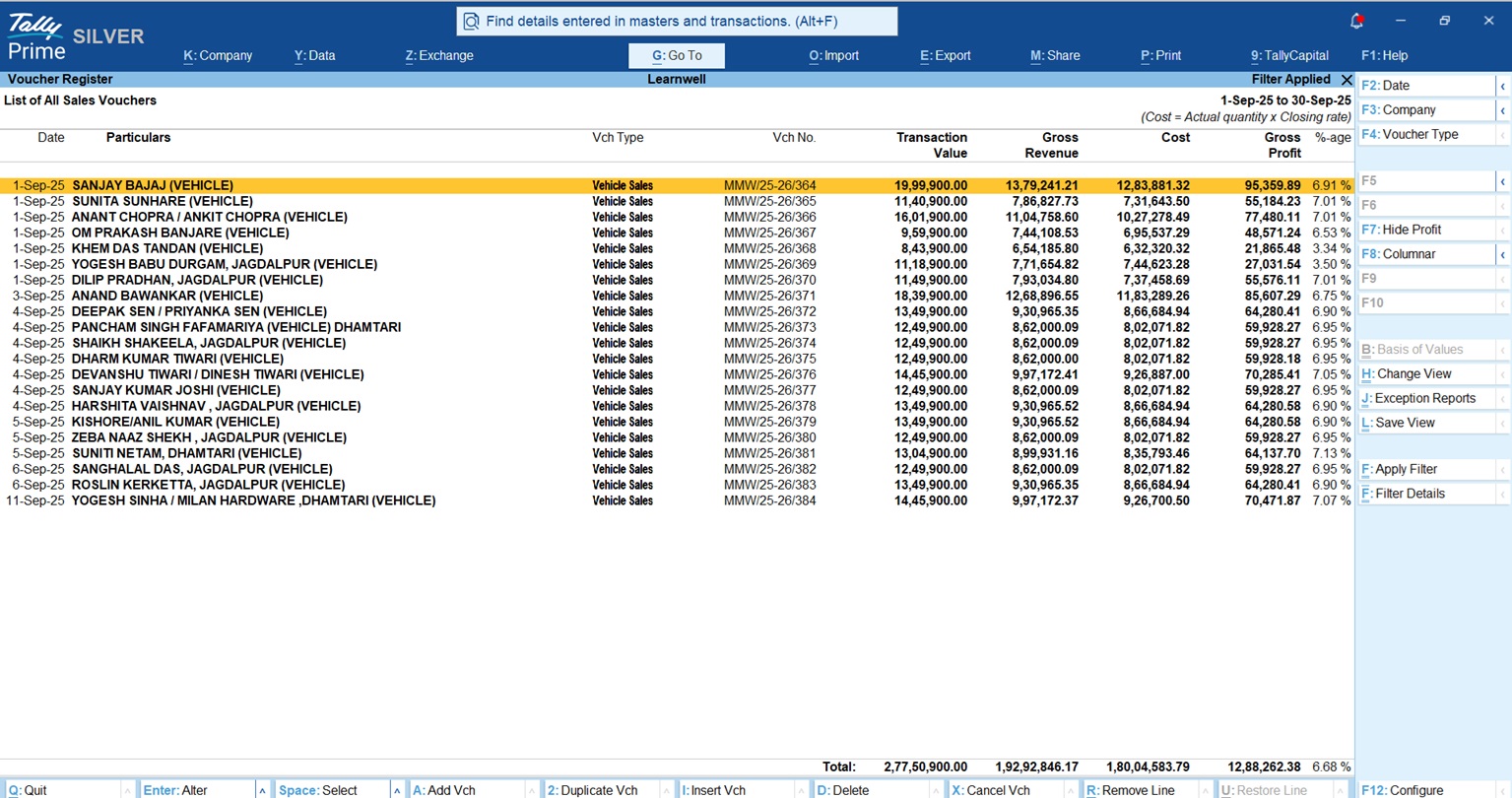
Inside the Sales Register (Gateway of Tally > Display More Reports > Account Books > Sales Register), press F7 (Show Profit). This adds a “Gross Profit” column to every invoice.

Invoicewise profit in tallyprime

Advisor Note: The profit shown here is an estimate based on your Stock Valuation Method (like FIFO or Avg Cost). Ensure your Item Master is correctly configured, or these numbers won’t reflect your true margins.

“Knowing your Gross Profit on every single bill is the difference between growing a business and just staying busy.”

You can create your invoice wise profit button with this method

Is My GST Data Ready for Filing?

Tax compliance shouldn’t be a month end panic. You can add Statutory Tiles to your Dashboard to monitor your GSTR-2A/2B reconciliation in real-time. This helps you catch mismatches with suppliers early, ensuring you don’t lose out on Input Tax Credit (ITC).

To add these:

  1. In the Dashboard, press Alt+A (Add Tile).
  2. Select Statutory from the categories.
  3. Choose the relevant GST tile.

Conclusion: Your 3-Step Action Plan

You don’t need to be a Tally expert to lead with data. I recommend my clients start with these three steps:

  • Step 1: Set the Dashboard as your startup screen to keep your KPIs front and center every morning.
  • Step 2: Start tagging every invoice to a Cost Centre today so you can evaluate your team fairly.
  • Step 3: Use the Save View (Ctrl+L) feature. Once you configure a report exactly how you like it, save it so you never have to redo the settings.

FAQs: Quick Answers for Busy Owners

Can I see graphs in the Dashboard?

Yes. While on a tile, press Alt+C (Configure Tile) and set the Display Type to “Graph Only” or “Data & Graph.” You can even choose between bar and line graphs.

Can I see reports for two companies at once?

Yes. TallyPrime includes a “Company-wise comparison” tile. It is inactive by default, but you can add it by pressing Alt+A while both companies are loaded.

Will I lose a tile if I remove it?

No. Pressing Alt+D only hides the tile from your current view. It is not deleted from the database and can be added back via Alt+A anytime.

Do I need a browser to see this?

No. Unlike some other reports, the Dashboard is a TallyPrime-only feature. Because it requires complex drill-downs and configurations that aren’t yet supported on web interfaces, it works exclusively within the software for maximum speed and security.

Can my data entry operator see my profits?

Only if you let them. Go to Alt+K (Company) > User Roles. You can allow an operator to use the Dashboard but specifically “Disallow” them from sensitive tiles like “Accounting Ratios” or “Assets/Liabilities.”

How Small Businesses Can Track Who Owes Them Money Using TallyPrime: A Beginner's Guide

How Small Businesses Can Track Who Owes Them Money Using TallyPrime: A Beginner’s Guide

TL;DR:

How Small Businesses Can Track Who Owes Them Money Using TallyPrime? TallyPrime allows small businesses to track outstanding payments by linking every receipt to its specific invoice through the Bill-wise details feature:

  • Enable Tracking: Turn on “Bill-wise details” in your company features (F11).
  • Update Customers: Set customer ledgers to “Maintain balances bill-by-bill.”
  • Record Sales: Select “New Reference” for every invoice to create a tracking ID.
  • Record Payments: Select “Against Reference” to link money to specific old bills.
  • Check Reports: Use “Receivable Reports” and “Ageing Analysis” to see who is late.
  • Speed Up Cash: Use “Reminder Letters” and “Payment Links” to get paid faster.

Intro: Is Your Business Healthy or Just Busy?

In my years working with industrial units and dealerships, I’ve seen many owners work themselves to the bone only to find their bank accounts empty. If you are making sales but don’t have cash, your money is stuck in your “Receivables.”

Steady cash flow isn’t about knowing your “total balance”; it’s about knowing which specific bill is unpaid. I’ve seen too many owners lose track of which invoice GST was already paid on, or get into awkward arguments with good customers over bills that were actually settled months ago. Tracking your receivables properly is the secret to a healthy business, and today, I’ll show you how I set this up in TallyPrime.

How Small Businesses Can Track Who Owes Them Money Using TallyPrime: A Beginner's Guide

What is “Bill-wise Tracking” and Why Should You Care?

Think of your accounting like a filing cabinet. In Tally, Accounting Groups are the big folders (like “Sundry Debtors”), and Ledgers are the individual files inside (your customers).

Standard accounting only shows the total weight of the file. But “Bill-wise Tracking” allows Tally to track every single invoice as its own unique item. Instead of just seeing that “Mr. Sharma owes ₹50,000,” you will see he owes for Invoice #101, #105, and #110. This stops the “muddling” of old and new dues, ensuring you always know exactly where your cash is sitting.

How Do I Start? (The One-Time Setup)

Setting the foundation takes less than five minutes.

Step 1: Enable the Billwise Feature in TallyPrime

  1. From the Gateway of Tally, press F11 (Features).
  2. Set Maintain bill-wise details to Yes.
  3. Press Ctrl+A to save.

Step 2: Update Your Customers Ledger in TallyPrime

  1. Go to Gateway of Tally > Alter > Ledger and select a Customer.
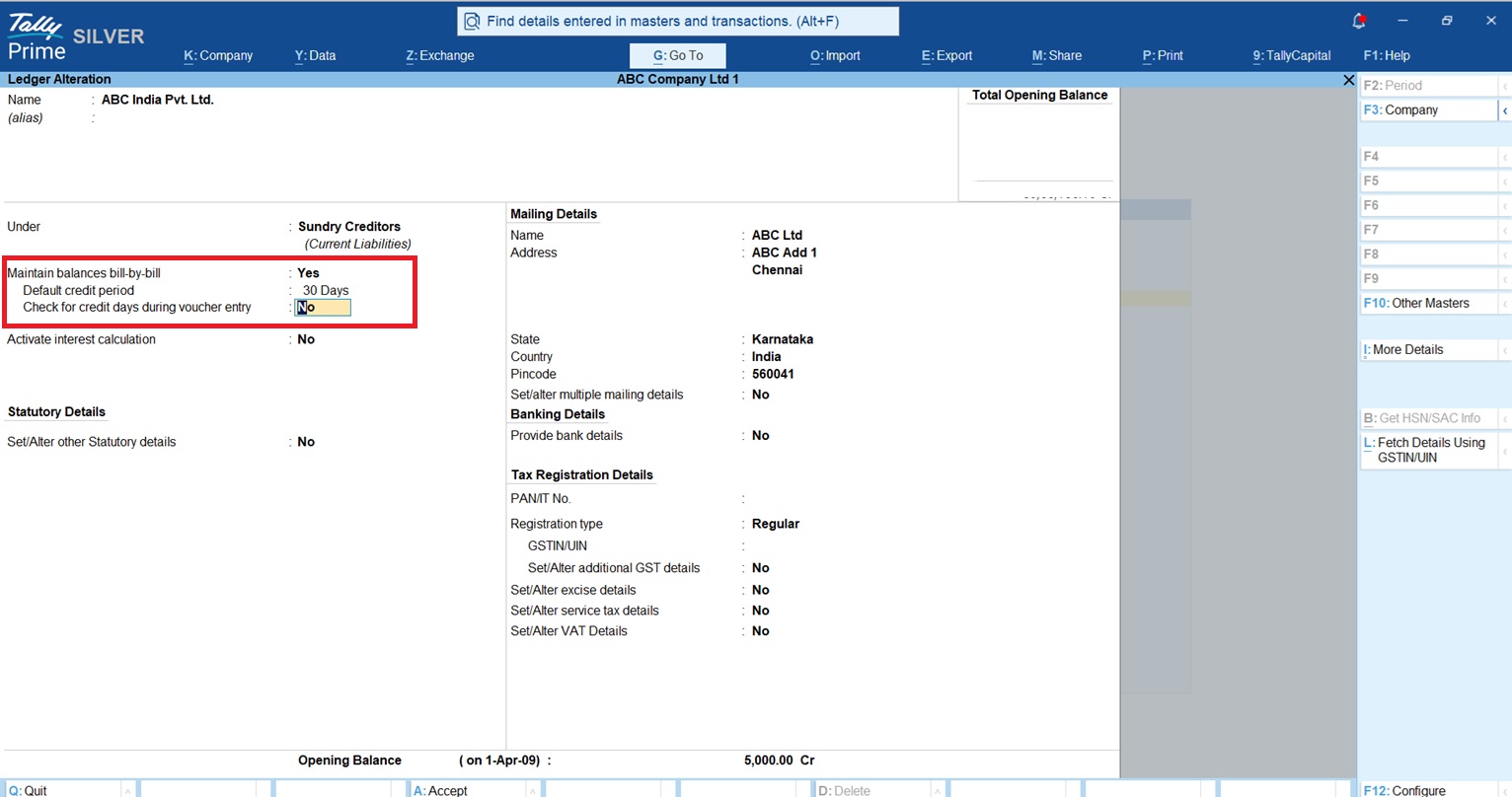
  2. Set Maintain balances bill-by-bill to Yes.
  3. Set a Default Credit Period (e.g., 30 days). This tells Tally exactly when a bill becomes “late.”
How Small Businesses Can Track Who Owes Them Money Using TallyPrime: A Beginner's Guide

Recording a Sale: What is a “New Reference”?

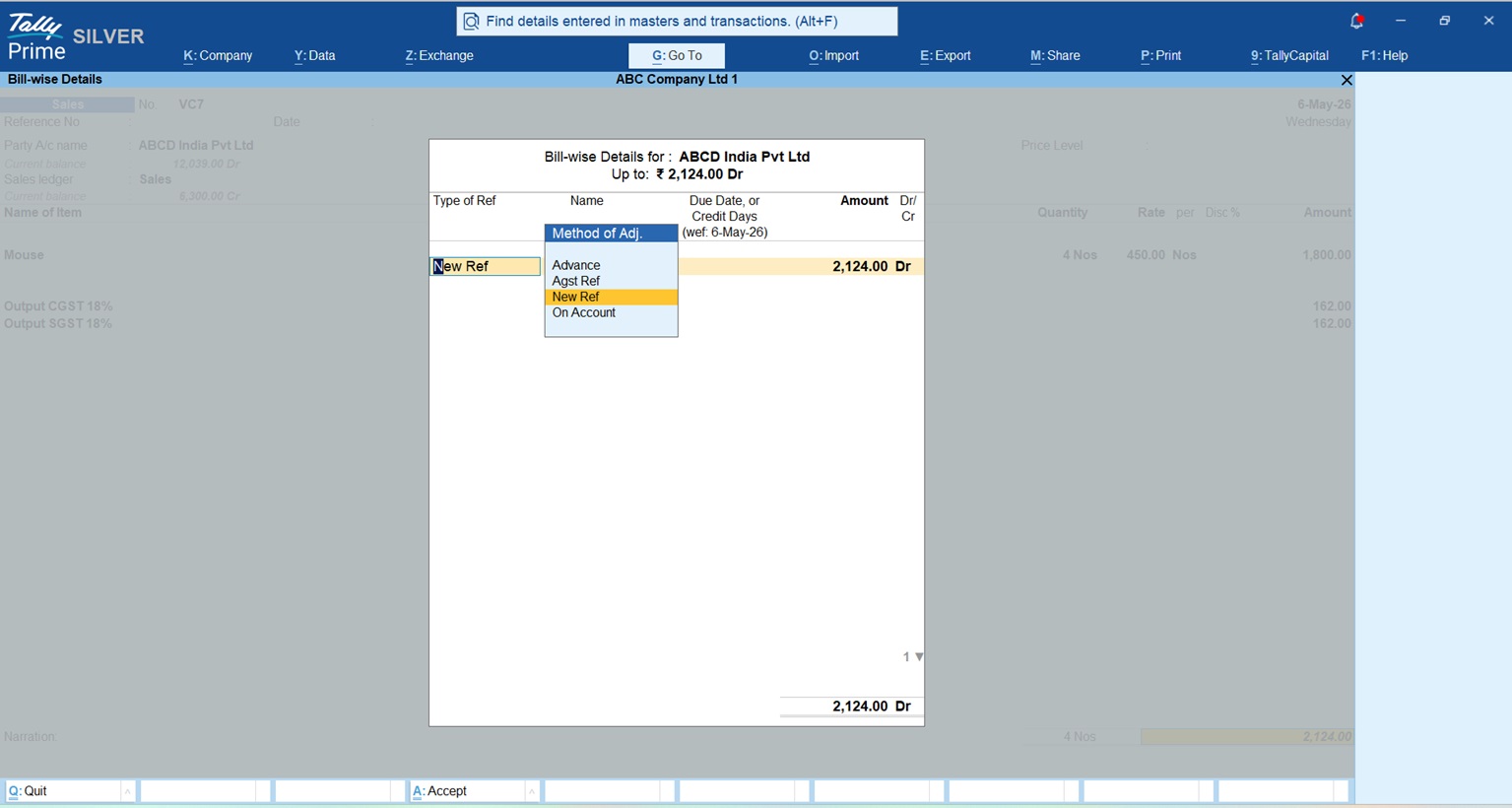
When you make a credit sale (F8), Tally needs to “name” this new debt. Imagine I’m selling 10 items to Mr. Nithin for ₹2124. After you enter the items and the total, the “Bill-wise Details” screen pops up.

  1. Select New Ref.
  2. In the Name field, Tally usually puts the invoice number. Keep it, it’s your tracking ID.
  3. Tally calculates the due date automatically based on your credit terms.

Pro-Tip: Always select “New Ref” for a sale. This is the specific command that tells Tally, “Add this exact amount to the list of money owed to me.”

How Small Businesses Can Track Who Owes Them Money Using TallyPrime: A Beginner's Guide

Getting Paid: How Do I Clear the Bill?

When a customer pays you (F6-Receipt), you must link that money to the right invoice.

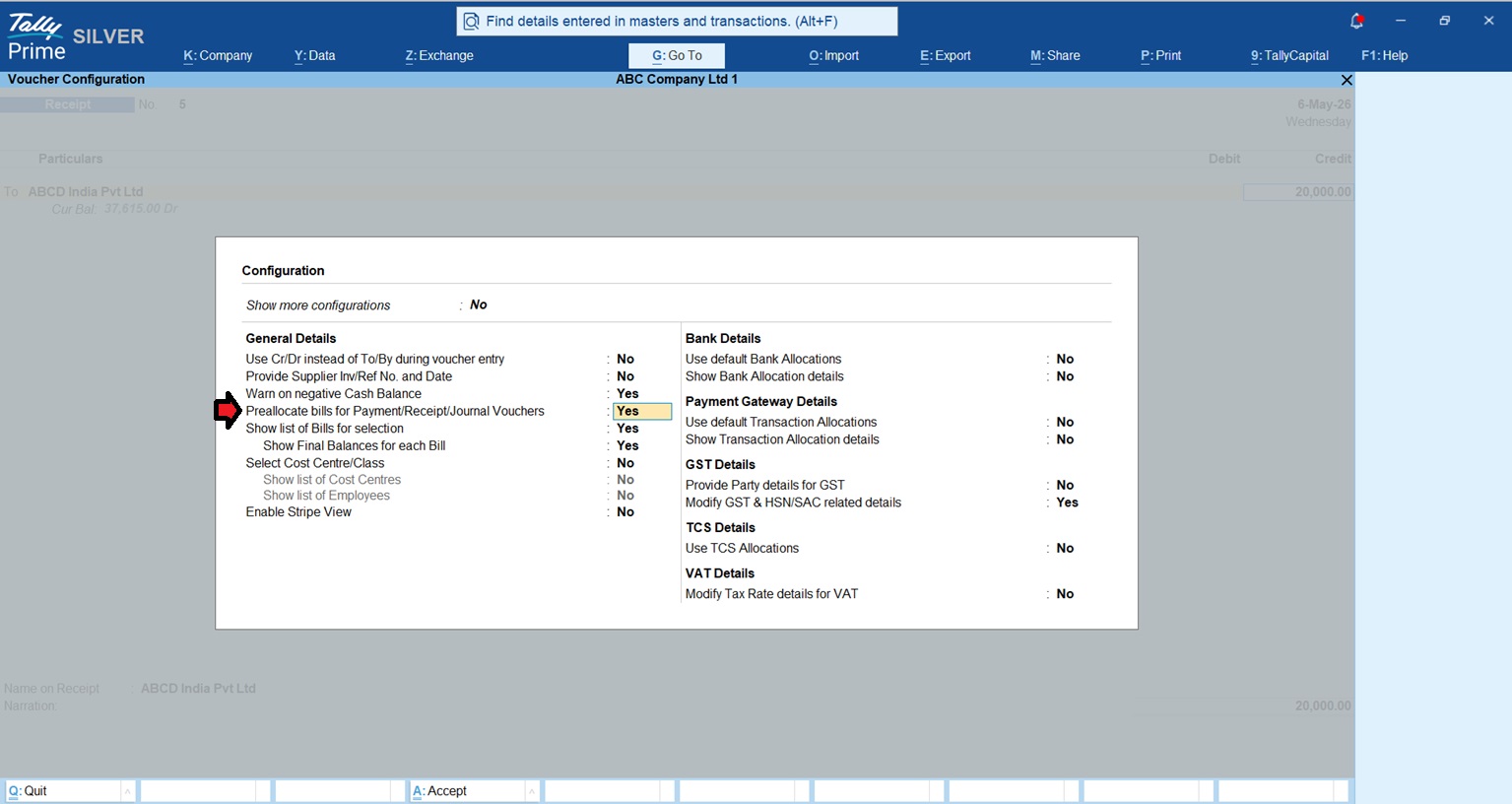
Before entering the amount, press F12 (Configure) in the Receipt voucher and set Pre-allocate bills for Payment/Receipt to Yes. Now, as soon as you select the customer, the bill list pops up first. You can select the bills they are paying, and Tally will fill in the total amount for you. No more manual math!

The “Against Reference” Rule: Always select Agst Ref (Against Reference) to link the payment. This “clears” the bill so it disappears from your “pending” list.

The “On Account” Warning: Using “On Account” is the number one cause of messy books. It’s a shortcut that reduces the total balance but leaves the old invoices marked as “unpaid” in your reports. Don’t let your staff use it as a shortcut!

How Small Businesses Can Track Who Owes Them Money Using TallyPrime: A Beginner's Guide

Where Do I See Who Still Owes Me?

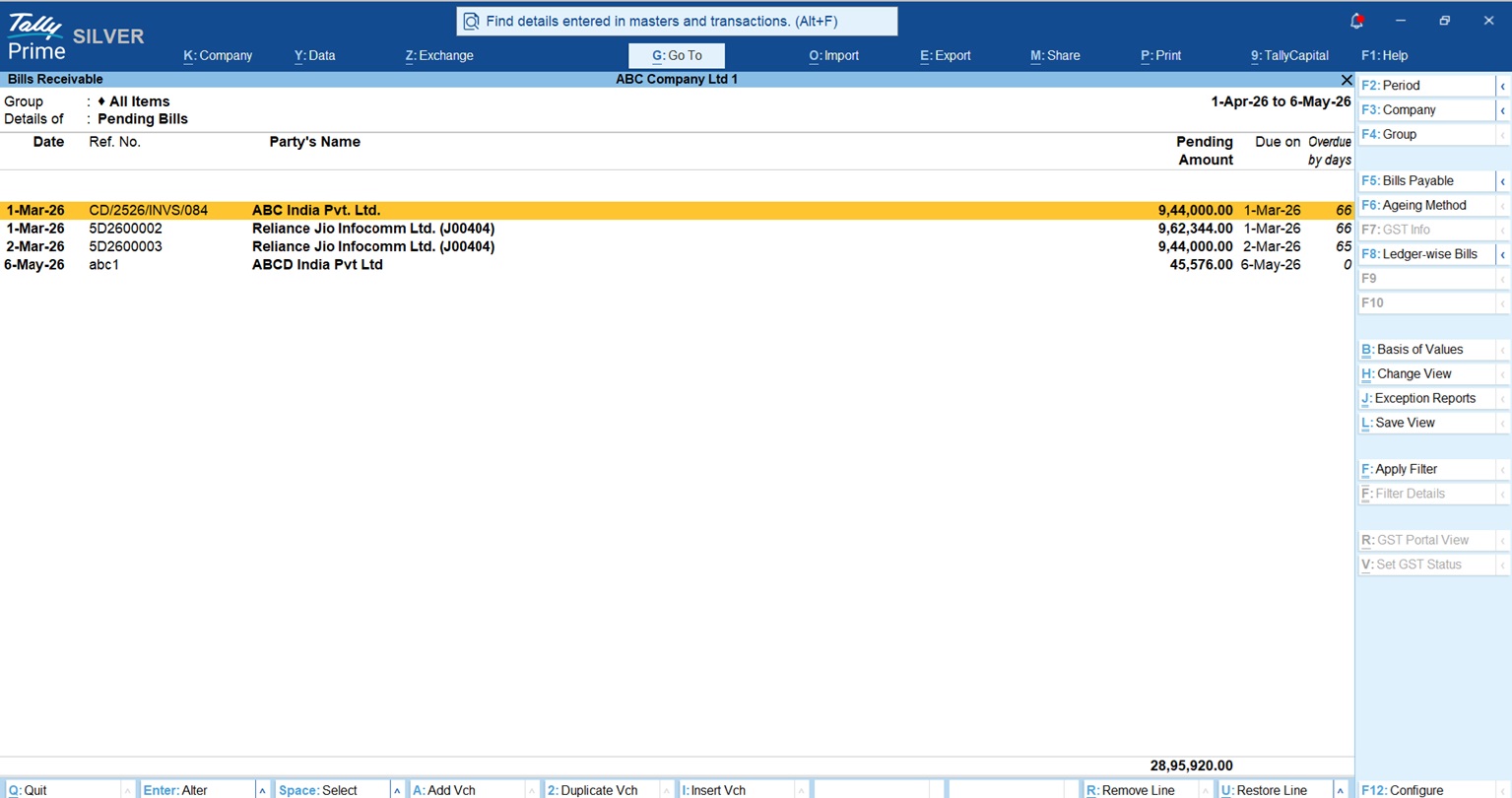
To see your money, go to: Gateway of Tally > Display More Reports > Statements of Accounts > Outstandings > Receivables.

Using Ageing Analysis: Inside the Receivables report, press F6 (Ageing Method). I always recommend Ageing by Due Date. This is the sanest way to run a business because it calculates “age” based on the actual credit agreement you made. A bill isn’t “old” until it has passed the date the customer promised to pay.

How Small Businesses Can Track Who Owes Them Money Using TallyPrime: A Beginner's Guide

——————————————————————————–

Real-World Example: The “Late Payer” Math

Let’s look at a customer with a bill from 65 days ago. If you look at Ageing by Bill Date, it looks scary—65 days late!

But if you gave that customer a 30-day credit period, and you look at Ageing by Due Date, the bill is actually only 35 days overdue (65 minus 30). This math is crucial. When you call the customer, you can say, “Invoice #02 and #03 are now 35 days past its due date,” which is a much more professional and accurate way to collect your cash.

How Do I Remind Them? (Reminder Letters)

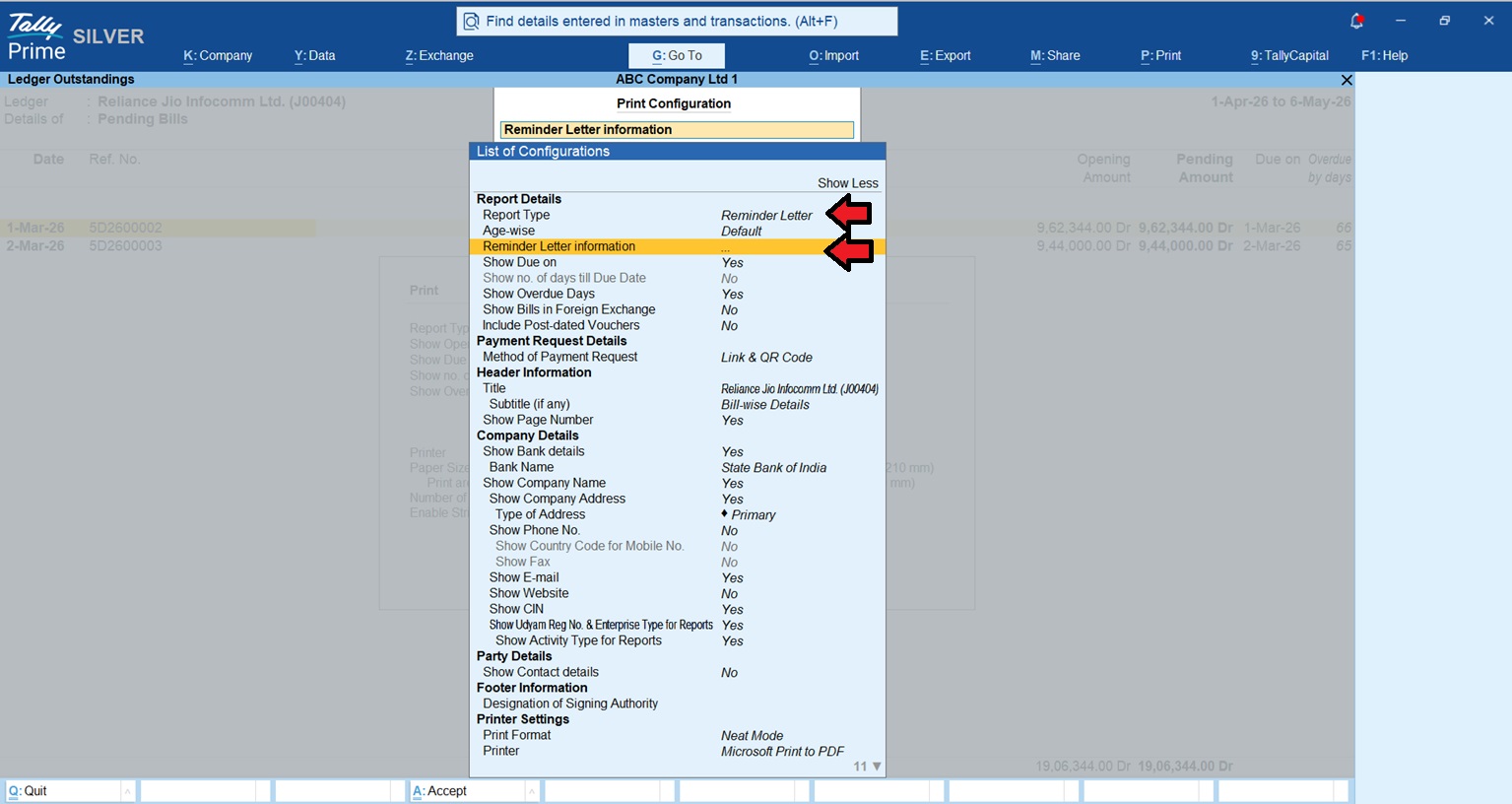
Stop writing manual emails. Tally can generate formal “Reminder Letters” for you.

  1. Go to Ledger Outstandings for a customer and press Alt+P (Print).
  2. In Print Configuration Set Report Type to Reminder Letter.
  3. To Customize the Tone: In Reminder Letter Information you can use a friendly tone for bills that are 1-30 days late and a formal tone for those over 60 days.
How Small Businesses Can Track Who Owes Them Money Using TallyPrime: A Beginner's Guide

Check this Tallyprime Reminder Letter TDL

Conclusion: My Top Tips for Stress-Free Books

  • Never skip the Bill-wise screen: Every entry must be “New Ref” or “Agst Ref.”
  • Monday Morning Review: Check your “Receivables” report every single Monday.
  • Clean up “On Account”: If you had to use “On Account” for a quick entry, adjust it to the correct bill by Friday evening.
  • Use Credit Limits: In the customer ledger, set a “Credit Limit.” Tally will stop you from selling more if they already owe too much.

Know more about BillWise Feature in TallyPrime

FAQs

Q: What if I forget to select a bill reference?

A: Tally records it as “On Account.” You must later alter the voucher and select “Against Reference” to link it to the correct invoice and clear the report.

Q: What is the difference between Ageing by Bill Date and Due Date?

A: Bill Date tracks from the day you sold the item. Due Date tracks from the day the payment was actually expected after the credit period expired.

Q: Why does my report show a balance if the customer paid?

A: This happens if the payment was recorded “On Account.” It isn’t linked to the specific invoice, so the invoice still appears as “Pending” in the system.

Q: Can I set a maximum amount a customer can owe?

A: Yes. Use “Credit Limits” in the ledger master. Tally will warn you or stop the sale if the customer exceeds their allowed balance.

“Revenue is vanity, profit is sanity, but cash is reality. Don’t let your reality get stuck in someone else’s ledger.”

Why Most CAs in India Recommend TallyPrime Over Zoho Books for GST Filing

Why Most CAs in India Recommend TallyPrime Over Zoho Books for GST Filing

TL;DR:

TallyPrime Over Zoho Books for GST Filing remains the gold standard for CAs because it is built with a “compliance-first” DNA that acts as a fortress against GST notices.

  • The Unalterable Shield: While Zoho offers an audit trail as a setting, the TallyPrime Edit Log Release provides a tamper-proof environment where the log cannot be disabled, satisfying the strictest interpretation of MCA mandates.
  • Proactive Error Catching: TallyPrime’s “Exception Reports” act as a pre-filing filter, flagging duplicates, incorrect GST classifications, and unreconciled entries before they ever hit the GST portal.
  • Advanced ITC Matching: With the latest Release 7.0, TallyPrime manages the Invoice Management System (IMS) and ITC reduction, ensuring your GSTR-2B reconciliation is deep enough to survive a scrutiny audit.
  • Offline Security & Cloud Flexibility: Tally combines the security of local data with the new TallyDrive (Secure Cloud Backup) and AWS access, countering the “cloud-only” advantage of Zoho Books.
Why Most CAs in India Recommend TallyPrime Over Zoho Books for GST Filing

Introduction: The Big Question for Business Owners

As an Accountant with many years of experience working closely with CAs, I am constantly asked: “Should we move to the cloud with Zoho Books or stick with TallyPrime?”

However, my experience has shown that if you sit across the desk from a CA handling forty or fifty different GST registrations, you’ll find that CAs almost always recommend TallyPrime.

Why? Because in the current tax environment, a GST notice is not a matter of “if,” but “when.” With authorities intensifying automated reconciliations between GSTR-1, 3B, and 2B, the smallest data mismatch becomes an immediate red flag. I recommend TallyPrime because it acts like a “compliance shield”, it isn’t just about recording data; it’s about ensuring that data is correct before the government ever sees it.

What Is the “Audit Trail” and Why Is It a Big Deal?

Since April 1, 2023, the Ministry of Corporate Affairs (MCA) has mandated a strict audit trail under Rule 3(1) of the Companies (Accounts) Rules, 2014. This isn’t just a suggestion; it’s a statutory requirement for every company using accounting software.

To sound like a true specialist, you must understand the distinction Tally makes here. There are two versions: the regular TallyPrime (where the Edit Log is an optional feature) and the TallyPrime Edit Log Release (where the feature is unalterable). For MCA compliance, we insist on the latter.

The TallyPrime Edit Log tracks:

  • Transaction Life Cycle: Every creation, alteration, and deletion of a voucher.
  • Master Edits: Changes to ledgers, stock items, and accounting groups.
  • Chronological Integrity: Precise date and time stamps for every action.
  • User Accountability: The specific user ID attached to every modification.
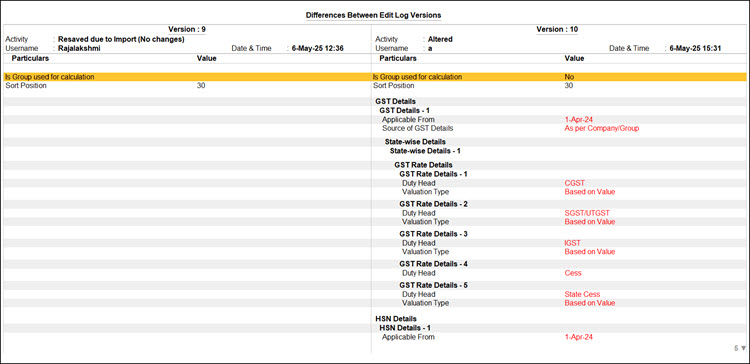
  • Version Comparison: The ability to see exactly what changed between Version 1 and Version 2 of a voucher.

CAs love this because it makes the data “tamper-proof.” It’s far easier for CA to sign off on a statutory audit when they know the history of every entry is visible and unchangeable.

How to view Edit Log Summary in TallyPrime Edit Log

TallyPrime Over Zoho Books

Can TallyPrime Catch My Mistakes Before I File?

In my experience, “preventive compliance” is the only way to stay out of the GST department’s crosshairs. Tally’s Exception Reports are far superior at detecting the “grit” of accounting errors compared to Zoho’s broader approach.

Consider the story of CA Ankit Sir, a practicing CA handling over 40 clients. For years, Ankit sir relied on manual verification. During one busy season, a duplicate purchase entry in a client’s books went unnoticed, inflating their Input Tax Credit (ITC). This led to a mismatch notice, weeks of lost time, and a shaken client. After switching to the latest TallyPrime, the system now flags those duplicates instantly. As Ankit sir says, Early detection is everything in accounting.

Specific errors TallyPrime detects faster:

  1. Duplicate Entries: Identifying repeated sales or purchase vouchers that distort liability.
  2. Incorrect GST Classification: Flagging wrong tax rates or HSN/SAC codes at the point of entry.
  3. Ledger Misposting: Identifying entries sent to the wrong accounts that create unusual balances.
  4. Unreconciled Bank Transactions: Catching mismatches between bank statements and books that create cash flow confusion.
  5. Incomplete GSTINs: Flagging vouchers missing mandatory registration details or place-of-supply info.

This How to Use GSTR1 Report in TallyPrime will help you understand TallyPrime GSTR1 better.

How Does TallyPrime Handle GSTR-2B Reconciliation?

Zoho Books is a registered GST Suvidha Provider (GSP), which makes the actual act of filing easy. But as a CA, I don’t care about ease of filing as much as I care about accuracy of matching.

TallyPrime focuses on deep, row-by-row reconciliation. It allows you to download GSTR-2B data and compare it against your purchase register to secure your ITC eligibility. With the latest updates, Tally now supports the Invoice Management System (IMS), allowing you to manage ITC reductions and verify vendor data with precision.

Real-World Context: I recently worked with a trading firm that used Tally’s monthly reconciliation to identify that a major vendor had missed uploading four high-value invoices. Because we caught this in Tally before filing GSTR-3B, the firm avoided claiming ineligible ITC. If they had filed blindly, they would have faced a notice for tax short-payment plus interest.

Why TallyPrime 7.0 is the Modern CA’s Choice

Many business owners think Tally is “old school” compared to cloud-native apps like Zoho. This is a misconception. While the Edit Log was introduced in Release 2.1, TallyPrime 7.0 has closed the technology gap significantly with features like:

  • TallyDrive: Secure Cloud Backup that ensures your data is safe and accessible without needing a local server.
  • SmartFind: An quick search that allows for instant discovery of any entry or report across years of data.
  • PrimeBanking: Connected payments that allow you to handle banking and payments directly from the software, rivaling Zoho’s automated feeds.

“I’d rather my client spend ten minutes on an Exception Report today than ten days defending a mismatch to a GST officer next year. Tally makes being right easy.”

TallyPrime vs. Zoho Books: The Specialist’s Breakdown

FeatureTallyPrime (Release 7.0)Zoho Books
DeploymentDesktop-based + TallyDrive Cloud Backup + AWS Cloud also AvailableCloud-native (Browser/Mobile)
GST FilingDeep Matching + IMS IntegrationDirect filing via GSP integration
Audit TrailUnalterable (in Edit Log Release)Optional setting (can be toggled)
BankingPrimeBanking (Connected Payments)Automated bank feeds
Offline Mode100% Reliable without internetRequires active internet connection

Conclusion: My Final Advice

In 2026, accounting is no longer just about maintaining books; it’s about real-time accuracy. If you are a startup with simple service invoices, Zoho might suffice. But if you have inventory, multiple GSTINs, or fall under MCA purview, TallyPrime is the only logical choice.

My Pro-Accountant Checklist for you:

  • Use the Edit Log Release: If you are a private limited company, don’t just “enable” the log; use the specific Edit Log product to stay Rule 3(1) compliant.
  • Monthly GSTR-2B Matching: Use Tally’s IMS features to verify every rupee of ITC.
  • Weekly Exception Reviews: Fix your “Incomplete/Mismatched” reports every Friday.
Why Most CAs in India Recommend TallyPrime Over Zoho Books for GST Filing

Also read : How to streamline purchase approvals and vendor payments in TallyPrime

9. FAQs

1. Is the Edit Log mandatory for everyone?
It is mandatory for all companies under the purview of the MCA (Ministry of Corporate Affairs) per Rule 3(1) of the Companies (Accounts) Rules, 2014, effective from April 1, 2023.

2. Can I disable the Edit Log in TallyPrime?
In the regular TallyPrime, it is an optional feature. However, in the TallyPrime Edit Log Release, the feature is enabled by default and cannot be disabled, ensuring full statutory compliance.

3. Does TallyPrime work on the cloud?
Yes. You can use TallyDrive for secure cloud backups or deploy TallyPrime on AWS through authorized partners for full remote access.

4. Why is GSTR-2B reconciliation important?
It is the only way to verify that the Input Tax Credit (ITC) you are claiming has actually been paid by your suppliers. Mismatches here are the #1 cause of GST notices.

5. What is the biggest cause of GST notices?
The most common cause is a data mismatch between your filed returns (GSTR-1, 3B) and your books of account, particularly regarding ITC and unreported invoices.

6. Why CAs prefer TallyPrime over Zoho?
CAs and tax professionals generally prefer TallyPrime over Zoho for several key reasons:

  • TallyPrime allows professionals to work with different client databases seamlessly. It is highly optimized to handle 50+ clients without software lag, enabling instant switching between a manufacturer’s and a trader’s data on a single screen.
  • TallyPrime easily manages all Indian GST requirements. Its integration with TallyPrime 7.0 includes an Invoice Management System (IMS) and Bharat Connect to bridge ledgers directly with the government portal.
  • Under MCA rules, companies must maintain an un-editable audit trail. TallyPrime tracks every alteration, creation, and deletion with usernames and timestamps, making compliance certification much easier for auditors.
  • With features like Tally on Cloud, multi-user access (TallyPrime Gold), and remote browser access, accountants can securely access live client data from anywhere, even while traveling.