

 Cart is empty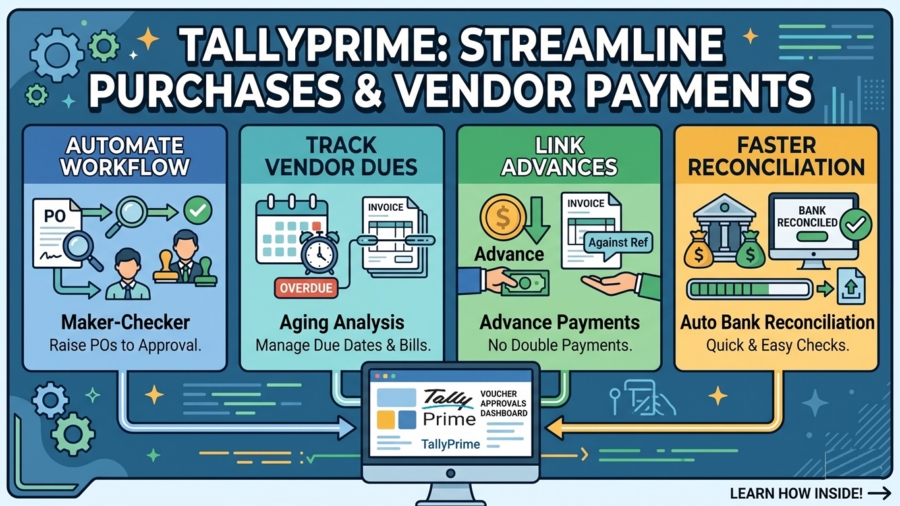
TL;DR
Streamline Purchase Approvals and Vendor Payments in TallyPrime is the best way to keep your business healthy and audit-ready. By using the TallyPrime built-in features, you can:
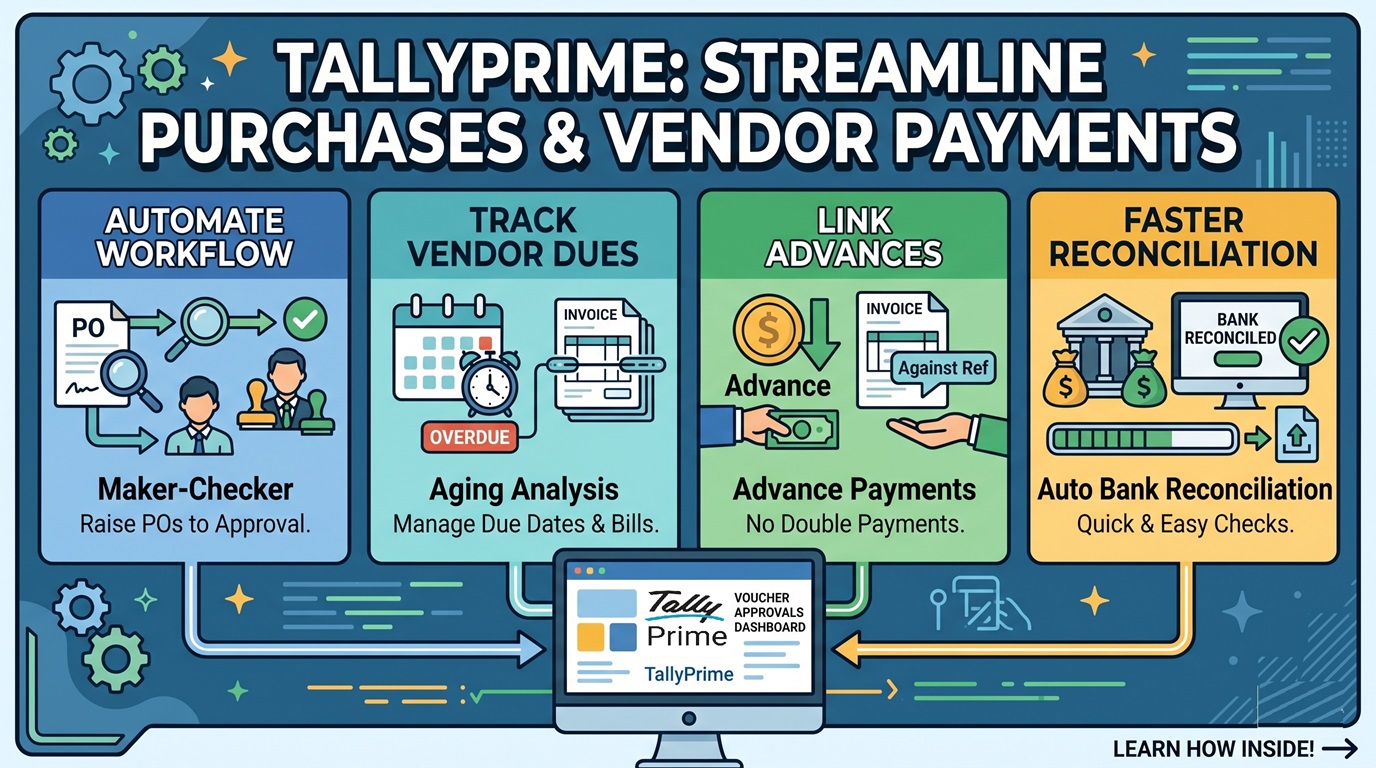
- Automate your workflow: Seamlessly move from raising a Purchase Order (PO) to manager approvals.
- Eliminate errors: Prevent double payments and catch billing mistakes before they affect your cash flow.
- Track everything: Keep a sharp eye on due dates and manage vendor advances for raw materials or spare parts without losing the trail.
- Save time: Features like Auto Bank Reconciliation and Potential Matches turn hours of manual checking into a few minutes of stress-free work.
Introduction: Streamline Purchase Approvals and Vendor Payments in TallyPrime
In my years managing accounts for diverse industrial units and dealerships, I’ve seen how messy paper-based bills can get. It usually starts with a forgotten invoice for raw materials buried under a stack of papers and ends with a panicked call from a supplier about an overdue payment. The stress comes from manual tracking errors, the confusion of managing multiple advances for spare parts, and the uncertainty of not knowing exactly how much cash is leaving the business next week.
I want to show you how I use TallyPrime to turn this chaos into a smooth, professional process.
Purchase Order in TallyPrime
The journey begins with a Purchase Order (PO). Whether you are ordering a consignment of steel for a factory or specific spare parts for a dealership, a PO is your formal “demand” to the supplier. It ensures both parties are on the same page regarding quantity and price.
How to activate and record a PO:
- Go to the Gateway of Tally and select Vouchers.
- Press F10 (Other Vouchers).
- By default, POs are often inactive. Click Show Inactive to see the full list.
- Select Purchase Order and click Yes to activate it.
- Enter your vendor’s name, the “Due on” date for your items, and the specific items required.
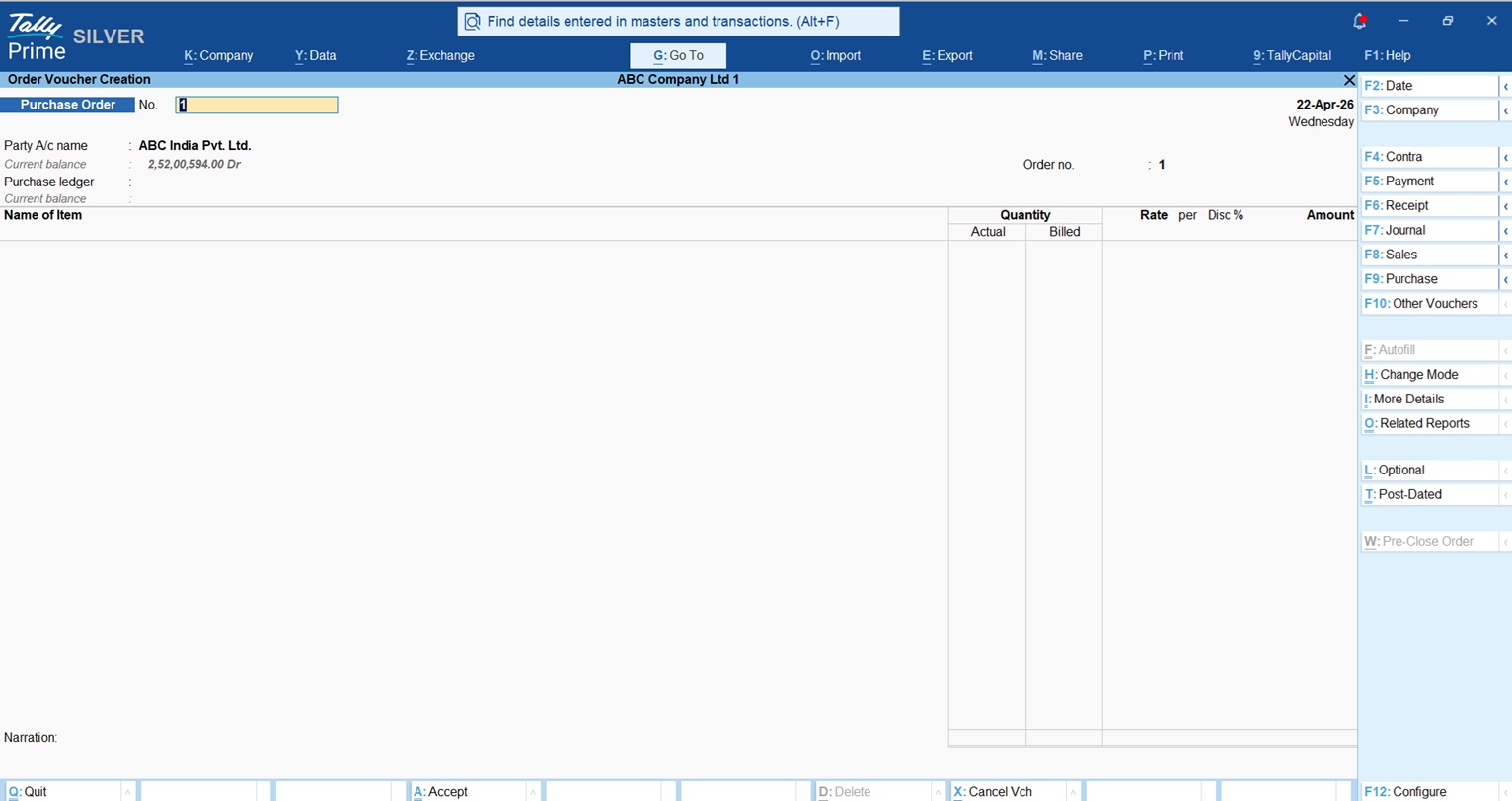
Pro Tip: Remember, a Purchase Order is an “Inventory Voucher.” It helps you track what you’ve ordered versus what you’ve received, but it does not affect your bank balance or accounting ledgers until you record the actual purchase bill.
Set up an approval workflow in TallyPrime
I always recommend a “Maker-Checker” system for any growing unit. This means a junior staff member (the Maker) creates the entry, and the manager or owner (the Checker) reviews it before it is finalized. This gives you peace of mind that you don’t have to be tied to your desk to ensure mistakes aren’t being made.
This is the simplest way to create a “Maker-Checker” flow.
- The Maker’s Role: When the data entry person (the Maker) creates a voucher, they must press Ctrl + L to mark it as an Optional Voucher or from security control you can allow user to create only Optional Vouchers. This entry stays in Tally but does not affect your accounts or bank balance yet.
- The Checker’s Role: You (the Checker) go to Display More Reports > Exception Reports > Optional Vouchers. Review the entries. If everything looks good, open the voucher and press Ctrl + L again to remove the “Optional” tag and save it. Now, the entry is official and hits your books.
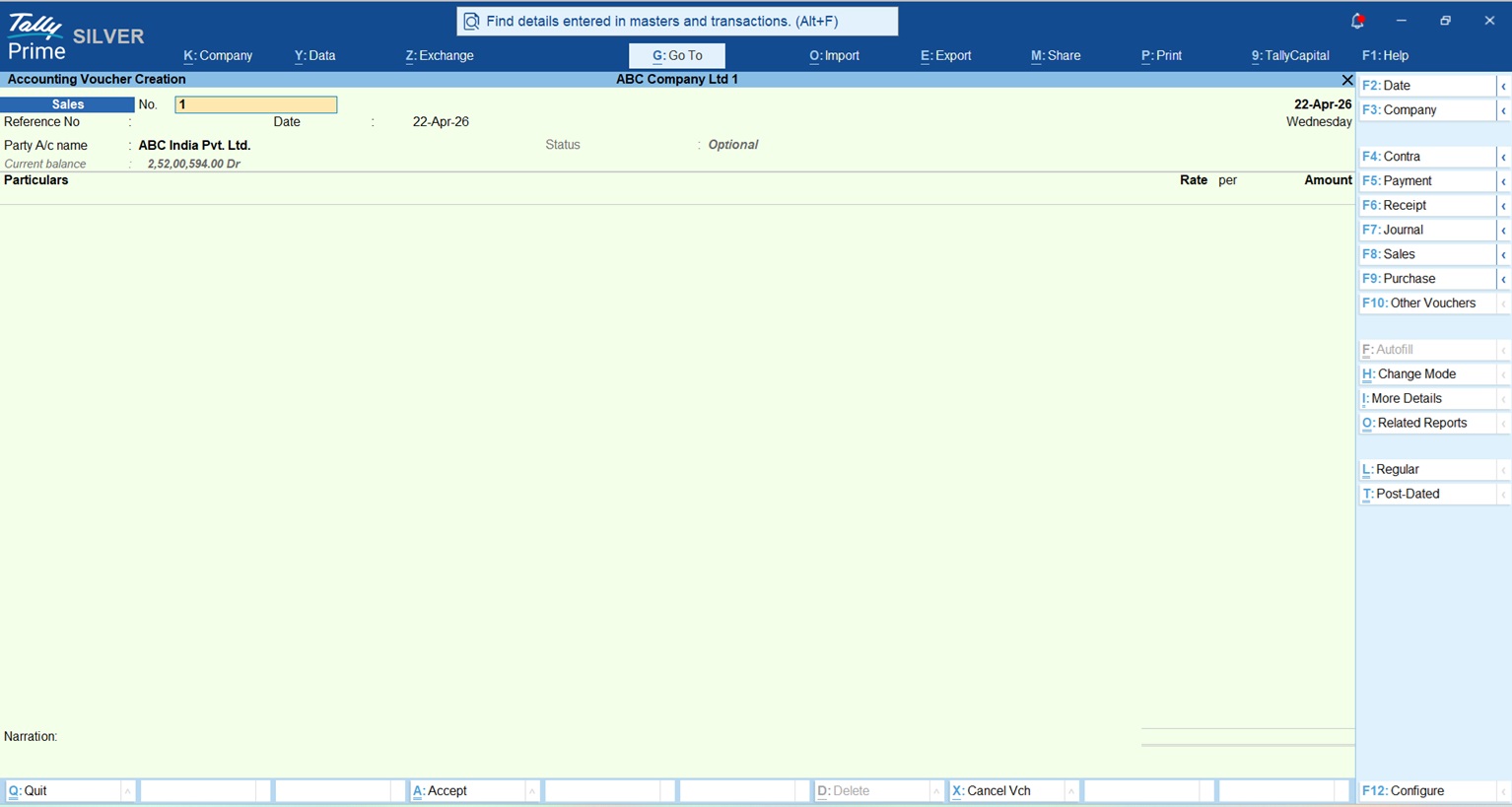
Using TallyPrime, you can assign “Data Entry” roles to junior staff through Users & Security. As the owner, you can use Remote Access via Tally.NET to log in from your home or even while traveling to see the Voucher Approvals dashboard. You can review the entry, check the amounts, and then can save the vouchers with Ctrl + L to remove optional tag.
How do I track exactly what I owe and when it’s due?
The secret to organized accounts is Bill-wise Details. If you don’t turn this on, you’re just looking at a total balance, which is useless when a vendor asks about a specific invoice from two months ago.
Setting it up:
- Press F11 (Features) and set Enable Bill-wise entry to Yes.
- In your vendor’s Party Ledger, ensure Maintain balances bill-by-bill is also set to Yes.
- Specify a Default Credit Period (e.g., 30 days).
TallyPrime now automatically calculates the due date for every bill.
Expert Tip: Since TallyPrime Release 5.0, you can see the Due Date column directly in the Bill-wise details screen when you are making a payment. This allows you to settle the oldest bills first and avoid late-payment friction with your suppliers.
Understand More About Bill Wise Details In TallyPrime
What’s the best way to handle advance payments to vendors?
In industries like manufacturing or dealerships, we often pay an advance for custom orders—like a specific set of tractor spare parts. In TallyPrime, I record this using a Payment Voucher.
When you enter the amount, the Bill-wise Details screen pops up. You must select Advance. Give it a reference (like “ADV-101”). When the final bill arrives, you select Against Ref in the Bill-wise screen and link it to that specific advance. Tally will automatically calculate the remaining balance, ensuring you never pay the same amount twice.
Download Paid and Pending Bill Wise Detail TDL for TallyPrime
How can I see a “bird’s-eye view” of my vendor debts?
I use the Aging Analysis report to understand the “age” of my debts. This helps me prioritize payments—are we falling behind on 90-day old bills, or is most of our debt fresh?
| Report Name | What it tells me |
| Purchase Bills Pending | Tracks mismatches: Goods received without a bill, or bills received without the goods arriving. |
| Ledger Outstandings | A detailed list of every unpaid bill for a specific vendor, including overdue days. |
| Group Outstandings | Summarizes what you owe by category (e.g., “Raw Material Suppliers” vs “Service Providers”). |
| Aging Analysis | A summary showing how long bills have been overdue across buckets (0-15, 15-30 days). |
Way to make bank payments faster in TallyPrime
Reconciling your bank statement manually is a chore I wouldn’t wish on anyone. With TallyPrime Auto Bank Reconciliation, you simply press Alt + O to import your bank statement.
TallyPrime automatically matches transactions by amount and instrument number. If a transaction doesn’t find an exact match, don’t worry, use Alt + S (Potential Matches). Tally will suggest likely candidates based on the date and amount, letting you reconcile them with a single click. This turns a stressful monthly activity into a quick, five-minute task.
Conclusion: My Checklist for a Smoother Office
To get your office running like a smooth machine, here is my personal action plan for you to implement today:
- Enable Bill-wise details in F11 and set credit periods for all key suppliers.
- Activate Purchase Orders for every order of raw materials or stock.
- Use Voucher Approvals to establish a “Maker-Checker” flow for all payments.
- Review the Aging Analysis report weekly to manage your cash flow effectively.
- Import your bank statement weekly and use “Potential Matches” to stay reconciled.
In my experience “Good accounting isn’t just about recording numbers; it’s about knowing exactly where your cash is at any moment.”
——————————————————————————–
FAQs
1. Can I adjust multiple advances against one bill? Yes. In the Bill-wise Details screen of your purchase invoice, you can select “Against Ref” multiple times to link various separate advance payments to that single bill.
2. Is GST applied to advances for services? Yes. Under current rules, GST liability for services arises at the time the advance is received. You must record a receipt voucher and report it in your GST returns.
3. What is a “3-way match”? It is an audit process where you compare three documents, the Purchase Order, the Receipt Note (GRN), and the Supplier’s Invoice to ensure quantities and prices are 100% consistent.
4. Does TallyPrime show me bills where the goods haven’t arrived yet? Yes. The Purchase Bills Pending report tracks two scenarios: Goods received but bills not received, and bills received where the inventory (Receipt Note) is still pending.
