

 Cart is empty
TL;DR:
How Businesses Close Their Financial Year Effortlessly in TallyPrime? Closing your books in TallyPrime is far simpler than the manual ledgers of the past. The software automates the carry-forward of your balances, allowing you to start the new year on April 1st by simply changing the period (Alt+F2) or splitting your data. Your old records remain safe and accessible, ensuring you have a clean slate for the new year while staying audit-ready.
Introduction: Why the Year-End Doesn’t Have to Be Stressful
In my years spent working with industrial units and dealerships, I’ve seen many business owners break into a cold sweat as March 31st approaches. There’s a common fear that you have to “lock” your books or that you’ll lose access to last year’s data the moment the clock strikes midnight.
Let me set your mind at ease: TallyPrime handles the transition seamlessly. It moves your balances automatically, and you can actually work in two financial years at the same time, finishing up last year’s entries while recording today’s new sales.
What Actually Happens When a Financial Year “Closes”?
To understand the magic, we have to look at how Tally separates “Temporary” and “Permanent” accounts.
- Temporary Accounts (Revenue and Expenses): These track your performance for a specific year. To ensure your 2025 profits don’t inflate your 2026 results (which would be a massive tax headache), Tally resets these to zero.
- The ABC Logic: Imagine a business like the ABC Corporation. If they have an adjusted revenue of ₹78,000, Tally effectively debits that revenue account to bring it to zero and moves that total into what accountants call “Retained Earnings.” In TallyPrime, this is specifically handled via the Profit & Loss A/c ledger.
- Permanent Accounts (Assets, Liabilities, and Equity): Your bank balance or the money a customer owes you doesn’t vanish on April 1st. These stay on your Balance Sheet and simply carry forward as “Opening Balances.”
How Can You Start the New Year Immediately?
The fastest way to step into the new year is simply to change the current period. This allows for “concurrent access,” meaning you can record new sales today while your auditor is still reviewing last year’s books in the same file.
Step-by-Step: Changing the Period
- From the Gateway of Tally, look at your current period.
- Press Alt+F2.
- Enter the new dates (e.g., 1-Apr-2026 to 31-Mar-2027).
Tally will automatically carry forward the closing balances as the opening balances for the new year.
Should You Restart Your Bill Numbers?
I always tell my mentees in the industrial belts: a new year is the perfect time for a clean start. Restarting your invoice numbering from “1” on April 1st makes your documentation organized and simplifies GST compliance.
Actionable Steps to Restart Numbering:
- Go to Gateway of Tally > Alter > Voucher Type.
- Select Sales.
- Set Method of Voucher Numbering to Automatic (Manual Override).
- Crucially, set Prevent duplicates to Yes to ensure your audit trail remains clean.
- Set Set/Alter Additional Numbering Detail to Yes.
- In the Restart Numbering column, enter the starting date (1-Apr) and the Starting Number (1).
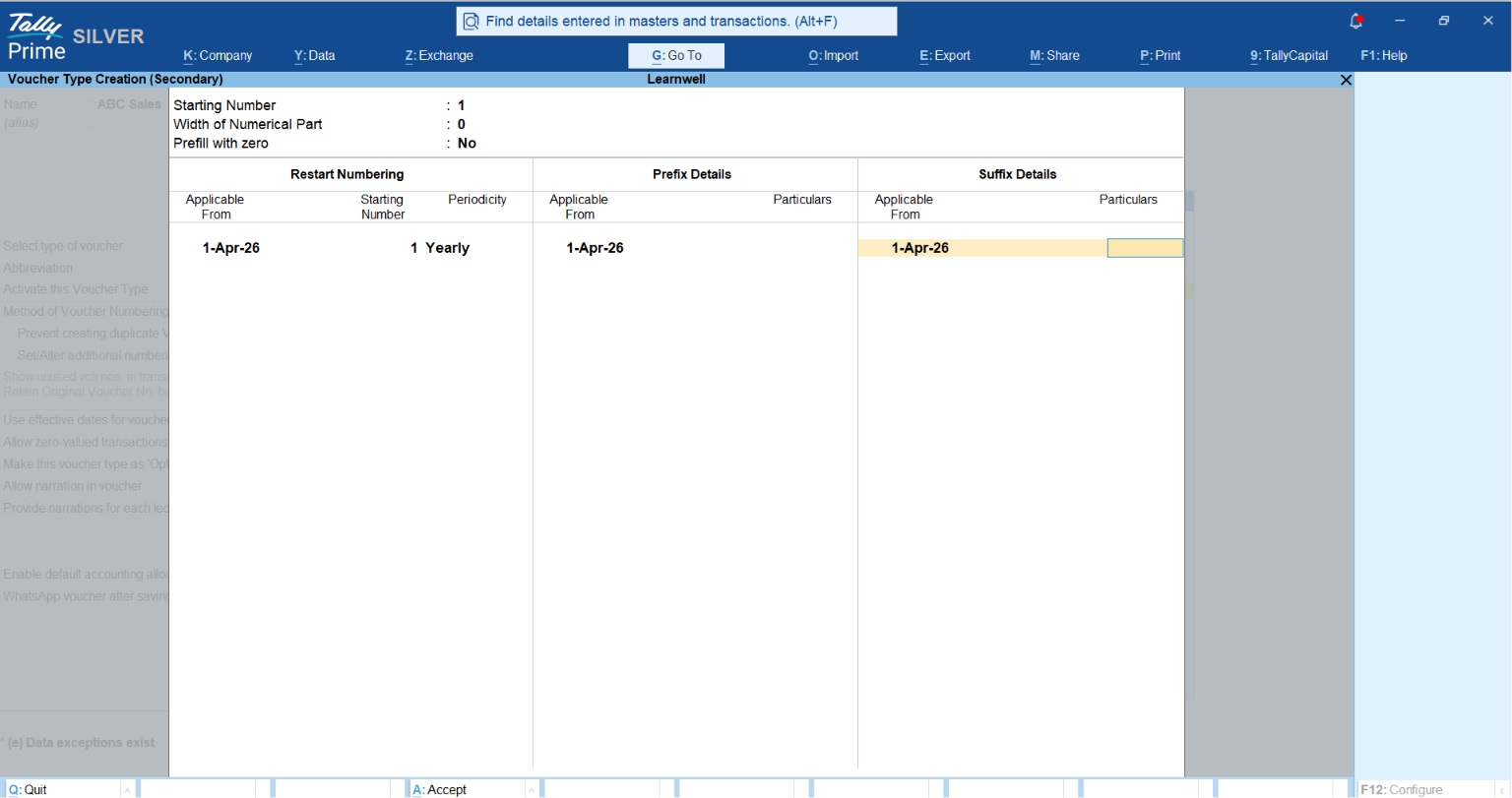
How to use Voucher Numbering Method in TallyPrime
When is it Time to “Split” Your Company Data?
If you’re running a high-volume business, your Tally data can become “heavy,” slowing down your reports. “Splitting” the financial year is the best move here. It isn’t just about speed; it’s about audit readiness, keeping each year’s data in its own clean, organized folder.
The Golden Rule: Always take a full data backup before you split.
What happens to the data? Tally creates two separate company folders. One holds your historical data, and the other starts fresh on April 1st with all your ledgers, masters, and opening balances intact.
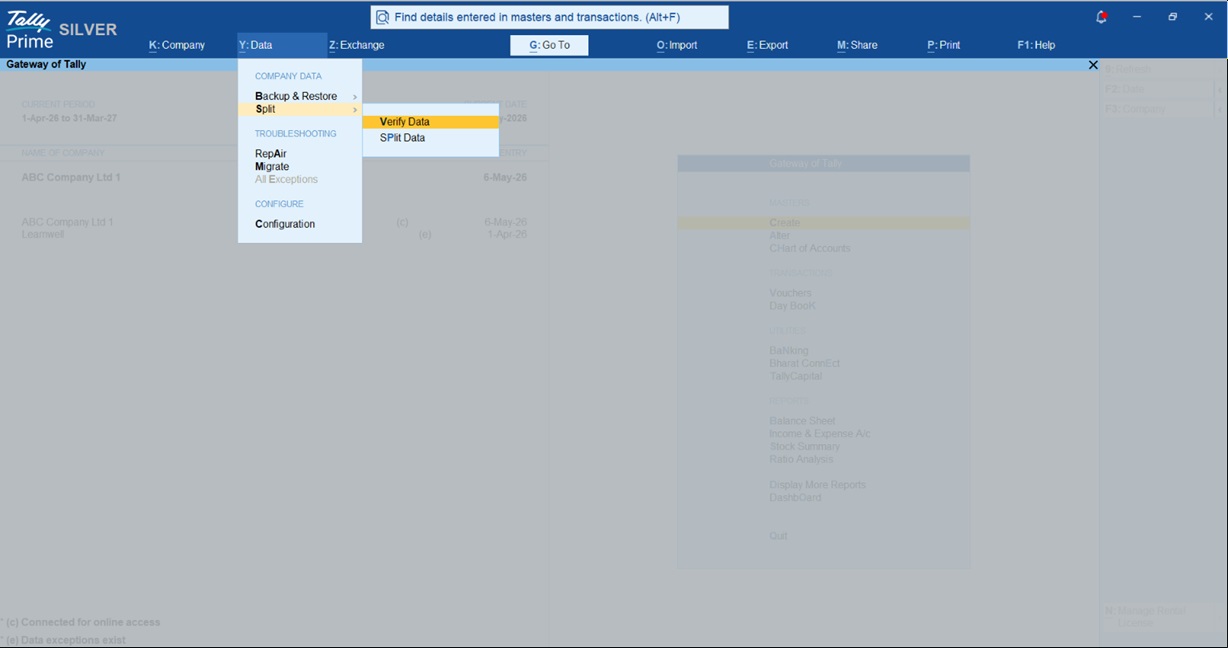
Check out this tally help on How to split company data in TallyPrime
A Real-World Example: My Experience with a Heavy Dealership
A few years ago, I visited a heavy machinery dealership. Between the smell of grease and the sound of the factory floor, the owner was panicking because Tally was lagging. They were terrified that splitting the data would mean they couldn’t see a customer’s three-year purchase history.
I showed them how to split the data after a solid backup. We moved the new year into a fresh folder, and the report generation speed doubled instantly. They realized they could still open the “old” company folder in seconds to check historical invoices. It turned a daily frustration into a high-performance system.
My “Smooth Move” Checklist (Actionable Tips)
Follow these steps for a flawless transition:
- Take a full data backup: Save it on an external drive or cloud.
- Reconcile Bank and Cash balances: Ensure your Tally figures match your actual statements.
- Verify GST and TDS reports: Clear any mismatches so your data is “return-ready.”
- Check for unused masters: Go to Chart of Accounts > Ledgers > Ctrl+J (Exception Reports) > Show Unused to identify and delete ledgers you no longer need.
- Set the new period: Use Alt+F2 to step into the new year.
“Closing your books shouldn’t feel like a final exam; with Tally, it’s just another Saturday morning.”
Conclusion: Final Thoughts
TallyPrime is designed to take the manual labor out of the year-end transition. Whether you choose to simply change the period or split your data for better performance, the goal is to keep your focus on growth rather than paperwork. Take a deep breath, follow the steps, and let Tally handle the heavy lifting.
Also read this How to get Management Reports from TallyPrime
——————————————————————————–
Frequently Asked Questions (FAQs)
1. Can I work in the new year before finishing the old one? Yes. Use Alt+F2 to change the period. This allows you to record new transactions while the previous year’s data remains available for adjustments and auditing.
2. Is my old data safe after a split? Absolutely. When you split, Tally preserves the original data in a separate company folder while creating a new company for the current year with all balances intact.
3. Do I need to manually enter opening balances? No. TallyPrime automatically carries forward the closing balances of assets and liabilities as opening balances when you change the period or split the company data.
4. How does Tally handle GST rule changes during the transition? Tally provides regular updates for regulatory changes. These updates keep your system aligned with the latest GST rates and return formats without requiring manual reconfiguration.
5. What is an Audit Trail and why does it matter for my year-end? The Audit Trail (Edit Log) is mandatory for companies as of 1st April 2023 per the MCA mandate. It records every creation or alteration to ensure data integrity during audits.
