Now no one can delete entries. Yes in Tally sometime we delete entries by mistake and can not recover again if not have backup.
So in this post provided a simple TDL code to Prevent deletion. With this TDL when we delete any entries, delete will not work. if want to delete you need to remove tdl file from your Tally.
In this Tally Prime and Tally ERP TDL code we can add some additional fields or we can remove extra fields according to our need, and this will work perfectly with Tally Erp9 and Tally Prime. Best simple tdl code prevent entries from deletion.
HOW TO USE:
1. Copy below TDL code and make a text file.
2. Save text file then load in Tally ERP9 or in Tally Prime (Method provided below the code)3. Now go for delete any voucher, we can not able to delete.
This is best free TDL to have in your Tally . Must have TDL file for Tally ERP9 and Tally Prime that can use for lifetime.
This free TDL Code will perfectly work with Tally Prime.
Watch above video to learn :
1. How to disable or inactive delete option in Tally
2. How to inactive line option and key option of delete button
3. And Many More…….
TDL Code :
[#Key:Form delete]
Inactive:Yes
[#Key:Delete Line Object]
Inactive:Yes
[#Key:Delete Line object Ex]
Inactive:Yes
[#Key:Bottom ToolbarBTn3]
Inactive:Yes
[#Line:Dsp VCH detail]
Delete Key:Delete Line Object
[#Form:Voucher]
[#Key:Bottom ToolbarBTn3_Delete]
Inactive:Yes
HOW TO USE ABOVE CODE:
FOLLOW THE BELLOW INSTRUCTIONS TO LOAD TDL FILE IN TALLY:
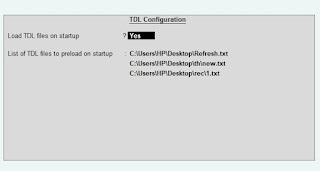
1. Copy the code and paste in a Text file. 2. Save the text file into your computer. 3. Copy the text file path including Name and extension (as – C:UsersHPDesktoprecParty Detail.txt) 4. Open Tally ERP9 OR Tally Prime 5a. Press F12 and goto Product and Features (for Tally ERP9)
5b. Click on Help and click on TDL & Addon (for Tally Prime)
5. Press F4 (to open a Box) 6. Load TDL file on Startup – Yes 7. Paste The path in blank space 8. Press enter and save
In India GST applicable from year 2017. We all maintain GST enabled taxation and fill tax returns.
Also many business use Tally for Accounting and Taxation. In this sometime we put wrong GST Number in our Ledgers or Invoices and face problems at Tax filling time.
So in this post provided a simple TDL code to search GST number with PAN or with GSTIN to correct wrong GST. With this TDL when invoicing and put GST number in buyer detail, we redirected to government portal and can check right GST.
In this Tally Prime and Tally ERP TDL code we can add some additional fields or we can remove extra fields according to our need, and this will work perfectly with Tally Erp9 and Tally Prime. Best simple tdl code to make GST or Pan searchable for right gst with government portal.
HOW TO USE:
1. Copy below TDL code and make a text file.
2. Save text file then load in Tally ERP9 or in Tally Prime (Method provided below the code)3. Now go for Invoicing and put GST number in buyer detail then press enter, you will redirected to government gst portal to search GST number with PAN and GSTIn.
This is best free TDL to have in your Tally . Must have TDL file for Tally ERP9 and Tally Prime that can use for lifetime.
This free TDL Code will perfectly work with Tally Prime.
Watch above video to learn :
1. How to modify TDL code for searchable with PAN and GST number.
2. From which field we redirected to government portal
FOLLOW THE BELLOW INSTRUCTIONS TO LOAD TDL FILE IN TALLY:
1. Copy the code and paste in a Text file. 2. Save the text file into your computer. 3. Copy the text file path including Name and extension (as – C:UsersHPDesktoprecParty Detail.txt) 4. Open Tally ERP9 OR Tally Prime 5a. Press F12 and goto Product and Features (for Tally ERP9)
5b. Click on Help and click on TDL & Addon (for Tally Prime)
5. Press F4 (to open a Box) 6. Load TDL file on Startup – Yes 7. Paste The path in blank space 8. Press enter and save
We do business and maintain it’s accounting to know our profit and loss. Mostly we use Tally Software to do accounting and prepare business modules because of it’s simplicity. Sometime we need some reports according to our need, that not mentioned in Tally, but we can modify Tally Software and make reports as per our need.
In Tally we create vouchers and check ledger for transactions. In party ledger report we can see Date, Ledger Name, and Amount. If need more detail we enable narration. Sometime we feel ledger report not completed, required more detail to understand it.
With this TDL file we can see ledger account in new format that would be easy to understand and also can expend it to detailed format. In this we get ledger account with summarized individual ledger and its amount. Press Alt+F1 to get detailed report.
HOW TO USE:
1. Dowload TDL code with provided link
2. Load in Tally ERP9 or in Tally Prime (Method provided below)
3. Now we will get a Tab in our main screen/Gateway of Tally , go with it to see ledger details
This is best free TDL to have in your Tally . Must have TDL file for Tally ERP9 and Tally Prime that can use for lifetime.
This free TDL Code will perfectly work with Tally Prime.
Watch above video to learn :
1. How to add TDL file in Tally.
2. How to Use summarized Ledger tab
3. And Many More…….
HOW TO USE TDL CODE:
FOLLOW THE BELLOW INSTRUCTIONS TO LOAD TDL FILE IN TALLY:
1. Download TDL file with below Download button. 2. Save into your computer. 3. Copy the text file path including Name and extension (as – C:UsersHPDesktoprecParty Detail.txt) 4. Open Tally ERP9 OR Tally Prime 5a. Press F12 and goto Product and Features (for Tally ERP9)
5b. Click on Help and click on TDL & Addon (for Tally Prime)
5. Press F4 (to open a Box) 6. Load TDL file on Startup – Yes 7. Paste The path in blank space 8. Press enter and save
Tally is simplest accounting and business management software. It provide lots of reports according to us to maintain our business easily. Also we can modify it with TDL codes according to our need. In Invoice voucher sometime we need Item’s Part Number and Alias name to do our work easily. Yes! You are in right place to create Invoices with Item part number and alias with a simple free TDL code of Tally Prime and Tally ERP9.
In this Tally Prime and Tally ERP TDL code we can add some additional fields or we can remove extra fields according to our need, and this will work perfectly with Tally Erp9 and Tally Prime. Best simple tdl code to add Part number and Alias along with Stock Item Name
HOW TO USE:
1. Copy below TDL code and make a text file.
2. Save text file then load in Tally ERP9 or in Tally Prime (Method provided below the code)3. Now go for Invoicing and select item, you will find part number and alias name come automatic.
This is best free TDL to have in your Tally . Must have TDL file for Tally ERP9 and Tally Prime that can use for lifetime.
This free TDL Code will perfectly work with Tally Prime.
Watch above video to learn :
1. How to modify invoice.
2. How to add part name fields for part number and alias
FOLLOW THE BELLOW INSTRUCTIONS TO LOAD TDL FILE IN TALLY:
1. Copy the code and paste in a Text file. 2. Save the text file into your computer. 3. Copy the text file path including Name and extension (as – C:UsersHPDesktoprecParty Detail.txt) 4. Open Tally ERP9 OR Tally Prime 5a. Press F12 and goto Product and Features (for Tally ERP9)
5b. Click on Help and click on TDL & Addon (for Tally Prime)
5. Press F4 (to open a Box) 6. Load TDL file on Startup – Yes 7. Paste The path in blank space 8. Press enter and save
Tally provide us best reports to complete our work on time with simple way. After making entries we generate important reports and useful reports like Balance Sheet, Trial Balance and Profit loss. We Create Masters, Ledgers, Group, Invoice, Vouchers etc to create all the reports. In this sometime we get less details in Balance sheet , Trial Balance and P & L. There is some hidden ledgers in group in detailed format of balance sheet etc. But now with this free TDL code we can see full detailed Balance Sheet, Trial Balance and Profit Loss account.. Yes! You are in right place to create these type reports with a simple free TDL code of Tally Prime and Tally ERP9
In this Tally Prime and Tally ERP TDL code we can add some additional fields or we can remove extra fields according to our need, and this will work perfectly with Tally Erp9 and Tally Prime. Best simple tdl code to Generate full detailed Balance Sheet, Trial Balance and Profit and Loss.
HOW TO USE:
1. Copy below TDL code and make a text file.
2. Save text file then load in Tally ERP9 or in Tally Prime (Method provided below the code)3. Now go for Balance Sheet, Trial Balance or Profit loss Account, here you find all ledgers with group details and there amount.
This is best free TDL to have in your Tally . Must have TDL file for Tally ERP9 and Tally Prime that can use for lifetime.
This free TDL Code will perfectly work with Tally Prime.
Watch above video to learn :
1. How to Explode groups in full detail
2. How to Modify Balance Sheet, Trial Balance and Profit loss
Local:Line:DSP ACCLine:Add:Explode:DSP ACCBody:$$IsGroup AND (@@IsWKGCapItem OR @@LearnwellGroupDT)
Local:Line:DSP AccLine:Delete:Space Top
[#Part:BSGRP Explosion]
Lines:BS Detail
Repeat:BS Detail:BS GroupLedgerChildofGroupName
Scroll:Vertical
Local:Line:BS Detail:Delete:Explode
Local:Line:BS Detail:Add:Explode:BSGRP Explosion:$$IsGroup AND (@@IsWKGCapItem OR @@LearnwellGroupDT)
Local:Line:BS Detail:Delete:Space Top
[System:Formula]
LearnwellGroupDT:$$KeyExplode OR ##ExplodeFlag
TDL Code For Detailed Profit and Loss
[#Part:BSGRP Explosion]
Lines:PL Detail
Repeat:PL Detail:BS GroupLedgerChildofGroupName
Scroll:Vertical
Local:Line:PL Detail:Delete:Explode
Local:Line:PL Detail:Add:Explode:BSGRP Explosion:$$IsGroup AND (@@IsWKGCapItem OR @@LearnwellGroupDT)
Local:Line:PL Detail:Delete:Space Top
[System:Formula]
LearnwellGroupDT:$$KeyExplode OR ##ExplodeFlag
HOW TO USE ABOVE CODE:
FOLLOW THE BELLOW INSTRUCTIONS TO LOAD TDL FILE IN TALLY:
1. Copy the code and paste in a Text file. 2. Save the text file into your computer. 3. Copy the text file path including Name and extension (as – C:UsersHPDesktoprecParty Detail.txt) 4. Open Tally ERP9 OR Tally Prime 5a. Press F12 and goto Product and Features (for Tally ERP9)
5b. Click on Help and click on TDL & Addon (for Tally Prime)
5. Press F4 (to open a Box) 6. Load TDL file on Startup – Yes 7. Paste The path in blank space 8. Press enter and save
We all use tally because of it’s simple working method and lots of useful reports. We Create Invoice and make a summary of Ledger or Party Statements and generate some MIS reports to calculate our business profits. Sometime we bill customers with multiple address like different buyer address and consignee address. And we required a ledger that show all addresses and billing details in one place, that can know about our customers details briefly and make a listing of our valuable customers. Yes! You are in right place to create these type reports with a simple free TDL code of Tally Prime and Tally ERP9
With this Ledger with Address Tally TDL we can generate a perfect MIS by adding Addresses in Ledger Account of Debtors and Creditors. In this Tally Prime and Tally ERP TDL code we can add some additional fields or we can remove extra fields according to our need, and this will work perfectly with Tally Erp9 and Tally Prime. Best simple tdl code to create Ledger outstanding with buyer and consignee addresses.
HOW TO USE:
1. Copy below TDL code and make a text file.
2. Save text file then load in Tally ERP9 or in Tally Prime (Method provided below the code)3. Now go for customer ledger, here you find ledger with address details (Collected from Buyer and Consignee Details)
This is best free TDL to have in your Tally . Must have TDL file for Tally ERP9 and Tally Prime that can use for lifetime.
This free TDL Code will perfectly work with Tally Prime.
Watch above video to learn :
1. How to collect details from buyer and consignee detail section
Set as:$$FullList:BasicBuyerAddress:$BasicbuyerAddress
[#Collection:Vouchers of Ledger]
Fetch:Address,Basicbuyeraddress
HOW TO USE ABOVE CODE:
FOLLOW THE BELLOW INSTRUCTIONS TO LOAD TDL FILE IN TALLY:
1. Copy the code and paste in a Text file. 2. Save the text file into your computer. 3. Copy the text file path including Name and extension (as – C:UsersHPDesktoprecParty Detail.txt) 4. Open Tally ERP9 OR Tally Prime 5a. Press F12 and goto Product and Features (for Tally ERP9)
5b. Click on Help and click on TDL & Addon (for Tally Prime)
5. Press F4 (to open a Box) 6. Load TDL file on Startup – Yes 7. Paste The path in blank space 8. Press enter and save
If you print Invoice from tally, and it’s not look perfect because of random stock item serial, then we can use this free Tally TDL code to provide a perfect invoice to our customers. Yes! Now we can print invoices with sorted items in alphabetical format.
With this Item sorter Tally TDL we can make a perfect invoice by sorting stock items in Tally Invoice. In this Tally Prime and Tally ERP TDL code we can add some additional fields or we can remove extra fields according to our need, and this will work perfectly with Tally Erp9 and Tally Prime. Best simple tdl code to sort alphabetical stock items in Invoice print.
HOW TO USE:
1. Copy below TDL code and make a text file.
2. Save text file then load in Tally ERP9 or in Tally Prime (Method provided below the code)3. Now go for invoice Print. Now you can see items in alphabetical order.
This is best free TDL to have in your Tally . Must have TDL file for Tally ERP9 and Tally Prime that can use for lifetime.
This free TDL Code will perfectly work with Tally Prime.
FOLLOW THE BELLOW INSTRUCTIONS TO LOAD TDL FILE IN TALLY:
1. Copy the code and paste in a Text file. 2. Save the text file into your computer. 3. Copy the text file path including Name and extension (as – C:UsersHPDesktoprecParty Detail.txt) 4. Open Tally ERP9 OR Tally Prime 5a. Press F12 and goto Product and Features (for Tally ERP9)
5b. Click on Help and click on TDL & Addon (for Tally Prime)
5. Press F4 (to open a Box) 6. Load TDL file on Startup – Yes 7. Paste The path in blank space 8. Press enter and save
If you print Invoice from tally, and it’s not look professional because of lots of blank space in invoice, you are in right place to utilize blank spaces of Tally Invoice. We will use blank space of Delivery term and blank space from below total amount.
With this Utilize blank space Tally TDL we can make a perfect invoice by adding our term conditions or Bank details and QR Code for Payment in blank spaces of Tally Invoice. In this Tally Prime and Tally ERP TDL code we can add some additional fields or we can remove extra fields according to our need, and this will work perfectly with Tally Erp9 and Tally Prime. Best simple tdl code to utilize blank spaces of Invoices.
HOW TO USE:
1. Copy below TDL code and make a text file, then add your won term & conditions or Bank Details or QR Code etc.
2. Save text file then load in Tally ERP9 or in Tally Prime (Method provided below the code)
3. Now go for invoice Print. Now you can see the details in invoice that added in code.
This is best free TDL to have in your Tally . Must have TDL file for Tally ERP9 and Tally Prime that can use for lifetime.
This free TDL Code will perfectly work with Tally Prime.
Watch above video to learn :
1. How to add Qr Code or any other image
2. How to add modified detail in Delivery terms section
3. And Many More…….
TDL Code :
[#Part : EXPINV Terms]
Add : Lines : EXPINV SubTitle, LWTermDetail
Local : Field : EXPINV SubTitle: Info : “Terms & Conditions :”
Local : Field : EXPINV SubTitle : Border : Thin Bottom
Repeat :LWTermDetail :LearnWellTerms
Invisible : NOT @@IsInvoice
[line:LWTermDetail]
Option:Small size line
Field:NameField
Local:Field:NameField:Set As:$Name
Local:Field:NameField:Width:45% page
[collection:LearnWellTerms]
List Name:”WEBSITE:www.Learnwells.com”
List Name:”WEBSITE:e2t.in”
List Name:”EMAIL:Learnwells@outlook.com”
List Name:”MO.NO:9131810293″
[#Part:EXPINV ExciseDetails]
Graph Type:”C:UsersHPDesktopQRLOGO.jpg”
Width:20% Screen
Height:20% Screen
Border:thin bottom
Invisible : NOT @@IsInvoice
HOW TO USE ABOVE CODE:
FOLLOW THE BELLOW INSTRUCTIONS TO LOAD TDL FILE IN TALLY:
1. Copy the code and paste in a Text file. 2. Save the text file into your computer. 3. Copy the text file path including Name and extension (as – C:UsersHPDesktoprecParty Detail.txt) 4. Open Tally ERP9 OR Tally Prime 5a. Press F12 and goto Product and Features (for Tally ERP9)
5b. Click on Help and click on TDL & Addon (for Tally Prime)
5. Press F4 (to open a Box) 6. Load TDL file on Startup – Yes 7. Paste The path in blank space 8. Press enter and save
Some time we have no stock item or have negative value of stock item and by mistake we provide wrong invoice to our customers. This cause mismatch of stock items.
But now with this free Tally TDL code we can stop negative billing, also in creation mode and in alter mode. In this Tally Prime and Tally ERP Stop negative billing code we can add some additional fields or we can remove extra fields according to our need, and this will work perfectly with Tally Erp9 and Tally Prime. Best simple tdl code to Stop negative billing
HOW TO USE:
1. Copy below TDL code and make a text file then load in Tally ERP9 or in Tally Prime (Method provided below the code)
2. Now go for invoice. when we select nil stock items or negative stock items for billing, it will not process forward and give a message of negative stock item .
This is best free TDL to have in your Tally . Must have TDL file for Tally ERP9 and Tally Prime that can use for lifetime.
This free TDL Code will perfectly work with Tally Prime.
Watch above video to learn :
1. How to add control for negative stock
2. How to use for Sales, Delivery Note and other vouchers
3. And Many More…….
TDL Code :
[#Field: VCH NrmlActualQty]
Option : LearnWell NQTy : @@IsSales Or @@IsDelNote
[#Field: VCH NrmlBilledQty]
Option : LearnWell NQTy : @@IsSales Or @@IsDelNote
[#Field: VCHBATCH NrmlAQty]
Option : LearnWell NQTy : @@IsSales Or @@IsDelNote
[#Field: VCHBATCH NrmlBQty]
Option : LearnWell NQTy : @@IsSales Or @@IsDelNote
[!Field : LearnWell NQTy]
Add: Control : Negative Stock : ##VCFGNegativeStock AND ($$InCreateMode OR + $$InAlterMode) AND $$IsNegative:@@FinalStockTotal
Now we can give outstanding Ledger to our customer with payment QR code and also can give invoice with QR Code. This will increase payment collection and run business smoothly.
We can modify this TDL code according to our need. We can add some additional fields, we can remove extra fields, and it is very simple to work with Tally Erp9 and Tally Prime. Best simple tdl code to make see full Item History Detail
HOW TO USE:
1. Change QR code details and Load below QR code TDL code in Tally ERP9 or in Tally Prime (Method provided below the code)
2. Now go for invoice printing or Ledger Printing, you will get print with QR Code.
This is best free TDL to have in your Tally . Must have TDL file for Tally ERP9 and Tally Prime that can use for lifetime.
This free TDL Code will perfectly work with Tally Prime.
Watch above video to learn :
1. How to add QR Code Image
2. How to Create own QR code with Tally Prime feature
3. And Many More…….
TDL Code :
[#Form:Normal Ledger]
Add:Parts:At Beginning:LearnwellQRL
[Part:LearnwellQRL]
Line:Empty
invisible:Not $$InPrintMode
Graph Type:”C:UsersHPDesktopjj.jpg”
Width:20% Screen
Height:20% Screen
[#Part:EXPINV Terms]
QR code:”upi://pay?pa=9131810293@ybl&pn=AshishKumarSingh”
Width:20% Screen
Height:20% Screen
HOW TO UPLOAD ABOVE CODE IN TALLY:
FOLLOW THE BELLOW INSTRUCTIONS TO LOAD TDL FILE IN TALLY:
1. Copy the code and paste in a Text file. 2. Save the text file into your computer. 3. Copy the text file path including Name and extension (as – C:UsersHPDesktoprecParty Detail.txt) 4. Open Tally ERP9 OR Tally Prime 5a. Press F12 and goto Product and Features (for Tally ERP9)
5b. Click on Help and click on TDL & Addon (for Tally Prime)
5. Press F4 (to open a Box) 6. Load TDL file on Startup – Yes 7. Paste The path in blank space 8. Press enter and save