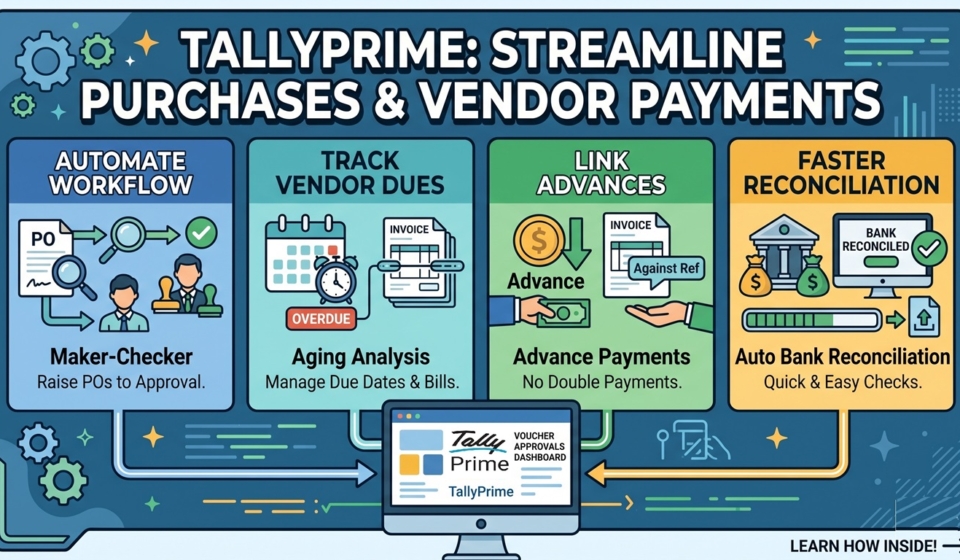
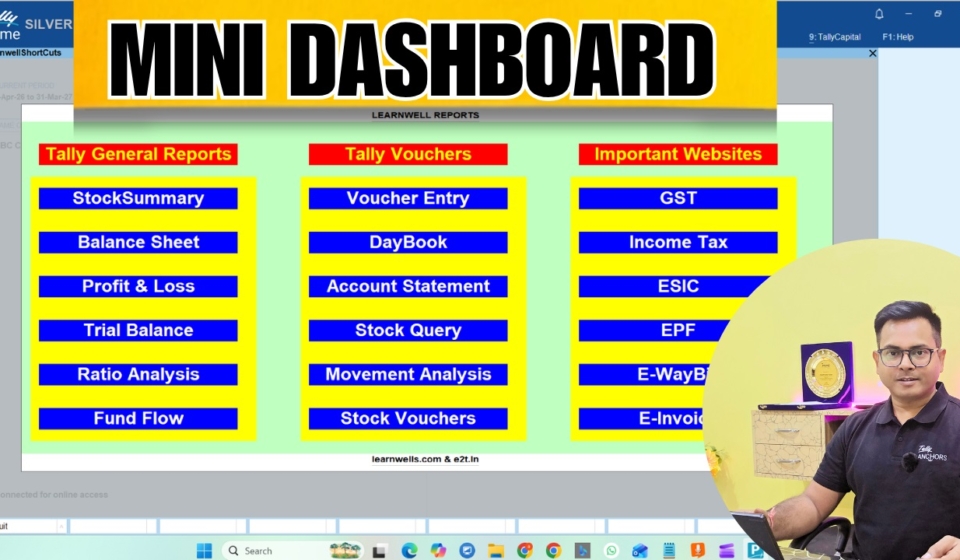
With this TDL code we can add sales and purchase rate of item in voucher , It will help us to prevent taking wrong amount at invoice time .This is best free TDL to have in your Tally . Must have TDL file for Tally ERP9 and Tally Prime that can use for lifetime.
It will work in all Tally versions. for more detail watch above Video.
FOLLOW THE BELLOW INSTRUCTIONS TO LOAD TDL FILE IN TALLY:
1. Copy the code and paste in a Text file. 2. Save the text file into your computer. 3. Copy the text file path including Name and extension (as – C:UsersHPDesktoprecParty Detail.txt) 4. Open Tally ERP9 OR Tally Prime 5a. Press F12 and goto Product and Features (for Tally ERP9)
5b. Click on Help and click on TDL & Addon (for Tally Prime)
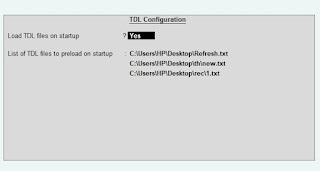
5. Press F4 (to open a Box) 6. Load TDL file on Startup – Yes 7. Paste The path in blank space 8. Press enter and save
With this TDL code we can talk with tally and can listen tally software voice. Try this tdl code and amazed everyone . TDL file for Tally ERP9 and Tally Prime that can use for lifetime.
It will work in all Tally versions. for more detail watch above Video.
TDL Code :
[#Field: EI Consignee]
Add : Option: EI ConsigneeSales: ($$IsSales:##SVVoucherType)
[#Field: ACLSLed]
Add : Option: EI ConsigneePayment: ($$IsPayment:##SVVoucherType)
[!Field: EI ConsigneeSales]
On: Accept: Yes : Exec COM Interface : Voice Interface :@@TomClsAmt
[!Field: EI ConsigneePayment]
On: Accept: Yes : Exec COM Interface : Voice Interface :@@TomClAmt
FOLLOW THE BELLOW INSTRUCTIONS TO LOAD TDL FILE IN TALLY:
1. Copy the code and paste in a Text file. 2. Save the text file into your computer. 3. Copy the text file path including Name and extension (as – C:UsersHPDesktoprecParty Detail.txt) 4. Open Tally ERP9 OR Tally Prime 5a. Press F12 and goto Product and Features (for Tally ERP9)
5b. Click on Help and click on TDL & Addon (for Tally Prime)
5. Press F4 (to open a Box) 6. Load TDL file on Startup – Yes 7. Paste The path in blank space 8. Press enter and save
With this TDL code we can open any computer application , or any bookmarks, or any Tally application. With This Tally TDL code we can save our lots of time and can work professionally . This Tally TdL make our work more effective and accurate. This is must have TDL file for Tally ERP9 and Tally Prime that can use for lifetime.
It will work in all Tally versions. for more detail watch above Video.
TDL Code :
[#Menu:Gateway of Tally]
add:button:Excel,Rest,Daybook
[Button:Excel]
Title:”Excel”
Key:Ctrl+X
Action:Exec Command:Excel.exe
[Button:Rest]
Title:”RestartTally”
Key:Ctrl+R
Action:Restart Application
[Button:Daybook]
Title:”Daybook”
Key:Ctrl+D
Action:Display:Daybook
HOW TO USE ABOVE CODE:
FOLLOW THE BELLOW INSTRUCTIONS TO LOAD TDL FILE IN TALLY:
1. Copy the code and paste in a Text file. 2. Save the text file into your computer. 3. Copy the text file path including Name and extension (as – C:UsersHPDesktoprecParty Detail.txt) 4. Open Tally ERP9 OR Tally Prime 5a. Press F12 and goto Product and Features (for Tally ERP9)
5b. Click on Help and click on TDL & Addon (for Tally Prime)
5. Press F4 (to open a Box) 6. Load TDL file on Startup – Yes 7. Paste The path in blank space 8. Press enter and save
With this TDL code we can show created by in Tally Invoice. In Tally Invoice there will be show Created By : and there user name print. This Tally TDL code will help you to do invoices professionally . This Tally TdL make our work more effective and accurate. This is must have TDL file for Tally ERP9 and Tally Prime that can use for lifetime.
It will work in all Tally versions. for more detail watch above Video.
TDL Code :
[#Part :EXPINV Jurisdiction]
Invisible:No
Add:Line:At End:LWCreatedBy
[Line:LWCreatedBy]
Field:ShortPrompt,Name Field
Local:Field:ShortPrompt:Info:”Created By”
Local:Field:Name Field:SetAs:$$CmpUserName
HOW TO USE ABOVE CODE:
FOLLOW THE BELLOW INSTRUCTIONS TO LOAD TDL FILE IN TALLY:
1. Copy the code and paste in a Text file. 2. Save the text file into your computer. 3. Copy the text file path including Name and extension (as – C:UsersHPDesktoprecParty Detail.txt) 4. Open Tally ERP9 OR Tally Prime 5a. Press F12 and goto Product and Features (for Tally ERP9)
5b. Click on Help and click on TDL & Addon (for Tally Prime)
5. Press F4 (to open a Box) 6. Load TDL file on Startup – Yes 7. Paste The path in blank space 8. Press enter and save
After loading this Tally TDL file press Alt+T and see magic.
Yes! With this amazing free Tally ERP9 and Tally Prime TDL code we can add a profit showing button on our Tally home screen. This Tally TDL will will help you to see profit of every invoice. This Tally TdL make our work more effective and accurate. This is must have TDL file for Tally ERP9 and Tally Prime that can use for lifetime.
It will work in all Tally versions. for more detail watch above Video.
TDL Code :
[#Menu:Main Menu]
add:Top Button :At Beginning :Profit
[button:Profit]
Title:”Sales Profit”
Key:Alt+T
Action:Trigger Key:D,A,S,Enter,F7
HOW TO USE ABOVE CODE:
FOLLOW THE BELLOW INSTRUCTIONS TO LOAD TDL FILE IN TALLY:
1. Copy the code and paste in a Text file. 2. Save the text file into your computer. 3. Copy the text file path including Name and extension (as – C:UsersHPDesktoprecParty Detail.txt) 4. Open Tally ERP9 OR Tally Prime 5a. Press F12 and goto Product and Features (for Tally ERP9)
5b. Click on Help and click on TDL & Addon (for Tally Prime)
5. Press F4 (to open a Box) 6. Load TDL file on Startup – Yes 7. Paste The path in blank space 8. Press enter and save
We work hard and need to do every thing perfectly. At this time most usable Accounting and Business software is Tally, and thanks to TDL Codes that can modify Tally according to our use.
Sometime we create vouchers like Sales, Purchase, Journal and Payment etc. , and feel if can attach any important scan document here. Yes! attaching a document in Tally Voucher save lots of our time to search in files and other places. Just open Tally and see the attached document. This will save our lots of time and prevent doing mistakes.
So I have something most important thing to do for you and your business.
With this amazing free Tally ERP9 and Tally Prime TDL code we can attach any document, when we creating vouchers and can see it latter.Your documents can be in JPG or Pdf or any form. This Tally TdL make our work more effective and accurate. This is must have TDL file for Tally ERP9 and Tally Prime that can use for lifetime.
It will work in all Tally versions. for more detail watch above Video.
TDL Code :
[#Part:VCHTitle2right]
Option:AttacType:@@IsSales or @@IsPurchase or @@IsPayment
[!Part:AttacType]
Add:Line:AtEnd:AttacTypeLw
[Line:AttacTypeLw]
Field:MediumPrompt,LWAttaType
Local:Field:MediumPrompt:Info:”Attachments:”
Local:Field:MediumPrompt:Width:8% Page
[Field:LWAttaType]
Use:Name Field
Storage:AttahedFileLW
Width:20
SetAs:#LWAttaType
Skip:$$InAlterMode
[#Form:Voucher]
Add:Top Button:At Beginning:OpenDoc
[Button:OpenDoc]
Title:$$LocaleString:”Open Attachment”
Key:Ctrl+O
Action:Browse Url Ex:#LWAttaType
[System:UDF]
AttahedFileLW:String:1101
HOW TO USE ABOVE CODE:
FOLLOW THE BELLOW INSTRUCTIONS TO LOAD TDL FILE IN TALLY:
1. Copy the code and paste in a Text file. 2. Save the text file into your computer. 3. Copy the text file path including Name and extension (as – C:UsersHPDesktoprecParty Detail.txt) 4. Open Tally ERP9 OR Tally Prime 5a. Press F12 and goto Product and Features (for Tally ERP9)
5b. Click on Help and click on TDL & Addon (for Tally Prime)
5. Press F4 (to open a Box) 6. Load TDL file on Startup – Yes 7. Paste The path in blank space 8. Press enter and save
Sometime we made invoices in low price from purchase rate and got loss by mistake. What if Tally stop billing if price goes higher that standard cost. Yes! it is possible.
With this amazing free Tally ERP9 and Tally Prime TDL code we can stop invoicing while Stock Item price goes higher than standard price in Item Sale Invoice. It calculate Item Batch standard rate in Voucher at Entry Time. This Tally TdL make our work more effective and accurate. This is must have TDL file for Tally ERP9 and Tally Prime that can use for lifetime.
It will work in all Tally versions. for more detail watch above Video.
TDL Code :
[#Field: VCH Batch Rate]
Add : Option : LearnwellSell : @@IsSales
[!Field : LearnwellSell]
Validate : ($$IsEmpty:$$Value OR $$Value >= $Standardprice:StockItem:$StockItemName)
[#Field: VCH Rate]
Add : Option : VCH Sales Rate : @@IsSales
[!Field : VCH Sales Rate]
Validate : ($$IsEmpty:$$Value OR $$Value >= $Standardprice:StockItem:$StockItemName)
HOW TO USE ABOVE CODE:
FOLLOW THE BELLOW INSTRUCTIONS TO LOAD TDL FILE IN TALLY:
1. Copy the code and paste in a Text file. 2. Save the text file into your computer. 3. Copy the text file path including Name and extension (as – C:UsersHPDesktoprecParty Detail.txt) 4. Open Tally ERP9 OR Tally Prime 5a. Press F12 and goto Product and Features (for Tally ERP9)
5b. Click on Help and click on TDL & Addon (for Tally Prime)
5. Press F4 (to open a Box) 6. Load TDL file on Startup – Yes 7. Paste The path in blank space 8. Press enter and save
With this amazing TDL code we can add Item Sale Type, Item HSN Code, Item Godown, Item Batch in Voucher at Entry Time. this Tally TdL make looks our voucher more effective and all required details in one line. This is must have TDL file can use with Tally Prime and Tally ERP9,
It will work in all Tally versions. for more detail watch above Video.
TDL Code :
[#Line:EI ColumnOne]
Add : Field : After : VCH ItemTitle:LWNote
[Field : LWNote]
Setas:$$LocaleString:”Sales Type”
SKIP:YES
[#Line:EI invinfo]
Add:Field:After:VCH StockItem:LWNoteDtl
[Field : LWNoteDtl]
Use : Name Field
Width : 15
Table : LWtbl
[Table : LWtbl]
Title : $$LocaleString:”Types of Sale”
List Name : Counter Sale,Marketing Sale, Campaign Sale, SalesMan Sale, � Not Applicable
Add : Right Field : Before : VCH QtyTitle: Learnwells1
[Field:Learnwells1]
Setas:$$LocaleString:”GODOWN”
Width : 30
SKIP:YES
[#Line:EI invinfo]
Add : Right Field : Before : VCHBilledQty :LearnwellsGDN
[Field:LearnwellsGDN]
Use:Short prompt
Setas:$BatchAllocations[1].GodownName
Width : 30
HOW TO USE ABOVE CODE:
FOLLOW THE BELLOW INSTRUCTIONS TO LOAD TDL FILE IN TALLY:
1. Copy the code and paste in a Text file. 2. Save the text file into your computer. 3. Copy the text file path including Name and extension (as – C:UsersHPDesktoprecParty Detail.txt) 4. Open Tally ERP9 OR Tally Prime 5a. Press F12 and goto Product and Features (for Tally ERP9)
5b. Click on Help and click on TDL & Addon (for Tally Prime)
5. Press F4 (to open a Box) 6. Load TDL file on Startup – Yes 7. Paste The path in blank space 8. Press enter and save
With this TDL file we can can add date and time in voucher narration field automatically. When you load this tdl file into tally, Tally vouchers will show your computer date and time in narration field.
This Auto Date and Time in Narration TDL file will work in all Tally versions like Tally Prime, Tally Erp9 etc. For more detail watch above Video.
TDL Code :
[#Field:vch Narration]
Set as:$$String:$MachineDate+” “+$$String:$$MachineTime
HOW TO USE ABOVE CODE:
FOLLOW THE BELLOW INSTRUCTIONS TO LOAD TDL FILE IN TALLY:
1. Copy the code and paste in a Text file. 2. Save the text file into your computer. 3. Copy the text file path including Name and extension (as – C:UsersHPDesktoprecParty Detail.txt) 4. Open Tally ERP9 OR Tally Prime 5a. Press F12 and goto Product and Features (for Tally ERP9)
5b. Click on Help and click on TDL & Addon (for Tally Prime)
5. Press F4 (to open a Box) 6. Load TDL file on Startup – Yes 7. Paste The path in blank space 8. Press enter and save
Sometime when we see outstanding report in tally, there is ledger name and its balances, then we feel and need group name in front of ledger name to see clear outstanding report. So With this Tally TDL code we can make our own outstanding report with Ledger Name, Group, and Debit Credit Closing Balances. This is best TDL for Tally Prime and ERP9 and Must have TDL.
This Outstanding Tally TDL will work in all Tally versions. For more detail watch above Video about How to make own outstanding reports with TDL Codes in Tally.
Set as :if $$IsDr:$ClosingBalance then $ClosingBalance else 0
width:30
[Field:ClosingCr]
Use:amount field
Set as :if Not $$IsDr:$ClosingBalance then $ClosingBalance else 0
width:30
HOW TO USE ABOVE CODE:
FOLLOW THE BELLOW INSTRUCTIONS TO LOAD TDL FILE IN TALLY:
1. Copy the code and paste in a Text file. 2. Save the text file into your computer. 3. Copy the text file path including Name and extension (as – C:UsersHPDesktoprecParty Detail.txt) 4. Open Tally ERP9 OR Tally Prime 5a. Press F12 and goto Product and Features (for Tally ERP9)
5b. Click on Help and click on TDL & Addon (for Tally Prime)
5. Press F4 (to open a Box) 6. Load TDL file on Startup – Yes 7. Paste The path in blank space 8. Press enter and save