

 Cart is empty
TL;DR:
How to Customise Invoice Formats in TallyPrime Without Coding? With the release of TallyPrime 7.1 (currently in Beta), the era of needing complex TDL coding for professional branding is over. You can now use built-in templates and a simple configuration screen (Ctrl+H) to add logos, banners, watermarks, and custom colors. These changes apply consistently across print, PDF exports, and emails, allowing you to transform a basic bill into a powerful brand asset in minutes.
Introduction: The Branding Problem
In my 20 years of consulting, I’ve often seen business owners settle for “standard” invoices because they didn’t want the headache of hiring a developer. I always tell my clients: a plain invoice does more than just ask for money, it reflects your brand’s authority. For a long time, if you wanted a specific font or a watermark, you had to write Tally Definition Language (TDL) code.
The new configuration-driven approach in TallyPrime 7.1 Beta changes the game. You no longer need to “develop” a format; you simply “configure” it. Whether you are a small trader or a large manufacturer, you can now ensure your invoices look as professional as your services without ever touching a line of code.
What are the New “Template-Based” Customisation Options?
The breakthrough in the 7.1 Beta release is the shift to a revolutionary template system. What I love about this update is the flexibility it gives you:
- Seven Ready-to-Use Templates: Tally now provides seven predefined formats that cater to different business styles.
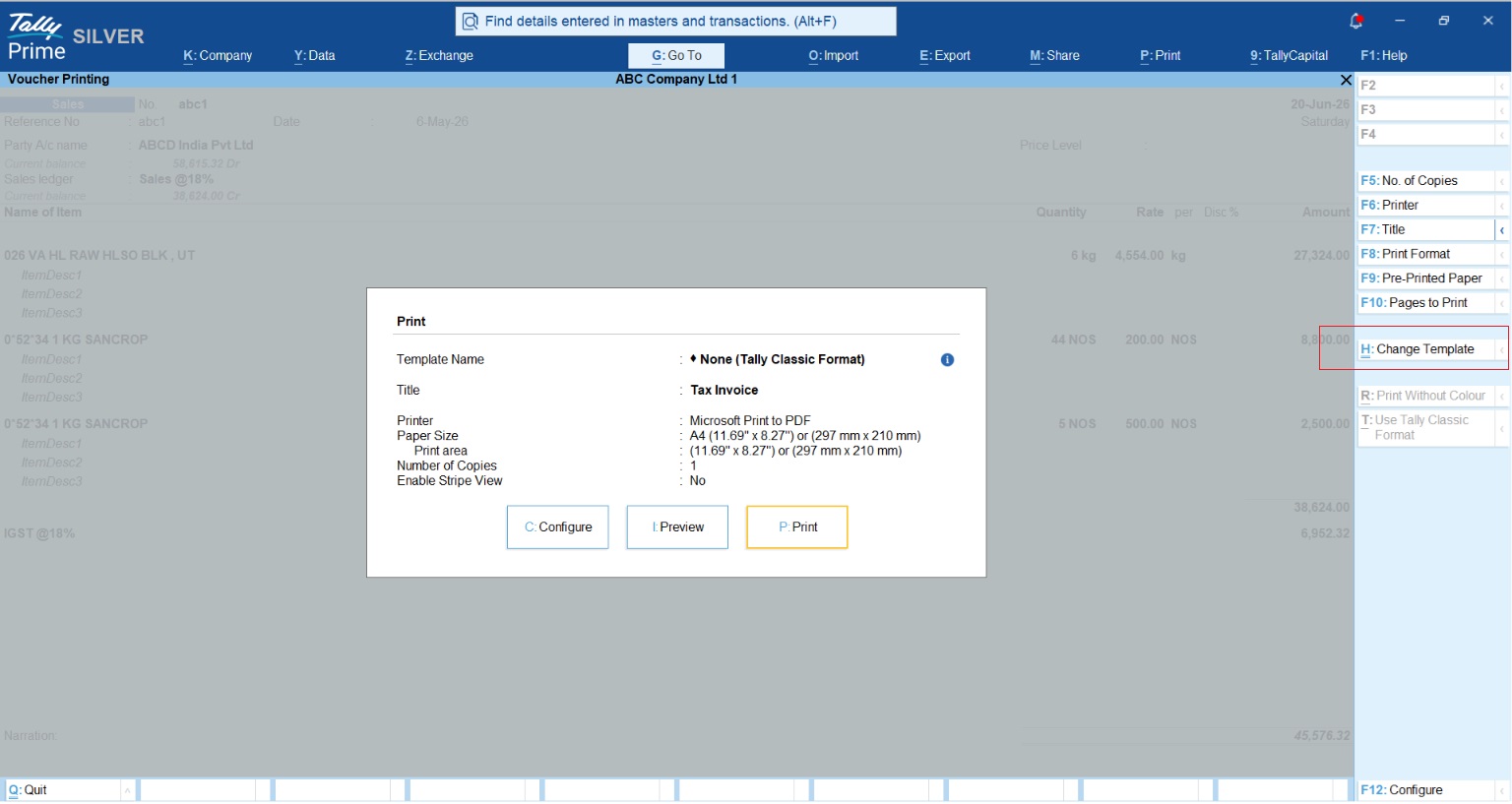
- The “Change Template” Feature (Ctrl+H): While viewing an invoice, you can hit Ctrl+H to cycle through templates and see a live preview of what fits your brand best.
- Consistency is Key: Once you set your design, it looks identical whether you are printing it on paper, exporting a PDF, or emailing it via the connected services.
How Do I Add My Logo and Brand Identity?
When I’m helping a client set up their identity, we look at three distinct areas. Here is how I suggest you handle them:
- Global Logo (F12): Navigate through Gateway of Tally > F12 > Printing. Enable “Include company logo.” I always recommend using a PNG format with transparency. This avoids that “white box” look if you decide to use colored headers.
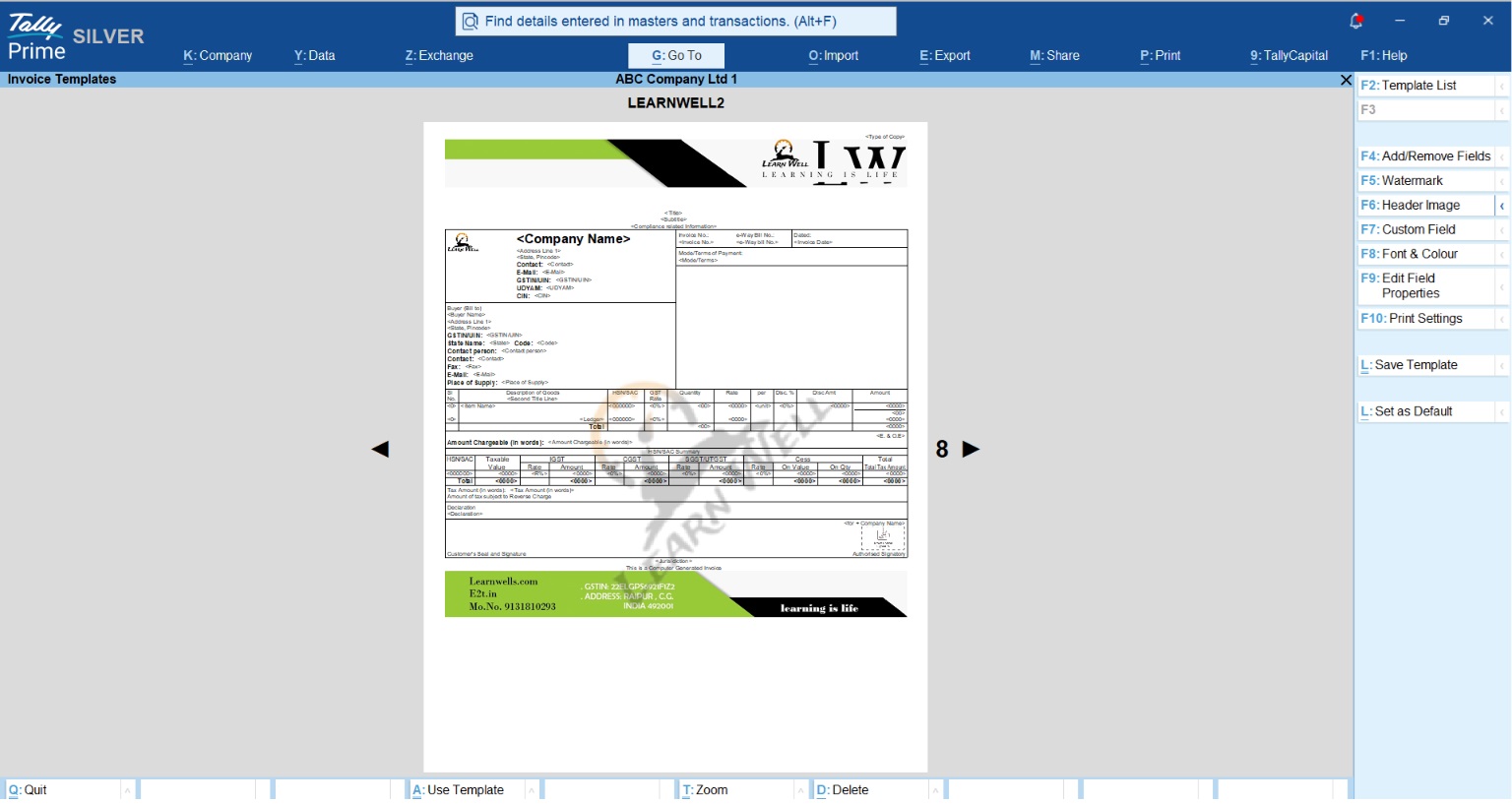
- Template Headers (F6): While the F12 logo is global, the F6 (Header Image) option in the Template screen allows you to add a full-width banner or specific company imagery. You can choose to apply this to the First page only or All pages.
- Colors & Fonts (F8): Within the Invoice Templates screen, press F8. You can choose your brand’s theme colors and professional fonts.
- Pro-Tip: You’ll see an option for “No Change.” I advise using this if you want to keep your specific field-level settings while only updating the overall theme.
- Custom Fields (F7): This is where it gets smart. Use F7 to add fields that you want. You can set “Company level” info (static text for every bill) or “Party level” info (which dynamically pulls details like a Carrier Name or Agent Name entered during the actual voucher entry).
Read Managing Purchase Orders, Sales Orders and Invoicing in TallyPrime: A Complete Guide for Traders
Can I Add Signatures and Watermarks Easily?
Authorizing a document shouldn’t be a manual chore. TallyPrime 7.1 Beta offers two professional paths:
- Image-Based Signatures: For daily invoices, a high-quality PNG signature works best. I suggest an image size of 1600×520 px for maximum sharpness.
- Digital Signatures (DSC): If you are exporting a secure PDF, Tally pulls the certificate from your connected USB dongle. You have a choice here: Tally can print the signature as “text only” or a professional “text and image” combination.
- Watermarks (F5): Press F5 to add status markers like “PAID” or “CANCELLED.” You’ll see a “List of Opacity Levels” and a “List of Sizes”, choose a lower opacity (like 15-20%) so the text doesn’t hide your invoice details. You can also toggle between Horizontal and Diagonal alignment.
What Must a GST-Compliant Invoice Include?
Professionalism is nothing without compliance. When using F4 (Add/Remove Fields), I tell my clients to ensure these fields are active to stay on the right side of the law:
| Field | Why it Matters |
| HSN/SAC Codes | Mandatory for GST compliance based on turnover. |
| Place of Supply | Determines if the tax is CGST/SGST or IGST. |
| Tax Breakdown | Shows the specific CGST, SGST, and IGST components. |
| Bank Details | Listed in the footer to ensure faster payment collection. |
Read Changing to the New GST Rates is Super Easy with TallyPrime
Real-World Context: Examples from the Field
- Example 1 (Automobile Dealership): One dealership I consulted for used the F6 banner to showcase their manufacturer branding. By adding specific delivery terms in the footer using Alt+F6, they saw a 30% drop in customer disputes regarding vehicle handovers.
- Example 2 (E-commerce Business): An online seller set a specific “Professional” template as the Default for all Sales Vouchers. Because their emailed PDF now looked identical to their printed packing slip, it built immediate buyer trust and reduced “unrecognized transaction” queries.
Conclusion & Actionable Checklist
Customising your invoices is no longer a technical hurdle; it’s a branding opportunity. With the 7.1 Beta features, you can ensure your business looks established and trustworthy from the very first bill.
Pro-Tip Checklist:
- Stick to PNG: Use transparent PNGs for logos to avoid “white box” borders.
- Set as Default: Once you’ve perfected a design, use Ctrl+L in the Template screen to save it as the default for that voucher type.
- Check Your Paths: Warning: If you move your logo image file on your computer, Tally will lose the link. Keep your brand assets in a permanent, backed-up folder.
- Always Preview: Use Ctrl+P > I to check the layout before you hit print or send.
Also read about TallyPrime Integrations: How to Extend Your Software Without Any Custom Development
FAQs
Do I need a DSC for every invoice?
No. An image-based PNG signature is legally sufficient for most buyer copies. DSC is typically used for specific secure PDF exports or portal filings.
Can I use different templates for different companies?
Yes. You can save templates for “This Company” or “All Companies”.
What is the ideal logo size?
For a clean fit on A4 or thermal paper, aim for a width of 150px to 300px.
Is coding required to change the font?
Absolutely not. In TallyPrime 7.1 Beta, just use F8 within the template settings to pick from the List of Fonts.
Can I add my FSSAI number easily?
Yes, use F7 (Custom Field) and select “Company Details” to add your license number to all your invoices.
“In 20 years of accounting, I’ve seen that a professional invoice doesn’t just ask for payment, it builds trust. With TallyPrime 7.1, you don’t need a developer to look like a pro.”
