

 Cart is empty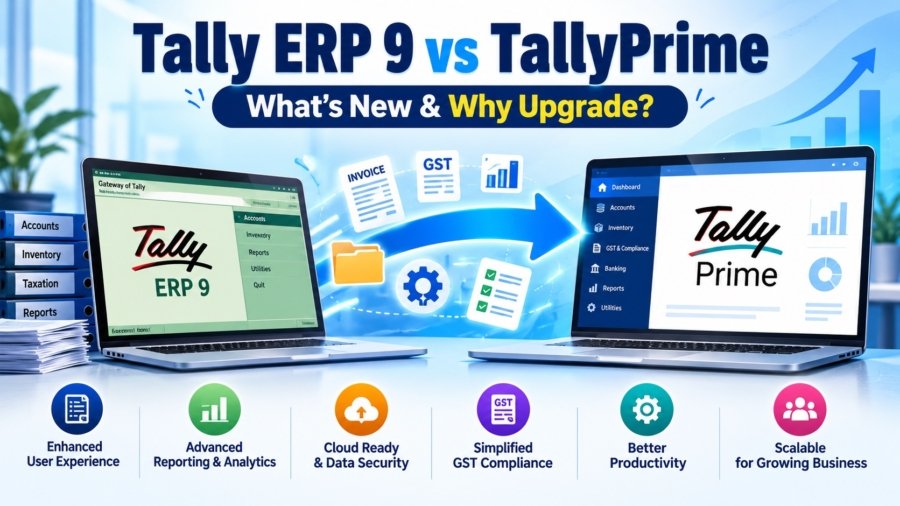
TL;DR
- Zero Workflow Friction: Upgrading from Tally ERP 9 to TallyPrime requires no complex data re-entry; your entire company history carries forward automatically with complete voucher and master compatibility.
- Preserved Speed: Accounting teams retain full entry speed using classic keyboard shortcuts (F4–F9, Ctrl+A, Alt+C) and identical voucher creation logic.
- Data Integrity: TallyPrime preserves your original 5-digit Tally ERP 9 company folder untouched while converting data into a new 6-digit structure (100000), ensuring zero risk of historical data loss.
- Modern Capabilities: Unlocks essential enterprise capabilities including ‘Go To’ (Alt+G) , multi-tasking search, direct connected e-invoicing/e-Way bill generation, auto-reconciliation of GSTR-2A/2B/IMS, connected banking, WhatsApp invoice sharing, AI-powered invoice processing, automated cloud backup via TallyDrive and audit-ready Edit Log features.
Is It Time to Say Goodbye to Tally ERP 9?
In my 20 years of advising businesses across manufacturing, retail, dealerships, construction, and e-commerce on ERP adoption and workflow optimization, I have evaluated dozens of core system upgrades. Upgrading to TallyPrime from Tally ERP 9 is seamless because your existing company data carries forward automatically, familiar voucher keys remain intact, and you gain essential modern automation features.
Business owners often worry that upgrading core accounting software will trigger operational downtime, corrupt historical data, or require extensive retraining for accounting personnel.
These anxieties are understandable, but unnecessary in this instance. TallyPrime was deliberately architected to protect your operational rhythm while removing daily friction from accounting, banking, and tax compliance workflows. Furthermore, as legacy systems become outdated and eventually lose support for critical statutory updates, transitioning now ensures your business remains future-ready, fully compliant, and completely uninterrupted.
What Stays the Same? (Why Your Team Won’t Lose Their Speed)
When transition anxiety arises among head accountants, my message is simple: your foundational accounting logic and daily keystrokes remain unchanged. TallyPrime preserves the exact operational speed established in Tally ERP 9.
- Dual-Folder Data Preservation: When you load your Tally ERP 9 company files into TallyPrime, the software converts your data into a new 6-digit company folder (e.g., 100000), leaving your original 5-digit Tally ERP 9 company folder (e.g., 10000) completely untouched in its original location. This dual-folder architecture guarantees zero data loss and absolute safety.
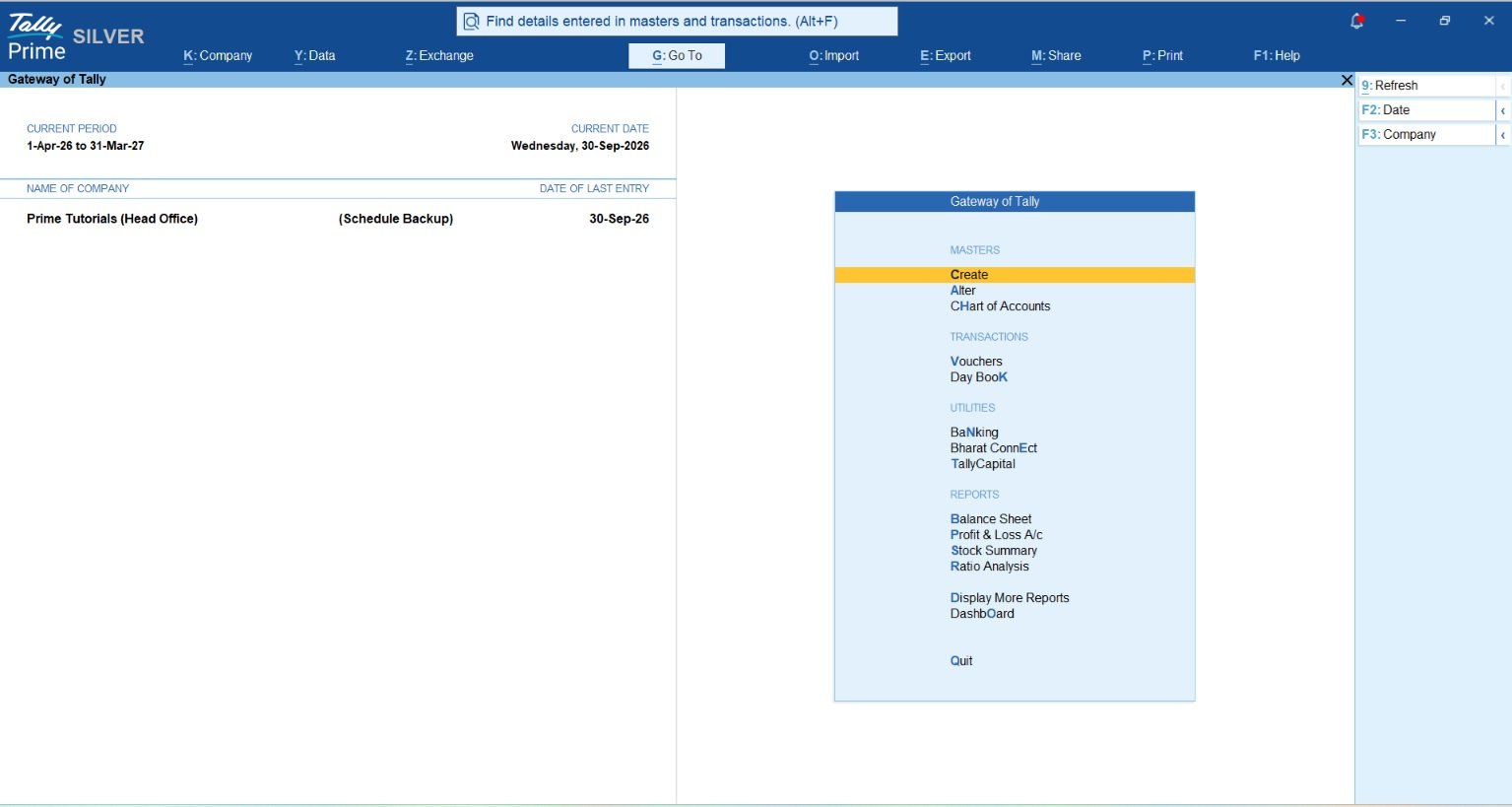
- Workflow & Menu Continuity: The logic of recording sales, purchases, journals, payments, and receipts is identical. Top-menu shortcut keys bring logical grouping to administrative tasks—such as Alt+K (Company Menu), Alt+Y (Data Menu), Alt+Z (Exchange Menu), Alt+O (Import Menu), Alt+M (Share Menu), and Alt+P (Print Menu)—without disrupting transaction workflows.
- Classic Keyboard Shortcuts: Your data entry speed is preserved. Standard shortcut keys transition seamlessly without requiring user retraining.
- Licensing Infrastructure: TallyPrime utilizes the exact same licensing system and Tally.NET user account framework as Tally ERP 9.
| Tally ERP 9 Feature | How It Functions in TallyPrime |
| Voucher Navigation Keys | Retains identical voucher hotkeys: F4 (Contra), F5 (Payment), F6 (Receipt), F7 (Journal), F8 (Sales), F9 (Purchase). |
| On-the-Fly Master Creation | Pressing Alt+C inside any transaction field opens master creation screens immediately. |
| Accept & Save Shortcut | Ctrl+A continues to instantly save screens, vouchers, and configuration updates. |
| Data Migration & Safety | Company data converts smoothly into a new 6-digit folder structure while maintaining original 5-digit folder files as an intact backup. |
| Licensing Infrastructure | Operates on the existing Tally Gateway Server and Tally.NET ID administrator login system. |
What’s New in TallyPrime? (Key Features That Save Hours)
While workflow continuity is preserved, TallyPrime introduces architectural enhancements designed to eliminate administrative overhead and manual report extraction.
How Does the ‘Go To’ Search Speed Up Daily Operations?
The flagship ‘Go To’ search bar (Alt+G) fundamentally changes navigation. In Tally ERP 9, opening a report required stepping backward out of your active transaction entry screen.
- Instant Search: Pressing Alt+G allows you to search for any report, master, or voucher type instantly from anywhere in the application.
- Uninterrupted Multi-Tasking: You can pause mid-way through recording a complex sales invoice, use Alt+G to check an outstanding customer bill or stock level in another warehouse, and return directly to your incomplete transaction with all typed data intact.
Universal Data Search via ‘Find’ (Alt+F)
While ‘Go To’ helps you navigate where you want to go, the newly enhanced global search bar at the top lets you find details entered in masters and transactions (Alt+F).
- Deep Data Retrieval: Pressing Alt+F allows you to search inside your business data. You can look up exact text strings, specific transaction amounts, voucher numbers, stock item names, or party details across your entire company data simultaneously.
- Time-Saving Resolution: Instantly locate a forgotten bill, track down a specific payment amount, or find a particular inventory item without manually digging through individual ledgers or daybooks.
How Does TallyPrime Simplify Compliance and Banking?
TallyPrime moves statutory compliance and financial management from external web portals directly into your accounting workspace.
- Connected GST & e-Invoicing: Generate e-Invoices and e-Way bills directly during voucher entry without manual JSON file downloads or web portal uploads.
- Automated GST Reconciliation: Reconcile incoming purchase data against GSTR-2A, GSTR-2B, and IMS automatically, identifying discrepancies in Input Tax Credit (ITC) before filing return reports directly.
- Connected Banking Capabilities: Features like connected banking capabilities streamline B2B payments, direct e-payments, electronic payment instruction exports, auto-reconciliation of bank statements, and electronic cheque management.
What Additional Modern Capabilities Are Included?
- Automated Cloud Backup: Built-in TallyDrive integration manages automated cloud backups of company data for reliable off-site disaster recovery.
- Docs by Ira: Speeds up document processing, allowing accountants to import, review, autofill, and save vouchers in bulk, smoothly.
- WhatsApp Integration: Share invoices, payment links, reminder letters, and financial reports directly to party WhatsApp numbers instantly.
- Audit-Ready Edit Log: Built-in Edit Log capabilities track master and voucher creation, modifications, and deletions. Crucially, TallyPrime automatically records the initial data migration activity itself as an audit trail entry, establishing full regulatory compliance from day one.
Step-by-Step Guide: How Do You Upgrade from Tally ERP 9 to TallyPrime?
Upgrading your application and migrating data is a structured, non-technical process:
- Check TSS Eligibility & Upgrade Path: Confirm your Tally Software Services (TSS) status. If your TSS expired prior to November 9, 2020, TSS renewal on Tally ERP 9 is discontinued, and you must take the paid upgrade route to move to TallyPrime.
- Pre-Migration Data Verification: Prior to migration, validate party GSTIN/UIN status, state details, and registration types. Configure your preferred HSN/SAC summary creation rules, and consult your Tally Partner to confirm that any custom TDL (Tally Developer Language) add-ons are compatible with TallyPrime.
- Back Up Your Data: Take a complete, compressed backup of your current Tally ERP 9 company data folder (5-digit folder) to an external drive or secure cloud location as a standard precaution.
- Download & Install: Download the setup file (setup.exe) from the official Tally portal. Run the setup wizard and select Install New to install TallyPrime into a distinct application directory (e.g., C:\Program Files\TallyPrime). This allows Tally ERP 9 to remain intact in its original folder.
- Reactivate License: Launch TallyPrime, click Reactivate Existing License, and enter your administrative Tally.NET ID and password to license the application.
- Load, Migrate Data & Post-Check: Select your existing 5-digit company data directory. TallyPrime will prompt you to migrate. Click Migrate; TallyPrime automatically creates a new 6-digit company folder (e.g., 100000) containing the updated format while preserving the original folder. Verify statistics via Day Book or Chart of Accounts, and press Alt+X (Repair/Migrate Exception) to resolve any flagged data exceptions.
Check your upgrade to TallyPrime from TallyERP9
Client Example: Lessons from the Field
The following scenario illustrates how a multi-location distribution client eliminated operational reporting bottlenecks by transitioning from Tally ERP 9 to TallyPrime.
The Challenge
A medium-sized trading business managing three physical godowns and a central showroom under Tally ERP 9 suffered severe delays in reporting. The business owner was constantly on the road, relying on phone calls to staff for daily receivables and inventory updates. Furthermore, warehouse operators recorded stock entries locally, leaving central management blind to real-time inventory shifts. Voucher creation was fast, but report extraction created daily administrative bottlenecks.
The Result
- Multi-Location Visibility: By establishing structured Godown and Location management hierarchies in TallyPrime, warehouse staff recorded inter-godown transfers using Stock Journals (Alt+F7), updating centralized inventory levels in real time.
- Remote Owner Access: Utilizing TallyPrime Reports in Browser on a mobile phone, the business owner tracked daily sales registers, cash balances, and outstanding receivables independently while traveling.
- Instant Invoice Dispatch: Account executives shared sales invoices directly via WhatsApp and downloaded PDF statements on the fly during customer calls, reducing payment collection cycles significantly.
- Uncompromised Entry Speed: The internal accounting team maintained their legacy voucher entry speed using standard shortcut keys, experiencing zero operational disruption during the migration.
Conclusion & Actionable Upgrade Checklist
Upgrading from Tally ERP 9 to TallyPrime is a no-risk decision that delivers immediate operational returns. By preserving your accounting team’s muscle memory while automating compliance, reporting, and banking tasks, TallyPrime ensures your financial operations remain agile and secure.
Pre-Upgrade Actionable Checklist
- Verify TSS Status: Determine whether your license qualifies for a free upgrade via TSS renewal or requires a paid upgrade path.
- Data Backup: Perform a full compressed backup of all 5-digit Tally ERP 9 company data directories.
- System Readiness: Ensure destination host machines meet hardware requirements (minimum 4 GB RAM, 64-bit operating system recommended; Microsoft Excel installed if Excel browser downloads are required).
- Master Data Sanity: Review and validate party GSTINs, registration types, and HSN/SAC summary configuration preferences.
- TDL Compatibility Check: Confirm with your Tally Partner that all active TDL add-ons are updated for TallyPrime.
- Schedule Timing: Plan installation and data migration during non-peak business hours to ensure zero operational downtime.
Also read Client Story: How One SME Cut Reconciliation Time in Half Using AI-Assisted Tools
Frequently Asked Questions (FAQs)
Is Tally.ERP 9 getting discontinued?
Tally.ERP 9 continues working, but software updates and TSS renewals are being discontinued. Upgrading to TallyPrime ensures continuous statutory compliance, modern software updates, and full product support.
Will my data be lost or corrupted during the upgrade process?
No. TallyPrime preserves your original 5-digit Tally.ERP 9 folder untouched while creating a new 6-digit migrated data folder, ensuring complete safety and zero risk of data loss.
Do my accountants need to learn entirely new keyboard shortcuts?
No. Classic voucher shortcuts like F4 through F9, Alt+C, and Ctrl+A function identically in TallyPrime, allowing your accounting team to retain their full daily entry speed immediately.
Is the upgrade to TallyPrime free for existing users?
Upgrading is completely free for licenses with active TSS on or after November 9, 2020. Expired licenses simply require renewing TSS or opting for a paid upgrade route.
Does TallyPrime support direct e-invoicing and GST reconciliation?
Yes. TallyPrime features direct connected e-Invoicing, e-Way bill generation, direct portal filing, and auto-reconciliation for GSTR-2A, GSTR-2B, and IMS data directly inside your accounting workflow.
What happens if my Tally Software Services (TSS) has expired?
If TSS expired before November 9, 2020, you must purchase an upgrade. For licenses expiring after that date, renewing TSS instantly unlocks the latest TallyPrime releases.
