

 Cart is empty
TL;DR:
How Small Businesses Can Track Who Owes Them Money Using TallyPrime? TallyPrime allows small businesses to track outstanding payments by linking every receipt to its specific invoice through the Bill-wise details feature:
- Enable Tracking: Turn on “Bill-wise details” in your company features (F11).
- Update Customers: Set customer ledgers to “Maintain balances bill-by-bill.”
- Record Sales: Select “New Reference” for every invoice to create a tracking ID.
- Record Payments: Select “Against Reference” to link money to specific old bills.
- Check Reports: Use “Receivable Reports” and “Ageing Analysis” to see who is late.
- Speed Up Cash: Use “Reminder Letters” and “Payment Links” to get paid faster.
Intro: Is Your Business Healthy or Just Busy?
In my years working with industrial units and dealerships, I’ve seen many owners work themselves to the bone only to find their bank accounts empty. If you are making sales but don’t have cash, your money is stuck in your “Receivables.”
Steady cash flow isn’t about knowing your “total balance”; it’s about knowing which specific bill is unpaid. I’ve seen too many owners lose track of which invoice GST was already paid on, or get into awkward arguments with good customers over bills that were actually settled months ago. Tracking your receivables properly is the secret to a healthy business, and today, I’ll show you how I set this up in TallyPrime.

What is “Bill-wise Tracking” and Why Should You Care?
Think of your accounting like a filing cabinet. In Tally, Accounting Groups are the big folders (like “Sundry Debtors”), and Ledgers are the individual files inside (your customers).
Standard accounting only shows the total weight of the file. But “Bill-wise Tracking” allows Tally to track every single invoice as its own unique item. Instead of just seeing that “Mr. Sharma owes ₹50,000,” you will see he owes for Invoice #101, #105, and #110. This stops the “muddling” of old and new dues, ensuring you always know exactly where your cash is sitting.
How Do I Start? (The One-Time Setup)
Setting the foundation takes less than five minutes.
Step 1: Enable the Billwise Feature in TallyPrime
- From the Gateway of Tally, press F11 (Features).
- Set Maintain bill-wise details to Yes.
- Press Ctrl+A to save.
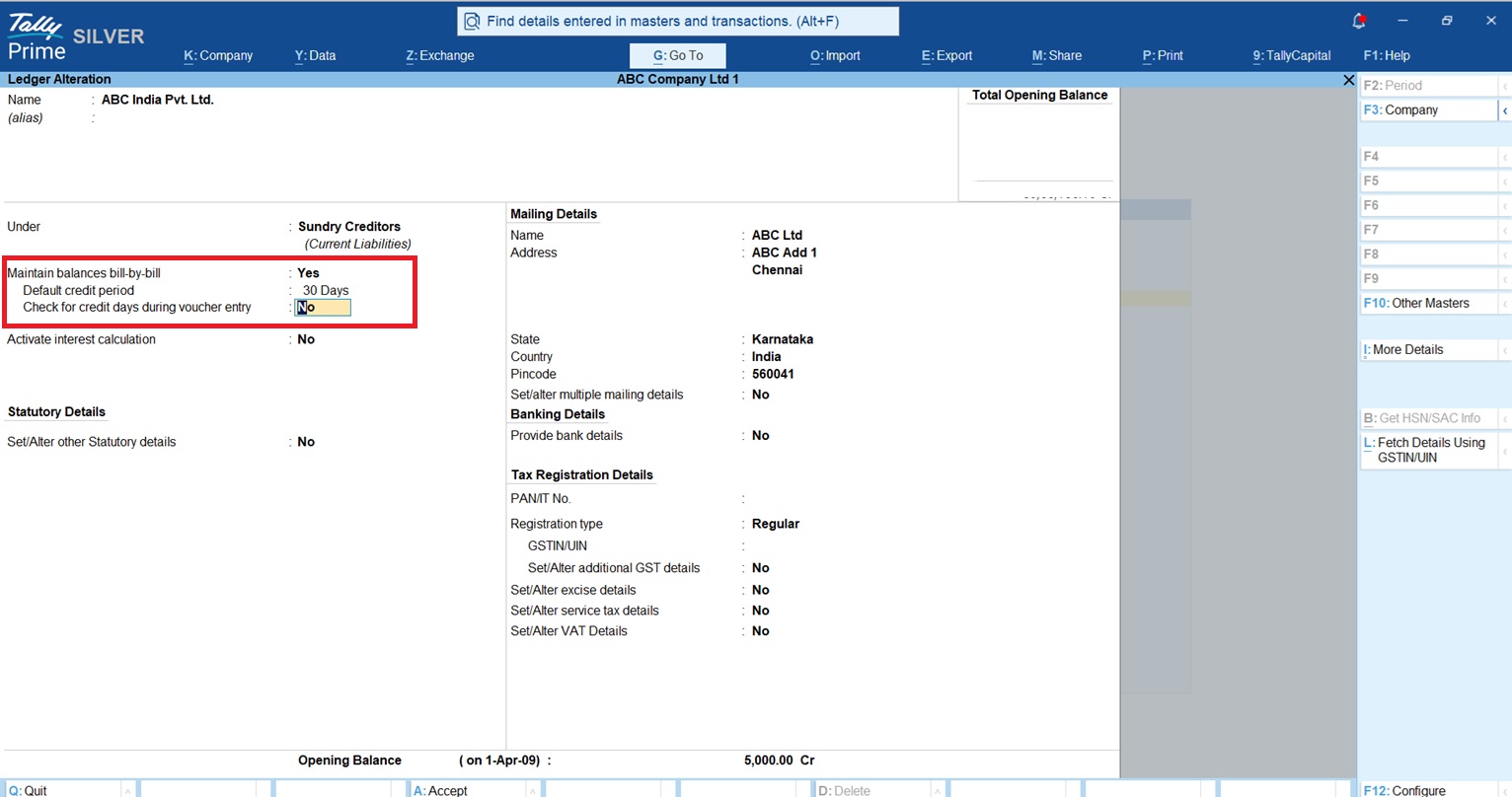
Step 2: Update Your Customers Ledger in TallyPrime
- Go to Gateway of Tally > Alter > Ledger and select a Customer.
- Set Maintain balances bill-by-bill to Yes.
- Set a Default Credit Period (e.g., 30 days). This tells Tally exactly when a bill becomes “late.”
Recording a Sale: What is a “New Reference”?
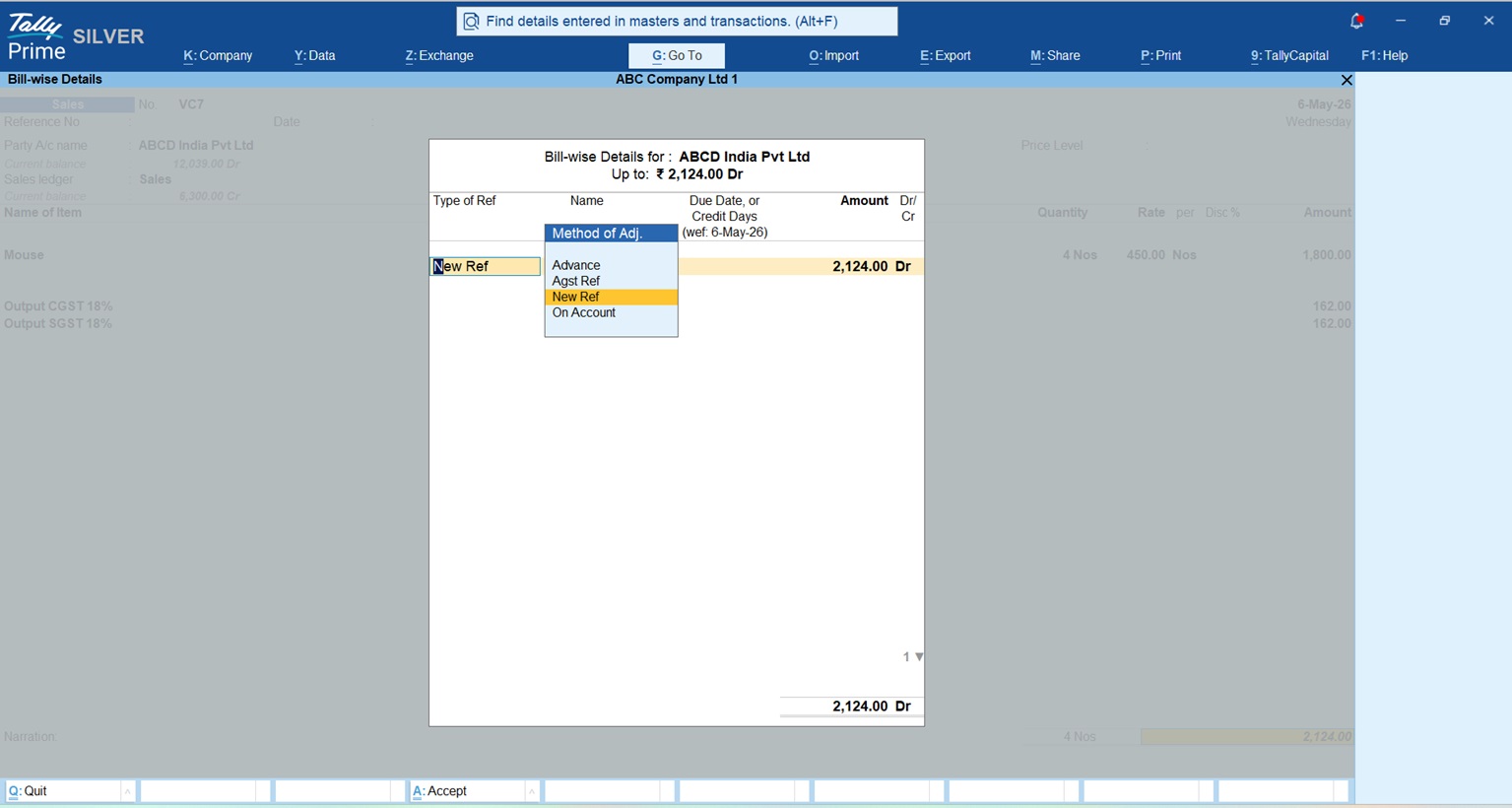
When you make a credit sale (F8), Tally needs to “name” this new debt. Imagine I’m selling 10 items to Mr. Nithin for ₹2124. After you enter the items and the total, the “Bill-wise Details” screen pops up.
- Select New Ref.
- In the Name field, Tally usually puts the invoice number. Keep it, it’s your tracking ID.
- Tally calculates the due date automatically based on your credit terms.
Pro-Tip: Always select “New Ref” for a sale. This is the specific command that tells Tally, “Add this exact amount to the list of money owed to me.”
Getting Paid: How Do I Clear the Bill?
When a customer pays you (F6-Receipt), you must link that money to the right invoice.
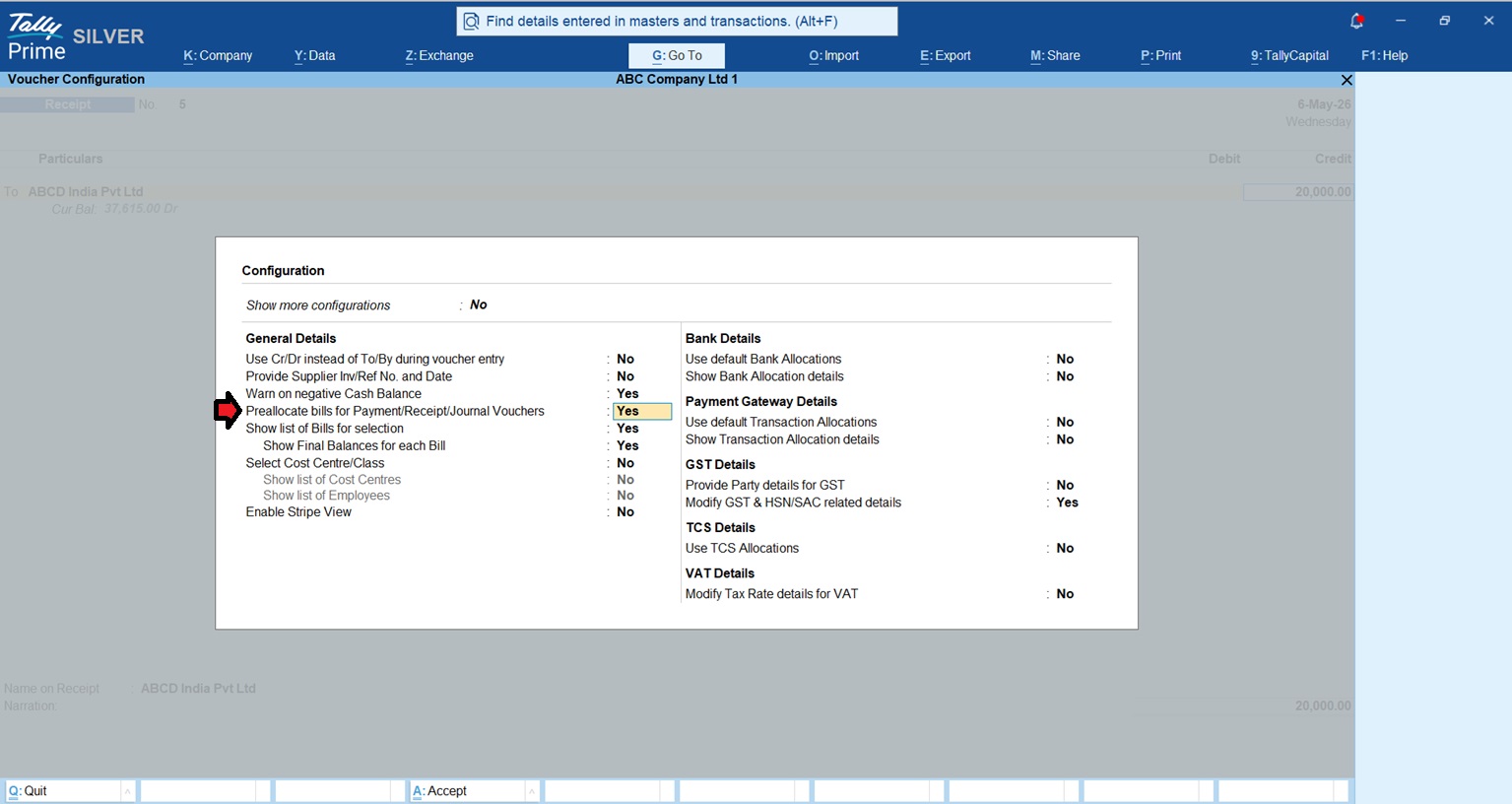
Before entering the amount, press F12 (Configure) in the Receipt voucher and set Pre-allocate bills for Payment/Receipt to Yes. Now, as soon as you select the customer, the bill list pops up first. You can select the bills they are paying, and Tally will fill in the total amount for you. No more manual math!
The “Against Reference” Rule: Always select Agst Ref (Against Reference) to link the payment. This “clears” the bill so it disappears from your “pending” list.
The “On Account” Warning: Using “On Account” is the number one cause of messy books. It’s a shortcut that reduces the total balance but leaves the old invoices marked as “unpaid” in your reports. Don’t let your staff use it as a shortcut!
Where Do I See Who Still Owes Me?
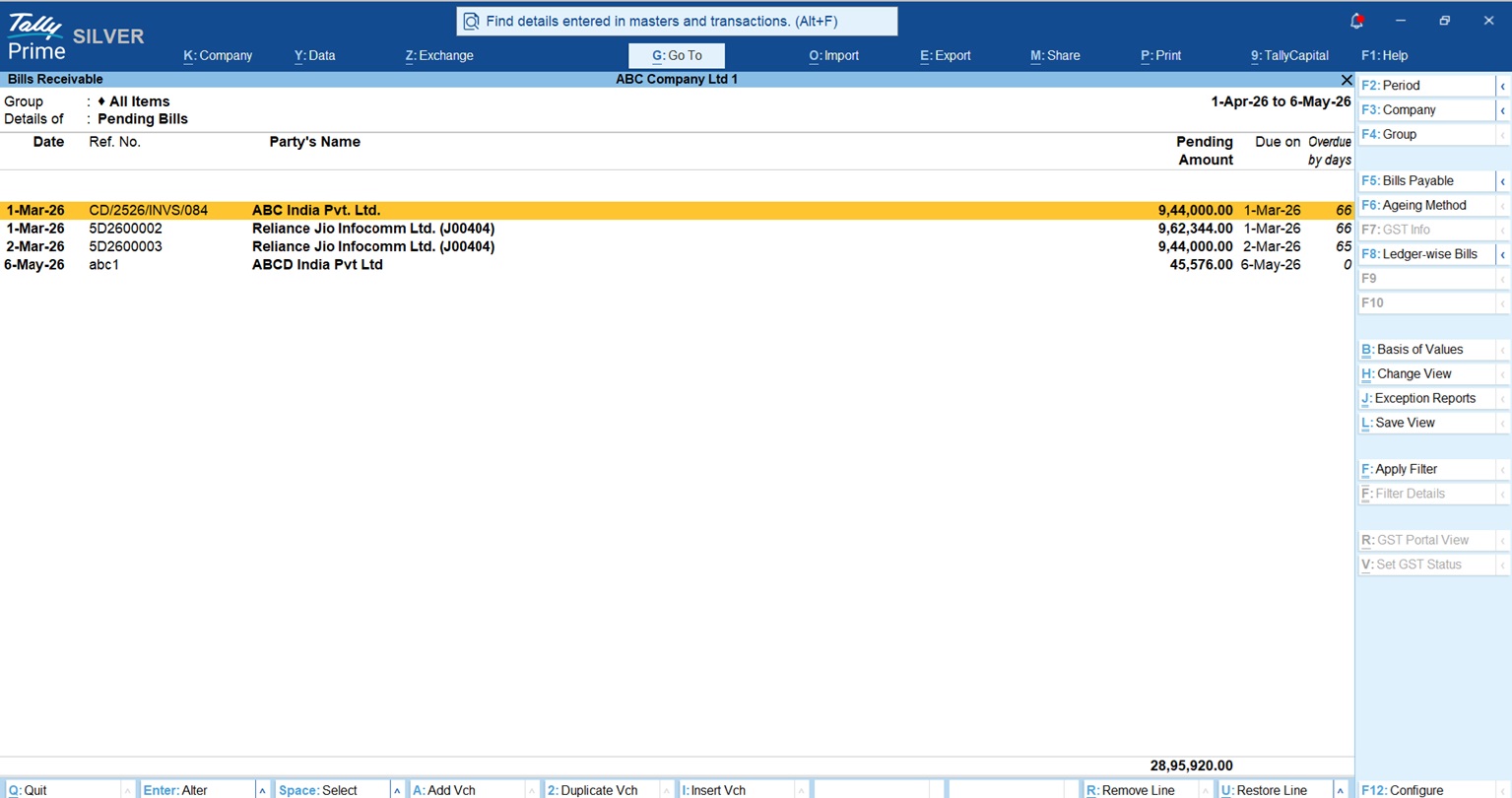
To see your money, go to: Gateway of Tally > Display More Reports > Statements of Accounts > Outstandings > Receivables.
Using Ageing Analysis: Inside the Receivables report, press F6 (Ageing Method). I always recommend Ageing by Due Date. This is the sanest way to run a business because it calculates “age” based on the actual credit agreement you made. A bill isn’t “old” until it has passed the date the customer promised to pay.
——————————————————————————–
Real-World Example: The “Late Payer” Math
Let’s look at a customer with a bill from 65 days ago. If you look at Ageing by Bill Date, it looks scary—65 days late!
But if you gave that customer a 30-day credit period, and you look at Ageing by Due Date, the bill is actually only 35 days overdue (65 minus 30). This math is crucial. When you call the customer, you can say, “Invoice #02 and #03 are now 35 days past its due date,” which is a much more professional and accurate way to collect your cash.
How Do I Remind Them? (Reminder Letters)
Stop writing manual emails. Tally can generate formal “Reminder Letters” for you.
- Go to Ledger Outstandings for a customer and press Alt+P (Print).
- In Print Configuration Set Report Type to Reminder Letter.
- To Customize the Tone: In Reminder Letter Information you can use a friendly tone for bills that are 1-30 days late and a formal tone for those over 60 days.
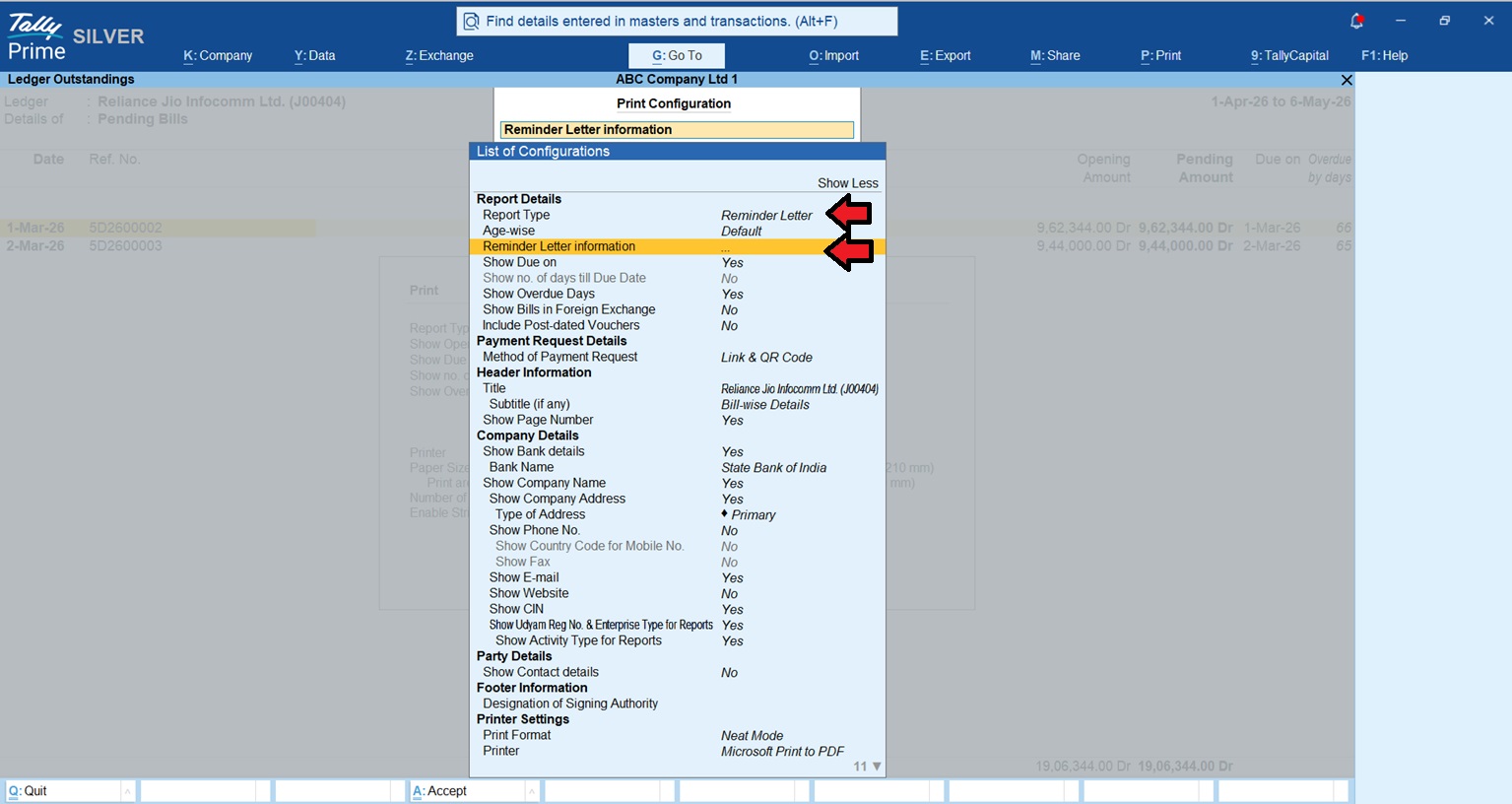
Check this Tallyprime Reminder Letter TDL
Conclusion: My Top Tips for Stress-Free Books
- Never skip the Bill-wise screen: Every entry must be “New Ref” or “Agst Ref.”
- Monday Morning Review: Check your “Receivables” report every single Monday.
- Clean up “On Account”: If you had to use “On Account” for a quick entry, adjust it to the correct bill by Friday evening.
- Use Credit Limits: In the customer ledger, set a “Credit Limit.” Tally will stop you from selling more if they already owe too much.
Know more about BillWise Feature in TallyPrime
FAQs
Q: What if I forget to select a bill reference?
A: Tally records it as “On Account.” You must later alter the voucher and select “Against Reference” to link it to the correct invoice and clear the report.
Q: What is the difference between Ageing by Bill Date and Due Date?
A: Bill Date tracks from the day you sold the item. Due Date tracks from the day the payment was actually expected after the credit period expired.
Q: Why does my report show a balance if the customer paid?
A: This happens if the payment was recorded “On Account.” It isn’t linked to the specific invoice, so the invoice still appears as “Pending” in the system.
Q: Can I set a maximum amount a customer can owe?
A: Yes. Use “Credit Limits” in the ledger master. Tally will warn you or stop the sale if the customer exceeds their allowed balance.
