

 Cart is empty
TL;DR
AI-powered invoice entry can improve accounting productivity when it works within the software accountants already use. With Docs by Ira in TallyPrime, businesses can extract invoice details from supported PDFs and images, autofill vouchers, import PDF bank statements, and prepare draft transactions for review. This reduces repetitive data entry, makes invoice processing more efficient, and allows accountants to focus on verification instead of typing. However, the real benefit comes from improving the complete accounting workflow, not just speeding up individual entries.
Introduction: The AI Promise vs. Accounting Reality
In my 20 years of accounting experience across retail, manufacturing, e-commerce, pharmacy, construction, and automobile dealerships, I have seen many changes in how businesses manage their accounts. From handwritten books to accounting software and now AI-assisted automation, the main objective has always been the same: complete accounting work faster without compromising accuracy.
Today, many AI tools promise to automate invoice processing. However, automation does not always mean better productivity. For example, if an accountant must upload invoices to an external website, review the results, download an Excel file, and then import that file into accounting software, the process may still require considerable time. The problem is not necessarily the AI technology. It is how that technology fits into the existing accounting workflow.
This is where integrated features such as Docs by Ira in TallyPrime can make a difference. Instead of relying on a completely separate data entry process, Docs by Ira allows accountants to import invoice documents and bank statement pdfs, autofill vouchers, or review draft transactions within TallyPrime. For businesses that already use TallyPrime, this can make AI adoption more practical.
Why Do Some AI Accounting Tools Create More Work Than They Save?
The Problem with Switching Between Multiple Applications
Accountants become familiar with the software they use every day. They know where to find reports, how to select ledgers, and which keyboard shortcuts help them complete transactions faster. When a new AI tool requires an entirely different interface, employees may need additional training. They may also spend time moving files between applications, checking imported information, and correcting formatting issues. For example, a typical external invoice processing workflow may involve:
- Receiving an invoice through email or WhatsApp.
- Uploading the invoice to an external AI application.
- Reviewing the extracted details.
- Exporting the information into Excel or another format.
- Importing the data into accounting software.
- Checking and correcting the final transactions.
Although AI reduces some manual typing, the additional steps can limit the overall time savings.
Why an Integrated Workflow Is More Practical
A feature that works within existing accounting software can reduce unnecessary steps. For example, accountants using TallyPrime can process invoices and import bank statements through Docs by Ira and review the resulting transactions within the same accounting environment. This helps reduce the need to repeatedly switch between different applications.
| Process | Integrated AI Workflow in TallyPrime | Separate AI Application |
| Primary Interface | TallyPrime | External application or website |
| Invoice Upload | Direct import via TallyIra mobile app or directly on TallyPrime | Through a separate interface |
| Data Transfer | Integrated document processing | May require export and import |
| Ledger Matching | Smart matching with TallyPrime masters | Depends on the application |
| Error Review | Highlights exceptions and mismatches | May require multiple screens |
| Final Accounting | Vouchers saved as draft in TallyPrime | Separate posting may be needed |
| Training | Familiar accounting environment | Additional interface training |
External AI applications can also be useful, particularly when they offer well-designed integrations. However, businesses should consider the complete workflow before choosing a solution.
Behind the Numbers: How 5 Different Businesses Made the Shift
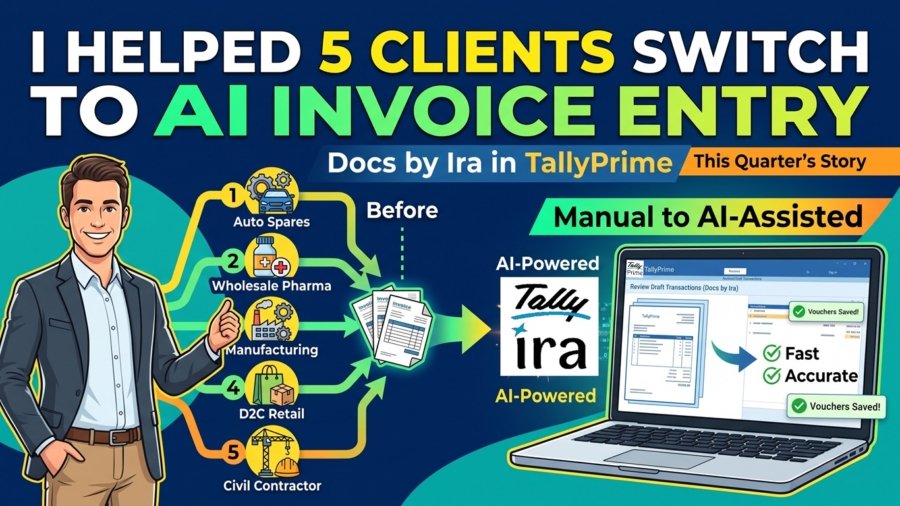
Over the past quarter, I worked hands-on with five diverse clients to transition their day-to-day purchase booking from traditional manual entry to AI-assisted document processing using Docs by Ira in TallyPrime. While their industries and transaction volumes varied drastically, each represented a common operational challenge accountants face every day.
1. The Multi-Brand Auto Spares Distributor: Taming Branch Document Chaos
- The Starting Point: Operating across a main central warehouse and three counter sales depots, this distributor received over 400 purchase invoices a month. Invoices arrived irregularly via branch WhatsApp groups, email PDFs, and driver delivery slips. The accounts team spent the first half of every week simply tracking missing physical bills and typing repetitive spare part entries.
- The Transition: We set up an organized intake process using the TallyIra mobile companion app for branch staff to snap photos at delivery, while digital supplier PDFs were imported in batches using Alt+O (Import) → Transactions (PDF & Images) at head office.
- The Result: Instead of waiting for physical couriers to arrive at month-end, the accounts team cleared draft batches daily. Entry turnaround dropped by nearly 50%, and supplier reconciliations moved from a quarterly headache to an ongoing routine.
2. The Wholesale Pharma Agency: Mastering High Line-Item Density
- The Starting Point: This agency dealt with pharmaceutical supply invoices averaging 30 to 60 line items per bill, featuring complex brand names, packing configurations, varying batch details, and split GST slabs (5%, 12%, and 18%). Manual typing was not just slow—it was an invitation for transcription errors.
- The Transition: Because product descriptions on supplier bills frequently differed slightly from existing stock item masters, we treated the Review Imported Transactions (Draft) screen as an essential bridge. The accountant mapped new medicine variants during the initial import run, after which TallyPrime remembered the master associations for subsequent bills.
- The Result: For complex 50-line invoices, processing time went from 15 minutes of tedious typing down to roughly 3 to 4 minutes of review and verification before hitting F10 (Save Vouchers).
3. The Light Engineering & Fabrication Unit: Clean Raw Material Allocation & Bank Statement Import
- The Starting Point: A small manufacturing unit purchasing raw steel sections, fasteners, cutting gases, and machinery spares. A significant problem was ledger misallocation, junior data entry staff frequently booked machine repair consumables as direct production raw material, distorting monthly job-work costing while high-volume vendor payments required tedious manual bank entry and reconciliation.
- The Transition: We moved the firm away from external spreadsheet imports and onto the integrated Autofill (Ctrl+F) and PDF bank statement import features directly within TallyPrime. This allowed their senior accountant to import bank transactions seamlessly, review extracted invoice rates, assign additional landed freight charges, and classify expense heads on the fly without breaking concentration.
- The Result: Faster voucher completion and effortless pdf bank entry and reconciliation without losing accounting precision. Raw material consumption reports and bank books became dependable because expense allocation and transaction verification happened directly at the point of entry.
4. The Consumer Retail & D2C Merchant: Ending the Multi-Screen Fatigue
- The Starting Point: A high-growth merchant selling home utilities both offline and through online marketplaces. They had previously tested a standalone cloud-based OCR utility. However, their accountant was forced into a tiring loop: downloading supplier invoices from vendor portals, uploading them to the third-party web tool, waiting for extraction, downloading an Excel report, and then re-importing it via an external bridge.
- The Transition: We cut out the external software layer completely. Vendor invoices were downloaded directly into an intake folder and processed inside TallyPrime via Docs by Ira.
- The Result: By keeping the entire cycle inside the accounting application they already understood, the firm eliminated file conversion mismatches, cut daily screen-switching fatigue, and halved the time spent closing weekly purchase balances.
5. The Civil Contracting Firm: Bringing Discipline to Site-Level Bills
- The Starting Point: Managing four residential renovation sites, this contractor received invoices for cement, aggregates, plumbing hardware, and local equipment rentals directly at project locations. Site supervisors frequently approved invoices without matching them against work orders, and cost allocations to individual job sites (Cost Centres) were chronically delayed.
- The Transition: Site bills were converted into draft transactions through document import. Rather than attempting to automate cost centre tagging through AI alone which often misinterprets project boundaries, we used the draft review stage specifically for project verification. The accountant confirmed that the extracted supplier, invoice date, and taxable value were accurate, then assigned the appropriate project Cost Centre before saving.
- The Result: Financial control was restored without burying the accountant in manual entry. The firm achieved real-time project-wise material cost tracking without adding extra administrative overhead.
What These Five Rollouts Revealed
None of these businesses succeeded by treating AI as a “magic button” that replaces accounting expertise. In fact, the businesses that gained the most value were those that recognized early on that faster typing is pointless if the accounting workflow around it is broken.
How Does AI-Assisted Invoice Processing & Bank Statement Import Work in TallyPrime?
Docs by Ira is an AI-powered document processing feature that helps businesses create accounting vouchers from supported PDF and image files. It extracts relevant transaction details and uses the information to prepare vouchers in TallyPrime.
How the Invoice Process Works
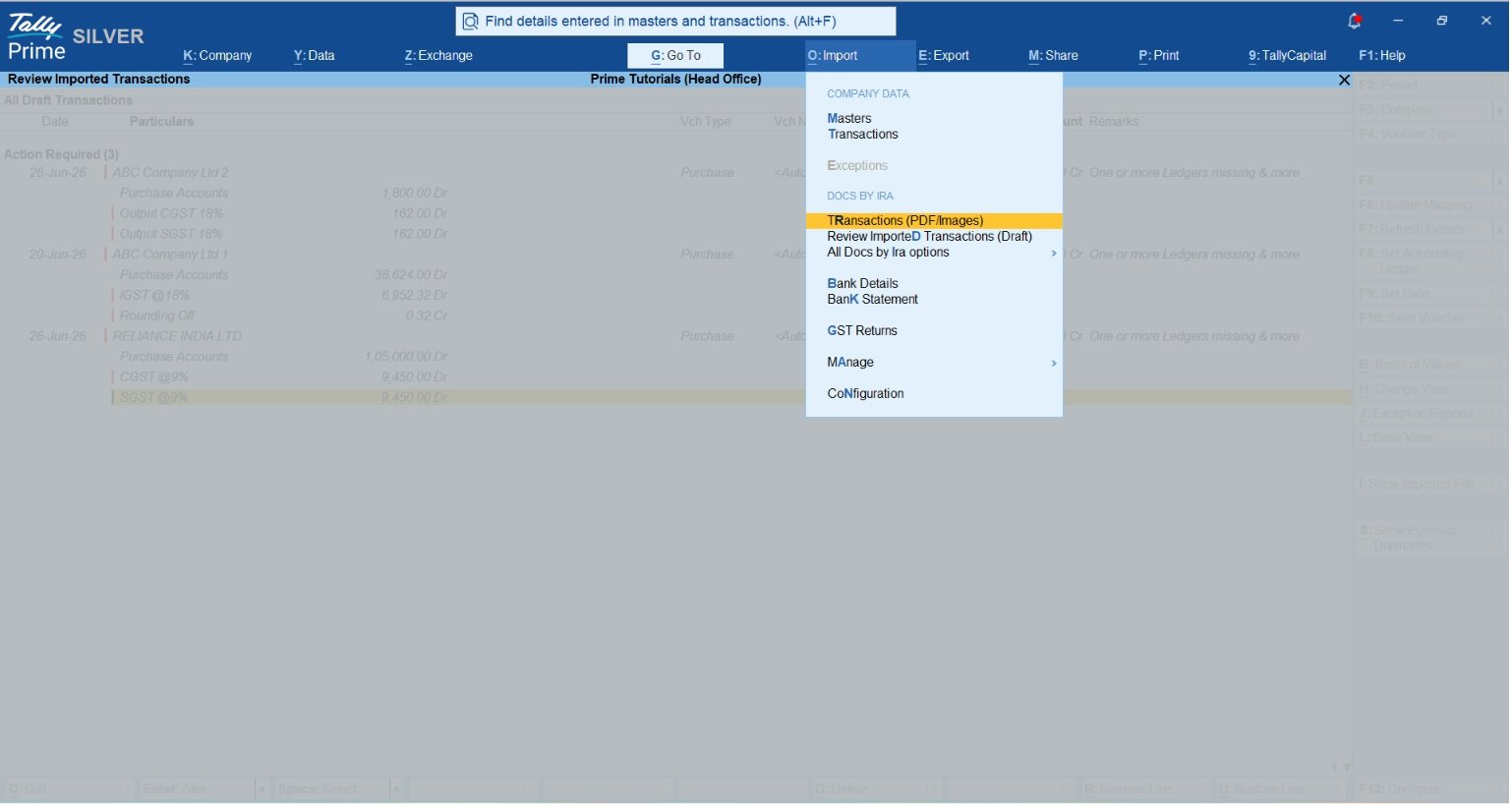
Step 1: Import the Invoice: Accountants can import supported invoices from their computers. In TallyPrime, use: Alt+O (Import) → Transactions (PDF & Images)
Step 2: Extract Invoice Details: Docs by Ira reads the document and extracts relevant information, such as:
- Supplier information
- Invoice number and date
- Item descriptions
- Quantities and rates
- Taxable values
- Tax amounts
- Invoice totals
The quality of extraction depends on how clearly the information appears in the document.
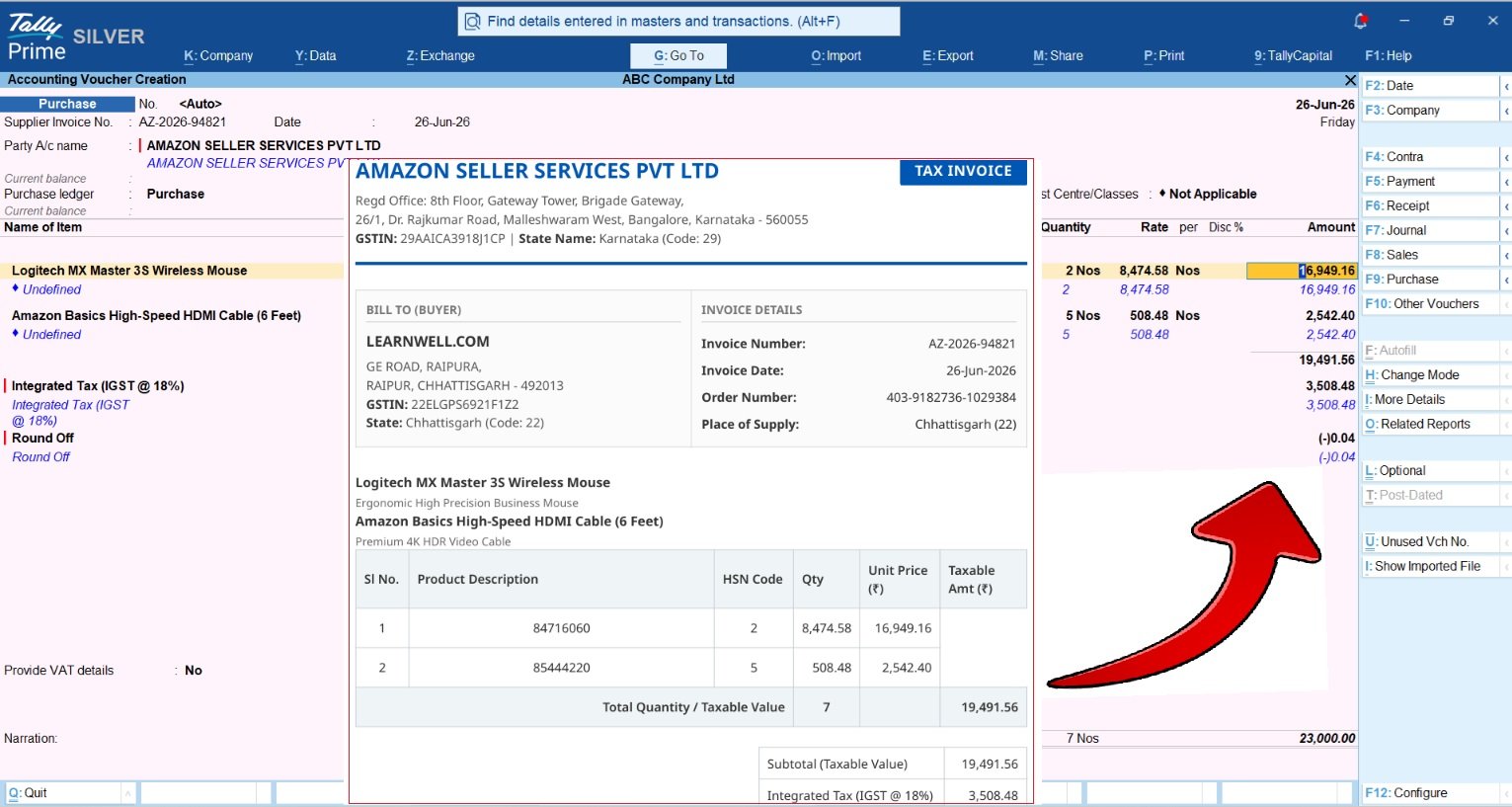
Step 3: Match Accounting Masters: The extracted information can be matched with existing TallyPrime masters. For example, the system may identify an existing supplier ledger or stock item.
If a required master is missing, users can create or map the relevant master during the review process.
Step 4: Review Draft Transactions: After importing documents, users can review the extracted transactions in the Review Imported Transactions (Draft) report. Transactions are grouped according to their review status.
If any details require attention, accountants can review the source document and resolve the relevant exceptions.
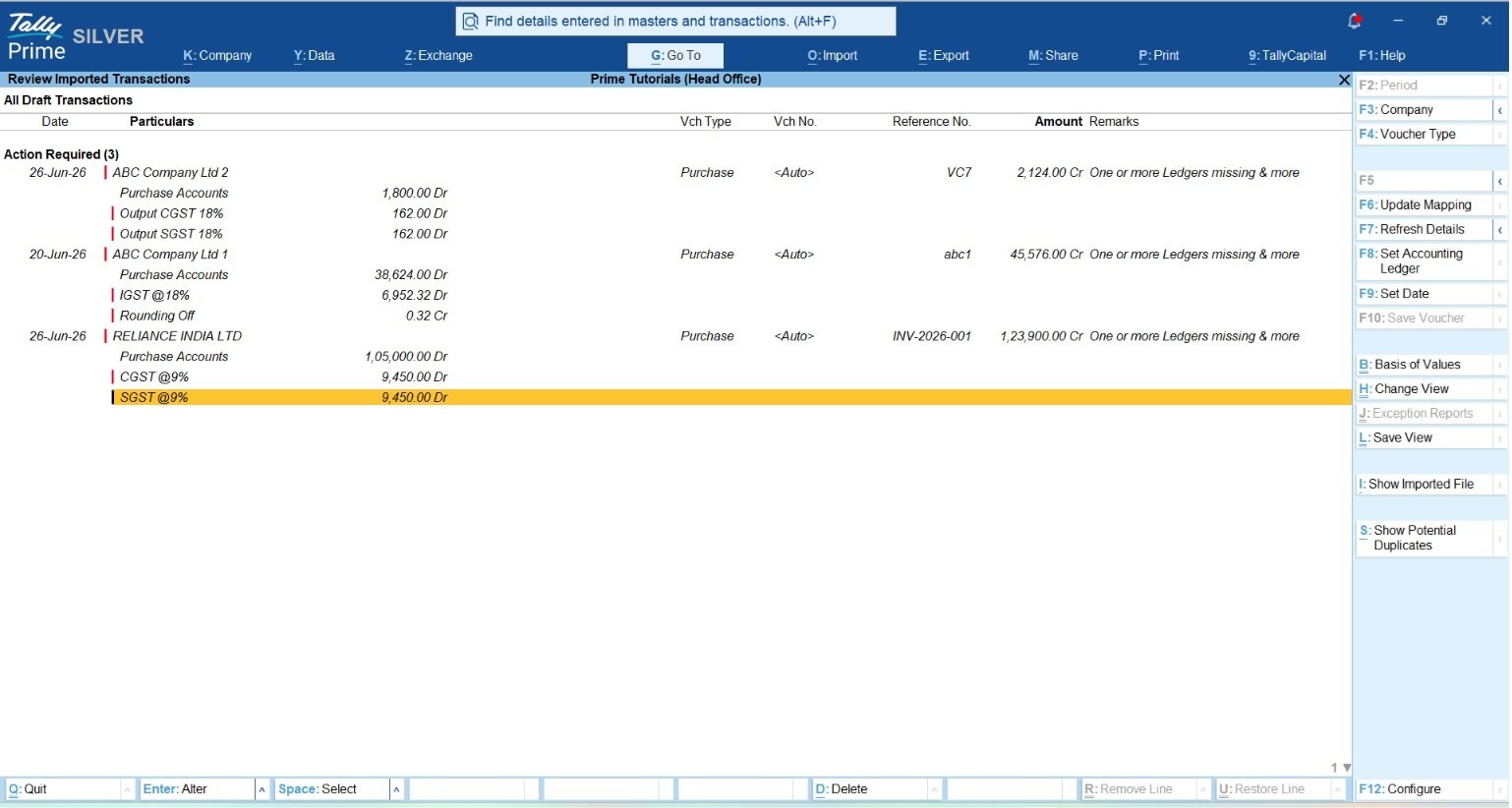
Step 5: Save Verified Vouchers: Once the information is correct, transactions under Ready to Convert can be selected and saved using F10 (Save Vouchers).
The vouchers then become part of the accounting records in TallyPrime.
AI-Assisted Workflow
Supplier Invoice → AI Data Extraction → Master Matching → Draft Transaction → Accountant Review → Voucher Saving
This process reduces repetitive entry while keeping accountants responsible for transaction accuracy.
Autofill Directly in the Voucher Screen
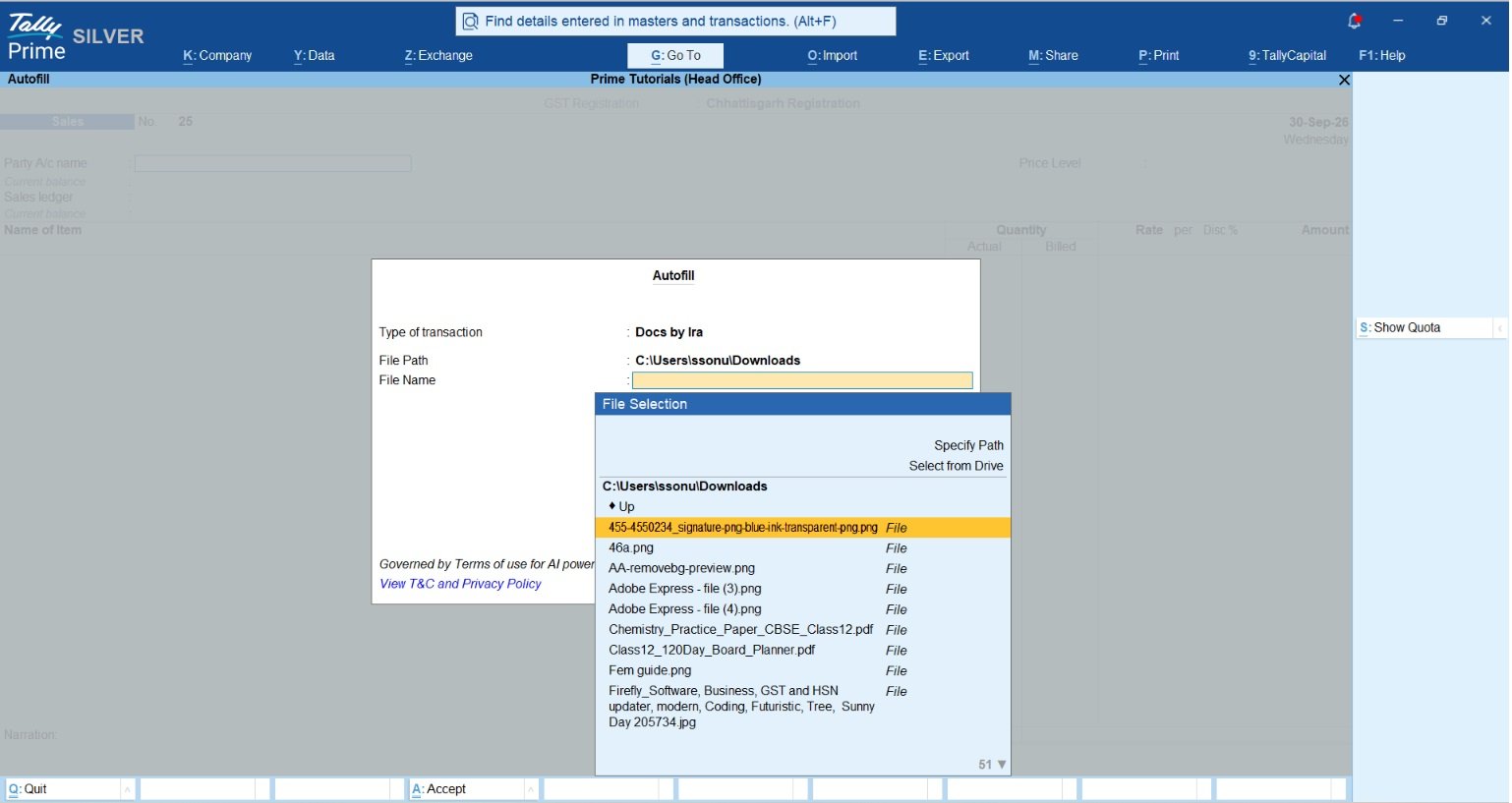
Docs by Ira also provides an Autofill option. While creating a voucher in TallyPrime, accountants can press Ctrl+F (Autofill), select Docs by Ira, and choose a supported invoice document. The extracted information is filled into the voucher, where the accountant can review and edit the details before saving. This is particularly useful when processing individual purchase invoices.
How Does PDF Bank Statement Import Work in TallyPrime?
Along with invoice processing, Docs by Ira extends automated document extraction to PDF bank statements. High-volume bank reconciliation and repetitive entry of payment or receipt lines often create severe administrative backlogs. Docs by Ira reads digital bank statements directly, categorizes transactions, and drafts corresponding vouchers inside TallyPrime without relying on manual Excel conversions or third-party converters.
How the Process Works
Accountants can import digital PDF statements issued by supported banks directly into TallyPrime without manual pre-formatting.
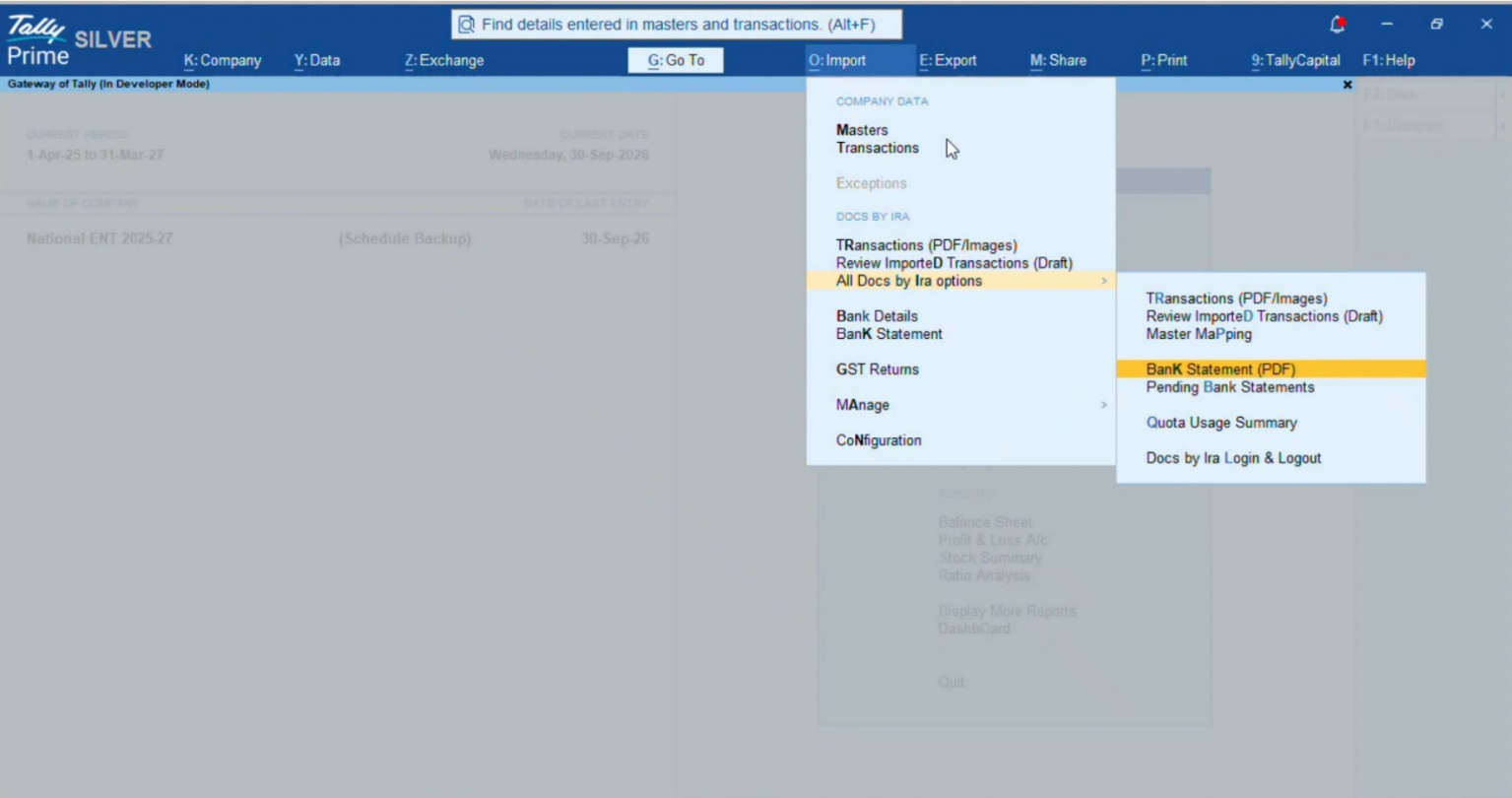
- Navigation: From Gateway of Tally, press Alt+O (Import) → select Transactions (Bank Statements / Docs by Ira).
- Select Bank Ledger: Choose the appropriate company bank ledger (e.g., HDFC Current Account, SBI CC Account, etc.) to which the statement transactions belong. This ensures all incoming entries are pre-mapped to the correct bank master.
- File Selection & Path:
- Specify the folder location (File Path) on your local computer or network drive where the statement is saved.
- Select the target PDF bank statement from the list of files.
- Password Handling (if encrypted): If the bank statement PDF is password-protected (standard for most banks using PAN, account number, or date of birth), TallyPrime prompts for the document password to decrypt and read the statement securely.
Once selected, TallyPrime initiates the extraction process to read and parse the transaction lines automatically.
Automated Transaction Extraction:
Docs by Ira extracts line-by-line financial records from the PDF statement, capturing:
- Transaction Date and Value Date
- Narration / Description string
- Cheque Number / UTR / Reference ID
- Withdrawal (Debit) and Deposit (Credit) amounts
- Closing and Running Balances
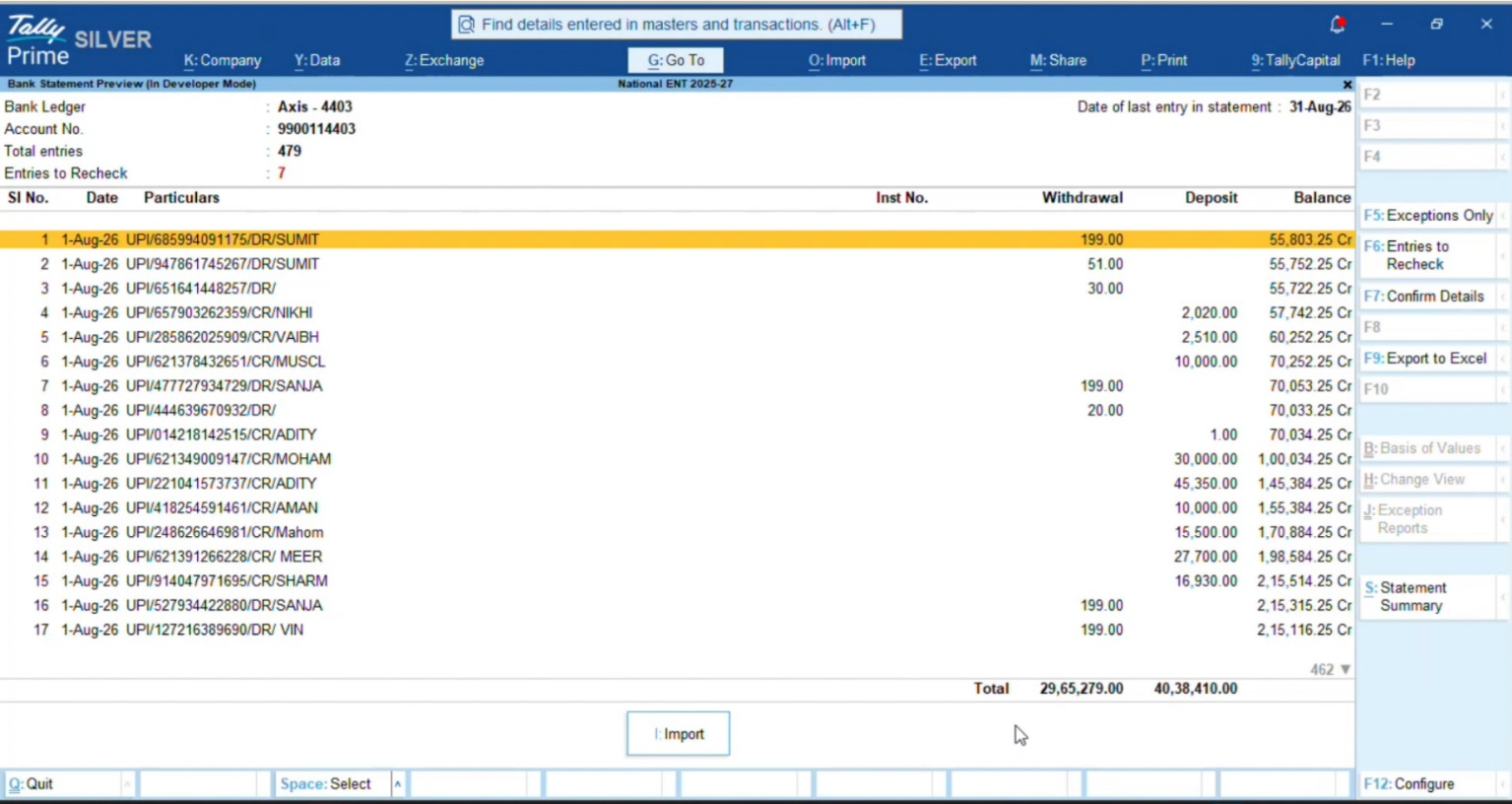
Review Exceptions & Confirm Details (Bank Statement Preview)
- Filter Flagged Entries (F5: Exceptions Only): For high-volume statements, press F5 (Exceptions Only) to isolate pending entries highlighted under Entries to Recheck. To view the entire document again, press F6 (All Entries).
- Confirm Details (F7: Confirm Details): Highlight any transaction requiring attention (such as unmapped UPI narrations, ambiguous vendor transfers, or missing expense heads) using the Spacebar, then press F7 (Confirm Details) to map ledgers and update transaction particulars directly from the preview interface.
- Verify Balances (S: Statement Summary): Press S (Statement Summary) from the right-hand panel to cross-verify total withdrawals, total deposits, and the closing statement balance against actual bank records before importing.
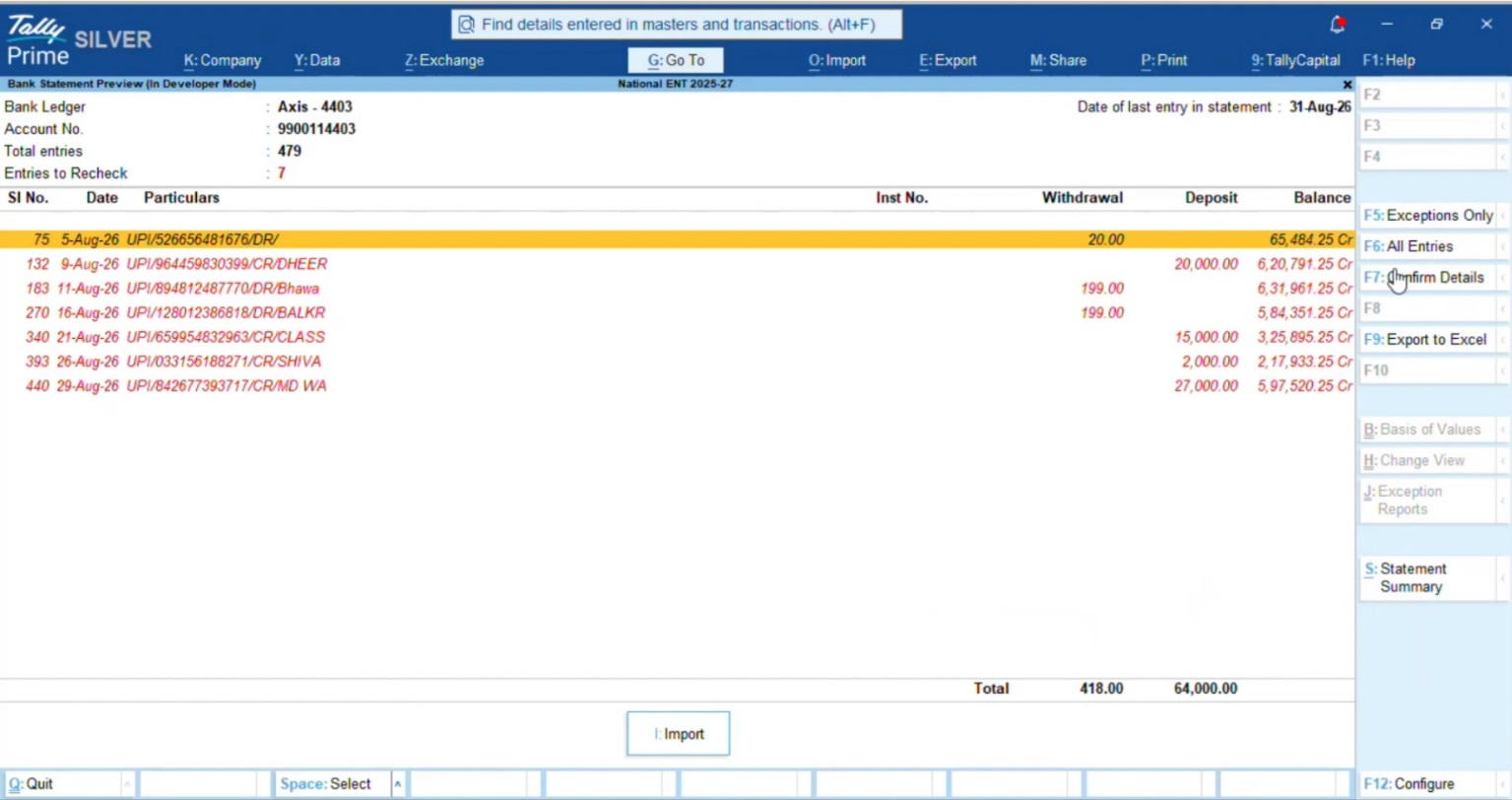
Import Transactions into TallyPrime (I: Import)
After reviewing and confirming all highlighted exceptions:
- Click the I: Import button at the bottom of the screen (or press I on the keyboard).
- TallyPrime processes the verified lines directly into the company data and displays the Summary of Imported Statement, showing the total number of imported entries alongside automatically matched records.
- Once vouchers are saved, bank ledger balances update in real time, completing the reconciliation process without manual voucher entry.
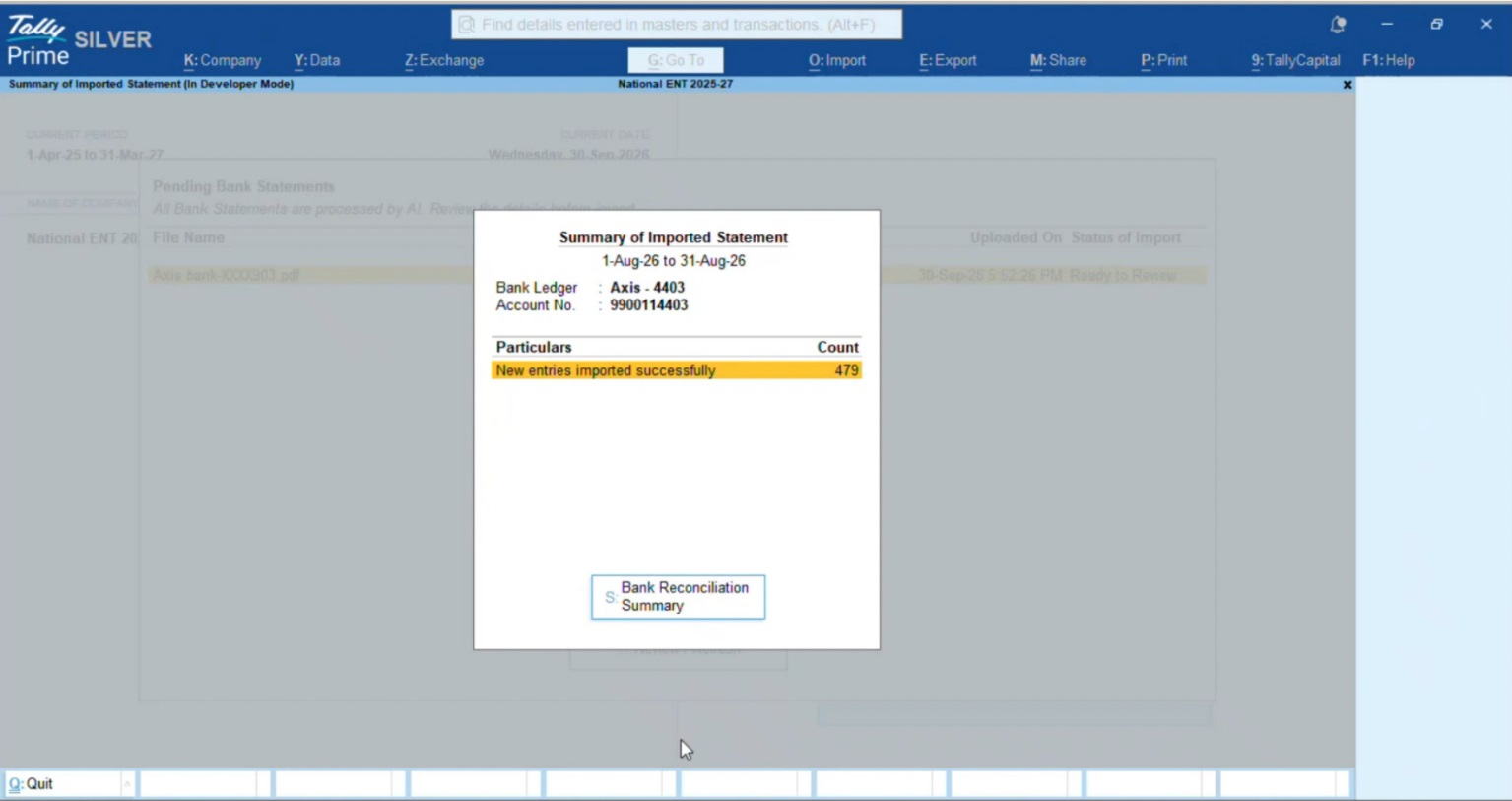
Bank Import Workflow at a Glance
PDF Bank Statement → Automated Extraction → Exception Review → Import into TallyPrime (I) → Reconcile Transactions (S)
Key Advantages for Accounting Teams:
- Zero Spreadsheet Preparation: Eliminates manual PDF-to-Excel conversions, repetitive CSV cleanup, and third-party utility dependencies.
- Effortless Bank Reconciliation: Seamlessly bridges bank statement lines with TallyPrime’s reconciliation screen, reducing turnaround time from days to minutes.
- Full Audit & Verification Control: Flags exceptions, mismatches, and unmapped ledgers in the preview screen, ensuring no entry is posted without accountant review and confirmation.
Why Is Human Review Important in AI Accounting?
AI can reduce manual effort, but extracted data is not always correct. For example, an invoice may contain similar product descriptions, multiple tax rates, or supplier information that does not match the existing accounting masters.
Even if an invoice total is mathematically correct, the accounting classification may still be wrong. An expense may be allocated to an incorrect ledger, or an inventory purchase may require a different treatment from a general expense. This is why human review remains essential.
The Importance of Review Before Saving
A practical AI accounting workflow should allow users to:
- Check extracted invoice information.
- Verify supplier and stock item mappings.
- Review GST and other tax details.
- Correct missing or incorrect information.
- Save transactions only after verification.
Docs by Ira supports this approach through its draft transaction review process. For example, when a transaction contains a missing master or date discrepancy, users can resolve the issue before creating the final voucher.
How Review Improves Accounting Accuracy
A review-based process helps businesses reduce the risk of:
- Incorrect supplier ledger selection
- Wrong stock item mapping
- Duplicate invoices
- Incorrect transaction dates
- Missing invoice information
- GST-related data entry errors
However, the review process does not automatically guarantee GST compliance. Accountants must still verify tax treatment, Input Tax Credit eligibility, and applicable reconciliation requirements.
Faster Data Entry vs. Better Workflow: What Actually Improves Productivity?
Speeding up invoice entry and bank statement processing is useful, but the complete accounting process matters more. For example, suppose a business spends five minutes entering an invoice or bank transaction line and another five minutes checking it, organising supporting documents, and completing the required accounting work.
If AI reduces the initial data entry time, the business saves time on that activity. However, the remaining verification, master mapping, and reconciliation steps still need to be completed. This means that businesses should evaluate AI based on overall workflow improvements rather than only the time required to create a voucher.
Comparing Different Invoice & Bank Statement Processing Methods
| Activity | Manual Entry | Excel/XML Import | Docs by Ira |
| Document / Statement Reading | Manual | Depends on data preparation | AI-assisted extraction from PDF invoices, images, and bank statements |
| Voucher Preparation & Reconciliation | Manual | Through structured import data | Draft vouchers, Autofill, and direct bank reconciliation link |
| Ledger Mapping | Manual | Depends on import configuration | Smart master matching for invoice parties and bank narrations |
| Tax & Transaction Details | Entered and verified manually | Depends on source data | Extracted GST rates, reference IDs, dates, and amounts for review |
| Bulk Processing | Time-consuming | Supported through imports | Supported document batches and multi-page bank statements |
| Error & Exception Review | Manual checking | Import errors and voucher review | Draft transaction exceptions and preview filters (Exceptions Only) |
| Final Saving & Reconciliation | Accountant | Import or accountant-controlled | Accountant reviews, saves vouchers, and reconciles entries |
Each method has its advantages. Excel and XML imports remain useful when businesses already have properly structured transaction data. Docs by Ira is particularly useful when the original information is available in supported PDF or image documents, whether supplier invoices or digital bank statements.
How to Measure Actual Productivity
Instead of relying only on advertised processing speeds, businesses should measure results using their own accounting data. Useful indicators include:
- Average time spent per invoice and bank statement line
- Number of invoices and bank transactions processed daily
- Time spent correcting errors and resolving statement mismatches
- Number of transactions requiring accountant review
- Time required for month-end closing and bank reconciliation
- Cost of processing invoices and banking entries
For example, if an accounting team spends 40 hours a month on manual invoice entry and bank statement reconciliation, and AI-assisted processing reduces that workload to 20 hours, the business saves 20 hours. At an illustrative staff cost of ₹150 per hour, this represents ₹3,000 of staff time that can be redirected toward higher-value accounting and advisory activities.
Practical Framework: My 4-Step Checklist for Implementing AI Accounting
From my accounting experience, I recommend following a simple four-step process before introducing AI-assisted invoice processing.
Step 1: Review How Invoices Are Received
Check whether your business receives invoices through:
- Digital PDFs
- Email attachments
- Scanned documents
- Mobile photographs
- WhatsApp messages
- Physical paper bills
Identify which documents are suitable for AI-assisted processing. Docs by Ira supports PDF and image documents.
Step 2: Choose a Workflow That Fits Existing Software
Before adopting an AI feature, check how easily it works with the accounting software employees already use.
If the business uses TallyPrime, Docs by Ira provides document import, Autofill, and draft transaction review within the accounting environment. This can reduce the need for separate data conversion and import processes.
Step 3: Keep Human Review in the Process
Accountants should verify important information before saving transactions. This includes:
- Supplier details
- Stock items and ledgers
- Invoice numbers and dates
- Quantities and amounts
- GST rates and tax values
- Invoice totals
The objective is to use AI for assistance while maintaining proper accounting control.
Step 4: Measure Overall Productivity
After implementing AI-assisted processing, compare the results with the earlier manual process. Measure invoice processing time, correction effort, monthly pending invoices, and overall accounting workload.Also consider document processing credits and other associated costs.
This helps businesses understand whether the AI feature is delivering practical value.
Conclusion: Real AI Productivity Comes from Better Accounting Workflows
AI invoice processing and bank statement import can improve accounting productivity, but technology alone is not enough. Businesses achieve better results when automation fits naturally into their existing accounting process and reduces unnecessary steps.
With Docs by Ira in TallyPrime, accountants can import supported bank statements and invoices, extract details, review draft transactions, and save vouchers after verification. The Autofill feature also allows users to prepare vouchers without leaving the familiar TallyPrime interface.
These capabilities can reduce repetitive entry and help accounting teams focus on more important work. However, businesses should continue maintaining accurate masters, checking GST details, and reviewing transactions before saving them. The goal of AI should not simply be to enter invoices faster. It should be to make the entire accounting process more efficient, accurate, and manageable.
“Real productivity from AI does not come from faster typing alone. It comes from reducing repetitive work while giving accountants more time to review, analyse, and make better financial decisions.”
Frequently Asked Questions (FAQs)
How does integrated AI reduce accounting workload?
Integrated AI reduces the need to move repeatedly between different applications. With Docs by Ira, accountants can import invoices and bank statements, autofill vouchers, and review transactions within TallyPrime.
Does Docs by Ira automatically save vouchers without review?
For bulk document imports, Docs by Ira prepares draft transactions for review. Accountants can resolve exceptions and save verified vouchers. With Autofill, users can review the extracted information in the voucher creation screen before saving.
How does Docs by Ira help with GST accuracy?
Docs by Ira extracts relevant invoice details, including supplier information and tax values, for review. This can help reduce manual entry errors. However, accountants must still verify GST classifications, tax treatment, and applicable reconciliation requirements.
Is Docs by Ira available directly within TallyPrime?
Yes. Users can access Docs by Ira through document import and Autofill options in TallyPrime after completing the required registration, activation, and login steps.
How much time can businesses save using AI invoice processing?
Time savings depend on invoice complexity, document quality, existing accounting masters, and the review process. Businesses should compare their own manual and AI-assisted processing times to measure actual productivity improvements.
Can Docs by Ira create missing ledgers or stock items?
Docs by Ira provides options to create or map missing masters during voucher processing. Accountants should verify the details before saving transactions.
